
1. Introduction
This manual provides detailed instructions for the installation, operation, and maintenance of your Roinvou 8 Core 4+64G Car Radio. This unit is designed to enhance your driving experience with advanced features such as a 9-inch touch screen, wireless/wired Apple CarPlay and Android Auto, Bluetooth 5.0, GPS navigation, WiFi connectivity, and support for a backup camera. Please read this manual thoroughly before installation and use to ensure proper functionality and safety.
2. Vehicle Compatibility
This car radio stereo is specifically designed for Mazda 6 models manufactured between 2007 and 2012. Before purchasing and installation, please verify your car's model and production year. It is recommended to compare the power cable port on the detail page with your original car's port to ensure compatibility.

Figure 2.1: Comparison of the dashboard before and after installing the Roinvou car radio in a Mazda 6 (2007-2012).
3. Package Contents
The following items are included in your package:
- Roinvou Car Stereo for Mazda 6
- Power Cable
- RCA Cable
- GPS Antenna
- AHD Backup Camera
- External Microphone
- Rear Camera Input Cable
- Dual USB Cable
- Installation Tool & Accessories

Figure 3.1: Package contents and dimensions of the Roinvou car radio unit.
4. Setup & Installation
4.1 Power Connection
If you encounter no sound after installation, connect the AMP wire in the power cable to the red ACC wire. Ensure all power cables are securely connected according to your vehicle's wiring diagram.
4.2 Reversing Camera Wiring
The reverse input cable must be plugged in even if the reverse camera is not being used. Failure to do so may affect Bluetooth and WiFi signal reception.
- Red Cable ①: Connects to the positive terminal of the car's reverse light cable.
- Black Cable ②: Connects to the negative terminal of the car's reverse light cable.
There is no need to connect the other two red extension cables ③ and ④.

Figure 4.1: Reversing Camera and CANBUS Wiring Diagram.
4.3 Steering Wheel Control Setup
To enable steering wheel controls:
- Without CANBUS Decoder: Connect the plugs or the steering wheel control wires (Key1/Key2) in the power cable to the corresponding port or wire of your original car. Then, go to the 'SteeringWheelkey' menu to manually match and activate the button functions.
- With CANBUS Decoder: Connect the CANBUS before powering on the machine. Follow this path: Apps > Settings > Factory Settings (1234) > CAN Settings. Select the brand of the CANBUS decoder, then select the matching model and year according to your actual situation to ensure SWC works properly.

Figure 4.2: Steering Wheel Control learning interface.
5. Operating Instructions
5.1 Apple CarPlay & Android Auto
The unit supports both wired and wireless Apple CarPlay and Android Auto. Connect your smartphone to access navigation, make calls, send messages, and enjoy media through the car's display. Use Siri or Google Assistant for voice commands.
5.2 Mirror Link
Mirror Link allows you to mirror your smartphone's screen onto the car radio display. This feature is compatible with both iOS and Android devices, enabling you to view apps, videos, or games from your phone directly on the larger screen.

Figure 5.1: Apple CarPlay, Android Auto, and Mirror Link functionality.
5.3 GPS Navigation
The unit features a built-in GPS module. You can use both offline and online maps directly. Offline navigation maps can be downloaded from the Play Store. For online maps, connect to WiFi or a hotspot.
5.4 WiFi & Hotspot
Connect the car radio to WiFi or a mobile hotspot to access online features. This allows you to download various applications from the Play Store, stream online music, and watch videos from platforms like YouTube.

Figure 5.2: GPS Navigation and WiFi/Hotspot connectivity.
5.5 Bluetooth 5.0
Equipped with Bluetooth 5.0, the unit supports hands-free calling and music playback. It includes both built-in and external microphones for clear communication. Features include dedicated music and call streams with zero interference, synchronization of contacts, and voice functions.
5.6 FM/RDS Radio
Enjoy high-quality FM/RDS radio with 18 preset stations. The radio provides channel broadcasting, weather forecasts, and real-time road conditions. Auto-sync RDS radio information (frequency/program name) is supported.

Figure 5.3: Hands-free Bluetooth and FM/RDS Radio interfaces.
5.7 AHD Reversing Image
When the vehicle shifts into reverse gear, the radio screen will automatically display the reversing image from the connected AHD backup camera, assisting with safe parking and maneuvering.

Figure 5.4: Steering Wheel Control and AHD Reversing Image display.
6. Features
6.1 Processor & Memory
The car radio is powered by an 8-Core processor, coupled with 4GB of RAM and 64GB of internal storage (ROM), ensuring smooth operation and ample space for applications and media.

Figure 6.1: 8-Core Processor with 4GB RAM and 64GB ROM.
6.2 Display & Customization
The unit features an ultra-clear 9-inch HD display with a resolution of 1280x720 pixels, offering wide viewing angles and readability in direct sunlight. It supports split-screen functionality.
- 19 Wallpaper Options: Easily switch between 19 different backgrounds by touching the color circle in the lower left corner of the screen.
- 59 Desktop Themes: Long-press the main interface to switch between 59 distinct desktop themes, allowing for personalized aesthetics.
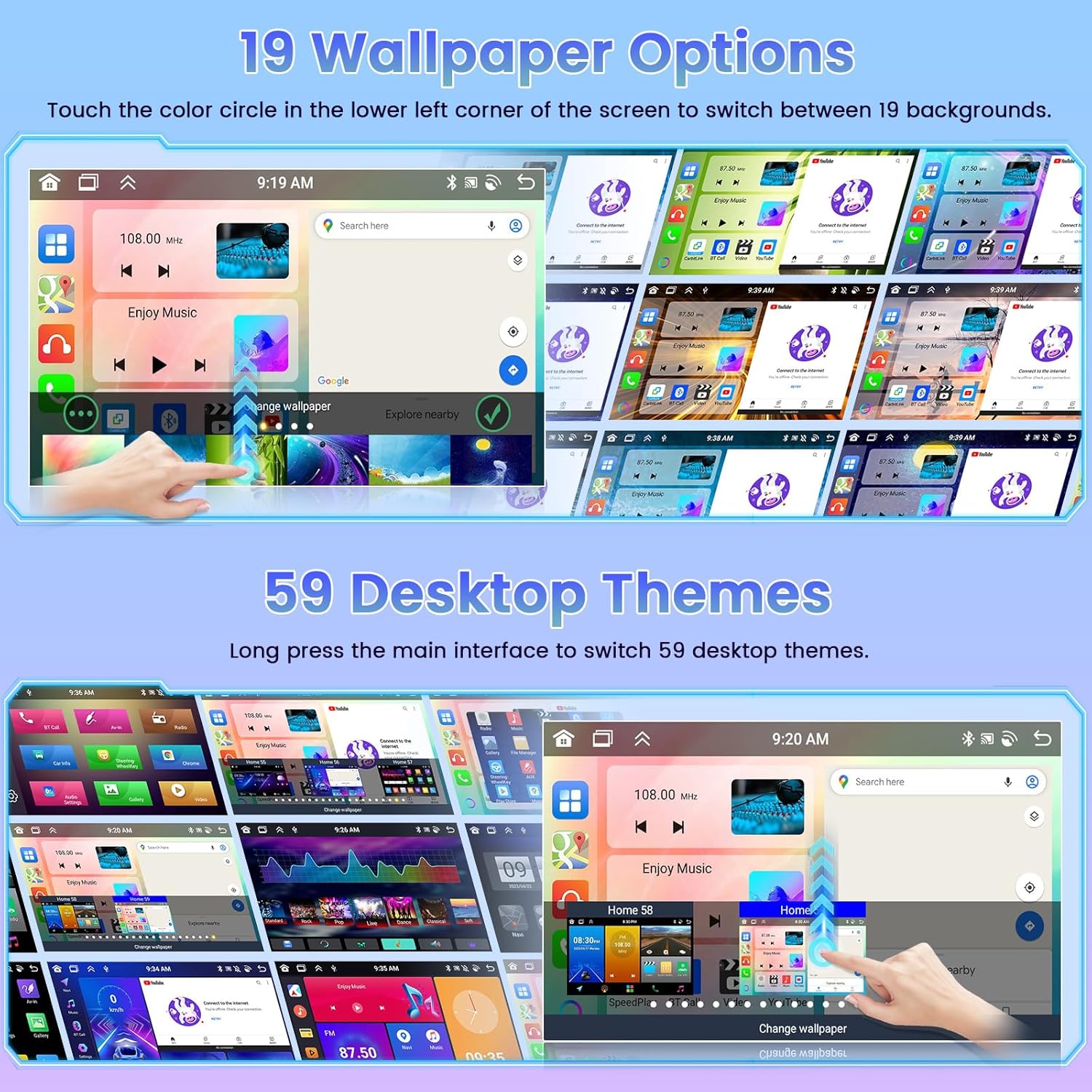
Figure 6.2: Wallpaper and Desktop Theme customization options.
6.3 Audio Equalization (32-Band EQ)
The integrated 32-band EQ tuning allows for precise audio adjustments, compensating for original speaker limitations and delivering improved lossless sound quality. Preset sound modes (Rock, Pop, Classic) are available, along with customizable EQ settings.
7. Troubleshooting
- No Sound: If there is no sound after installation, ensure the AMP wire in the power cable is correctly connected to the red ACC wire.
- Bluetooth/WiFi Signal Issues: Ensure the reverse input cable is plugged in, even if a backup camera is not in use, as it can affect signal reception.
- Steering Wheel Controls Not Working: Refer to Section 4.3 for detailed instructions on setting up steering wheel controls, depending on whether your vehicle uses a CANBUS decoder.
8. Specifications
| Brand | Roinvou |
| Model Number | 8 Core 4G+64G |
| Screen Size | 9 Inches |
| Resolution | 1280 x 720 |
| Operating System | Android |
| Memory Storage Capacity | 64 GB |
| RAM | 4 GB |
| Processor | 8 Core |
| Connectivity Technology | Bluetooth, USB, Wi-Fi |
| Bluetooth Version | 5.0 |
| Special Features | Wireless/Wired Apple CarPlay, Wireless/Wired Android Auto, Mirror Link, Voice Control, GPS Navigation, WiFi, Bluetooth, FM/RDS Radio, HD Touchscreen, SWC, 32-band EQ, 19 Backgrounds, 59 UI Themes |
| Supported Satellite Navigation System | GPS |
| Audio Output Mode | Stereo |
| Mounting Type | Dashboard Mount |
9. Warranty & Support
9.1 Warranty Information
This Roinvou car radio comes with a 1-year warranty from the date of purchase. Please retain your proof of purchase for warranty claims.
9.2 Customer Support
For any questions, technical assistance, or support, please contact Roinvou customer service. You can typically find contact information on the seller's page or through the provided email address.
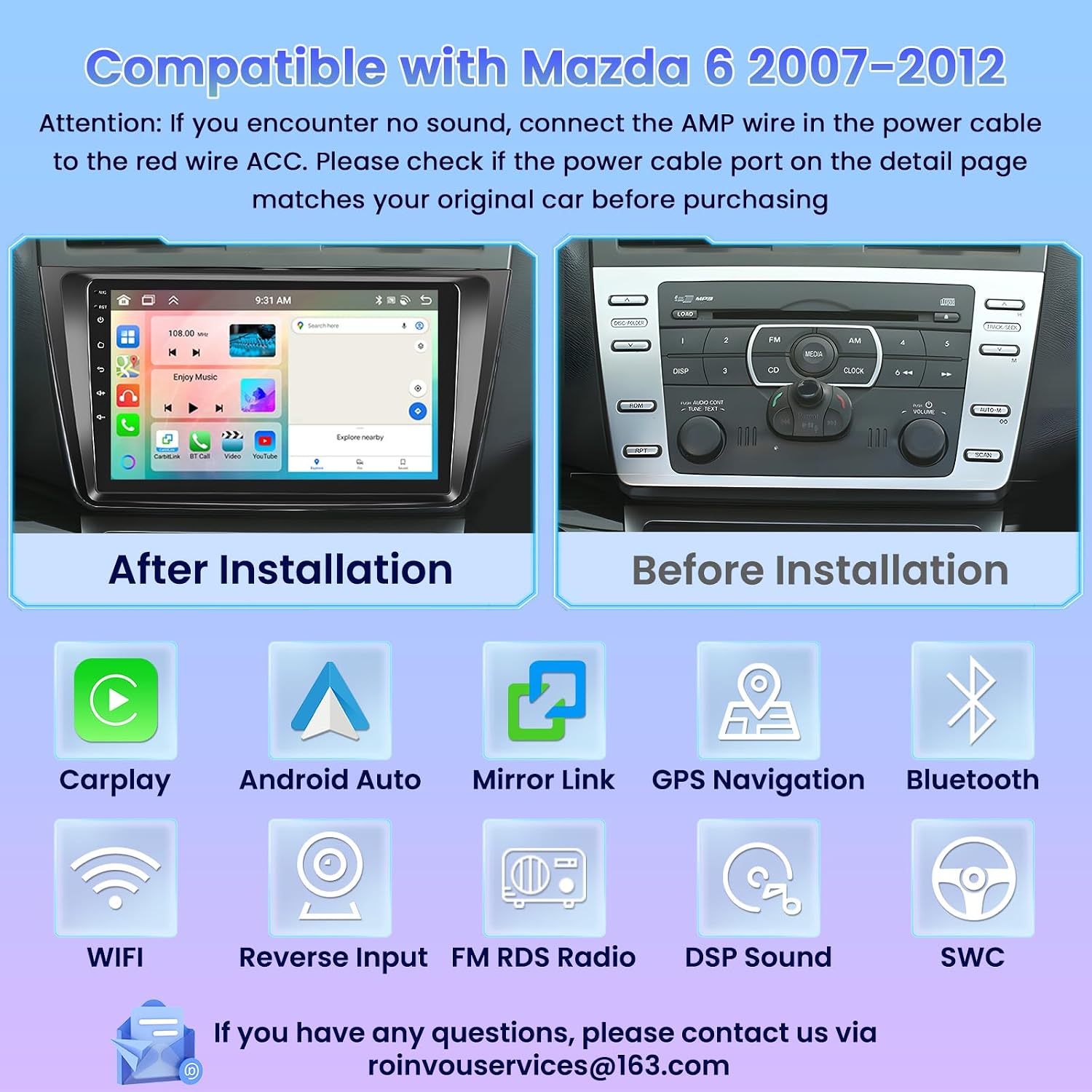
Figure 9.1: Overview of features and customer service contact information.


