
TEFTYMON DC101
TEFTYMON DC101 4K 64MP Digital Camera User Manual
Model: DC101 | Brand: TEFTYMON
1. Product Overview
The TEFTYMON DC101 is a versatile 4K digital camera designed for high-quality photography and video recording. It features 64MP photo resolution, 4K video capabilities, autofocus, a 180° flip screen, 16X digital zoom, and built-in Wi-Fi for easy sharing. This manual provides essential information for setting up, operating, and maintaining your camera.

Image 1.1: TEFTYMON DC101 4K 64MP Digital Camera with included accessories.
Key Features:
- 4K Video & 64MP Photos: Capture high-resolution content.
- Autofocus: Ensures sharp and clear images.
- 180° Flip Screen: Ideal for selfies and vlogging.
- 16X Digital Zoom: Magnify distant subjects.
- Built-in Wi-Fi: Seamless transfer to smart devices.
- Anti-Shake: Reduces blur from camera movement.
- Webcam Functionality: Use for live streaming and video calls.
Official Product Video:
Video 1.1: An overview of the TEFTYMON DC101 4K Digital Camera's features and capabilities.
2. Setup Guide
2.1 Package Contents
Verify that all items are present in your package:
- 1x Digital Camera (TEFTYMON DC101)
- 1x 32GB Memory Card
- 2x Rechargeable Batteries
- 1x Type C Cable
- 1x UV Filter
- 1x Lens Cap
- 1x USB Adapter
- 1x User's Manual
- 2x Straps (Short and Long)
- 1x Camera Bag

Image 2.1: Contents of the TEFTYMON DC101 camera package.
2.2 Battery and Memory Card Installation
- Insert Memory Card: Push the TF card into its slot until it clicks into place.
- Open Battery Compartment: Slide or press the lock to release the battery cover.
- Insert Battery: Insert a charged battery with the correct orientation.
- Close Cover: Close the battery cover securely.

Image 2.2: Visual guide for installing the memory card and battery.
2.3 Charging the Battery
Connect the camera to a power source using the provided Type C cable and USB adapter. The battery indicator on the screen will show charging status. Ensure batteries are fully charged before first use for optimal performance.
2.4 Initial Power On
Press and hold the power button (usually located on the top or side) to turn on the camera. Follow any on-screen prompts for initial setup, such as setting the date and time.
3. Operating Instructions
3.1 Basic Controls
Familiarize yourself with the camera's buttons and screen interface. The main controls typically include a power button, shutter button, mode dial, navigation buttons, and a menu button.
3.2 Using the 180° Flip Screen
The 3.0-inch IPS screen can be flipped 180° to face forward, making it ideal for self-portraits and vlogging. Simply pivot the screen outwards and rotate it to your desired position.

Image 3.1: Demonstrating the 180° flip screen for easy self-recording.

Image 3.2: The 3.0-inch 180° flip screen enhances vlogging and selfie capabilities.
3.3 Taking Photos
- Autofocus: Gently press the shutter button halfway down to activate autofocus. The camera will lock focus on your subject.
- Capture: Press the shutter button fully to take a 64MP photo.
- Flash: Use the built-in flash for low-light conditions. Adjust flash modes via the menu.
- Self-Timer: Set a delay (e.g., 2s, 5s, 10s) before capturing a photo, useful for group shots or self-portraits.
- Continuous Shooting: Capture a rapid sequence of photos by holding down the shutter button.

Image 3.3: The 64MP autofocus ensures sharp and clear images with a half-press of the shutter.

Image 3.4: The built-in flashlight provides clear pictures even in low-light conditions.
3.4 Recording Videos
- 4K Video: Select video mode and press the record button to start capturing 4K footage.
- Pause Feature: Pause and resume video recording without creating multiple files.
- Time-Lapse & Slow-Motion: Explore creative video modes through the camera's menu.

Image 3.5: The camera supports Ultra HD 4K video recording at 30FPS with a pause function.
3.5 Digital Zoom
Utilize the 16X digital zoom to bring distant subjects closer. Adjust zoom levels using the dedicated zoom buttons.

Image 3.6: The 16X digital zoom allows for closer shots of distant objects.
3.6 Wi-Fi Connectivity
Connect your camera to a smartphone via Wi-Fi for easy photo and video transfer and remote control.
- Long-press the camera's MENU button to enable the camera's Wi-Fi.
- Open the Wi-Fi settings of your phone, and connect to the Wi-Fi SSID named "DC102W-xxxx" and enter the password.
- Start the App "Viipluse" and click "Add Camera".
- Once added, you can access the camera's photos and videos.
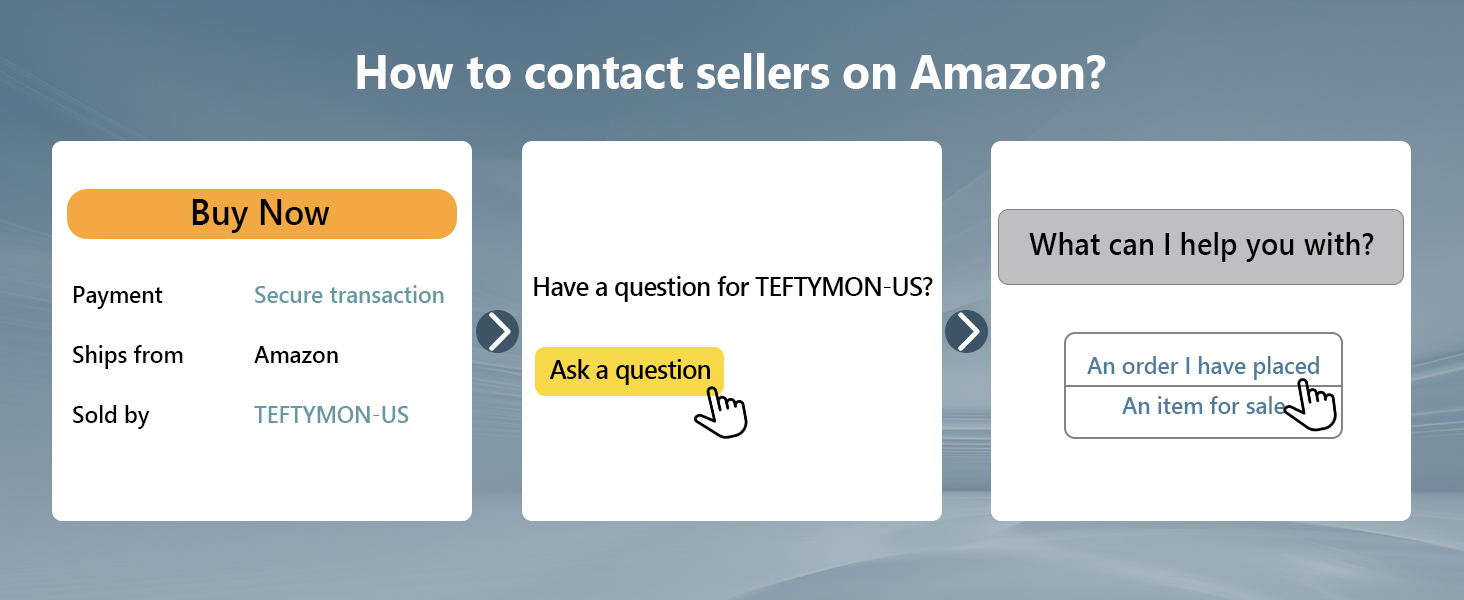
Image 3.7: Instructions for Wi-Fi connection and file transfer.
3.7 Webcam Functionality
The camera can be used as a webcam for live streaming, video calls, and vlogging. Connect the camera to your computer via the USB C cable and select "PC Camera" mode.

Image 3.8: The camera's multifunctional features, including webcam mode.
3.8 Other Features
- Anti-Shake: This feature helps stabilize images and videos, reducing blur caused by camera movement.
- Smile & Face Detection: Automatically detects smiles and faces for optimal focus and exposure.
- Beauty Face: Enhances facial features in photos.
- Filters: Apply various creative filters to your photos.

Image 3.9: Anti-shake feature ensures stable and clear pictures.

Image 3.10: Explore 20 filter effects and 7 exposure compensation settings.
4. Maintenance
- Cleaning: Use a soft, lint-free cloth to clean the camera body and screen. For the lens, use a specialized lens cleaning cloth and solution. Avoid harsh chemicals.
- Battery Care: Store batteries in a cool, dry place. Avoid fully discharging batteries for extended periods.
- Storage: When not in use, store the camera in its provided camera bag to protect it from dust and scratches.
5. Troubleshooting
If you encounter issues with your TEFTYMON DC101 camera, refer to the following common solutions:
- Camera Not Turning On: Ensure the battery is fully charged and correctly inserted. Try using the second included battery.
- Poor Image/Video Quality: Check that the protective film has been removed from the lens and screen. Ensure the lens is clean. Adjust lighting conditions or use the built-in flash.
- Wi-Fi Connection Issues: Verify that Wi-Fi is enabled on the camera and your smartphone. Ensure you have the correct SSID and password. Restart both devices if necessary.
- Memory Card Errors: Ensure the memory card is correctly inserted and not full. Try reformatting the card (this will erase all data).
For further assistance, please contact customer support as detailed in the Warranty and Support section.
6. Specifications
| Feature | Detail |
|---|---|
| Brand | TEFTYMON |
| Model Name | DC101 |
| Effective Still Resolution | 64 MP |
| Video Resolution | 2160p (4K) |
| Frame Rate | 30 FPS |
| Screen Size | 3 Inches |
| Display Type | LCD |
| Digital Zoom | 16 x |
| Image Stabilization | Anti-Shake |
| Connectivity Technology | USB, Wi-Fi |
| Memory Storage Capacity | 32 GB (included), supports up to 256 GB |
| Battery Type | Lithium Ion Rechargeable |
| Special Features | 4K Ultra HD Camera, 64MP Autofocus, 180° Flip Screen, 16x Digital Zoom, Video Recording And Pause, Webcam For Live Stream and Vlogging, Hotshoe, built-in Fill Light, Anti-Shake, Flashlight, Date Stamp, Time Lapse, Slow Motion, Beauty Face, Continuous Shooting, Self-Timer, Smile Detection, Auto Off, 2 Rechargeable Batteries, Compact and Portable |
| Item Weight | 0.56 Kilograms |
| Water Resistance Level | Not Water Resistant |
7. Warranty and Support
Your TEFTYMON DC101 camera comes with a 1-Year Manufacturer's Warranty. Additionally, we offer an 18-month replacement and refund guarantee for your peace of mind.
For any questions, technical support, or warranty claims, please contact TEFTYMON-US customer support. We are committed to assisting you within 12 hours or less.
How to Contact Support:
You can typically find a "Contact Seller" or "Ask a question" option on the product page where you made your purchase. Alternatively, refer to the contact information provided in the physical user manual included with your camera.

Image 7.1: Guide to contacting customer support via the online marketplace.
Ask a question about this manual
Ask about setup, troubleshooting, compatibility, parts, safety, or missing instructions. Manuals+ will review the question and use this page’s manual context to help answer it.