
1. Introduction
Thank you for purchasing the Mesqool CR1029 Digital Calendar Clock. This device is designed to provide clear time, date, and day information, along with advanced alarm and reminder functionalities, making it ideal for seniors, children, and anyone needing a reliable timekeeping and scheduling assistant. Please read this manual carefully to ensure proper use and to fully utilize all features.
2. Safety Information
- Keep the device away from water and high humidity environments.
- Do not expose the device to direct sunlight or extreme temperatures.
- Use only the provided power adapter.
- Do not attempt to disassemble or repair the device yourself. Contact customer support if issues arise.
- Ensure proper ventilation around the device.
3. Package Contents
Verify that all items are present in your package:
- Mesqool CR1029 Digital Calendar Clock
- Power Adapter
- USB Cable
- User Manual
4. Product Overview
The Mesqool CR1029 features a clear 7-inch display and intuitive side buttons for easy navigation and setting adjustments. Familiarize yourself with the main components:
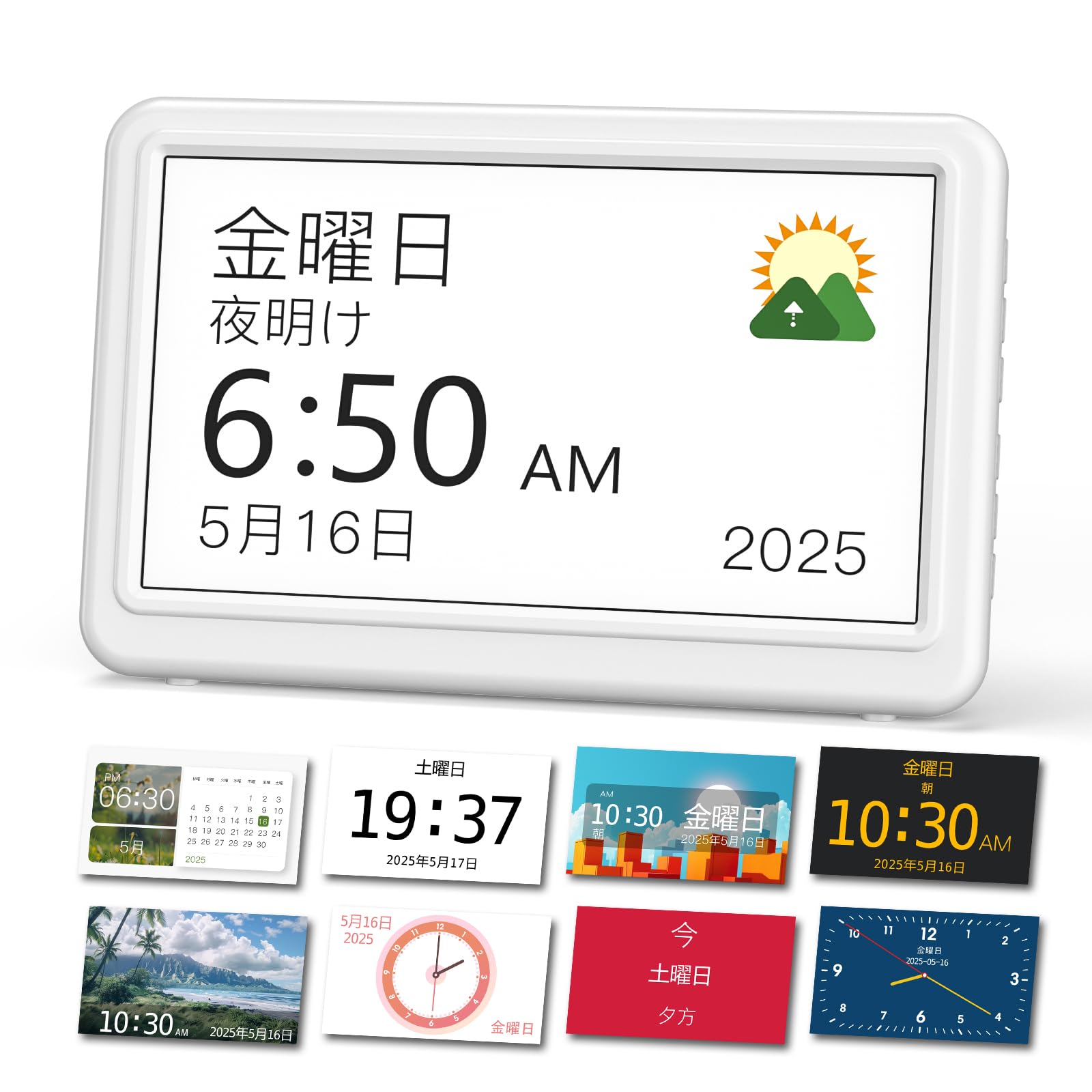
Image 4.1: Front view of the Mesqool CR1029 Digital Calendar Clock, showing the large display and sleek design.
4.1. Controls and Ports
The device is controlled via buttons located on the side. These buttons allow you to navigate menus, adjust settings, and manage alarms. The power input port is located on the back or side for connecting the power adapter.
5. Setup
5.1. Power Connection
- Connect the USB cable to the clock's power input port.
- Plug the power adapter into a standard electrical outlet.
- The clock display will illuminate, indicating it is powered on.

Image 5.1: The clock connected to its power adapter, with a view of the AAA battery compartment for backup.
5.2. Battery Backup
The clock uses AAA batteries (not included) to retain settings during a power outage. These batteries do not power the clock for normal operation.
- Open the battery compartment cover on the back of the clock.
- Insert 2 AAA batteries, ensuring correct polarity (+/-).
- Close the battery compartment cover.
5.3. Initial Settings (Time, Date, Language)
Upon first power-on or after a factory reset, you may need to set the basic parameters:
- Use the side buttons to navigate to the 'Settings' menu.
- Select 'Time Setting' to adjust the hour and minute.
- Select 'Date Setting' to adjust the year, month, and day.
- Select 'Language' to choose from the 6 available languages (Japanese, English, French, German, Italian, Spanish).
- Confirm your selections to save the settings.
6. Operating Instructions
6.1. Display Features
The CR1029 features a 7-inch HD LCD (1024x600 pixels) designed for optimal readability.
- Large Font Display: Time, date, and day are shown in large, clear fonts.
- Visual Time Indicators: Icons representing the sun and moon visually indicate morning, noon, afternoon, evening, night, and deep night, aiding users with cognitive challenges.
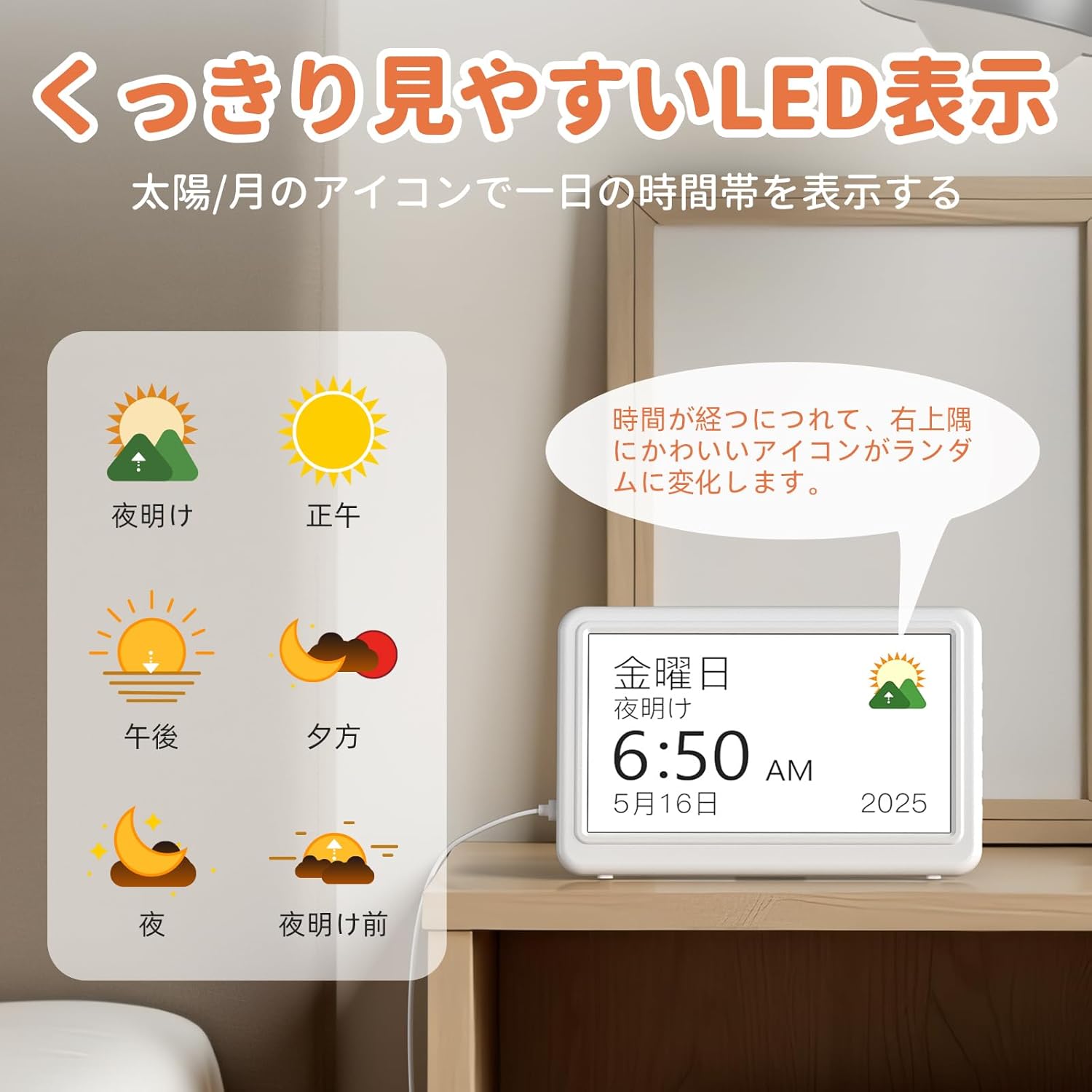
Image 6.1: The clock display showing clear time, date, and day with a sun icon for daytime.
- 12 Color Themes: Choose from 12 different display themes to suit your preference or room decor.
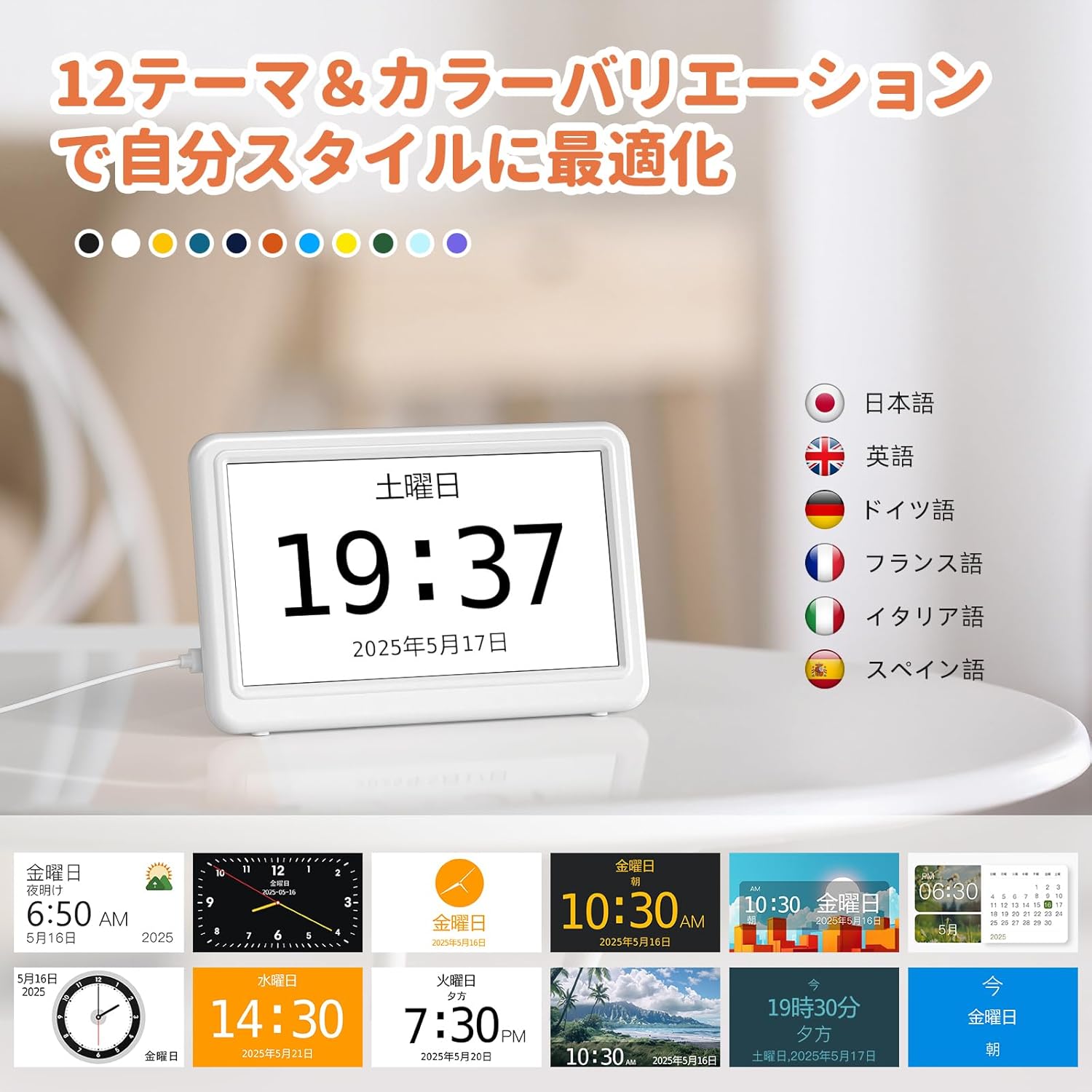
Image 6.2: Examples of the 12 available display themes and supported languages.
- 10-Level Brightness Adjustment: Adjust the display brightness from 5% to 100% to ensure comfort in any lighting condition. The clock can be set to automatically dim at night.
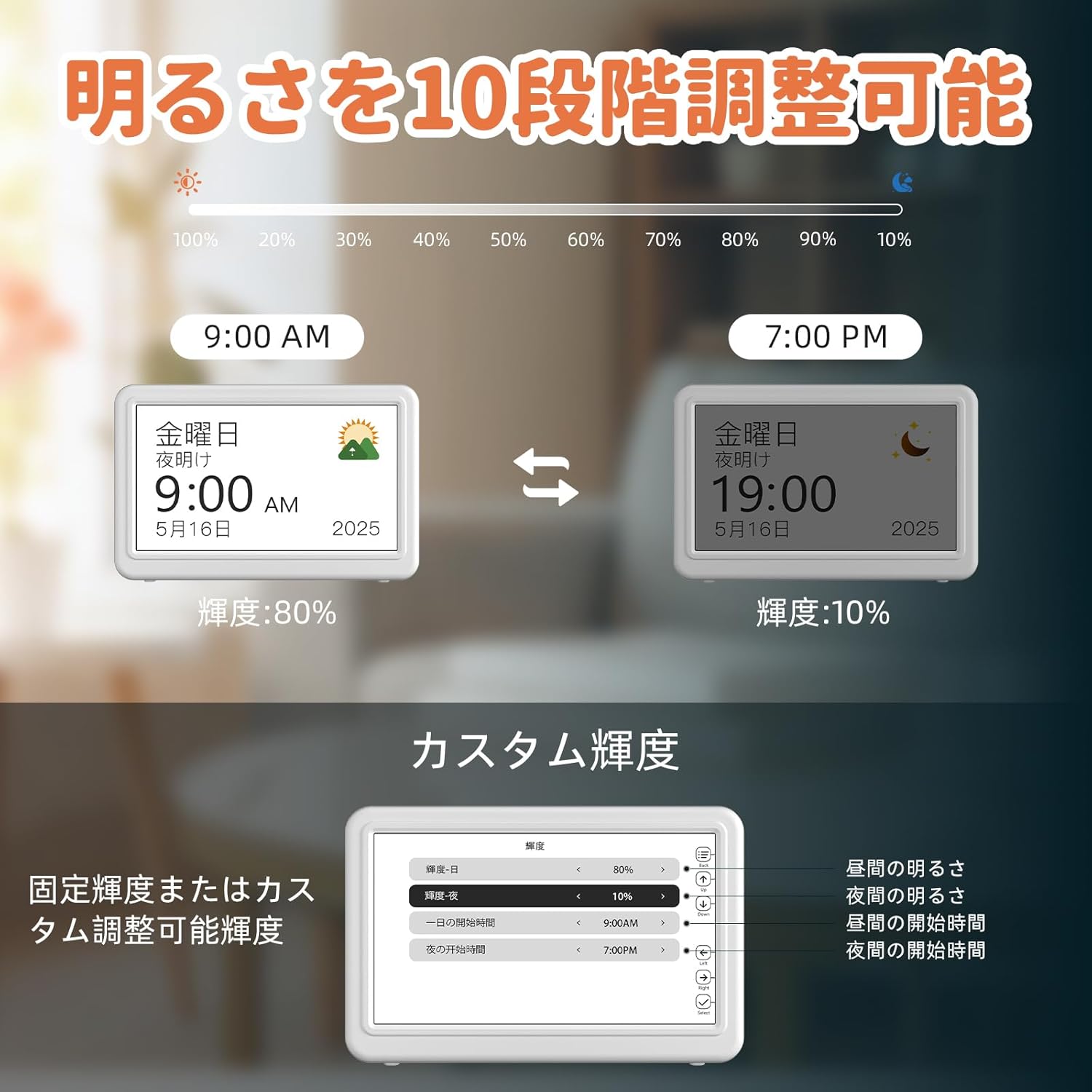
Image 6.3: Illustration of the 10-level brightness adjustment feature, showing different brightness settings for day and night.
- 12/24 Hour Display & DST: Easily switch between 12-hour and 24-hour time formats. A dedicated DST button allows for quick adjustment during Daylight Saving Time changes.
6.2. Alarm and Reminder Functions
The clock offers extensive alarm and reminder capabilities to assist with daily routines.
- Custom Reminders: Set up to 20 personalized reminders for various events such as medication times, hydration, birthdays, or appointments. Custom messages can be edited in English.

Image 6.4: The clock displaying a medicine reminder, with examples of other reminders like birthdays and visits.
- Multiple Alarm Patterns: Configure up to 20 alarm patterns for daily, weekdays, weekends, or specific dates.

Image 6.5: The clock displaying an alarm, with examples of different alarm types for daily activities.
- Adjustable Volume & Sounds: Choose from 18 natural or electronic alarm sounds and adjust the volume across 9 levels (from 5dB to 90dB).
- Snooze Function: The snooze feature allows you to delay the alarm by 3, 5, or 9 minutes.
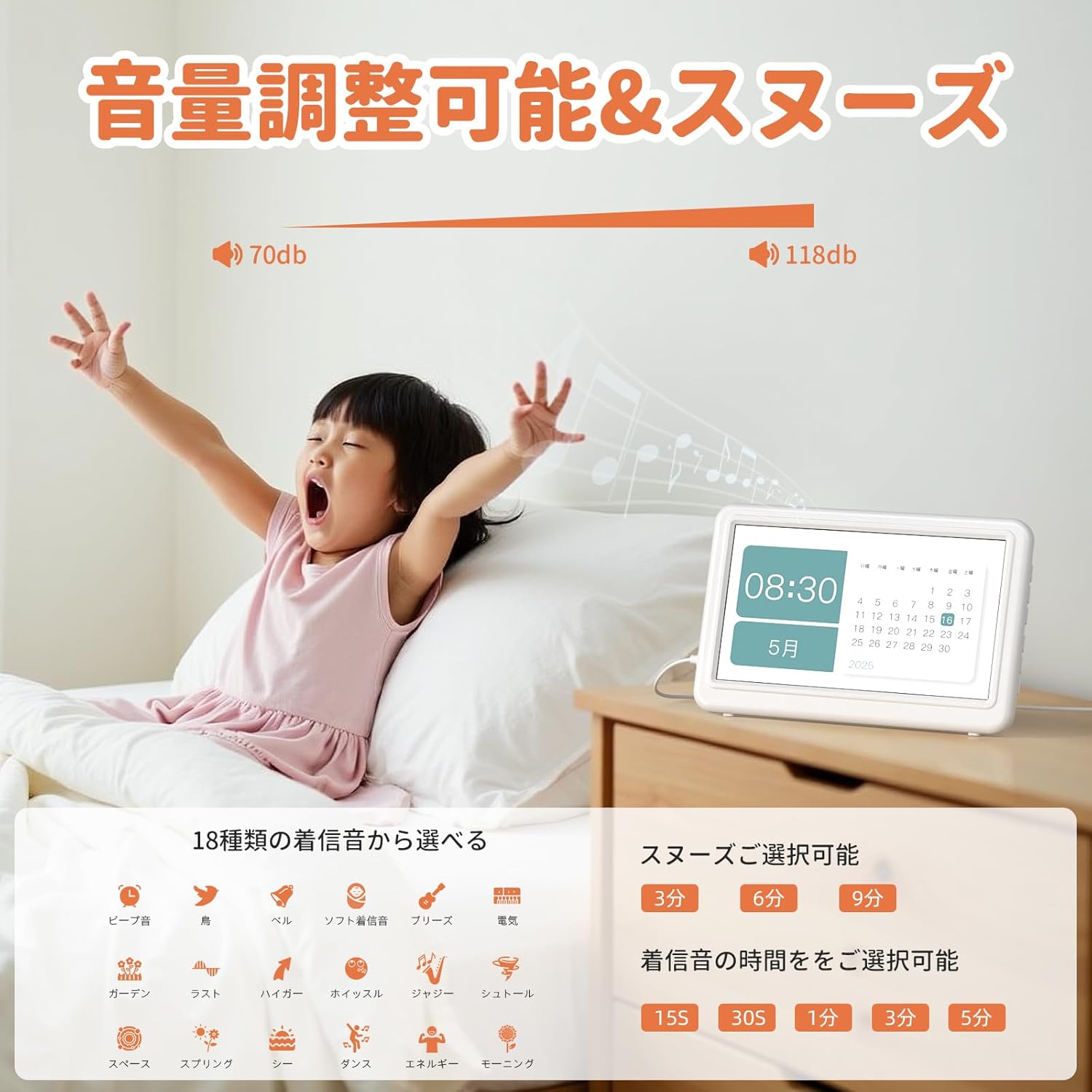
Image 6.6: A child waking up to the alarm, illustrating the adjustable volume and snooze features.
6.3. Digital Photo Frame Function
The CR1029 can also function as a digital photo frame.
- Insert an SD card or USB memory stick (up to 64GB) containing your photos into the designated slot.
- Navigate to the 'Photo Frame' setting in the menu.
- Select your desired display options, such as photo interval.

Image 6.7: The clock displaying family photos, demonstrating its use as a digital photo frame.
7. Maintenance
7.1. Cleaning
- Wipe the display and exterior with a soft, dry cloth.
- Do not use abrasive cleaners or solvents, as they may damage the surface.
7.2. Storage
- If storing the clock for an extended period, disconnect it from power and remove the AAA backup batteries.
- Store in a cool, dry place.
8. Troubleshooting
| Problem | Possible Cause | Solution |
|---|---|---|
| Clock display is blank. | No power or power adapter issue. | Ensure the power adapter is securely connected to both the clock and the electrical outlet. Try a different outlet. |
| Time is inaccurate. | Time not set correctly or minor drift. | Re-enter the correct time in the settings. Note that this is not a radio-controlled clock, so minor daily drift (e.g., 1 second per day) may occur and require occasional manual adjustment. |
| Alarm does not sound. | Alarm not activated, volume too low, or incorrect settings. | Check if the alarm is enabled and set to the correct time. Increase the alarm volume in settings. Verify the alarm pattern is correctly configured. |
| Display text disappears after alarm. | Alarm not properly dismissed. | Ensure the alarm is fully dismissed by pressing the designated button. If the alarm is not stopped correctly, the display may revert to a basic state. For elderly users, ensure they understand which button to press to stop the alarm. |
| Cannot see photos on display. | SD card/USB not inserted correctly, unsupported format, or corrupted files. | Ensure the SD card or USB stick is fully inserted. Check that photos are in a supported format (e.g., JPEG). Try reformatting the storage device or using different photos. |
9. Specifications
| Feature | Detail |
|---|---|
| Brand | Mesqool |
| Model Number | CR1029 |
| Display Type | Digital LCD |
| Display Size | 7 inches |
| Product Dimensions (W x H) | 18.2 cm x 2.5 cm |
| Power Source | Power Cord (AC Adapter) |
| Battery Backup | 2 x AAA batteries (not included) |
| Special Features | LED Display, 10-level Dimming, Snooze, 20 Alarms, 20 Reminders, Digital Photo Frame, 6 Languages, 12/24H Display, DST Adjustment |
| Color | White |
| Indoor/Outdoor Use | Indoor |
| Country of Origin | China |
10. Warranty and Support
Mesqool products are manufactured to high-quality standards. For warranty information or technical support, please refer to the contact details provided with your purchase or visit the official Mesqool website. Please have your model number (CR1029) and purchase details ready when contacting support.
