1. Product Overview
The Hosyond 7-inch USB C Mini Monitor is a compact and versatile secondary display designed for use with Windows PCs and laptops. It features a 1024x600 IPS LCD panel, offering clear visuals and wide viewing angles. This monitor simplifies connectivity by utilizing a single USB 2.0/3.0 cable for both power and display transmission, eliminating the need for separate HDMI, DisplayPort, or VGA cables. Its durable CNC aluminum alloy shell provides a premium feel and enhanced longevity. The monitor includes adjustable brightness with a memory function, retaining your preferred settings even after power-off. It is suitable for various applications, including real-time PC system monitoring (compatible with AIDA64), use as a secondary display, or for industrial control systems.
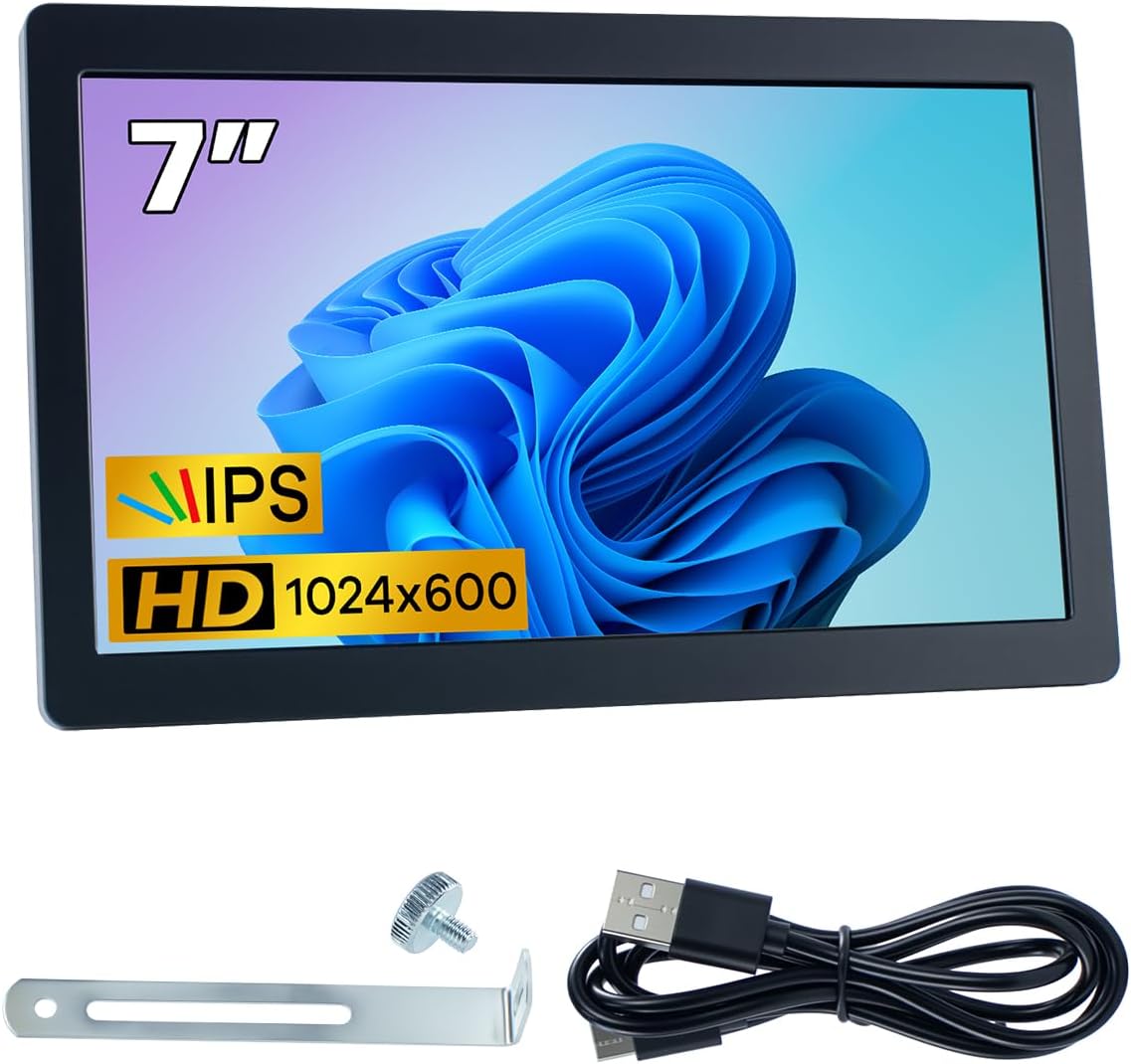
Figure 1: Hosyond 7-inch USB C Mini Monitor and accessories.
2. Specifications
| Feature | Description |
|---|---|
| Display Type | IPS Screen |
| Display Size | 7 inches |
| Resolution | 1024x600 Pixels (HD) |
| Aspect Ratio | 16:9 |
| Touch Type | No Touch |
| Backlight Adjustment | Adjustable via Buttons |
| Power Supply | Type-C (5V) |
| Module Size (L x W x H) | 171.8 x 108.6 x 9.0 mm |
| Product Dimensions | 0.35 x 6.76 x 4.28 inches |
| Item Weight | 12.3 ounces |
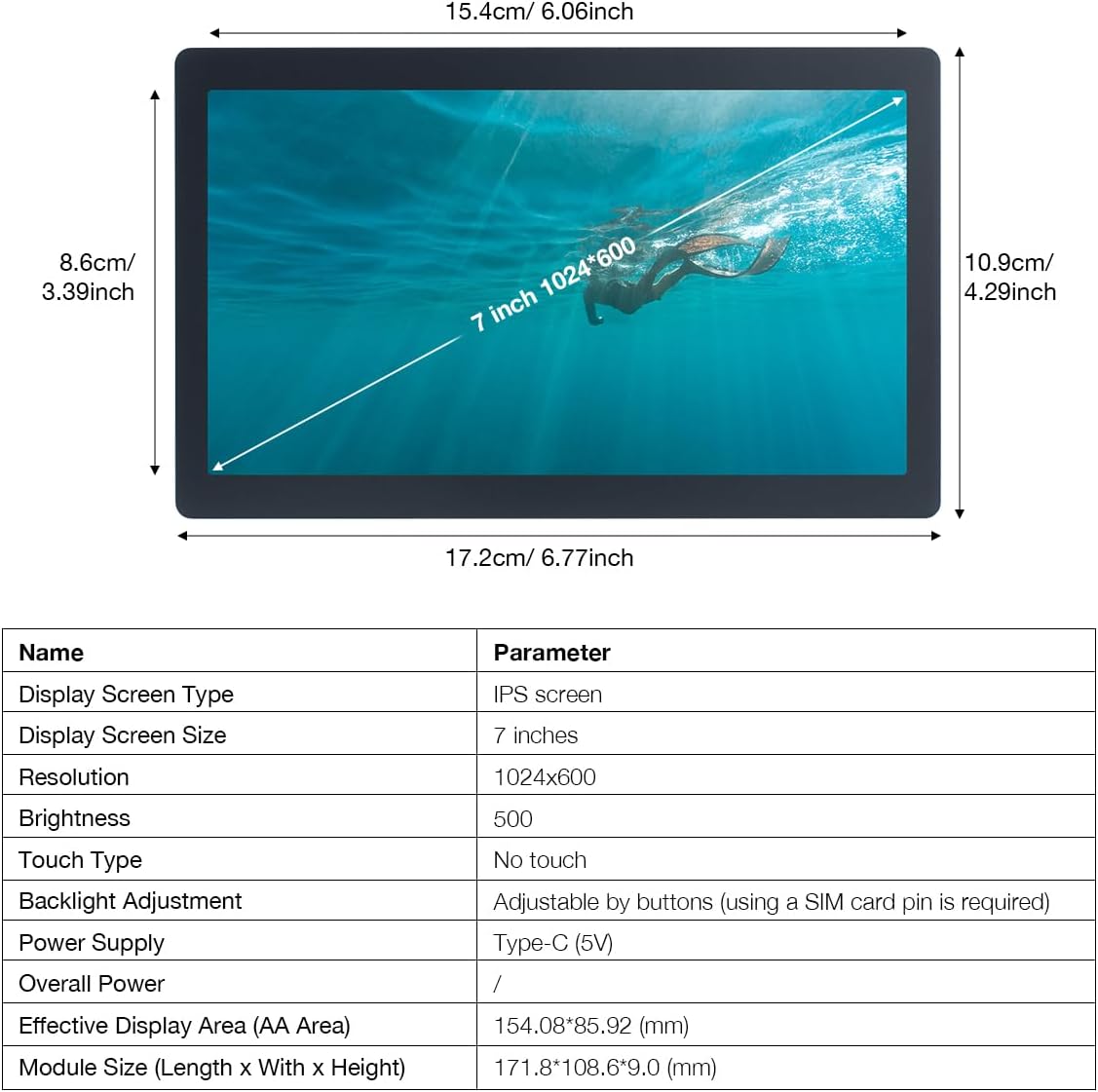
Figure 2: Physical dimensions and key parameters.
3. Setup Instructions
This monitor is designed for plug-and-play functionality with Windows 10/11 systems after an initial driver installation. It connects via a single USB 2.0/3.0 cable for both power and display.
3.1 Initial Driver Installation
- Connect the monitor to your Windows PC or laptop using the provided Type-C cable.
- For the first use, a driver installation is required. Follow the on-screen prompts or refer to the included product manual for specific driver download and installation instructions.
- After successful driver installation, restart your system if prompted.
Video 1: Hosyond 5/7 Inches Mini USB C Display Driver Installation. This video demonstrates the driver installation process for the Hosyond USB C Mini Monitor.
3.2 Connecting to Your Device
The monitor primarily uses a single USB-C cable for both power and video signal. Ensure your computer's USB port provides sufficient power (USB 2.0/3.0 recommended).
- Single USB-C Connection: Connect one end of the Type-C cable to the monitor's Type-C port and the other end to a compatible USB 2.0/3.0 port on your PC or laptop.
- Alternative Connections: While designed for single USB-C, some models may offer HDMI or VGA inputs for video, requiring a separate USB-C connection for power. Refer to the monitor's ports for available options.
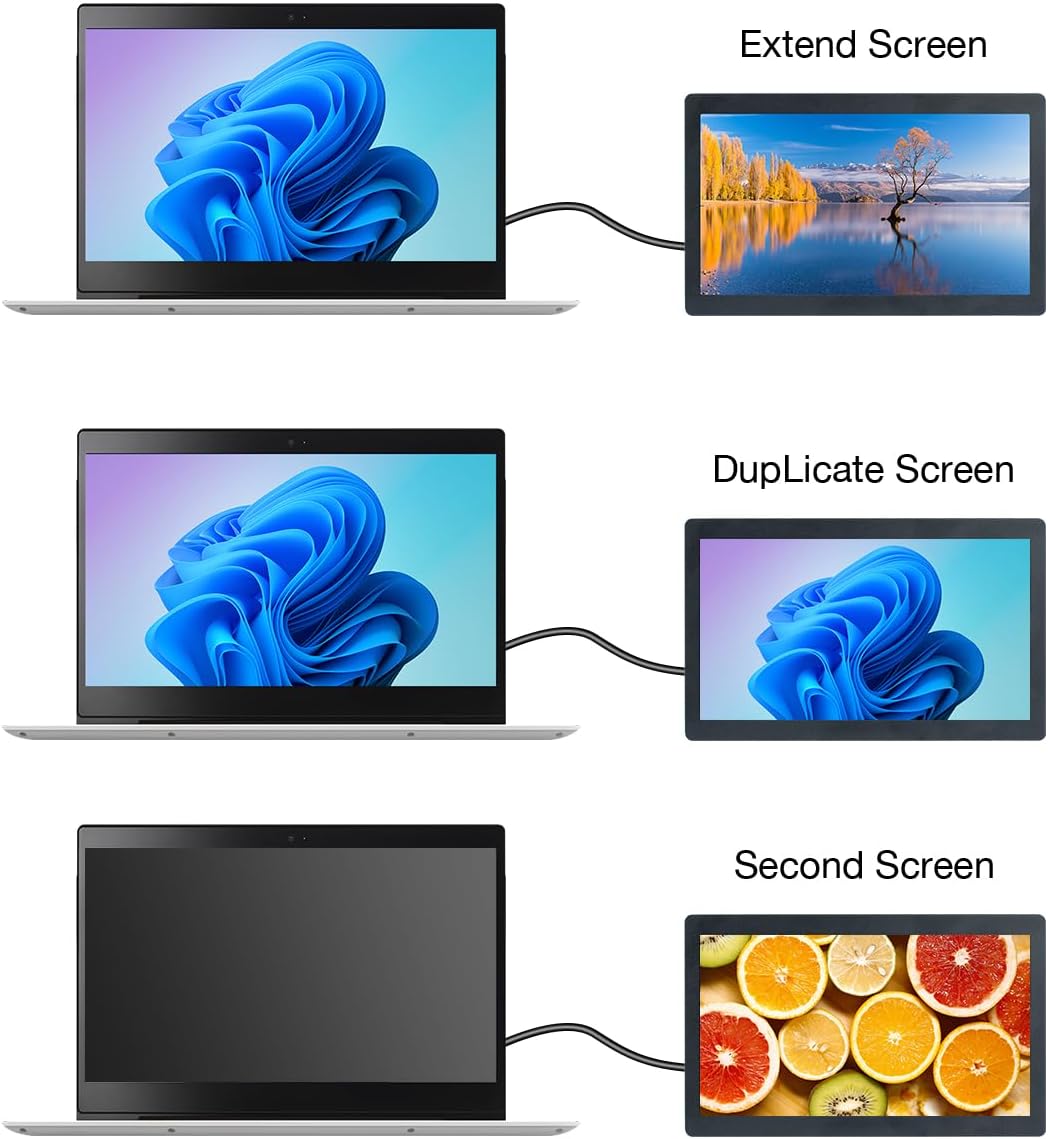
Figure 3: Single USB cable connection for power and display.
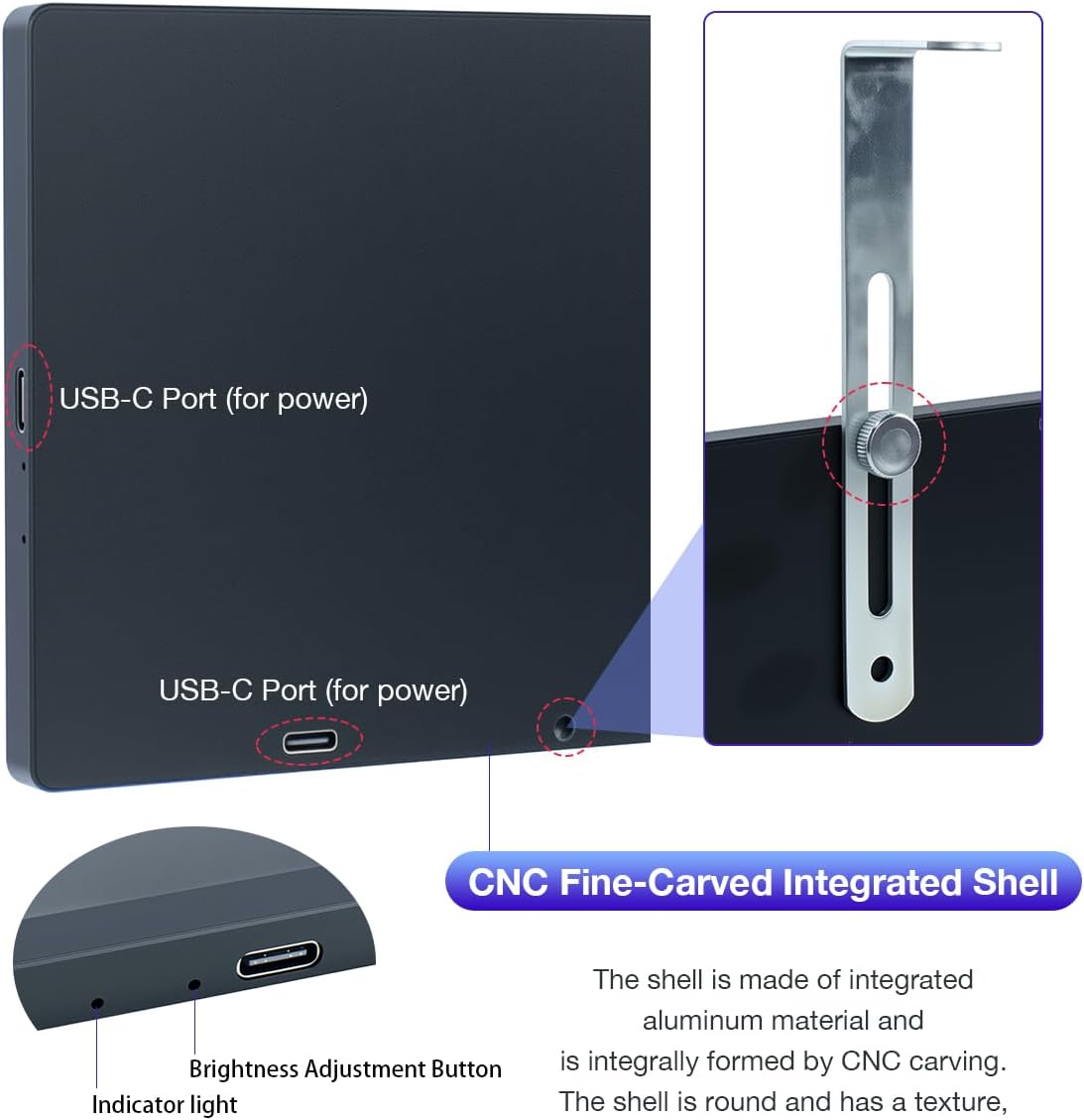
Figure 4: Monitor ports including USB-C for power and data, and the brightness adjustment button.
4. Operating Instructions
4.1 Display Modes
Once connected and drivers are installed, you can configure the display mode through your Windows display settings:
- Extend Mode: Extends your desktop across both screens, allowing for more workspace.
- Duplicate Mode: Mirrors your primary display onto the mini monitor.
- Second Screen Only: Displays content only on the mini monitor, turning off the primary display.
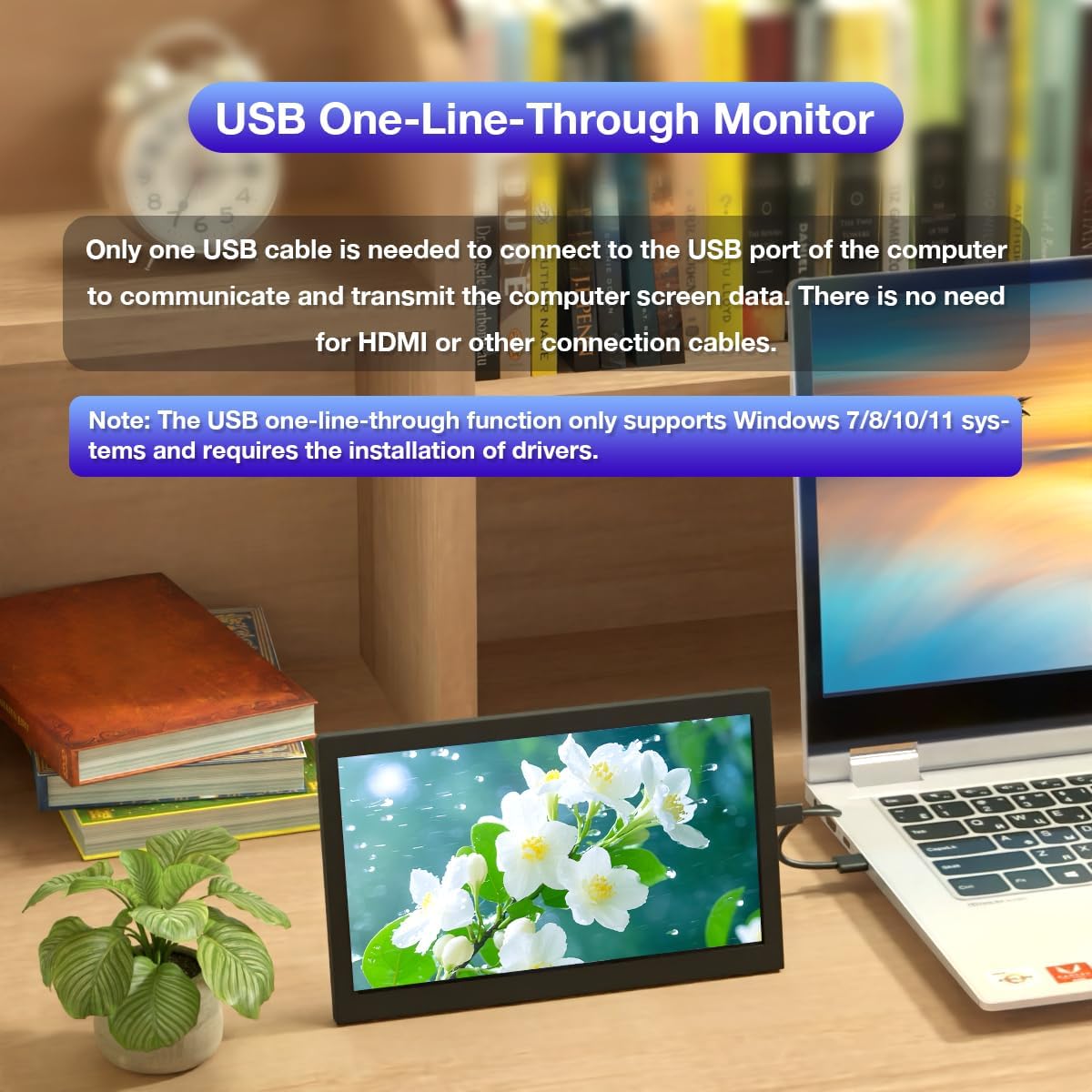
Figure 5: Illustration of various display modes (Extend, Duplicate, Second Screen).
4.2 Brightness Adjustment
The monitor features physical buttons for brightness adjustment. The last brightness setting is automatically saved and recalled even after the device is powered off.
- Locate the brightness adjustment buttons on the side of the monitor (refer to Figure 4).
- Press the appropriate button to increase or decrease the screen brightness to your preference.
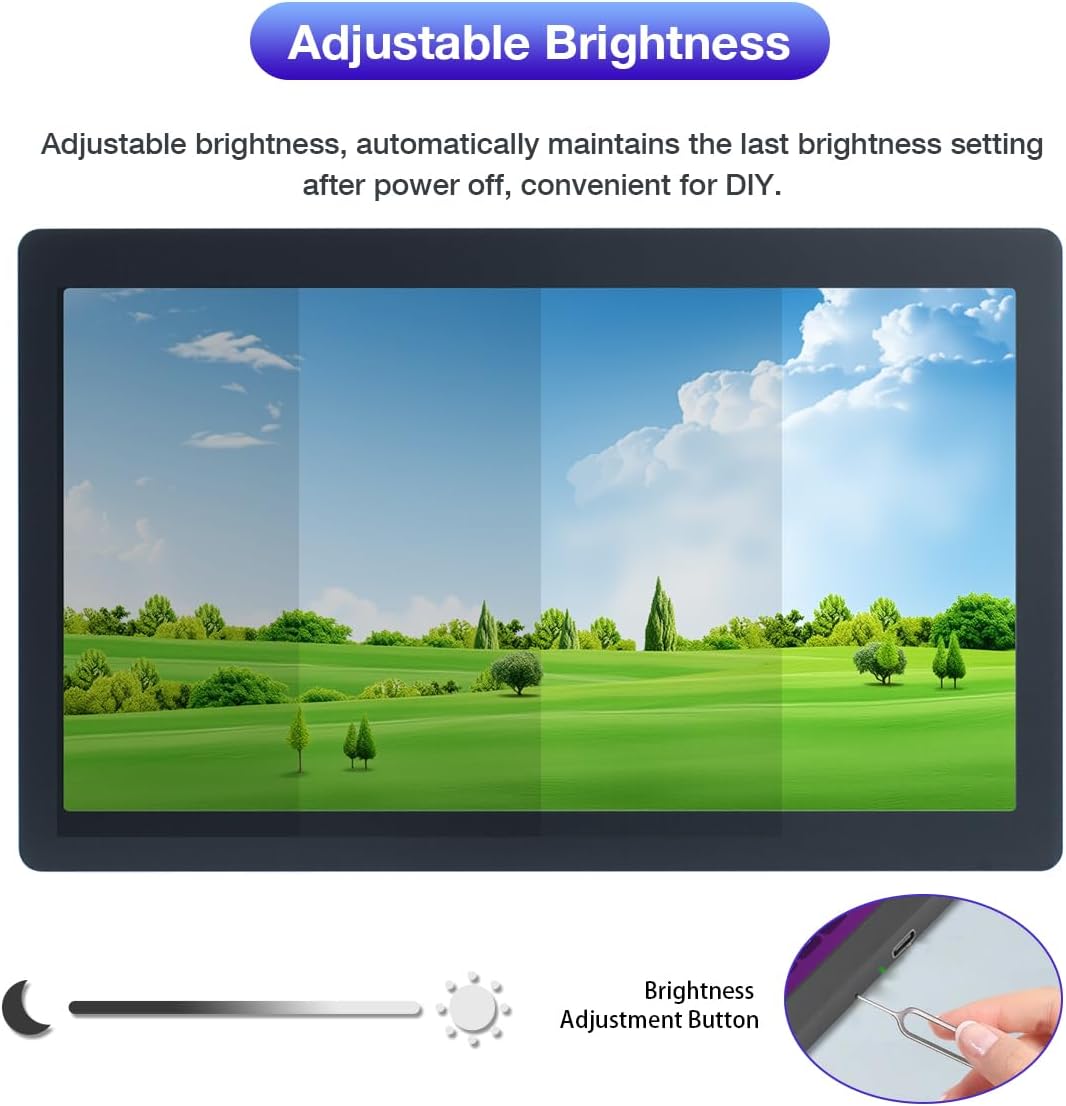
Figure 6: Adjustable brightness feature with memory function.
4.3 Versatile Applications
The Hosyond mini monitor can be used in various scenarios:
- PC Sub-Monitor: Ideal for monitoring system performance (e.g., with AIDA64), displaying chat applications, or other secondary tasks.
- DIY Projects: Suitable for custom computer builds or embedded systems.
- Industrial Applications: Can serve as a control host screen.
- Gaming: Provides a compact display for gaming setups.
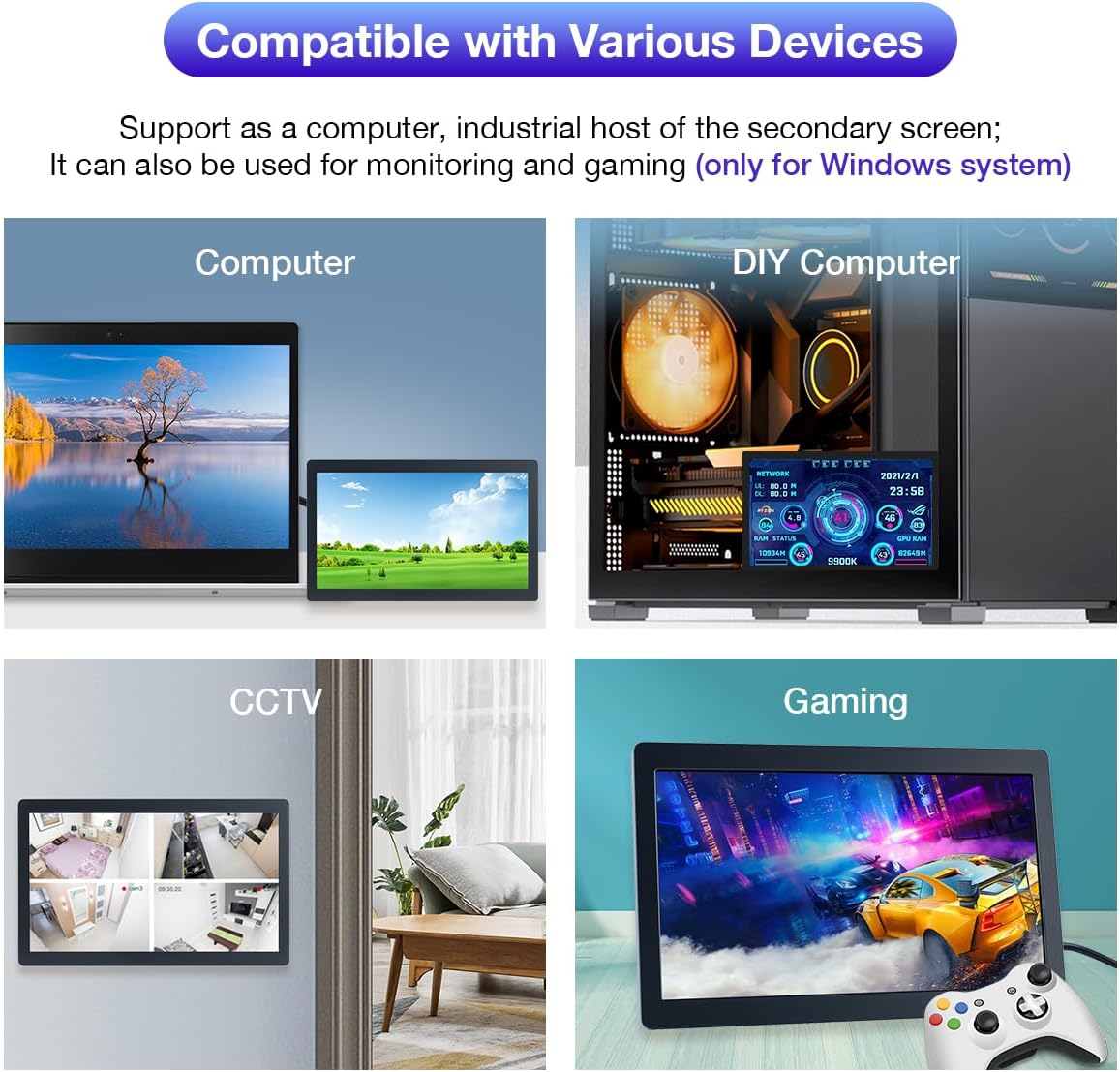
Figure 7: Various applications for the Hosyond mini monitor.
Video 2: Hosyond USB Mini Monitor 1024x600 IPS Screen. This video showcases the monitor's features and various uses.
5. Troubleshooting
5.1 Flower Screen or Black Screen Issues
- Check Power and Connection: If the screen is black, first verify if the indicator light is on. If not, try replacing the Type-C data cable or switching to a different USB port on your computer.
- Display Detection: Right-click on your desktop and check if the display is detected in the display settings. If not, try replacing the Type-C data cable or switching the USB port again.
- Display Mode: Confirm that the display is not in duplicate mode if you intend to use it as an extended display. Change it to extended mode in your display settings.
- Restart MS USB Display Process: Open Task Manager, locate and close the 'MS USB Display' process, then restart the program.
- Config.ini File: Ensure the 'config.ini' file has been correctly replaced if instructed during driver installation.
5.2 Incorrect Resolution (800x600 instead of 1024x600)
- Verify 'config.ini': Check if the 'config.ini' file is installed in the 'C:\Program Files\Win USB Display' directory.
- System Restart: After installation, restart your system to enable the 1024x600 resolution.
5.3 Screen Remains Black After Driver Installation
- Sufficient Power Supply: Ensure the USB 2.0 interface has sufficient power. It is recommended to connect the monitor to a USB port directly on the PC or use a USB 3.0 interface.
- Detect Display: Open 'Display' settings, click 'Detect'. If the secondary screen is recognized, set it to 'Extend these displays'.
- Driver Load: If the secondary screen is not recognized, check if the 'MS USB Display' driver is loaded correctly in the 'Device Manager'.
6. Maintenance
To ensure the longevity and optimal performance of your Hosyond 7-inch USB C Mini Monitor, follow these general maintenance guidelines:
- Cleaning: Use a soft, lint-free cloth slightly dampened with water or a screen-cleaning solution to clean the display surface. Avoid harsh chemicals, abrasive materials, or excessive moisture.
- Handling: Handle the monitor with care. Avoid dropping it or subjecting it to strong impacts.
- Storage: When not in use, store the monitor in a cool, dry place away from direct sunlight and extreme temperatures.
- Ventilation: Ensure proper ventilation around the monitor to prevent overheating. Do not block any ventilation openings.
7. Warranty and Support
For warranty information, technical support, or service inquiries, please refer to the warranty card included with your product or contact Hosyond customer service directly. Keep your purchase receipt as proof of purchase for warranty claims.


