1. Introduction
Thank you for choosing the EDJO Ergonomic Foldable Keyboard and Mouse Combo. This portable and versatile set is designed for enhanced productivity and comfort across multiple devices. Featuring an ergonomic split design, multi-device connectivity (2.4G and Dual Bluetooth), and a rechargeable battery, it is an ideal companion for travel, business, and everyday use.
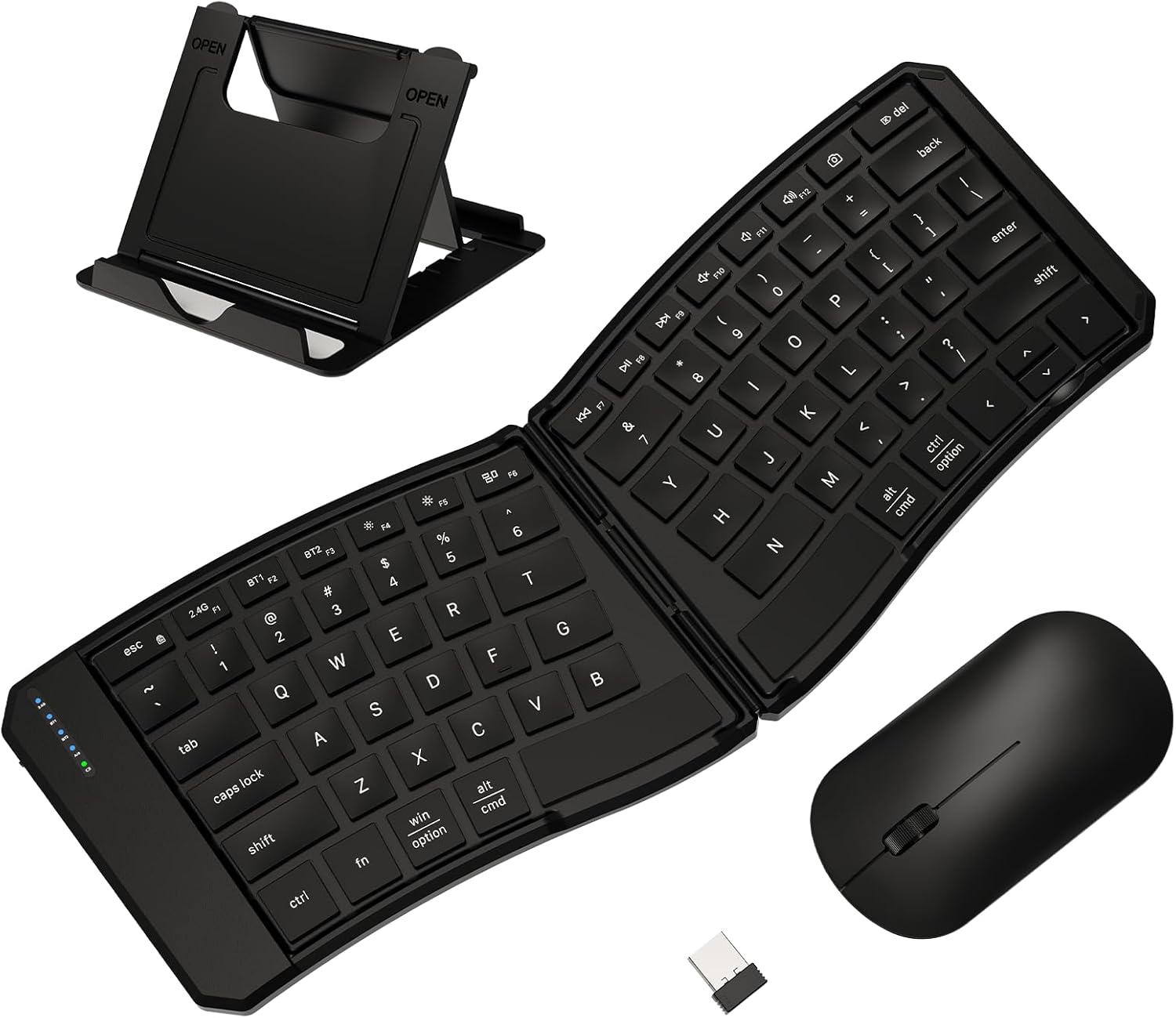
2. Package Contents
Please verify that all items are present in your package:
- 1 * Foldable Bluetooth Keyboard
- 1 * Slim Bluetooth Mouse
- 1 * Type-C Charging Cable
- 1 * Phone Stand
- 1 * User Manual

3. Setup
3.1 Charging the Devices
The keyboard and mouse are equipped with built-in rechargeable batteries. Before first use, it is recommended to fully charge both devices.
- Connect the provided Type-C charging cable to the charging port on the keyboard and mouse.
- Connect the other end of the cable to a USB power source (e.g., computer USB port, wall adapter).
- The charging indicator light on the keyboard will illuminate during charging and turn off when fully charged.
- A full charge takes approximately 2 hours and provides up to 88 hours of working time or 280 hours of standby time.

3.2 Connectivity
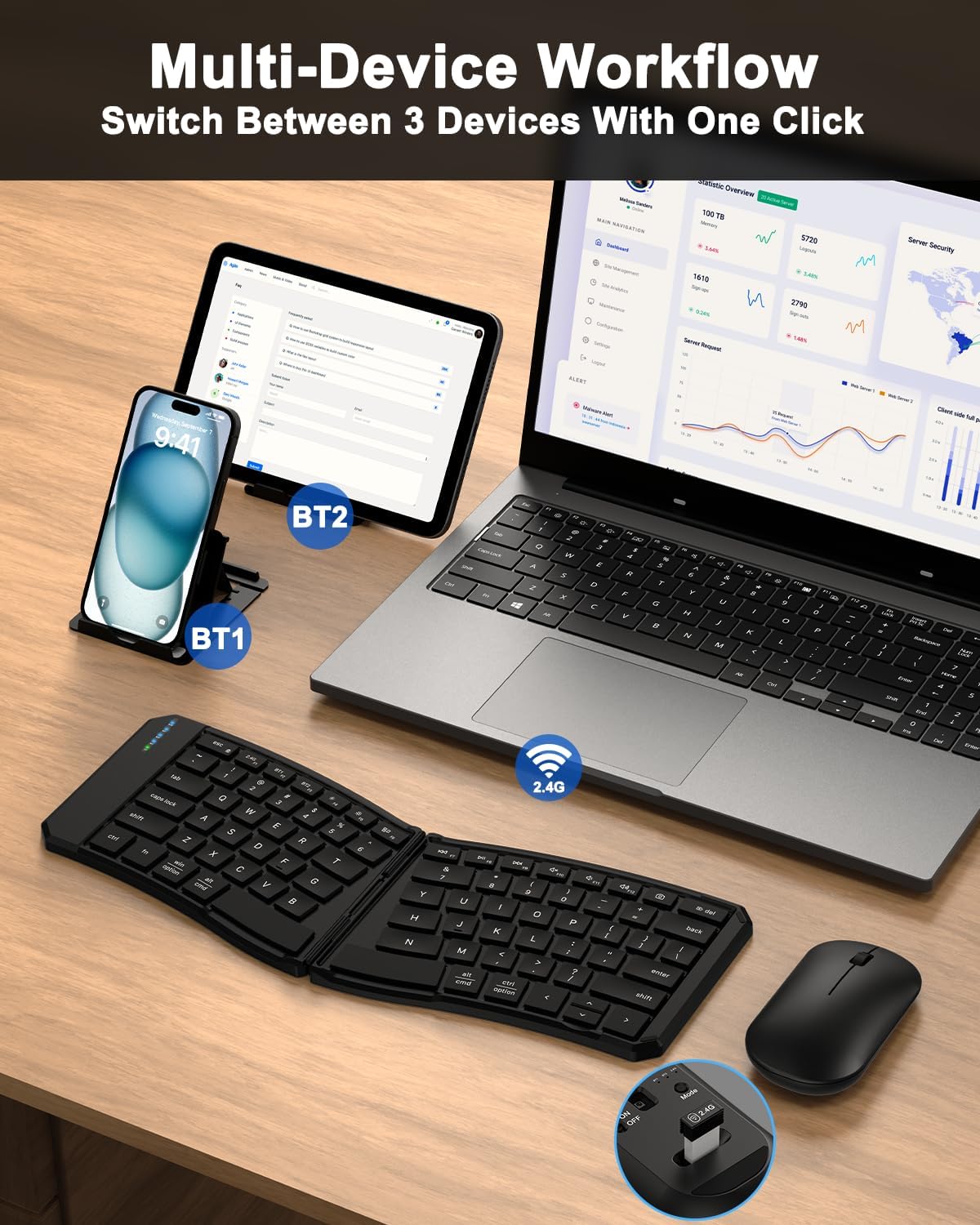
The combo supports 2.4G wireless and dual Bluetooth (BT1, BT2) connections, allowing simultaneous connection to up to three devices.
3.2.1 2.4G Wireless Connection (Keyboard & Mouse)
- Locate the USB receiver stored in the back compartment of the mouse.
- Plug the USB receiver into an available USB port on your computer or device.
- Turn on the power switch on both the keyboard and the mouse.
- For the keyboard, press Fn + F1 to switch to 2.4G mode. The 2.4G indicator light will illuminate.
- The devices should automatically connect to your computer.
3.2.2 Bluetooth Connection (Keyboard & Mouse)
The keyboard and mouse can connect via Bluetooth to two separate devices (BT1 and BT2).
- Turn on the power switch on both the keyboard and the mouse.
- For Keyboard:
- Press Fn + F2 for Bluetooth Channel 1 (BT1) or Fn + F3 for Bluetooth Channel 2 (BT2). The corresponding Bluetooth indicator light will flash rapidly, indicating pairing mode.
- On your device (smartphone, tablet, laptop), go to Bluetooth settings and search for new devices.
- Select "EDJO Keyboard" from the list of available devices to pair.
- Once paired, the indicator light will stop flashing and remain solid.
- For Mouse:
- On the bottom of the mouse, slide the mode switch to either BT1 or BT2.
- Press and hold the pairing button (usually located near the mode switch) until the indicator light flashes rapidly.
- On your device, search for new Bluetooth devices and select "EDJO Mouse" to pair.
- Once paired, the indicator light will stop flashing.
- To switch between connected devices, simply press Fn + F1 (2.4G), Fn + F2 (BT1), or Fn + F3 (BT2) on the keyboard, and slide the mode switch on the mouse.
4. Operating Instructions
4.1 Keyboard Usage
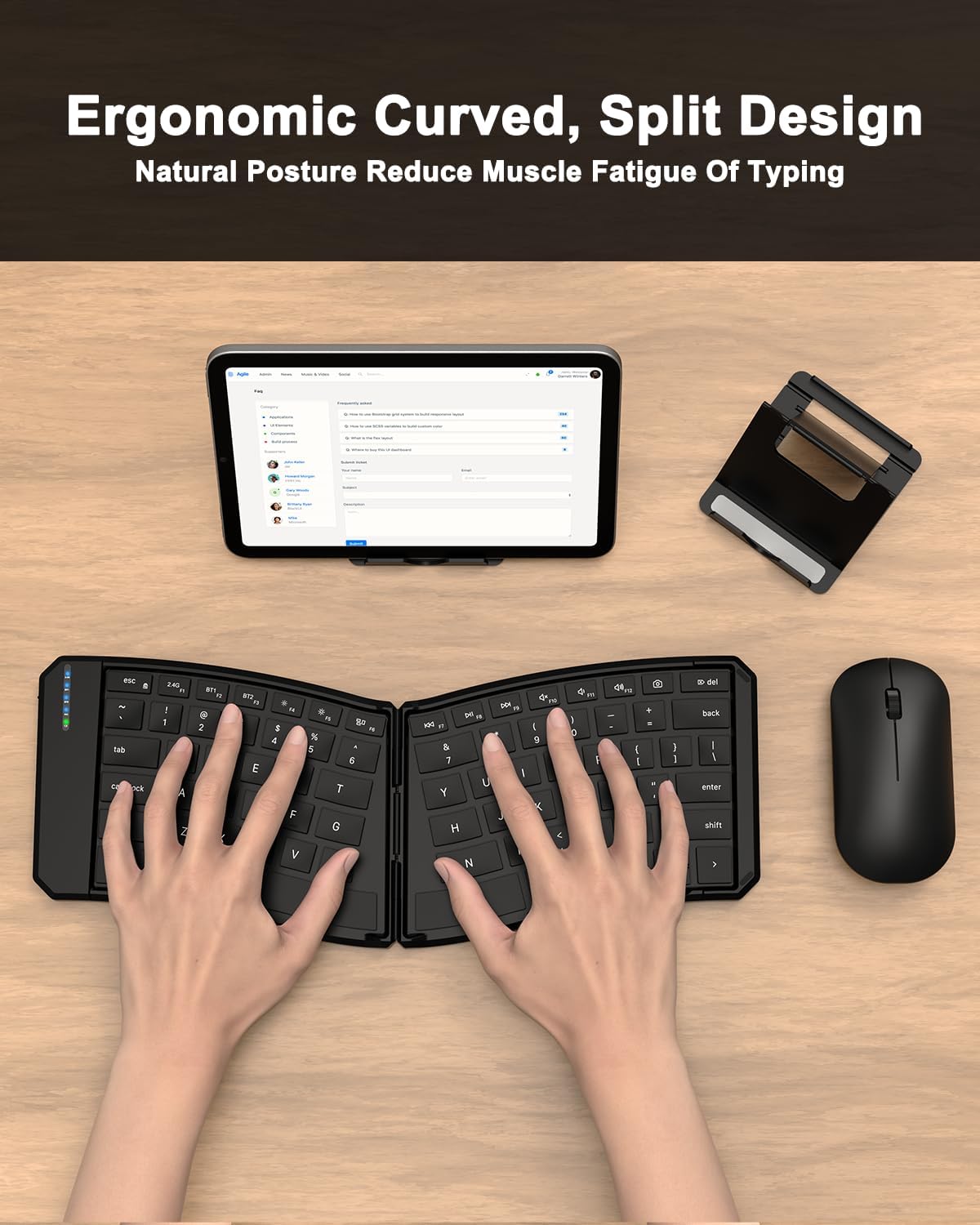
The keyboard features an ergonomic split design and scissor-switch keys for comfortable and efficient typing.
- Ergonomic Design: The V-shape and split key-set are designed to promote a natural typing posture, reducing strain on your hands and wrists. An initial adaptation period may be required to get accustomed to this layout.
- Scissor-Switch Keys: Provides a smooth, quiet, and responsive typing experience with a tactile feel similar to a laptop keyboard.
- Multimedia Shortcut Keys: The keyboard includes a range of multimedia and function shortcut keys. These are accessed by pressing the Fn key in combination with the corresponding F-key (F1-F12).
4.1.1 Function Key Overview
The F-keys (F1-F12) have dual functions. Their primary function is typically a multimedia or special command, while their secondary function is the standard F-key (F1, F2, etc.).
| Key Combination | Function |
|---|---|
| Fn + F1 | 2.4G Channel |
| Fn + F2 | Bluetooth 1 Channel |
| Fn + F3 | Bluetooth 2 Channel |
| Fn + F4 | Brightness - |
| Fn + F5 | Brightness + |
| Fn + F6 | Open Task Browsing Window |
| Fn + F7 | Previous Track |
| Fn + F8 | Pause/Play |
| Fn + F9 | Next Track |
| Fn + F10 | Mute |
| Fn + F11 | Volume Down |
| Fn + F12 | Volume Up |
| Fn + Esc (Fn Lock) | Toggle Fn Lock (to use F1-F12 as standard function keys without holding Fn) |
| Fn + Arrow Keys (unlabeled) | Home, End, PgUp, PgDn |

4.2 Mouse Usage
The slim mouse provides precise tracking and comfortable use.
- Buttons: Standard left-click, right-click, and scroll wheel with click function.
- DPI: The mouse operates at 1200 DPI for accurate cursor control.
- Power Saving: The mouse will enter an auto-sleep mode after a period of inactivity to conserve battery. Click any button to wake it up.

4.3 Power Management
Both the keyboard and mouse feature an auto-sleep function to conserve battery life when not in use. They will automatically enter sleep mode after 10 minutes of inactivity. To wake them up, simply press any key on the keyboard or click any button on the mouse.
5. Maintenance
To ensure the longevity and optimal performance of your EDJO keyboard and mouse combo, follow these simple maintenance guidelines:
- Cleaning: Use a soft, dry, lint-free cloth to wipe down the surfaces of the keyboard and mouse. For stubborn dirt, slightly dampen the cloth with water or a mild, non-abrasive cleaner. Avoid excessive moisture.
- Storage: When not in use, fold the keyboard to protect the keys and screen. Store the USB receiver inside the mouse to prevent loss. Keep the devices in a cool, dry place away from direct sunlight and extreme temperatures.
- Handling: Avoid dropping the devices or exposing them to strong impacts. Do not attempt to disassemble or modify the devices, as this will void the warranty.
6. Troubleshooting
If you encounter issues with your EDJO keyboard and mouse combo, please refer to the following common solutions:
| Problem | Possible Cause | Solution |
|---|---|---|
| Keyboard/Mouse not connecting | Low battery; Incorrect connection mode; Device Bluetooth is off; Out of range; Pairing issue. | Charge devices fully. Ensure correct mode (2.4G, BT1, BT2) is selected. Turn on Bluetooth on your device. Move devices closer to your computer. Re-pair the devices following the setup instructions. |
| Keys are not responding or are stuck | Low battery; Software/firmware issue; Debris under keys. | Charge the keyboard. Try restarting the keyboard and the connected device. Gently clean around the affected keys. If the issue persists, especially with a 'Windows key always pressed' symptom, contact customer support as it may indicate a firmware issue. |
| Fn Lock not working as expected (e.g., F1-F3 always switch devices) | Specific design limitation; Firmware behavior. | Some function keys (like F1-F3 for channel switching) may have a fixed primary function regardless of Fn Lock status. This is by design for quick switching. For other F-keys, ensure you have pressed Fn + Esc to toggle Fn Lock. |
| Mouse cursor erratic or unresponsive | Low battery; Dirty sensor; Unsuitable surface. | Charge the mouse. Clean the optical sensor on the bottom of the mouse. Use the mouse on a clean, non-reflective surface. |
| Short battery life | Frequent use; Auto-sleep not engaging. | Ensure devices are fully charged. Allow devices to enter auto-sleep mode when not in use. |
7. Specifications
Detailed technical specifications for the EDJO Ergonomic Foldable Keyboard and Mouse Combo:
| Feature | Detail |
|---|---|
| Product Dimensions (Unfolded Keyboard) | 14 x 4.72 x 0.35 inches (35.56 x 11.99 x 0.89 cm) |
| Product Dimensions (Folded Keyboard) | 7 x 4.72 x 0.71 inches (17.78 x 11.99 x 1.80 cm) |
| Mouse Dimensions | 4.37 x 2.36 x 1.18 inches (11.10 x 5.99 x 3.00 cm) |
| Item Weight (Combo) | 12 ounces (340 grams) |
| Model Number | B079C |
| Batteries | 1 Nonstandard Battery (included) |
| Connectivity Technology | Bluetooth 5.0, 2.4G USB |
| Special Features | Ergonomic, Lightweight, Portable, Rechargeable, Split Design, Magnetic Adsorption |
| Compatible Devices | Laptop, Personal Computer, Smartphone, Tablet, Television (Windows, macOS, iOS, Chrome OS, Android) |
| Color | Black |
| Keyboard Key Type | Scissor-switch |
| Mouse DPI | 1200 DPI |

8. Warranty and Support
EDJO is committed to providing high-quality products and excellent customer service.
- Warranty: This product comes with a 12-month warranty from the date of purchase, covering manufacturing defects.
- Customer Service: Should you have any questions, concerns, or require technical assistance, please do not hesitate to contact EDJO customer service. We aim to provide a 24-hour response and lifetime technical support.
For support, please refer to the contact information provided on the product packaging or the official EDJO website.