1. Introduction
This manual provides detailed instructions for the RUIZU M45 Android MP3 Player. Please read this guide thoroughly to ensure proper use and optimal performance of your device. The RUIZU M45 is a versatile portable media player featuring Android 13, a 4.5-inch IPS touchscreen, Wi-Fi, Bluetooth 5.0, and expandable storage up to 1TB.

Image: The RUIZU M45 Android MP3 Player displaying its app interface and music playback screen.
2. Package Contents
Verify that all items listed below are included in your package:
- 1 x RUIZU M45 Android MP3 Player
- 1 x USB-C cable (for charging & file transfer)
- 1 x 3.5mm Wired Stereo headphones
- 1 x Protective case
- 1 x Screen protector (pre-installed, with an additional spare)
- 1 x 64GB Micro SD card (pre-installed)
- 1 x User Manual

Image: All components included in the RUIZU M45 product package.
3. Setup
3.1 Charging the Device
Before first use, fully charge the device. Connect the provided USB-C cable to the player's charging port and the other end to a USB power adapter (not included) or a computer's USB port. The battery indicator will show charging status.

Image: The RUIZU M45 connected for charging, illustrating its 2000mAh battery.
3.2 Powering On/Off
- Power On: Press and hold the power button located on the side of the device until the screen illuminates.
- Power Off: Press and hold the power button, then select 'Power off' from the options that appear on the screen.
3.3 Initial Setup
Upon first power-on, follow the on-screen prompts to select your language, connect to a Wi-Fi network, and set up your Google account. A Google account is required to access the Google Play Store and download applications.
3.4 Inserting a Micro SD Card
The device comes with a 64GB Micro SD card pre-installed. If you wish to use a different card or expand storage further (up to 1TB), locate the Micro SD card slot on the side of the device. Gently insert the card until it clicks into place. Ensure the device is powered off before inserting or removing the card.
4. Operating Instructions
4.1 Navigation
The RUIZU M45 features a 4.5-inch IPS touchscreen for intuitive navigation. Swipe left/right to switch between home screens, tap icons to open applications, and swipe down from the top for quick settings and notifications.
4.2 Music Playback
The device supports various audio formats including MP3, WAV, FLAC, AAC, APE, OGG, M4A, WMA, and MP2. You can play music through:
- Pre-installed Music App: Use the built-in music player to scan and play local audio files. You can create playlists and manage your music library.
- Streaming Apps: Preloaded apps like Spotify, Pandora, Amazon Music, Tidal, and Deezer allow you to stream music over Wi-Fi.

Image: The RUIZU M45's local music player interface with equalizer settings and supported formats.
4.3 Video Playback
The RUIZU M45 supports 720p and 1080p HD video playback, compatible with formats such as AVI, MKV, RMVB, MP4, MPG, and MOV. Use the pre-installed video player or download a preferred video player from the Google Play Store.
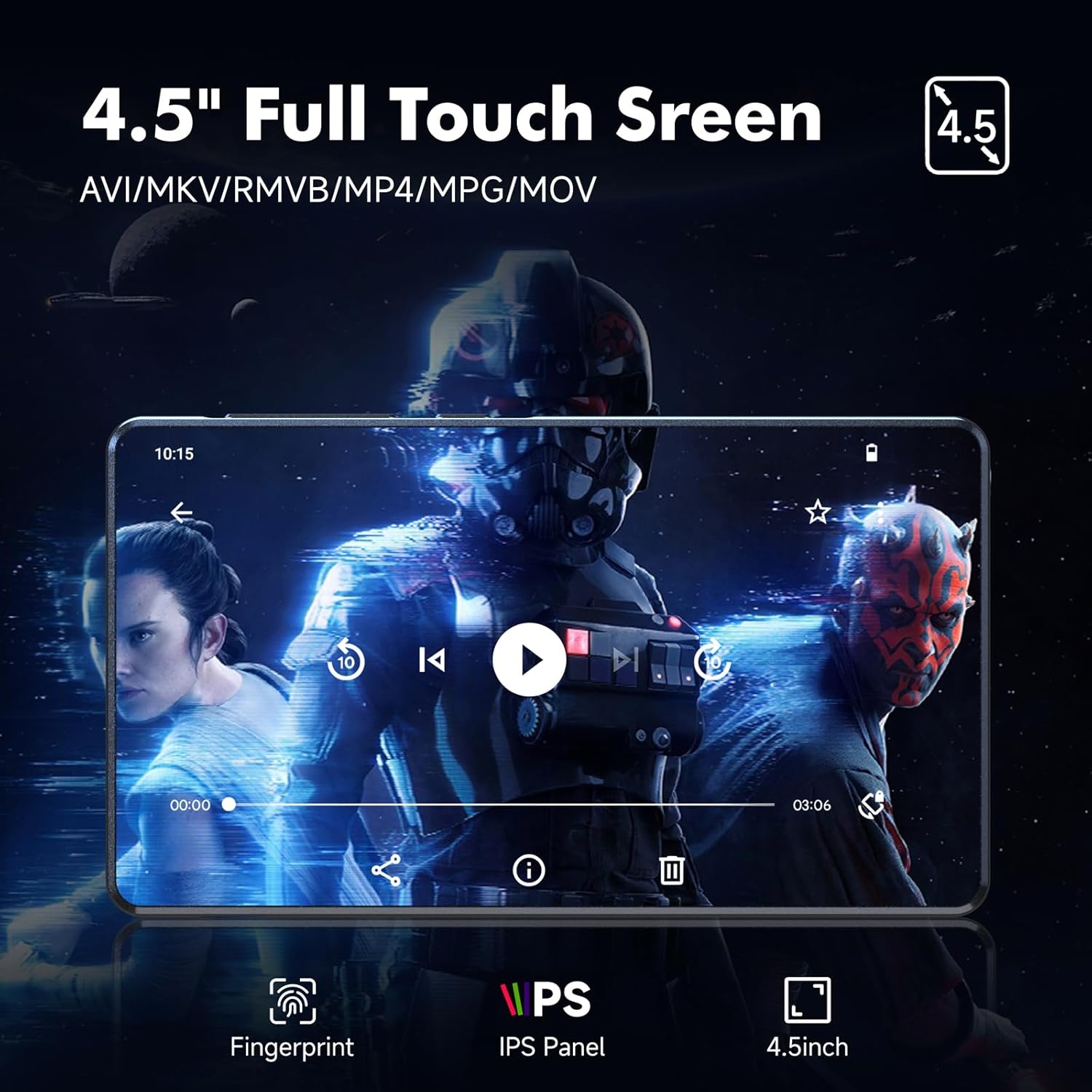
Image: Video playback on the RUIZU M45's 4.5-inch IPS touchscreen.
4.4 Audiobook Playback
Access audiobook content through preloaded applications such as Audible, Libby, LibriVox, and Kindle (via Wi-Fi). These apps allow you to download and listen to audiobooks directly on your device.
4.5 Parental Controls
The device utilizes Google's parental control system. To set up parental controls:
- Go to Settings > Google > Parental Controls.
- Follow the on-screen instructions to create a family group and manage app access, content restrictions, and screen time limits.
- You can set a password to prevent unauthorized app downloads or changes.
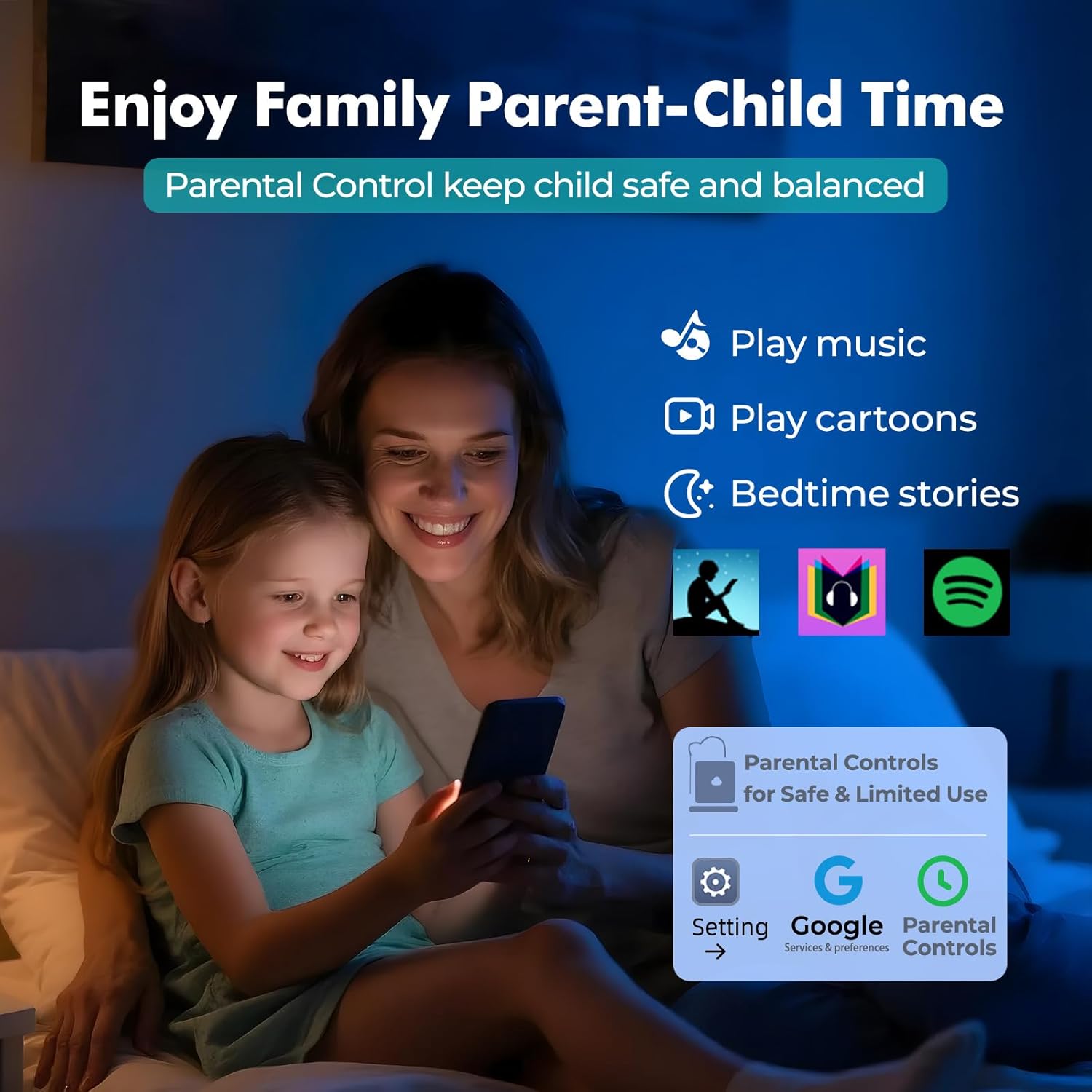
Image: Parental control features for safe and limited use of the RUIZU M45.
4.6 File Management and Transfer
The RUIZU M45 allows for easy file transfer:
- USB-C: Connect the device to a computer using the provided USB-C cable. The device will appear as a removable storage drive, allowing you to drag and drop files.
- Wi-Fi: Use file transfer applications or cloud services to transfer files wirelessly over your Wi-Fi network.
- Bluetooth: Transfer files to and from Android phones or computers via Bluetooth. Note: iOS file transfer is not supported via Bluetooth.

Image: Methods for transferring files to and from the RUIZU M45.
4.7 FM Radio and Voice Recorder
The device includes a built-in FM radio and voice recorder. Access these features through their respective applications on the home screen. For FM radio, ensure wired headphones are connected as they act as the antenna.
5. Connectivity
5.1 Wi-Fi Connection
The RUIZU M45 supports dual-band Wi-Fi (2.4GHz & 5GHz) for stable internet access. To connect:
- Go to Settings > Network & internet > Wi-Fi.
- Turn on Wi-Fi and select your desired network from the list.
- Enter the password if prompted and tap Connect.
5.2 Bluetooth Pairing
The device features Bluetooth 5.0 for wireless audio and file transfer. To pair with a Bluetooth device (e.g., headphones, speakers, car audio):
- Go to Settings > Connected devices > Bluetooth.
- Turn on Bluetooth.
- Put your Bluetooth accessory into pairing mode.
- On the RUIZU M45, tap Pair new device and select your accessory from the list.
- Confirm pairing if prompted.

Image: Bluetooth 5.0 connectivity for headphones, speakers, and car audio.
6. Maintenance
6.1 Battery Care
- Avoid fully discharging the battery frequently.
- Charge the device using the provided USB-C cable and a compatible power source.
- Store the device in a cool, dry place when not in use for extended periods.
6.2 Storage Management
The device has 16GB of internal storage and supports up to 1TB via Micro SD card. To optimize performance:
- Regularly transfer large files (music, videos, photos) to the Micro SD card.
- Uninstall unused applications to free up internal storage.
- Clear app cache periodically from Settings > Apps > [App Name] > Storage & cache.

Image: Storage and memory specifications of the RUIZU M45.
7. Troubleshooting
- Device not powering on: Ensure the device is fully charged. If it still doesn't power on, try holding the power button for 10-15 seconds for a forced restart.
- Wi-Fi connection issues: Check if your Wi-Fi router is working correctly. Ensure you have entered the correct password. Try restarting the device and your router.
- Bluetooth pairing problems: Make sure the accessory is in pairing mode. Ensure the RUIZU M45's Bluetooth is enabled. Try unpairing and re-pairing the device.
- Apps crashing or slow performance: Close background applications. Clear app cache. Ensure sufficient free storage space. Consider a factory reset if issues persist (backup data first).
- Cannot transfer files to iOS devices via Bluetooth: This is a known limitation; Bluetooth file transfer to iOS devices is not supported. Use alternative methods like cloud services or a computer.
8. Specifications
| Feature | Specification |
|---|---|
| Model Number | M45 |
| Operating System | Android 13 |
| Processor | 8-core MTK6762 |
| RAM | 3GB |
| Internal Storage | 16GB |
| Expandable Storage | Up to 1TB via Micro SD card |
| Screen Size | 4.5 Inches |
| Display Type | IPS Touchscreen |
| Connectivity | Bluetooth 5.0, Wi-Fi (2.4GHz & 5GHz) |
| Battery Capacity | 2000mAh Lithium Polymer |
| Audio Formats | MP3, WAV, FLAC, AAC, APE, OGG, M4A, WMA, MP2, etc. |
| Video Formats | AVI, MKV, RMVB, MP4, MPG, MOV (720p & 1080p HD) |
| Special Features | Built-In Speaker, Equalizer, FM Radio, Touch Screen, Voice Recorder, Google Play Store access, Parental Controls |
| Dimensions | 4.59 × 2.55 × 0.39 inches |
| Weight | 0.34 lbs (approx. 13.4 ounces) |
9. Warranty and Support
For warranty information, technical support, or customer service inquiries, please refer to the contact details provided on the product packaging or the official RUIZU website. Keep your purchase receipt for warranty claims.


