1. Introduction
This manual provides detailed instructions for the PWAYTEK DT257W-H Wireless HDMI Transmitter and Receiver Kit. This device allows for wireless transmission of HDMI video and audio signals, supporting up to 4K input resolution and 1080P output resolution over distances up to 1313 feet (400 meters). Please read this manual thoroughly before use to ensure proper setup and operation.
Package Contents
Verify that all items are present in your package:
- Wireless HDMI Transmitter *1
- Wireless HDMI Receiver *1
- USB-A to Type-C Cable *2
- Mini HDMI to HDMI Adapter *1
- Micro HDMI to HDMI Adapter *1
- User Manual *1

2. Product Overview
The PWAYTEK DT257W-H kit consists of a wireless HDMI transmitter (TX) and a wireless HDMI receiver (RX). These devices are designed to extend video and audio signals wirelessly, eliminating the need for long HDMI cables. They support 2.4GHz and 5GHz dual-band connectivity for stable transmission.

Key Features
- Wireless Connectivity: Transmits 1080P HD video and audio signals wirelessly.
- Long-Range Transmission: Up to 1313 feet (400 meters) line-of-sight.
- Plug and Play: Simple setup without complex software installation.
- True Wireless Transmitter: The transmitter can operate without an external power cord when connected to laptops manufactured after 2022 that provide sufficient power via USB-C.
- Versatile Compatibility: Works with various devices including laptops, game consoles, Blu-ray players, cameras, and more. Supports up to 4K input and 1080P output.
- Enhanced Signal: Utilizes WiFi 6 technology for improved speed and stability.

3. Setup Instructions
Follow these steps to set up your PWAYTEK Wireless HDMI Kit:
Step 1: Install the Receiver (RX)
- Connect the HDMI port of the receiver (RX) to the HDMI input port of your display device (TV, monitor, projector).
- Use one of the provided USB-A to Type-C cables to connect the receiver to a USB port on the display device for power. If the display device does not have a USB port, use a 5V/1A USB power adapter (not included).
- Once powered, the display should show a blue connection status screen.
Step 2: Install the Transmitter (TX)
- Connect the HDMI port of the transmitter (TX) to the HDMI output port of your signal source device (laptop, PC, set-top box, camera). Use the appropriate Mini HDMI or Micro HDMI adapter if necessary.
- Use the second provided USB-A to Type-C cable to connect the transmitter to a USB port on the signal source device for power. Ensure the current and voltage provided are greater than 5V/1A. For laptops manufactured after 2022, the transmitter may operate without an external power cord if the laptop's USB-C port provides sufficient power.
Step 3: Display Status
- The receiver indicator light will be continuously on.
- The transmitter (TX) indicator light will change from flashing to steady ON.
- Allow approximately 2 seconds for the connection to complete and the signal to appear on your display.

4. Operating Instructions
Once connected, the PWAYTEK Wireless HDMI Kit will automatically mirror or extend your display, depending on your source device's settings. The system supports both Extend Mode and Mirror Mode.
Extend Mode vs. Mirror Mode
- Mirror Mode: The external display shows the exact same content as your source device's screen.
- Extend Mode: The external display acts as an extension of your source device's screen, allowing you to have different content on each display.
You can switch between these modes through your operating system's display settings (e.g., Windows Display Settings, macOS System Preferences).

Device Compatibility
The PWAYTEK DT257W-H is compatible with a wide range of devices:
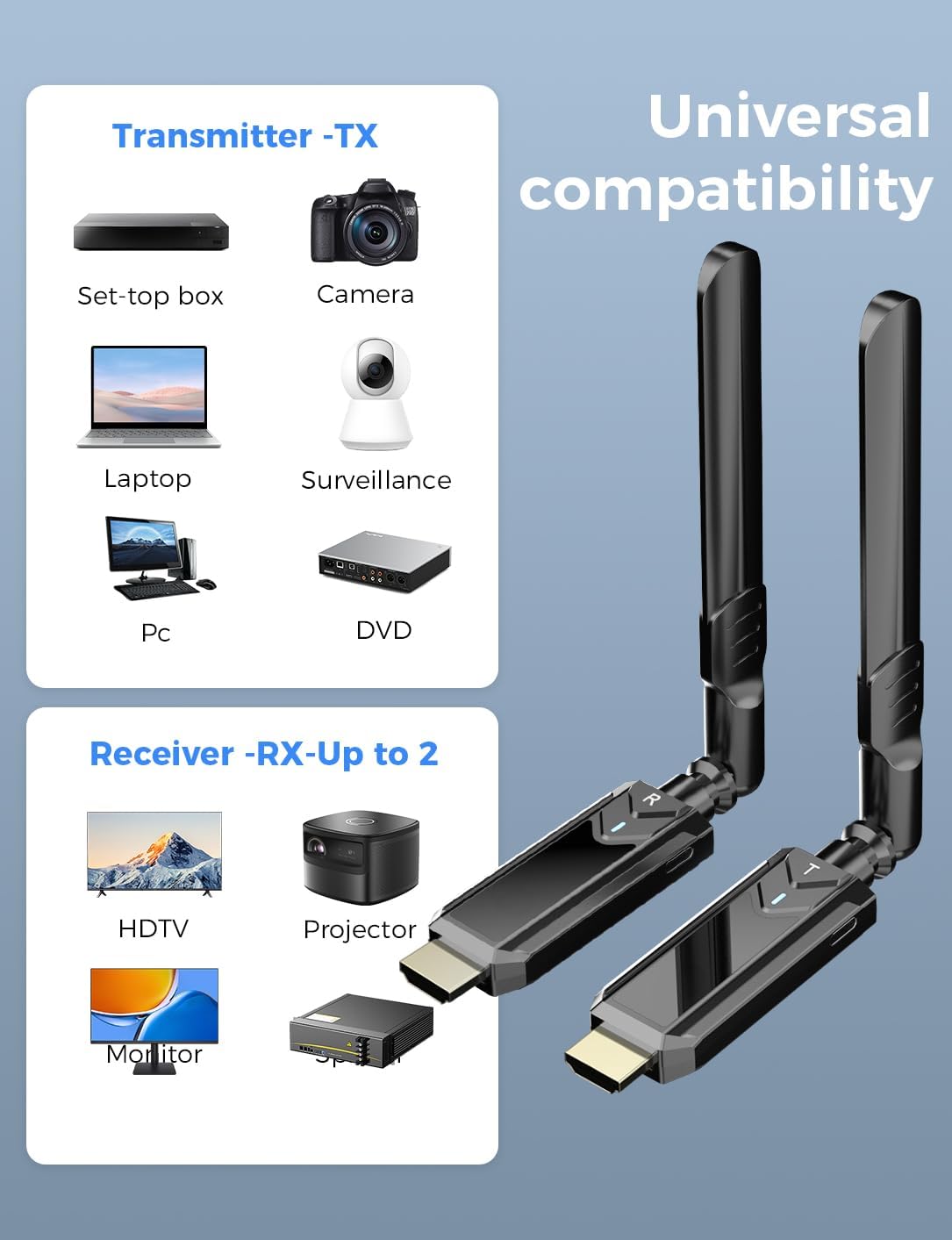
- Transmitter (TX) Sources: Set-top boxes, Cameras, Laptops, PCs, Surveillance systems, DVD players.
- Receiver (RX) Displays: HDTVs, Projectors, Monitors, Splitters.
5. Transmission Performance
The PWAYTEK DT257W-H offers robust wireless transmission capabilities:
- Long-Range: Up to 1313 feet (400 meters) in an open outdoor environment.
- Low Latency: Less than 50ms, suitable for real-time video streaming.
- Enhanced Signal: Features WiFi 6 technology for faster data rates (up to 9.6Gbps) and improved stability compared to WiFi 5.
- Dual Band: Supports both 2.4GHz and 5GHz frequencies for optimal performance and interference avoidance.
Note: Transmission distance and speed may be affected when the product passes through walls or encounters other obstacles. Performance will vary based on environmental conditions.


6. Maintenance
To ensure the longevity and optimal performance of your PWAYTEK Wireless HDMI Kit, follow these maintenance guidelines:
- Cleaning: Use a soft, dry cloth to clean the devices. Avoid using liquid cleaners or abrasive materials.
- Storage: Store the devices in a cool, dry place away from direct sunlight and extreme temperatures.
- Handling: Handle the units with care. Avoid dropping them or subjecting them to strong impacts.
- Connectivity: Ensure HDMI and USB-C cables are connected securely but without excessive force.
7. Troubleshooting
If you encounter issues with your PWAYTEK Wireless HDMI Kit, refer to the following troubleshooting steps:
No Signal on Display
- Check Connections: Ensure both the transmitter (TX) and receiver (RX) are securely connected to their respective HDMI ports and are receiving power via the USB-C cables.
- Power Source: Verify that the USB power source for both units provides at least 5V/1A. If using a laptop for TX power, ensure it's a newer model (post-2022) or use an external 5V/1A adapter.
- Indicator Lights: Check the indicator lights on both units. The RX light should be solid ON, and the TX light should change from flashing to solid ON after a few seconds. If lights are off or flashing incorrectly, recheck power.
- HDMI Adapters: If using Mini or Micro HDMI adapters, ensure they are correctly seated and functional.
- Display Input: Confirm your display device (TV/monitor) is set to the correct HDMI input channel.
- Restart Devices: Disconnect and reconnect both the transmitter and receiver, then restart your source device and display.
Intermittent Signal or Poor Quality
- Reduce Obstacles: Walls, furniture, and other electronic devices can interfere with the wireless signal. Try to minimize obstacles between the transmitter and receiver.
- Distance: Ensure the distance between the TX and RX units is within the recommended range for your environment (e.g., less than 65ft/20m with one wall).
- Interference: Other wireless devices (Wi-Fi routers, cordless phones) operating on 2.4GHz or 5GHz bands can cause interference. Try to move the units away from such devices or change the Wi-Fi channel on your router if possible.
- Antenna Position: Adjust the antennas on both units for optimal signal reception.
Transmitter Not Powering On Wirelessly (Laptop)
- The 'True Wireless' feature for the transmitter is primarily for laptops manufactured after 2022 that can supply sufficient power (5V/1A or more) via their USB-C port. If your laptop is older or does not provide enough power, you must use the provided USB-A to Type-C cable to connect the transmitter to a dedicated 5V/1A USB power adapter.
8. Specifications
| Feature | Specification |
|---|---|
| Model Number | DT257W-H |
| Brand | PWAYTEK |
| Transmission Distance | Up to 1313 feet (400 meters) line-of-sight |
| Input Resolution | Up to 4K |
| Output Resolution | 1080P@60Hz |
| Latency | < 50ms |
| Wireless Standard | IEEE 802.11n (WiFi 6 enhanced) |
| Frequency Band | 2.4GHz & 5GHz Dual Band |
| Power Input | 5V/1A (via USB-C) |
| Item Weight | 5.6 ounces (0.16 Kilograms) |
| Package Dimensions | 6.26 x 5.67 x 0.94 inches |
| Special Features | Screen Mirroring |
| Compatible Devices | Camera, Laptop, Monitor, Projector, TV |
9. Warranty Information
For warranty details, please refer to the warranty card included with your product or contact the retailer/manufacturer directly. Warranty terms typically cover manufacturing defects for a specified period from the date of purchase.
10. Support
If you require further assistance or have questions not covered in this manual, please contact PWAYTEK customer support through their official website or the retailer where you purchased the product. Have your model number (DT257W-H) and purchase information ready when contacting support.


