Introduction
The Steam Deck OLED 512GB is a powerful, portable gaming console designed to bring your PC gaming library to a handheld format. It features a vibrant OLED display, a custom AMD APU for high performance, and versatile controls for an immersive gaming experience on the go. This manual provides essential information for setting up, operating, maintaining, and troubleshooting your Steam Deck.
Product Overview

The Steam Deck OLED 512GB, showcasing its vibrant display with a game library interface.

The Steam Deck OLED 512GB displaying a game with detailed graphics.

A close-up view of the Steam Deck's right-side controls, including the ABXY buttons and right joystick.

Top view of the Steam Deck, highlighting the power button and USB-C charging port.
Key Features:
- 512 GB NVMe SSD: Provides fast storage for quicker game load times and ample space for your game library.
- OLED Display: Features a 1200x800 resolution with deep contrasts and vibrant colors for a captivating visual experience.
- Custom AMD APU: Integrates a power-efficient Zen 2 CPU and RDNA 2 GPU for desktop-level gaming performance.
- Expandable Storage: Includes a microSD card slot for adding more storage space.
- Versatile Controls: Equipped with built-in thumbsticks, trackpads, and touchscreen controls for comprehensive gaming input.
- Steam Integration: Allows direct access to your full Steam library, enabling installation and play of your favorite games and connection with friends.
- Ergonomic Design: Lightweight and compact build designed for comfortable and balanced grip during extended gaming sessions.
- Dual Stereo Speakers: Delivers immersive gameplay with high-quality stereo sound.
- Long Battery Life: Offers up to 8 hours of gameplay on a single charge, ideal for portable use.
- Wireless Connectivity: Supports Wi-Fi 6E and Bluetooth 5.3 for seamless internet access and connection to external devices.
Setup Guide
1. Unboxing and Initial Charge:
- Carefully remove the Steam Deck OLED 512GB and its accessories from the packaging.
- Locate the included 45W power supply.
- Connect the power supply to the USB-C port on the top of the Steam Deck.
- Plug the power supply into a wall outlet. Allow the device to charge fully before first use. The power indicator light will show charging status.
2. Powering On and First-Time Setup:
- Press and hold the power button located on the top edge of the device until the Steam Deck logo appears.
- Follow the on-screen prompts to select your language and region.
- Connect to a Wi-Fi network. This is essential for downloading updates and accessing your Steam library.
- Log in with your existing Steam account or create a new one if you don't have one.
- The system may prompt you to download and install system updates. It is recommended to complete these updates for optimal performance and security.
Operating Instructions
Navigating the Interface:
- Use the left joystick or D-pad to navigate menus.
- Use the right joystick or trackpad for cursor control in desktop mode or specific game inputs.
- The A button typically confirms selections, and the B button cancels or goes back.
- The Steam button (left side) opens the Steam menu, providing access to your library, store, friends, and settings.
- The Quick Access button (right side) opens a menu for quick settings like Wi-Fi, Bluetooth, brightness, and performance overlays.
- The touchscreen can be used for direct interaction with the interface.
Playing Games:
- From the Steam menu, navigate to your Library.
- Select a game you wish to play. If it's not installed, select Install.
- Once installed, select Play to launch the game.
- Many games are optimized for Steam Deck, but you can also adjust game-specific settings via the Quick Access menu for performance tuning.
Connecting Accessories:
- Bluetooth Devices: Go to Settings > Bluetooth to pair wireless headphones, controllers, or other Bluetooth accessories.
- USB-C Accessories: Use the USB-C port on top for charging, connecting to a dock (sold separately) for external displays, or connecting USB-C peripherals.

A user enjoying the Steam Deck OLED 512GB in a relaxed home setting.
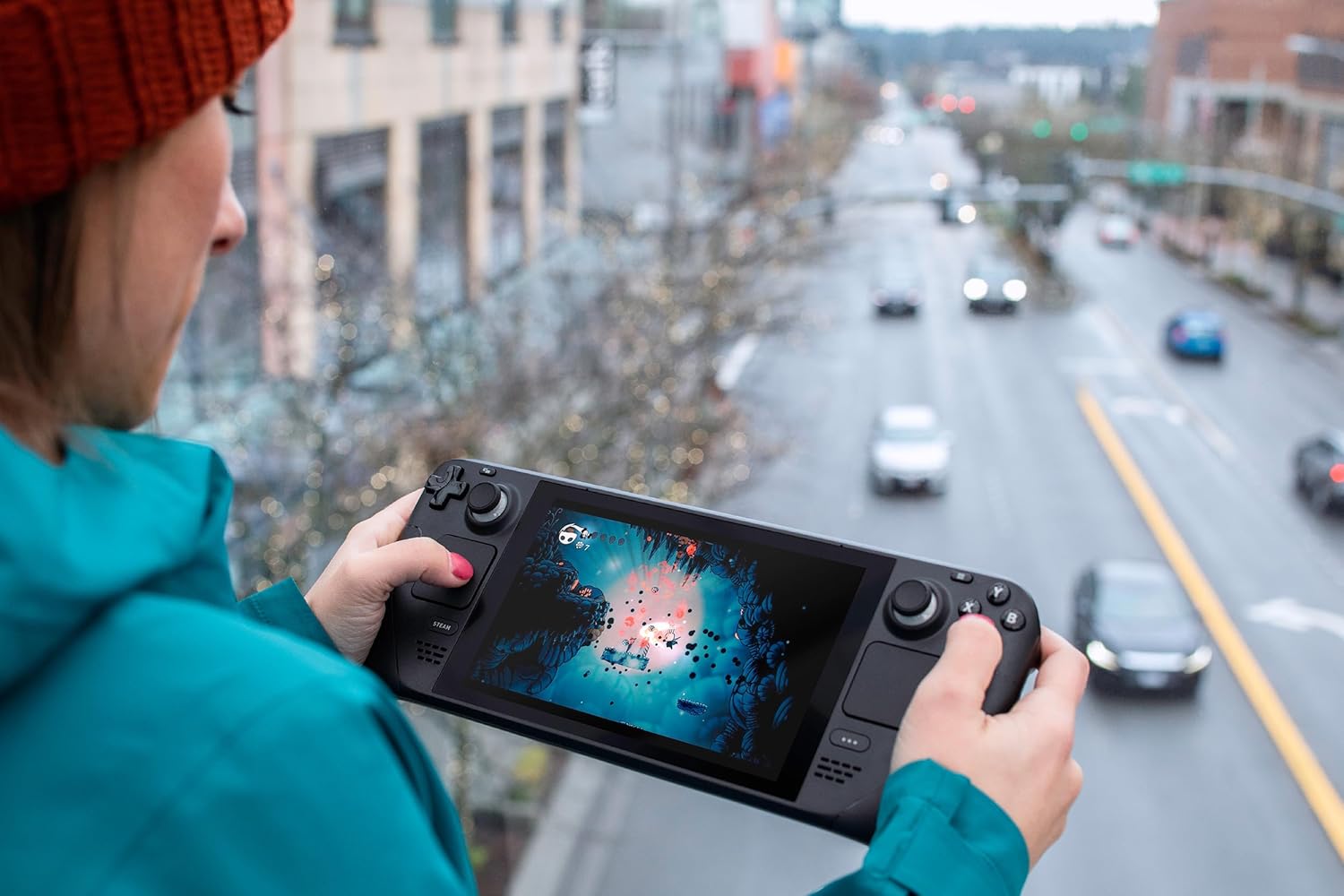
The Steam Deck OLED 512GB being used outdoors, demonstrating its portability.
Maintenance
Cleaning:
- Use a soft, dry, lint-free cloth to clean the screen and exterior of the device.
- For stubborn smudges, slightly dampen the cloth with water. Avoid using harsh chemicals or abrasive materials.
- Keep vents clear of dust and debris to ensure proper airflow and cooling.
Storage:
- When not in use, store the Steam Deck in its included carrying case to protect it from dust, scratches, and impacts.
- Avoid exposing the device to extreme temperatures, direct sunlight, or high humidity.
- If storing for an extended period, ensure the battery is charged to approximately 50% to prolong its lifespan.
Troubleshooting
Common Issues and Solutions:
- Device not powering on:
Ensure the device is fully charged. Connect the power supply and wait a few minutes before attempting to power on again. If unresponsive, try holding the power button for 10-15 seconds for a hard reset.
- Wi-Fi connectivity issues:
Check your Wi-Fi network settings in the Quick Access menu. Try restarting your router. Ensure you are within range of your Wi-Fi signal.
- Games not launching or crashing:
Ensure your Steam Deck's operating system and the game itself are fully updated. Verify the integrity of game files through the game's properties in your Steam library. Reduce in-game graphics settings if performance issues persist.
- Battery draining quickly:
Adjust screen brightness, disable Wi-Fi/Bluetooth when not in use, and enable battery-saving features in the Quick Access menu. Close background applications when not needed.
For more detailed troubleshooting or persistent issues, please refer to the official Steam Deck support resources online.
Specifications
| Feature | Detail |
|---|---|
| Model Number | Steam Deck OLED 512GB |
| Storage | 512 GB NVMe SSD (Expandable via microSD) |
| Display | 7-inch HDR OLED, 1280x800 resolution, Up to 90Hz Refresh Rate |
| Processor | Custom AMD APU (Zen 2 CPU, RDNA 2 GPU) |
| Connectivity | Wi-Fi 6E, Bluetooth 5.3 |
| Battery Life | Up to 8 hours (usage dependent) |
| Dimensions | 17 x 7 x 4 inches |
| Weight | 4 pounds |
| Manufacturer | Valve |
Warranty and Support
Warranty information for your Steam Deck OLED 512GB is typically provided with your purchase documentation or can be found on the official Steam Deck support website. Please retain your proof of purchase for warranty claims.
For technical support, software updates, or further assistance, please visit the official Steam Support website or contact Valve customer service. Online resources often include FAQs, troubleshooting guides, and community forums that can provide valuable help.
Note: Protection plans mentioned during purchase are separate from the manufacturer's warranty and offer extended coverage. Review their terms and conditions for details.


