
Introduction
This manual provides essential instructions for setting up, operating, and maintaining your Epson EcoTank L1270 WiFi printer. Please read this guide thoroughly to ensure proper use and to maximize the performance and longevity of your device. The Epson EcoTank L1270 is an inkjet printer designed for efficient printing with a rechargeable ink tank system and Wi-Fi connectivity.
1. Setup
1.1 Unpacking the Printer
Carefully remove the printer from its packaging. Ensure all protective tapes and materials are removed from the exterior and interior of the printer. Keep the packaging materials for future transport or storage.
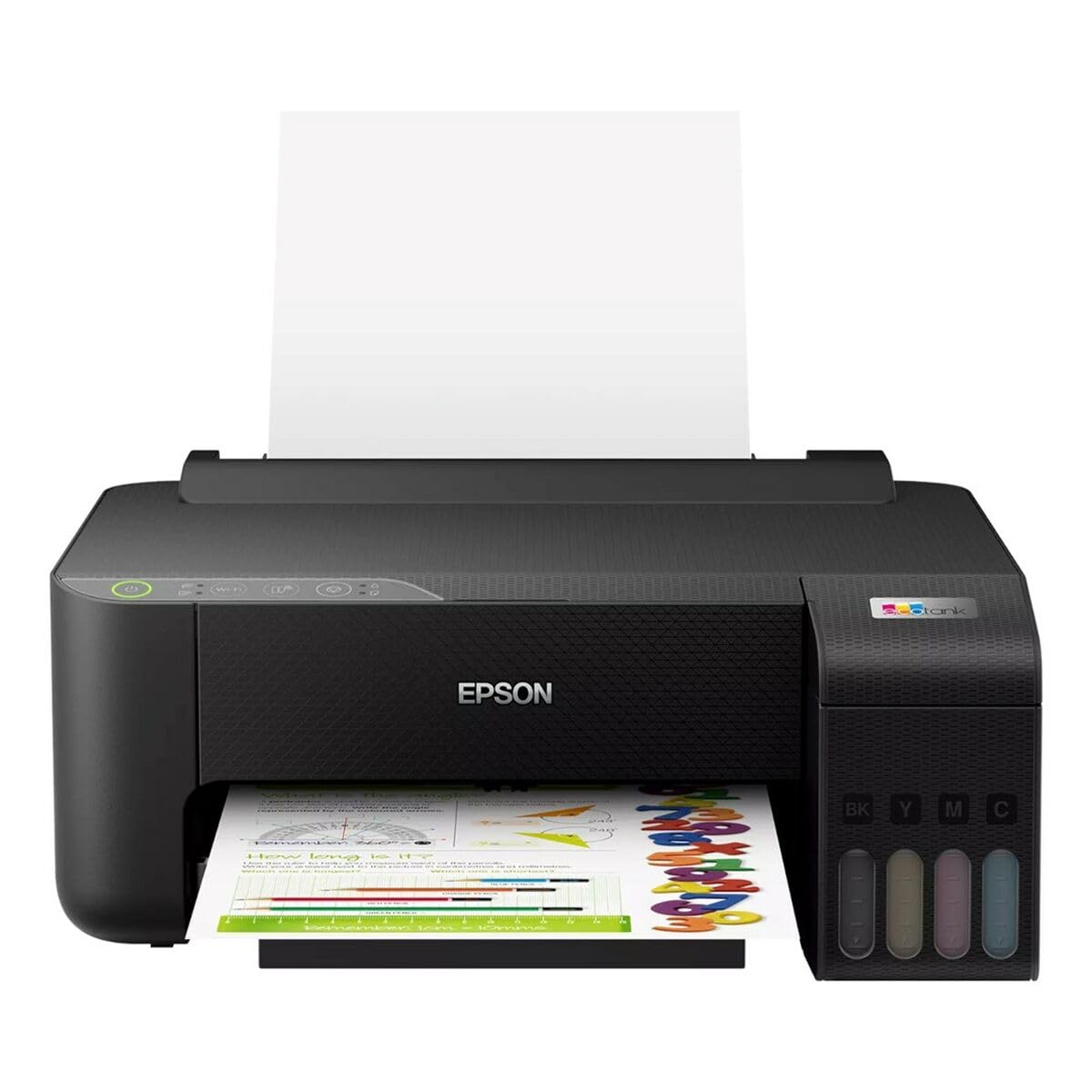
Image 1.1: Epson EcoTank L1270 WiFi Printer. This image shows the printer ready for initial setup after unpacking.
1.2 Filling the Ink Tanks
The EcoTank L1270 uses a refillable ink tank system. Follow these steps to fill the ink tanks:
- Open the ink tank unit cover on the printer.
- Uncap the ink bottle for the corresponding color. Each bottle is keyed to fit only the correct tank.
- Insert the ink bottle into the filling port. The ink will automatically start to fill the tank. Do not squeeze the bottle.
- Once the tank is full, remove the bottle and recap it. Close the ink tank unit cover.
- Repeat for all colors.
Note: Use only genuine Epson ink bottles to prevent damage and ensure optimal print quality.
1.3 Power Connection
Connect the power cord to the printer and then to a wall outlet. Press the power button to turn on the printer. The printer will perform an initial setup process, which may take a few minutes.
1.4 Software and Driver Installation
To use your printer, you need to install the necessary drivers and software on your computer. Visit the official Epson support website for the EcoTank L1270 model to download the latest drivers and utilities. Follow the on-screen instructions provided by the installer.
- Go to Epson Support.
- Search for "EcoTank L1270".
- Download and run the recommended driver package.
1.5 Wi-Fi Setup
The Epson EcoTank L1270 supports Wi-Fi connectivity. You can connect the printer to your wireless network using one of the following methods:
- Using the Printer's Control Panel: Navigate to the Wi-Fi settings on the printer's control panel, select your network, and enter the password.
- Using EpsonNet Setup: If installed, use the EpsonNet Setup utility on your computer to configure the wireless connection.
- WPS (Wi-Fi Protected Setup): If your router supports WPS, press the WPS button on your router, then follow the instructions on the printer's control panel to establish a connection.
2. Operating the Printer
2.1 Loading Paper
Load paper into the rear paper feeder. Ensure the paper guides are adjusted to the width of the paper. The printer supports various paper types and sizes, up to A4.
- Fan the paper stack before loading to prevent misfeeds.
- Do not overload the paper feeder; refer to the maximum capacity (100 sheets for plain paper).
2.2 Printing Documents
To print a document from your computer:
- Open the document you wish to print.
- Select "Print" from the application's menu (e.g., File > Print).
- Choose "Epson EcoTank L1270" as your printer.
- Adjust print settings such as paper size, print quality, and number of copies.
- Click "Print".
2.3 Duplex Printing (Two-Sided Printing)
The EcoTank L1270 supports manual duplex printing. To print on both sides of the paper:
- In your print settings, select the option for "Manual Duplex Printing" or "Print on Both Sides".
- Print the odd-numbered pages first.
- When prompted, reload the printed pages into the paper feeder according to the on-screen instructions to print the even-numbered pages on the reverse side.
3. Maintenance
3.1 Checking Ink Levels
Visually inspect the ink tanks on the front of the printer to check current ink levels. The tanks are transparent, allowing for easy monitoring. Refill ink when levels are low to avoid running out during a print job.
3.2 Refilling Ink Tanks
When an ink tank is low, purchase genuine Epson replacement ink bottles. Follow the same procedure as described in Section 1.2 "Filling the Ink Tanks".
3.3 Cleaning the Print Head
If print quality declines (e.g., missing lines, faded colors), perform a print head cleaning. This can be done through the printer's utility software on your computer or via the printer's control panel. Refer to the software's help guide for detailed steps.
3.4 Paper Path Cleaning
If you experience paper jams or streaks on prints, the paper path may need cleaning. Consult the printer's software utility or the online manual for instructions on how to perform a paper path cleaning.
4. Troubleshooting
This section addresses common issues you might encounter with your Epson EcoTank L1270 printer.
4.1 Printer Not Printing / Blank Pages
- Check Ink Levels: Ensure all ink tanks have sufficient ink.
- Print Head Clogged: Perform a print head cleaning (see Section 3.3).
- Paper Loaded Correctly: Verify paper is loaded properly and not jammed.
- Driver Installation: Ensure printer drivers are correctly installed and up to date. Reinstall if necessary.
4.2 Wi-Fi Connection Issues
- Router Range: Ensure the printer is within range of your Wi-Fi router.
- Network Password: Double-check that the correct Wi-Fi password has been entered.
- Restart Devices: Try restarting your printer, computer, and Wi-Fi router.
- Reconfigure Wi-Fi: Attempt to set up the Wi-Fi connection again (see Section 1.5).
4.3 Poor Print Quality
- Print Head Cleaning: Perform a print head cleaning and nozzle check.
- Paper Type: Ensure you are using the correct paper type for your print settings.
- Ink Quality: Use genuine Epson inks for best results.
For more complex issues, refer to the comprehensive online manual on the Epson support website or contact Epson customer support.
5. Specifications
| Feature | Detail |
|---|---|
| Brand | Epson |
| Model Name | EcoTank L1270 WiFi |
| Printing Technology | Inkjet |
| Connectivity | Wi-Fi |
| Max Print Resolution (Color) | 5760 x 1440 dpi |
| Max Print Resolution (Black & White) | 5760 dpi |
| Max Print Speed (Monochrome) | 15 Pages per minute |
| Max Paper Capacity | 100 sheets (plain paper) |
| Duplex Printing | Yes (Manual) |
| Special Feature | Rechargeable Ink Tank |
| Dimensions (L x W x H) | 26P x 42,5l x 46H cm (approx.) |
6. Warranty Information
The Epson EcoTank L1270 WiFi printer comes with a limited warranty. For specific terms, conditions, and duration of your warranty, please refer to the warranty documentation included with your product or visit the official Epson support website. Keep your proof of purchase for warranty claims.
7. Support
For further assistance, technical support, or to download the latest drivers and manuals, please visit the official Epson support website:
Epson Official Support Website
You may also find helpful resources and FAQs on their website.


