
SANSUI ES-G34C5 PRO
Contents
SANSUI 34 Inch 240Hz Ultrawide UWQHD Gaming Monitor
Model: ES-G34C5 PRO
1. Introduction
This manual provides detailed instructions for the setup, operation, maintenance, and troubleshooting of your SANSUI 34 Inch 3440x1440P 240Hz Ultrawide UWQHD Gaming Monitor. Designed for an immersive gaming experience, this monitor features a 21:9 aspect ratio, 1500R curvature, and advanced AI-powered enhancements.
2. Package Contents
Please verify that all items listed below are included in your package. If any items are missing or damaged, please contact SANSUI customer support.
- SANSUI 34 Inch Ultrawide Gaming Monitor
- Monitor Stand (Base and Neck)
- Power Adapter
- 1.5m DisplayPort Cable
- User Manual (this document)

Figure 2.1: Contents of the SANSUI 34 Inch Ultrawide Gaming Monitor package. This includes the monitor unit, its two-part stand, the power adapter, and a DisplayPort cable.
3. Setup
3.1 Assembling the Stand
- Carefully remove the monitor and stand components from the packaging.
- Attach the stand neck to the monitor panel by aligning the mounting points and securing with screws if necessary (refer to the quick start guide for specific screw locations).
- Attach the stand base to the stand neck, ensuring it is firmly secured.
3.2 Connecting Cables
Locate the input ports on the back of the monitor. Connect the appropriate cables from your computer or gaming console to the monitor.
- Power: Connect the power adapter to the DC input port on the monitor and then to a power outlet.
- Video Input: Use either the HDMI 2.1 or DisplayPort 1.4 cables for video signal. For optimal performance (240Hz at 2K resolution), use the provided DisplayPort cable or a high-quality HDMI 2.1 cable.
- Audio Output: Connect headphones or external speakers to the Earphone Out port if desired, as the monitor does not have built-in speakers.

Figure 3.1: Rear view of the monitor showing available input ports for power, video, and audio.
3.3 VESA Mounting (Optional)
The monitor supports VESA 75 x 75mm mounting for use with compatible wall mounts or monitor arms. Ensure to use M4 screws (4mm length) for VESA mounting.

Figure 3.2: The monitor's VESA mount compatibility allows for flexible setup with monitor arms or wall mounts.
4. Operating Instructions
4.1 Performance Features
The SANSUI monitor is equipped with features to enhance your visual experience, especially for gaming.
- 240Hz Refresh Rate: Provides ultra-smooth motion for fast-paced games.
- 1ms MPRT Response Time: Minimizes motion blur and ghosting for clear visuals.
- FreeSync: Synchronizes the monitor's refresh rate with your GPU's frame rate to eliminate screen tearing and stuttering.
- AI PQ (Visual Enhance): Intelligently optimizes image quality for improved clarity and detail.
- Ultra Vivid: Adjustable setting (Weak/Middle/Strong) to boost color saturation and contrast.

Figure 4.1: Overview of the monitor's performance and display features.

Figure 4.2: Visual representation of the monitor's fast response time and FreeSync capabilities.
4.2 Screen Color and Clarity
Experience vibrant and detailed visuals with the monitor's advanced display technology.
- UWQHD 3440x1440 Resolution: Provides sharp, detailed images across the ultrawide screen.
- 21:9 Ultrawide Screen: Offers a wider field of view compared to standard 16:9 monitors, enhancing immersion.
- 1500R Curved Display: The curvature matches the natural field of vision, reducing eye strain and increasing immersion.
- sRGB 130% / DCI-P3 97%: Ensures a wide and accurate color gamut for rich, lifelike colors.
- HDR (High Dynamic Range): Delivers greater contrast and color accuracy, revealing more detail in both bright and dark scenes.
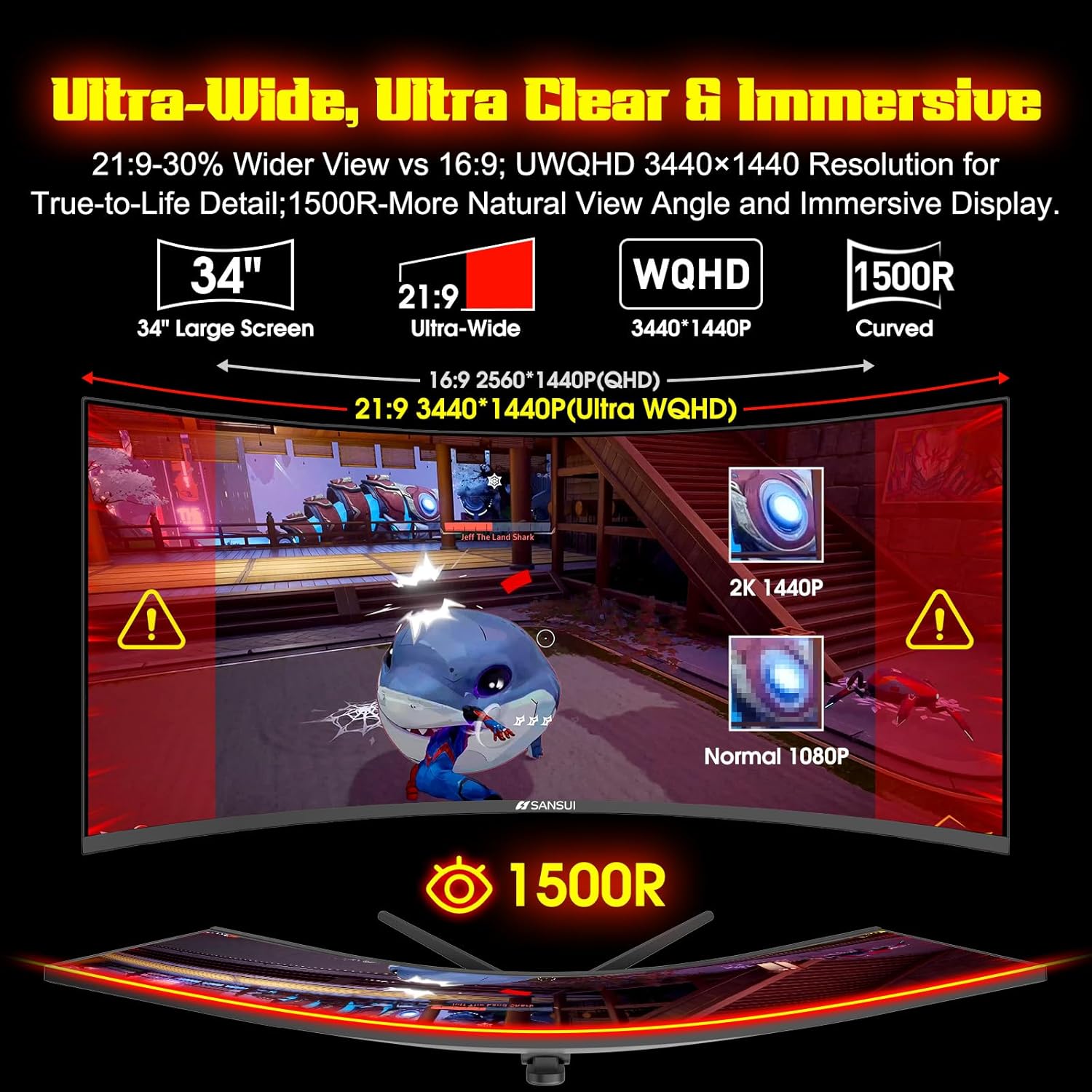
Figure 4.3: The ultrawide curved display provides an immersive and detailed viewing experience.
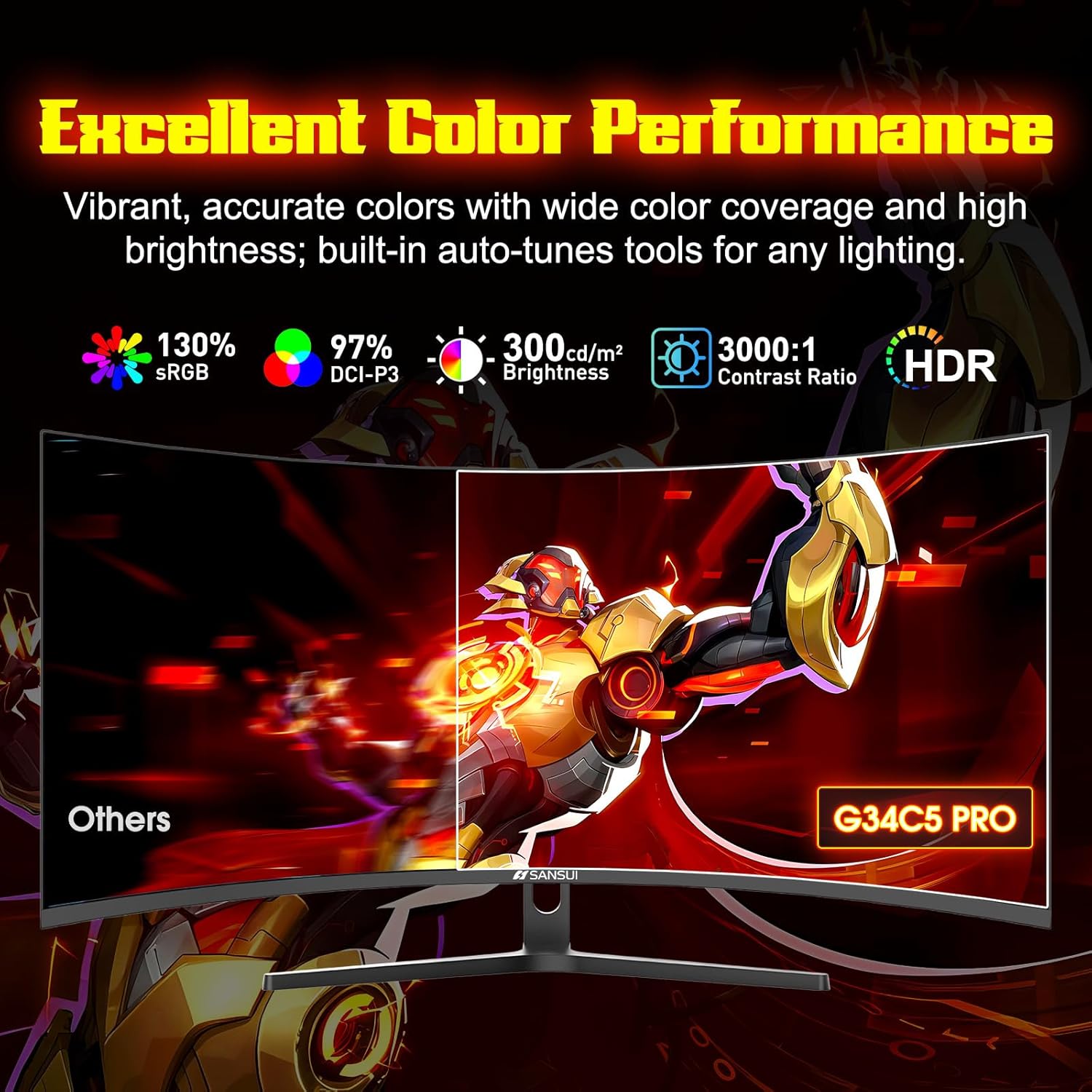
Figure 4.4: The monitor's color accuracy and brightness specifications.
4.3 Ergonomic Stand and Adjustments
The monitor's stand allows for comfortable viewing angles.
- Tilt Adjustment: The monitor can be tilted from -5° to 15° (+/-2°) to find your optimal viewing angle.
- Durable Metal Stand: Provides stable support for the monitor.
- 178° Wide Viewing Angle: Ensures consistent image quality from various perspectives.
Figure 4.5: Monitor dimensions and tilt adjustment range.
4.4 Gaming Enhancements
The monitor includes several features designed to give gamers an edge.
- AI Crosshair: Dynamically inverts color based on real-time game scenes to maintain high-visibility crosshair at all times.
- AI Bluelight: Dynamically grades and adjusts blue light filtering intensity to reduce eye strain.
- Sniper Scope: Magnifies a target area on the screen, enhancing targeting precision with Small/Medium/Large modes.
- Game Mode: Preset modes (FPS, RTS, Racing) optimize display settings for specific game genres.
- Black Level: Optimizes shadow details to expose enemies in darkness.
- Timer: Track in-game timers for boss respawns, cooldowns, and playtime alerts.
- PIP/PBP (Picture-in-Picture/Picture-by-Picture): Display two signals simultaneously on the screen, useful for multitasking or streaming.

Figure 4.6: AI-powered features for enhanced gaming performance and eye comfort.

Figure 4.7: Additional gaming features for competitive play.
Figure 4.8: PIP and PBP functions for multi-source display.
5. Maintenance
Proper care and maintenance will ensure the longevity and optimal performance of your monitor.
- Cleaning the Screen: Use a soft, lint-free cloth lightly dampened with water or a specialized screen cleaner. Do not spray cleaner directly onto the screen. Avoid using abrasive cleaners, alcohol, or ammonia-based solutions.
- Cleaning the Casing: Wipe the monitor casing with a soft, dry cloth.
- Ventilation: Ensure the monitor's ventilation openings are not blocked. Do not place the monitor in an enclosed space without adequate airflow.
- Power Off: Always turn off the monitor and unplug it from the power outlet before cleaning or if it will not be used for an extended period.
6. Troubleshooting
This section addresses common issues you might encounter with your SANSUI monitor. If the problem persists after attempting these solutions, please contact customer support.
| Problem | Possible Cause | Solution |
|---|---|---|
| No image on screen / Power LED off | Monitor not receiving power. | Ensure the power adapter is securely connected to the monitor and a working power outlet. Check the power cord for damage. |
| No signal / 'No Input' message | Incorrect input source selected or video cable not connected. | Verify the video cable (HDMI/DisplayPort) is securely connected to both the monitor and the computer/console. Use the monitor's OSD (On-Screen Display) menu to select the correct input source. |
| Image is distorted or colors are muted (especially in HD settings) | Incorrect display settings on the computer or monitor. | Check your computer's display settings to ensure the resolution and refresh rate are correctly set (e.g., 3440x1440 at 240Hz). Adjust monitor settings like 'Ultra Vivid' or 'AI PQ' through the OSD menu. If colors appear muted with certain HD settings, try adjusting the monitor's color profile or disabling specific image enhancements. |
| Screen tearing or stuttering | FreeSync is not enabled or not compatible with your GPU. | Ensure FreeSync is enabled in the monitor's OSD menu and in your graphics card's control panel. Verify your GPU supports FreeSync. |
| Control buttons are difficult to use / unresponsive | Unfamiliarity with the single-button joystick control. | Familiarize yourself with the joystick control on the back of the monitor. Pushing it in typically confirms a selection, while moving it up/down/left/right navigates menus. Refer to the quick start guide for detailed OSD navigation. |
| Red artifacting when response time is set high | Over-aggressive overdrive setting. | Reduce the monitor's response time (overdrive) setting in the OSD menu to its default or a lower level. High overdrive settings can sometimes introduce visual artifacts. |
7. Specifications
Detailed technical specifications for the SANSUI 34 Inch Ultrawide Gaming Monitor (Model ES-G34C5 PRO).
| Feature | Specification |
|---|---|
| Model Number | ES-G34C5 PRO |
| Screen Size | 34 Inches |
| Panel Type | Fast VA |
| Curvature | 1500R |
| Resolution | 3440 x 1440 (UWQHD) |
| Aspect Ratio | 21:9 |
| Refresh Rate | 240Hz |
| Response Time | 1ms MPRT |
| Color Gamut | sRGB 130%, DCI-P3 97% |
| Contrast Ratio | 3000:1 |
| Brightness | 300 cd/m² |
| HDR Support | Yes |
| Adaptive Sync | FreeSync Compatible |
| Viewing Angle | 178° (H/V) |
| Input Ports | 2 x HDMI 2.1, 2 x DisplayPort 1.4 |
| Audio Output | 1 x Earphone Out (3.5mm) |
| VESA Compatibility | 75 x 75mm |
| Product Dimensions (L x W x H) | 31.77 x 7.48 x 17.32 inches (80.7 x 19.0 x 44.0 cm) |
| Item Weight | 11.66 pounds (5.29 kg) |
8. Warranty and Support
SANSUI stands behind the quality of its products. Your 34-inch 240Hz Curved Gaming Monitor is covered by the following:
- Money-Back Guarantee: Support for money-back and free replacement warranty from the order date within 30 days.
- Technical Support: Lifetime technical support is provided for your product.
For further assistance, please visit the SANSUI Store on Amazon or contact SANSUI customer service directly.
Ask a question about this manual
Ask about setup, troubleshooting, compatibility, parts, safety, or missing instructions. Manuals+ will review the question and use this page’s manual context to help answer it.