
1. Introduction
This manual provides essential information and instructions for the proper use and maintenance of your ZWYING HL1568 Dual Screen Laptop. Please read this manual thoroughly before operating the device to ensure optimal performance and longevity.

Image 1.1: ZWYING HL1568 Dual Screen Laptop overview. This image displays the laptop with its main 15.6-inch screen and the smaller 7-inch touch screen, highlighting its dual-display capability.
2. Package Contents
Verify that all items are present in the package:
- 1 x ZWYING HL1568 Dual Screen Laptop
- 1 x Power Charger
- 1 x User Manual
3. Setup
3.1 Initial Power On
- Connect the power charger to the laptop's power port and a wall outlet.
- Press the power button located on the side of the laptop.
- Follow the on-screen instructions to complete the initial Windows 11 Pro setup. This laptop comes with Windows 11 Pro pre-installed.
3.2 Connecting Peripherals
Utilize the available ports to connect external devices such as a mouse, keyboard, or external storage. Refer to Section 4.4 for port details.
4. Operating the Laptop
4.1 Dual Screen Functionality
The ZWYING HL1568 features a 15.6-inch Full HD IPS main screen (1920x1080 resolution) and a 7-inch touch screen (1920x1200 resolution). These screens can operate simultaneously, allowing for enhanced multitasking. You can extend your desktop across both screens or duplicate content as needed through Windows display settings.

Image 4.1: Dual screen display. This image illustrates the 15.6-inch main screen and the 7-inch secondary touch screen, detailing their respective resolutions and narrow bezel design.
4.2 Keyboard Backlight
The laptop is equipped with a color backlit keyboard. To control the backlight:
- Press FN + F6 simultaneously to toggle the keyboard backlight on or off.
- Press FN + F7 simultaneously to cycle through the 7 available backlight colors.
4.3 Facial Recognition Security
The laptop supports facial recognition for secure and quick system access. Configure this feature through Windows Hello settings in your operating system.

Image 4.3: Keyboard backlight and facial recognition. This image shows the laptop's keyboard with indicators for backlight control (FN+F6, FN+F7) and a visual representation of the facial recognition feature.
4.4 Connectivity Ports
The laptop provides a variety of ports for connectivity:
- USB 3.0 ports (x2)
- Mini HDMI port
- Headphone jack
- TF card slot
- Type-C port
- Power Port
Wireless connectivity includes built-in dual-band Wi-Fi (2.4G/5G) and Bluetooth 4.2.

Image 4.4: Connectivity ports. This image details the various input/output ports available on the ZWYING HL1568 laptop, including USB 3.0, HDMI, Type-C, headphone, and TF card slot.
4.5 Camera and Audio
The laptop features a detachable 2-megapixel high-definition camera, built-in speakers, and a microphone for video calls and audio communication.

Image 4.5: Camera and audio features. This image highlights the laptop's 2-megapixel detachable camera, built-in speakers, and microphone, demonstrating their use in a video call scenario.
5. Specifications
Key technical specifications for the ZWYING HL1568 Dual Screen Laptop:
| Feature | Specification |
|---|---|
| Main Screen Size | 15.6 Inches |
| Main Screen Resolution | 1920x1080 Pixels |
| Touch Screen Size | 7 Inches |
| Touch Screen Resolution | 1920x1200 Pixels |
| Processor | Intel Alder Lake N95 (up to 3.4GHz) |
| RAM | 16GB DDR4 |
| Storage | 1TB SSD (expandable via TF card) |
| Graphics Coprocessor | Intel UHD Graphics |
| Operating System | Windows 11 Pro |
| Wi-Fi | Dual-band (2.4G/5G) |
| Bluetooth | 4.2 |
| Battery | 5400mA |
| Item Weight | 5.7 pounds (approx. 2.59 kg) |
| Product Dimensions | 14.17 x 9.06 x 0.67 inches |

Image 5.1: Storage and RAM. This image visually represents the laptop's 16GB DDR4 RAM and 1TB SSD, highlighting its capacity and speed.
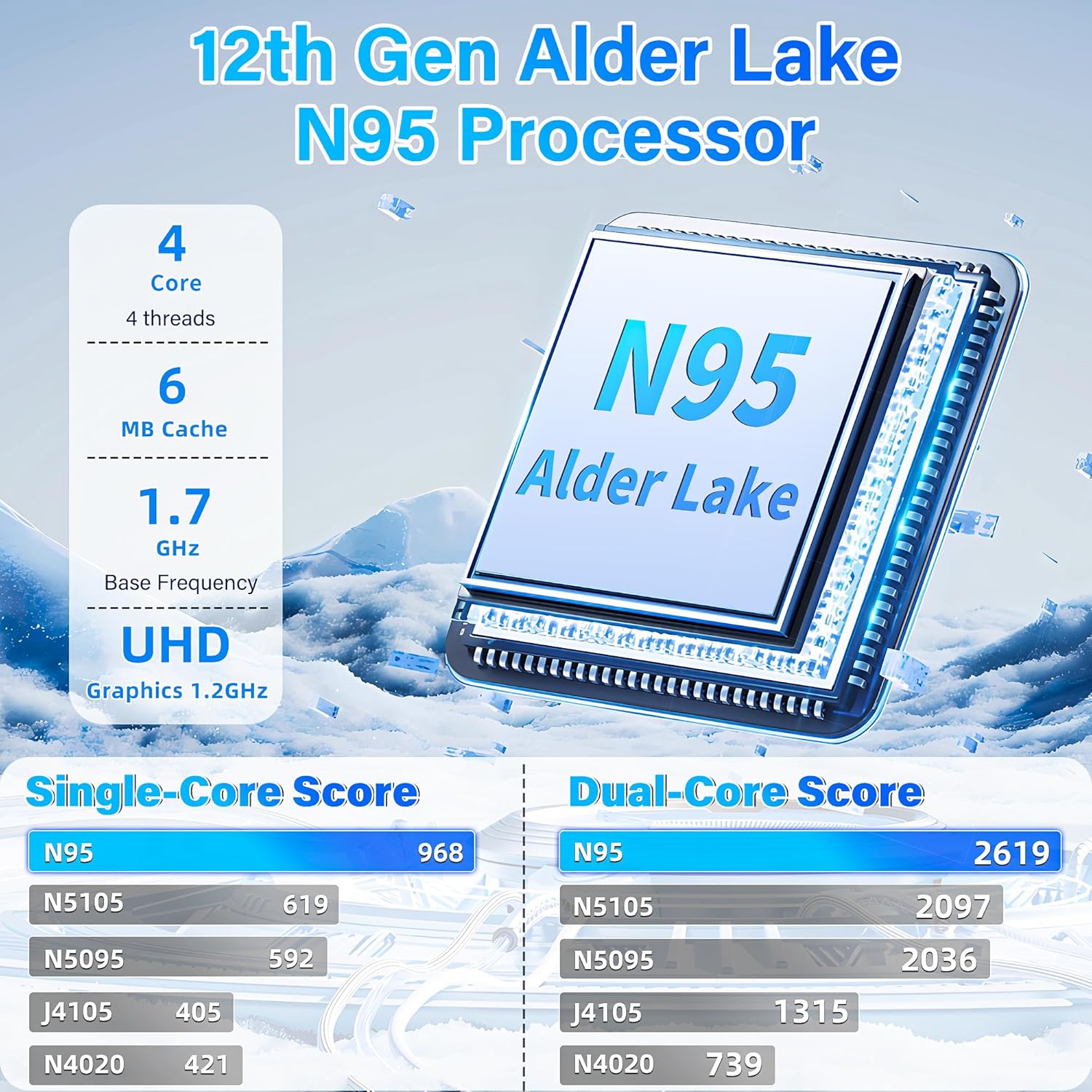
Image 5.2: Processor information. This image provides details about the 12th Gen Intel Alder Lake N95 processor, including core count, cache, base frequency, and graphics.
6. Maintenance
6.1 Cleaning
- Use a soft, lint-free cloth to clean the screen and exterior surfaces.
- Avoid using harsh chemicals or abrasive materials.
- For stubborn smudges, lightly dampen the cloth with water or a screen-cleaning solution.
6.2 Battery Care
- Avoid fully discharging the battery frequently.
- Store the laptop in a cool, dry place if not used for extended periods.
- Use only the provided charger to prevent damage.
7. Troubleshooting
7.1 Common Issues and Solutions
- Laptop does not power on: Ensure the charger is securely connected and the power outlet is functional. Try pressing the power button for 10-15 seconds.
- Screen is blank: Check if the laptop is powered on. If using an external display, ensure it is connected correctly and the display mode is set appropriately (e.g., Extend, Duplicate).
- Wi-Fi connectivity issues: Verify that Wi-Fi is enabled in Windows settings. Restart your router and the laptop.
- Keyboard or touchpad unresponsive: Restart the laptop. Ensure no external devices are interfering.
For persistent issues, please refer to the support information in Section 8.
8. Warranty and Support
Your ZWYING HL1568 Dual Screen Laptop is backed by a 12-month manufacturer's warranty from the date of purchase. This warranty covers defects in materials and workmanship under normal use.
For technical assistance, warranty claims, or customer support, please contact us via the customer support email provided at the time of purchase. Please have your product model and purchase details ready when contacting support.