
GenMachine Ren3000
GenMachine Mini PC Ren3000 User Manual
Model: Ren3000 with AMD Ryzen 7 3750H Processor
1. Introduction
This manual provides essential information for setting up, operating, and maintaining your GenMachine Mini PC Ren3000. Please read this manual thoroughly before using the device to ensure proper function and longevity.
The GenMachine Mini PC Ren3000 is a compact desktop computer designed for various tasks, from office work and creative projects to gaming. It features an AMD Ryzen 7 3750H processor, 16GB DDR4 RAM, and a 512GB SSD for efficient performance.
2. Safety Information
- Electrical Safety: Use only the provided power adapter. Do not expose the device to water or excessive humidity. Ensure proper grounding.
- Ventilation: Do not block ventilation openings. Place the Mini PC on a stable, flat surface to allow for adequate airflow.
- Temperature: Operate the device within a temperature range of 0°C to 35°C (32°F to 95°F). Avoid direct sunlight or heat sources.
- Handling: Handle the device with care. Avoid dropping or subjecting it to strong impacts.
- Servicing: Do not attempt to open or repair the device yourself. Refer all servicing to qualified personnel.
3. Package Contents
Verify that all items are present in the package:
- GenMachine Mini PC
- User Manual
- Power Adapter
- HD Line (HDMI Cable)

Image: Contents of the GenMachine Mini PC package.
4. Product Overview
The GenMachine Mini PC Ren3000 features a compact design with essential ports for connectivity.

Image: Front view of the GenMachine Mini PC.
4.1. Front and Rear Panels

Image: Detailed view of the Mini PC's front and rear ports.
- Front Panel: Power Button, Audio Jack, 2x USB 3.0 ports.
- Rear Panel: 2x USB 3.0 ports, HDMI Output, DisplayPort (DP) Output, LAN (Ethernet) Port, Power Input.
4.2. Dimensions
The Mini PC is designed to be compact and space-saving.

Image: GenMachine Mini PC held in hand, showing its compact dimensions.
- Dimensions (LxWxH): Approximately 12.9 cm x 12.9 cm x 3.7 cm (5 x 5 x 1.45 inches).
- Weight: Approximately 0.77 kg (1.7 pounds).
5. Setup
5.1. Connecting to a Display
- Connect one end of the provided HDMI cable (or a DisplayPort cable, not included) to the HDMI or DP port on the rear of the Mini PC.
- Connect the other end of the cable to the corresponding input port on your monitor or TV.
5.2. Connecting Peripherals
- Connect your USB keyboard and mouse to any available USB ports on the Mini PC.
- For wired network access, connect an Ethernet cable to the LAN port on the rear of the Mini PC.
5.3. Power Connection
- Connect the power adapter to the power input port on the rear of the Mini PC.
- Plug the power adapter into a wall outlet.
5.4. First Boot
- Press the power button on the front of the Mini PC. The power indicator light will illuminate.
- Follow the on-screen instructions to complete the initial operating system setup.
6. Operating Instructions
6.1. Power On/Off
- Power On: Press the power button once.
- Power Off: Use the operating system's shutdown function. Alternatively, press and hold the power button for 5-7 seconds for a forced shutdown (use only when necessary).
6.2. Dual Display Configuration
The Mini PC supports connecting two 4K displays simultaneously via HDMI and DisplayPort.
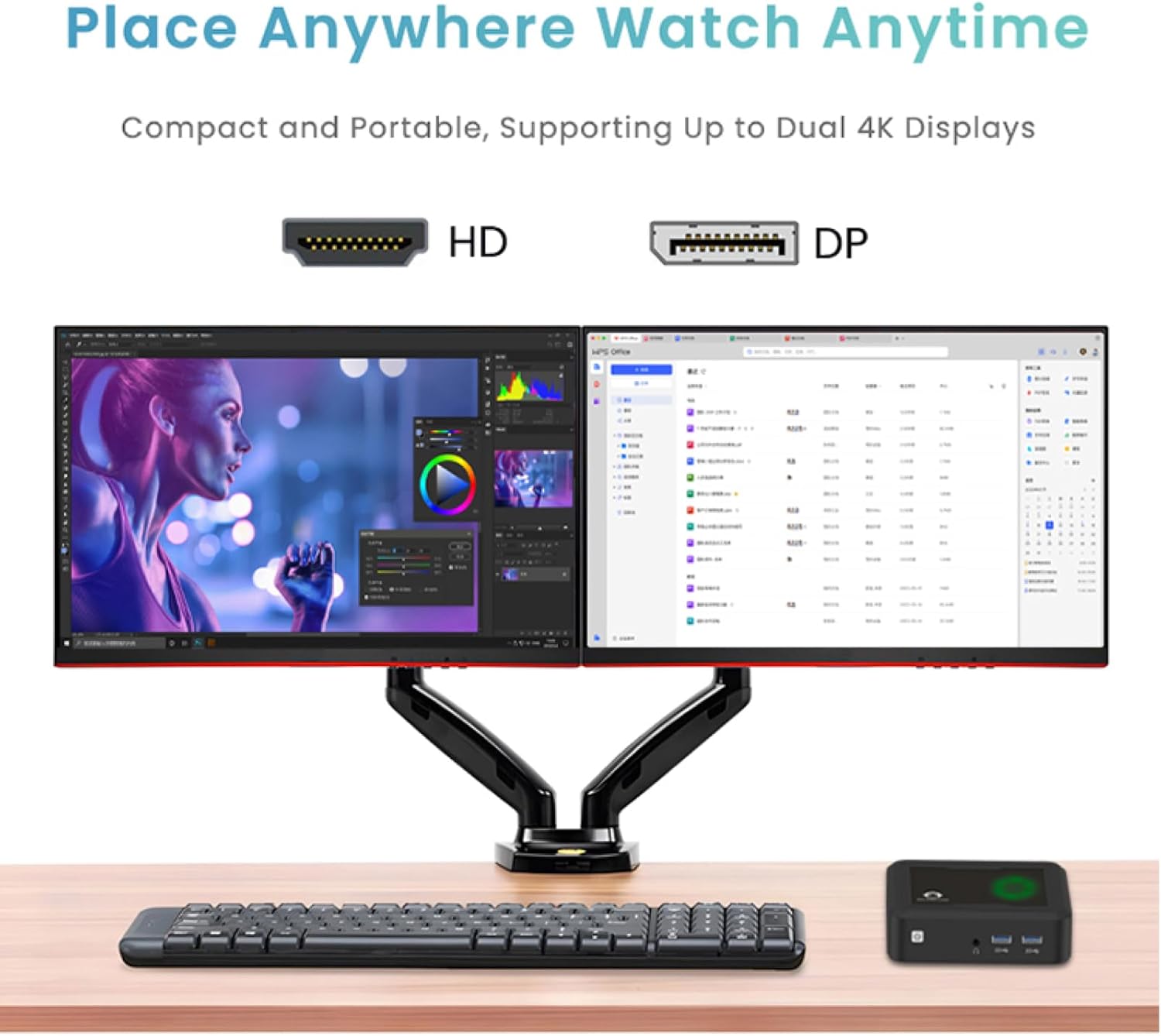
Image: Dual 4K display setup with the Mini PC.
- Connect your primary monitor to either the HDMI or DP port.
- Connect your secondary monitor to the remaining video output port (HDMI or DP).
- Once both monitors are connected and powered on, configure display settings within your operating system (e.g., extend, duplicate, or show only on one display).
6.3. Wireless Connectivity
- Wi-Fi: The Mini PC is equipped with Wi-Fi 5. Access network settings in your operating system to connect to available wireless networks.
- Bluetooth: Bluetooth 4.2 is integrated for connecting wireless peripherals such as keyboards, mice, and headphones. Enable Bluetooth in your operating system settings and pair your devices.
7. Maintenance
- Cleaning: Use a soft, dry cloth to clean the exterior of the Mini PC. For dust in vents, use compressed air. Do not use liquid cleaners directly on the device.
- Software Updates: Regularly update your operating system and drivers to ensure optimal performance and security.
- Data Backup: Periodically back up important data to an external drive or cloud storage to prevent data loss.
8. Troubleshooting
- No Power: Ensure the power adapter is securely connected to both the Mini PC and a working power outlet. Try a different outlet.
- No Display: Verify that the HDMI/DP cable is securely connected to both the Mini PC and the monitor. Ensure the monitor is powered on and set to the correct input source.
- No Internet Connection: For wired connections, check the Ethernet cable and router. For Wi-Fi, ensure Wi-Fi is enabled and you are connected to the correct network with the correct password.
- Peripherals Not Working: Ensure USB devices are properly connected. Try different USB ports. For Bluetooth devices, ensure they are paired correctly and have sufficient battery.
- System Slowdown: Close unnecessary applications. Check for background processes. Ensure sufficient free storage space on the SSD.
9. Specifications
| Feature | Specification |
|---|---|
| Model Name | Ren3000 |
| Processor | AMD Ryzen 7 3750H (2.2 GHz, up to 3.7GHz 4c/8t) |
| RAM | 16GB DDR4 |
| Storage | 512GB 2280 SSD (PCIE x 16 interface) |
| Graphics | Integrated (AMD Radeon RX Vega 10) |
| Video Output | HDMI, DisplayPort (Supports Dual 4K Displays) |
| USB Ports | 4x USB 3.0 |
| Network | Wi-Fi 5, Bluetooth 4.2, Gigabit Ethernet (LAN) |
| Operating System | OS (Pre-installed) |
| Dimensions (LxWxH) | 5 x 5 x 1.45 inches (12.9 x 12.9 x 3.7 cm) |
| Weight | 1.7 pounds (0.77 kg) |
10. Warranty and Support
GenMachine products come with a standard warranty. For specific warranty terms and conditions, please refer to the warranty card included with your product or visit the official GenMachine website.
If you encounter any issues or require technical assistance, please contact GenMachine customer support through their official channels. Have your product model and purchase information ready when contacting support.
Online Support: Visit the GenMachine Store on Amazon for more information and support resources.
Related documentsRen3000


Ask a question about this manual
Ask about setup, troubleshooting, compatibility, parts, safety, or missing instructions. Manuals+ will review the question and use this page’s manual context to help answer it.