1. Product Overview
The Rimoody Single Din Wireless Carplay Car Radio is an advanced in-car entertainment and navigation system designed for seamless integration with your smartphone. Featuring a large 10.1-inch rotatable screen, it provides optimal viewing angles and a user-friendly interface. This unit supports wireless CarPlay, Android Auto, Bluetooth connectivity, FM/AM/RDS radio, and includes a backup camera input for enhanced driving safety.
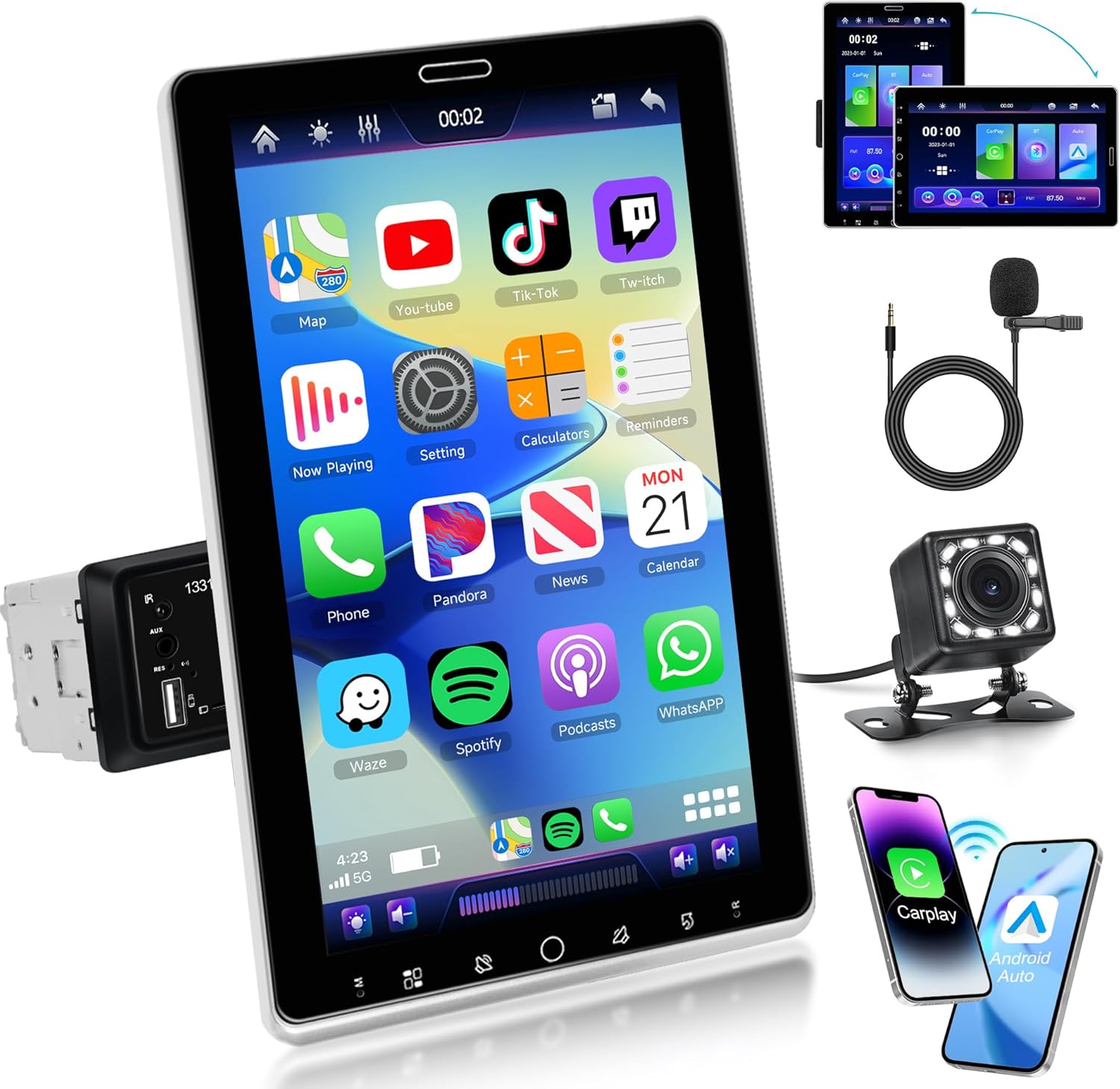
Image 1.1: The Rimoody Single Din Car Stereo, showcasing its large rotating display and included accessories like the backup camera and microphone.
2. Key Features
- 10.1-inch Rotate Screen: High-resolution display that can rotate in multiple directions for optimal viewing.
- Wireless CarPlay/Android Auto: Seamless smartphone integration for navigation, music, calls, and messages.
- Wired Mirror Link: Supports both iOS and Android devices for screen mirroring.
- All-in-One Entertainment Hub: AUX input, FM/AM/RDS radio, multi-function USB ports, and Bluetooth for diverse audio options.
- Bluetooth Connectivity: Built-in Bluetooth for hands-free calling and phone book download.
- EQ Sound Effect Function: Customize audio output for a personalized listening experience.
- Steering Wheel Control: Supports button learning for customized functionality.
- Backup Camera Input: Automatic display of rear view when connected to a backup camera for safe parking.
3. Package Contents
Please verify that all items listed below are included in your package:
- Rimoody Single Din Car Stereo Unit with 10.1-inch Rotating Screen
- Power Cable
- Horn Cable
- Microphone (Mic)
- D-BUS Cable
- User Manual
- Mounting Bracket
- Backup Camera
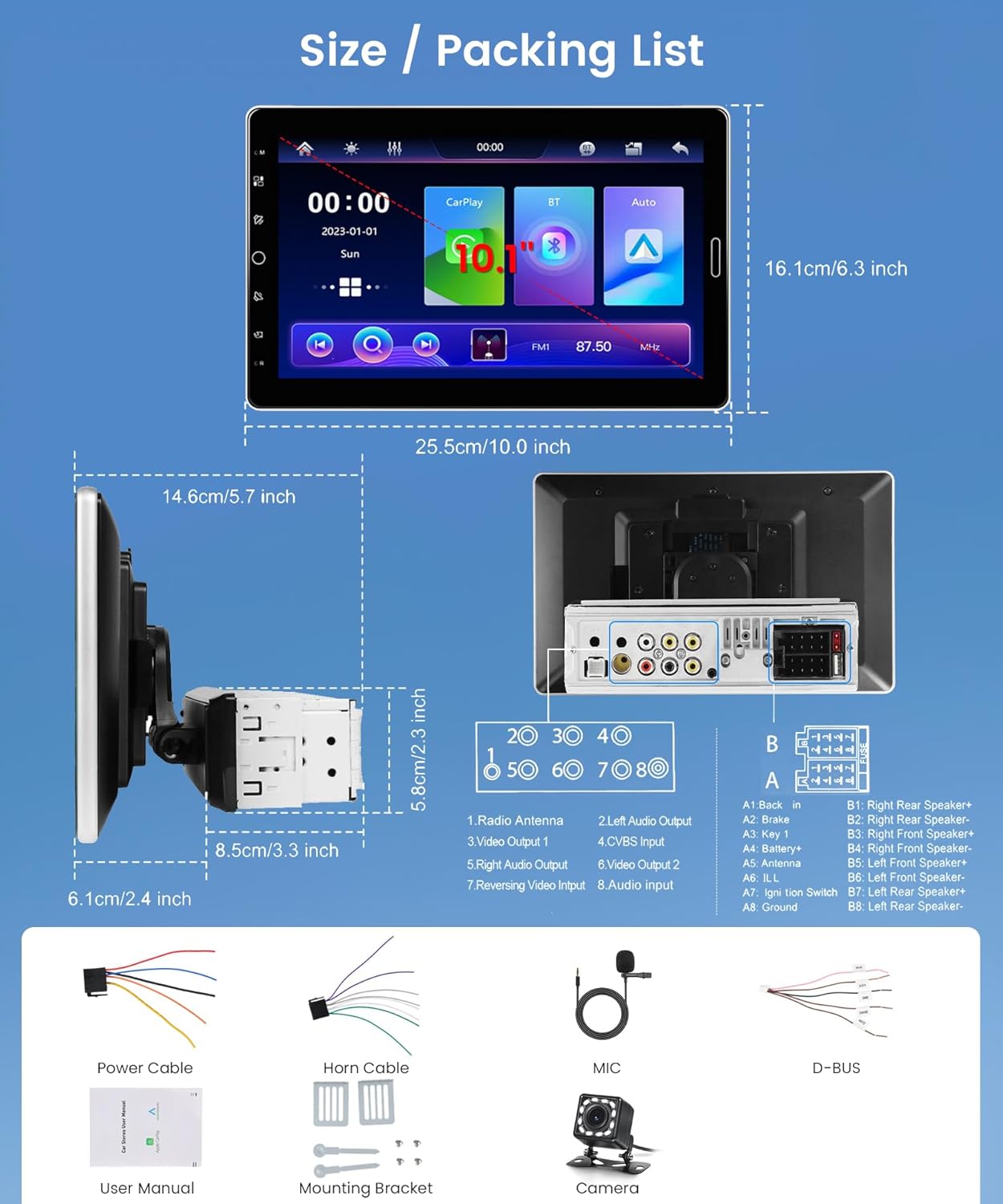
Image 3.1: Visual representation of the car stereo's dimensions and a detailed list of included accessories and cables.
4. Specifications
| Specification | Value |
|---|---|
| Brand | Rimoody |
| Model | 1331W |
| Screen Size | 10.1 inches |
| Compatible Devices | Smartphone, MP3 Player, Backup Camera |
| Audio Output Mode | Stereo |
| Speaker Surround Sound Channel Configuration | 4.0 |
| Output Wattage | 180 Watts |
| Connector Type | Auxiliary, USB, 3.5mm Jack |
| Media Format | MP3 Audio |
| Video Encoding | H.264, H.265/HEVC, MPEG-4, etc. |

Image 4.1: Detailed view of the rear connections of the car stereo unit, including audio, video, and power ports.
5. Setup and Installation
5.1 Wiring Connections
Before installation, ensure your vehicle's power is disconnected. Connect the provided power and horn cables according to your vehicle's wiring diagram. Refer to the detailed wiring instructions in the included user manual for specific connections (e.g., ACC, B+, GND, speaker outputs).
5.2 Mounting the Unit
Install the single din unit into your car's dashboard using the provided mounting bracket. Ensure it is securely fastened to prevent movement during driving.
5.3 Screen Rotation
The 10.1-inch screen can be manually rotated to achieve your preferred viewing angle. Gently adjust the screen's position as needed. There are regulation and fixed modes for the screen's movement.

Image 5.1: Instructions on how to manually adjust and rotate the car stereo's screen for optimal viewing.
5.4 Backup Camera Installation
Connect the provided backup camera to the dedicated input on the car stereo. When properly connected, the display will automatically switch to the rear view when the vehicle is in reverse, providing a clear and wide-angle view.

Image 5.2: Visuals demonstrating the steering wheel control interface and the clear display provided by the rear view camera.
6. Operating Instructions
6.1 Wireless CarPlay / Android Auto
To use Wireless CarPlay or Android Auto, ensure your smartphone's Bluetooth and Wi-Fi are enabled. Pair your phone with the car stereo via Bluetooth. Once paired, the system will prompt you to activate CarPlay or Android Auto. Follow the on-screen instructions to complete the connection. This allows access to navigation, music, calls, and messages directly from the stereo's display.

Image 6.1: Overview of wired CarPlay and Android Auto functionality, including voice control commands.
6.2 Mirror Link
For wired Mirror Link, connect your smartphone to the car stereo using a USB cable. Enable USB debugging or screen mirroring mode on your phone as per its manufacturer's instructions. This feature allows you to mirror your phone's screen onto the car stereo display and control it via touch.

Image 6.2: The Mirror Link function in action, displaying a smartphone's content on the car stereo screen via USB connection.
6.3 Bluetooth Functions
Access the Bluetooth menu on the stereo to pair with your phone. Once connected, you can make and receive hands-free calls, import your phone book, and stream audio wirelessly from your device.
6.4 FM/AM/RDS Radio
Navigate to the Radio application. Use the scan function to find available stations. The RDS (Radio Data System) feature provides additional information like station name and song title where available.
6.5 EQ Settings
The Equalizer (EQ) settings allow you to fine-tune the audio output. Access the EQ menu to adjust bass, treble, and other sound parameters to match your preferences.

Image 6.3: Displays of the Bluetooth interface for calls and music, the FM/AM/RDS radio tuner, and the customizable EQ settings.
6.6 Steering Wheel Control (SWC)
If your vehicle supports steering wheel controls, you can configure them through the stereo's settings. Access the SWC learning function to map your steering wheel buttons to specific functions on the stereo, such as volume control, track skipping, and mode switching.
7. Maintenance
- Screen Cleaning: Use a soft, lint-free cloth to gently wipe the screen. Avoid abrasive cleaners or solvents.
- General Cleaning: Keep the unit free from dust and debris. Use a dry cloth for the main body.
- Temperature: Avoid exposing the unit to extreme temperatures, both hot and cold, as this can affect performance and lifespan.
- Firmware Updates: Check the manufacturer's website periodically for any available firmware updates to ensure optimal performance and access to new features.
8. Troubleshooting
| Problem | Possible Cause | Solution |
|---|---|---|
| Unit does not power on | Incorrect wiring, blown fuse, no power supply | Check power cable connections (ACC, B+, GND). Inspect vehicle's fuse box and the unit's fuse. Ensure stable power supply. |
| No sound output | Speaker wiring issue, volume too low, mute enabled | Verify speaker connections. Increase volume. Check if mute function is active. |
| CarPlay/Android Auto not connecting | Bluetooth/Wi-Fi off, incorrect pairing, phone software issue | Ensure phone's Bluetooth and Wi-Fi are on. Re-pair the device. Update phone's OS or app. Try a different USB cable for wired connection. |
| Backup camera not displaying | Camera not connected, reverse trigger wire issue, faulty camera | Check camera's video input and power connections. Ensure the reverse trigger wire is correctly connected to the vehicle's reverse light circuit. Test camera functionality. |
| Screen unresponsive | Software glitch, temporary freeze | Restart the unit by turning off the vehicle's ignition and turning it back on. If issue persists, consult the full user manual for reset procedures. |
For further assistance, please refer to the comprehensive troubleshooting section in the full user manual or contact customer support.
9. Warranty and Support
Rimoody is committed to providing high-quality products and customer satisfaction. Your product is backed by the following support:
- Quick Response: Customer support available within 24 hours for inquiries.
- Free Return/Exchange: 90 days free return for refund or exchange.
- Lifetime Technical Support: Dedicated technical support team available for the lifetime of the product.
For support, please visit the official Rimoody store on Amazon or contact their customer service directly.


