
Introduction
This manual provides instructions for the safe and efficient operation of your Vexilar W7 Robot Vacuum and Mop Cleaner. Please read this manual thoroughly before use and retain it for future reference.
The Vexilar W7 is a versatile 3-in-1 robot designed for sweeping, vacuuming, and mopping. It features powerful 5000Pa suction, an electric water tank for controlled mopping, and smart control options including a dedicated app, Alexa, Siri, and IFTTT integration.
Package Contents
Verify that all components are present in the package:
- 1 Vexilar W7 Robot Vacuum Cleaner
- 1 Charging Base
- 1 Power Adapter
- 1 Remote Control
- 2 HEPA Filters
- 4 Side Brushes
- 1 2-in-1 Water Tank (250ml water tank, 300ml dustbin)
- 1 Cleaning Brush
- 1 Mop Pad Holder
- 2 Mop Cloths
- 1 User Manual

Image: A visual representation of all items included in the Vexilar W7 Robot Vacuum Cleaner package, including the robot, charging base, power adapter, remote control, filters, brushes, water tank, cleaning brush, mop holder, mop cloths, and user manual.
Setup
1. Charging the Robot
Place the charging base against a wall in an open area. Ensure there are no obstacles within 1 meter to the sides and 2 meters in front of the charging base. Connect the power adapter to the charging base and plug it into a power outlet.
Place the robot on the charging base. The indicator light will show charging status. Fully charge the robot before first use (approximately 4-5 hours).

Image: The Vexilar W7 robot vacuum automatically returning to its charging base, illustrating the charging process.
2. Installing Side Brushes
Press the side brushes onto the posts at the bottom of the robot until they click into place.
3. Installing the 2-in-1 Water Tank and Dustbin
Open the robot's top cover. Insert the 2-in-1 water tank and dustbin unit into the designated slot until it clicks securely.

Image: The Vexilar W7 robot vacuum cleaner demonstrating its 3-in-1 sweeping, vacuuming, and mopping capabilities with a visible water tank and dustbin.
4. App Connection (Optional)
Download the companion app from the Google Play Store or Apple App Store. Follow the in-app instructions to add your device. Ensure your Wi-Fi network is 2.4 GHz.
Image: A step-by-step guide on how to connect the Vexilar W7 robot vacuum cleaner to its mobile application, showing app download, device search, and Wi-Fi connection.
Operating Instructions
1. Power On/Off
Press and hold the power button on the robot for 3 seconds to turn it on or off.
2. Cleaning Modes
The Vexilar W7 offers multiple cleaning modes:
- Automatic Cleaning: For general daily cleaning of the entire area. The robot navigates in a systematic pattern.
- Spot Cleaning: Concentrates cleaning on a specific dirty area. The robot cleans in a spiral pattern.
- Edge Cleaning: Cleans along walls and furniture edges.
- Zigzag Cleaning: Cleans in a back-and-forth pattern for thorough coverage.

Image: The Vexilar W7 robot vacuum cleaner demonstrating its four cleaning modes: Zigzag, Automatic, Edge, and Spot cleaning patterns on different floor types.
3. Controlling the Robot
Remote Control
Use the included remote control to start/pause cleaning, select cleaning modes, adjust suction power, and direct the robot manually.

Image: A person using the remote control to operate the Vexilar W7 robot vacuum cleaner, with an overlay showing the remote's buttons and their functions (e.g., recharge, start/pause, direction, spot mode, edge mode, suction adjustment).
App Control
The mobile app allows for advanced control, including scheduling cleaning times, selecting cleaning modes, adjusting water flow for mopping (Dry/Standard/Intensive), and monitoring the robot's status.
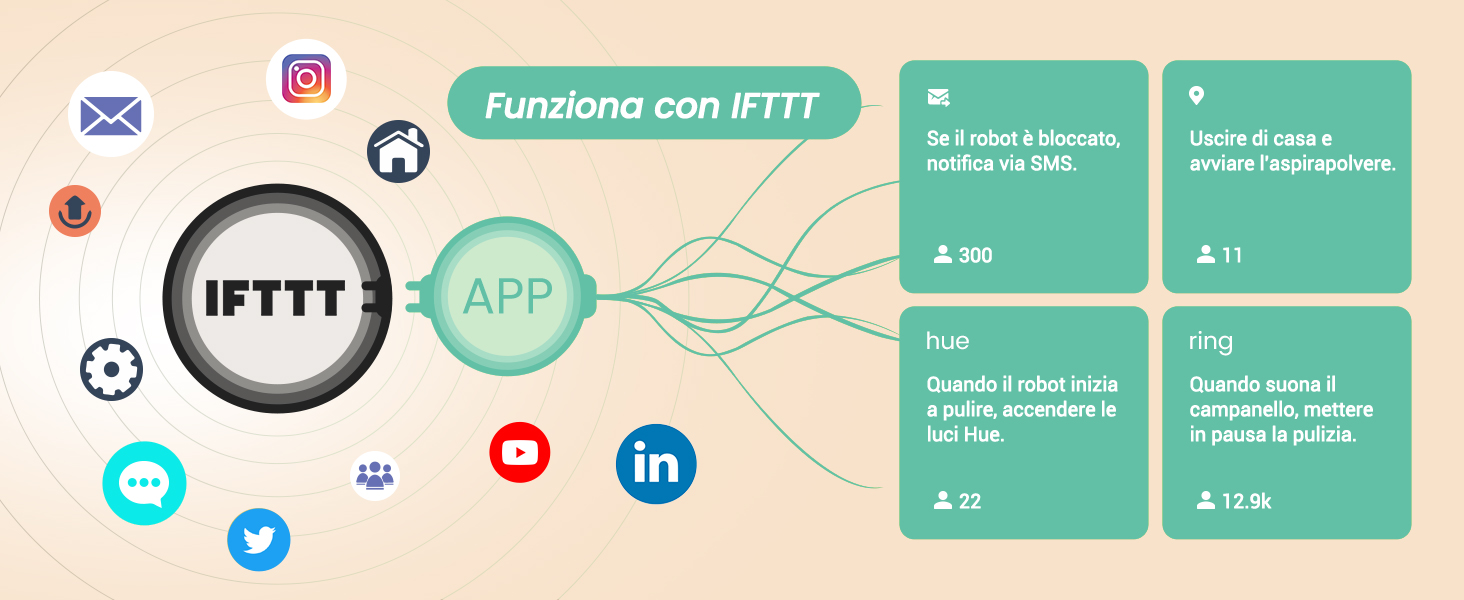
Image: A smartphone screen displaying the Vexilar W7 robot vacuum cleaner's app interface, showing options for scheduled cleaning, including time, mode, and repetition settings.
Voice Control (Alexa, Google Home, Siri)
Integrate your Vexilar W7 with smart home assistants for hands-free control. Follow the instructions in the app to link your robot with Alexa, Google Home, or Siri.
Example commands: "Alexa, turn on the Vexilar W7," "Hey Google, start cleaning," "Siri, clean the kitchen."

Image: The Vexilar W7 robot vacuum cleaner next to an Amazon Echo device, illustrating voice control compatibility with Google Assistant, Amazon Alexa, and Siri.
IFTTT Integration
The robot supports IFTTT (If This Then That) for custom automation. For example, receive an SMS notification if the robot gets stuck, or pause cleaning when your doorbell rings.

Image: A diagram illustrating the IFTTT integration for the Vexilar W7 robot vacuum cleaner, showing examples like SMS notifications for blockages, turning on smart lights when cleaning starts, or pausing cleaning when a smart doorbell rings.
Maintenance
Regular maintenance ensures optimal performance and extends the lifespan of your Vexilar W7.
1. Emptying the Dustbin
Press the release button to remove the 2-in-1 water tank and dustbin. Open the dustbin cover and empty its contents. Clean the filter screen with the provided cleaning brush.
2. Cleaning the Water Tank and Mop Pad
Remove the mop pad from its holder and wash it. Refill the water tank with clean water as needed. Ensure the water tank is clean to prevent blockages.

Image: An illustration highlighting the Vexilar W7 robot vacuum cleaner's dual side brush system, designed to capture debris efficiently.
3. Cleaning Filters
Tap the HEPA filter to remove dust. Do not wash the HEPA filter with water. Replace HEPA filters every 3-6 months, or as needed.

Image: A close-up of the Vexilar W7 robot vacuum cleaner's HEPA filter, emphasizing its multi-stage filtration system for improved air purification.
4. Cleaning Sensors
Wipe the cliff sensors and anti-collision sensors on the robot's underside and front bumper with a dry cloth to ensure proper function.
Troubleshooting
| Problem | Possible Cause | Solution |
|---|---|---|
| Robot does not turn on. | Low battery or not charged. | Place the robot on the charging base and ensure it is fully charged. |
| Robot gets stuck frequently. | Obstacles (cables, toys) or narrow spaces. | Clear the cleaning area of obstacles. Ensure sufficient space for the robot to maneuver. |
| Poor suction performance. | Full dustbin, clogged filter, or tangled brushes. | Empty the dustbin. Clean or replace the HEPA filter. Clean side brushes. |
| Robot does not mop effectively. | Empty water tank or dry mop pad. | Refill the water tank. Moisten the mop pad before use. Adjust water flow in the app. |
| Cannot connect to Wi-Fi/App. | Incorrect Wi-Fi band (only 2.4 GHz supported) or incorrect password. | Ensure your router is set to 2.4 GHz. Re-enter Wi-Fi password carefully. Restart router and robot. |
Specifications
| Feature | Detail |
|---|---|
| Model Name | W7 Robot Vacuum Cleaner |
| Brand | Vexilar |
| Suction Power | 5000Pa (Max) |
| Noise Level | 55 dB |
| Battery Life | Up to 120 minutes |
| Battery Type | Lithium-ion |
| Dustbin Capacity | 300 ml |
| Water Tank Capacity | 250 ml |
| Filter Type | HEPA |
| Control Methods | App, Remote Control, Voice (Alexa, Google Home, Siri), IFTTT |
| Special Features | 5000Pa Suction, Low Noise (55dB), 3-in-1 Sweep/Vacuum/Mop, Multiple Smart Cleaning Modes, Anti-tangle design, Anti-drop sensors, Anti-collision sensors, Automatic charging. |
| Dimensions (L x W x H) | 32L x 32W x 8.3H cm |
| Recommended Surfaces | Wood floors, Tiles, Carpets (low pile), Hard floors |
Warranty and Support
For warranty information and technical support, please refer to the official Vexilar website or contact customer service through the details provided in the original product packaging. Keep your purchase receipt as proof of purchase.
For additional resources, you may visit the Vexilar Store on Amazon.


