
1. Introduction
Thank you for choosing the johgee Smart WiFi 3-Zone Irrigation Timer. This device allows you to automate your garden watering with advanced RF technology, offering a stable connection and remote control via a smartphone application. It features three independent watering zones, programmable schedules, rain delay functionality, and voice control compatibility with Alexa and Google Assistant.
This manual provides detailed instructions for setup, operation, and maintenance to ensure optimal performance of your irrigation system.

Image: The johgee Smart WiFi Irrigation Timer can be used for various watering applications such as filling pools, irrigating potted plants, watering lawns, and fruit trees.
2. Package Contents
Please check the package contents to ensure all items are present:
- johgee Smart WiFi 3-Zone Irrigation Timer
- RF Gateway
- 1/2" Adapter
- Quick Connector (x2)
- Raw Tape
- O-Ring (x2)
- User Manual

Image: The package includes the gateway, timer, various adapters, quick connectors, raw tape, O-rings, and the user manual.
3. Specifications
| Brand | johgee |
| Model | Smart WiFi 3-Zone Irrigation Timer |
| Color | Grey |
| Material | Plastic |
| Product Dimensions (D x W x H) | 7.1 x 13.3 x 12.6 cm |
| Number of Zones | 3 Independent Zones |
| Wireless Technology | RF 433MHz (300M range) with 2.4 GHz WiFi Gateway |
| App Control | Yes (SmartLife App) |
| Voice Control | Alexa, Google Assistant |
| Rain Delay | Automatic & Manual (24/48/72 hours) |
4. Setup Guide
4.1. Connecting the RF Gateway
The RF Gateway uses 433MHz RF technology to communicate with the irrigation timer, offering an extended range of up to 300 meters in open environments. This provides a more stable connection compared to standard Bluetooth gateways.
- Plug the RF Gateway into a power outlet within range of your 2.4 GHz WiFi network.
- Ensure the gateway is positioned optimally for connection to both your WiFi router and the irrigation timer.

Image: The RF Gateway provides an optimal connection range of up to 300 meters (984 feet), significantly greater than typical 15-meter Bluetooth connections.
4.2. App Installation and Pairing
The johgee Smart WiFi Irrigation Timer is controlled via the SmartLife app.
- Download the SmartLife app from your smartphone's app store (iOS or Android).
- Register or log in to your SmartLife account.
- Add the RF Gateway to the app by following the in-app instructions. Ensure your phone is connected to a 2.4 GHz WiFi network during this process.
- Once the gateway is added, add the irrigation timer to the gateway within the SmartLife app.

Image: The SmartLife app allows for comprehensive control, including irrigation scheduling, rain delay settings, and manual watering.
4.3. Physical Installation of the Timer
- Attach the irrigation timer to your outdoor faucet. Ensure a tight fit to prevent leaks. Use the provided raw tape and O-rings if necessary.
- Connect your garden hoses to the three independent outlets (Zone A, B, C) on the timer. Use the quick connectors for easy attachment.
- Position the timer in a location where it is protected from direct heavy rain and extreme weather conditions, while remaining within the RF range of the gateway.
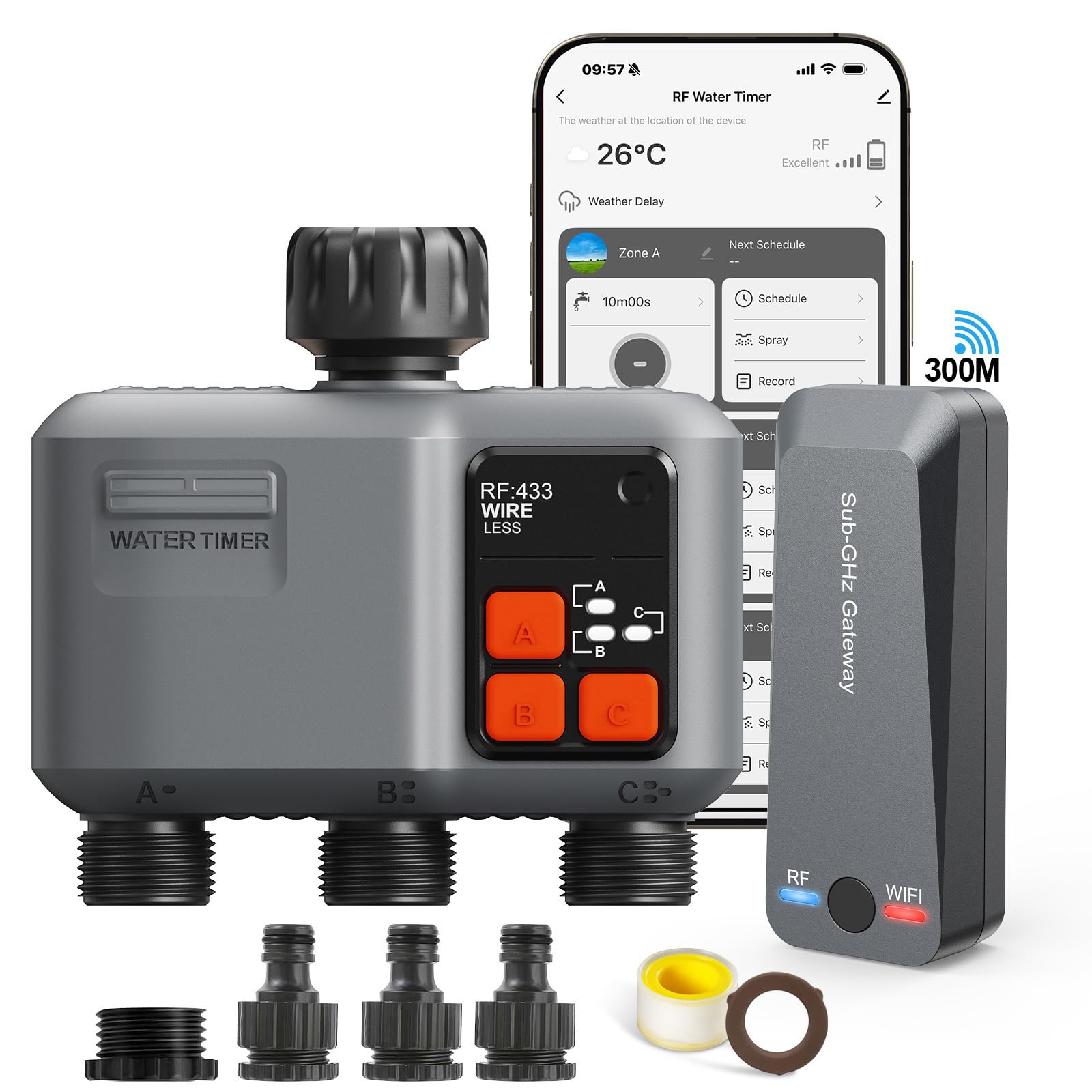
Image: The johgee Smart WiFi 3-Zone Irrigation Timer is shown installed on an outdoor faucet, ready for hose connections.
5. Operating Instructions
5.1. Independent Zone Control
The timer features three independent outlets, allowing you to manage different watering needs for various areas of your garden without interference.
- Each zone (A, B, C) can be programmed separately within the SmartLife app.
- You can set up to 5 customizable programs per zone.

Image: An illustration of a garden divided into three independent watering zones, each with its own customized irrigation schedule.
5.2. Scheduled Watering Modes
The timer supports two main scheduled watering modes:
- Single Watering Mode: Set a specific start time, duration (from 1 second to 11 hours, 59 minutes, 59 seconds), and frequency (specific days of the week).
- Loop Watering Mode: Ideal for frequent, short watering cycles. Set a start time, duration, and interval for repeated watering within a set period.
To set a schedule:
- Open the SmartLife app and select your irrigation timer.
- Navigate to the 'Schedule' section for the desired zone.
- Choose your preferred watering mode and configure the start time, duration, and frequency.
- Save your settings.

Image: The SmartLife app interface for scheduling irrigation, allowing users to set start times, durations, and frequencies for each zone.
5.3. Flexible Watering (Spray Mode)
In addition to standard watering, the timer offers a flexible spray mode, suitable for misting or specific plant needs.
- You can choose between "watering" or "spray" modes as needed.
- Up to 5 watering plans and 1 spray plan can be configured.

Image: The SmartLife app interface for configuring spray irrigation mode, showing options for start/end times, duration, and intervals.
5.4. Manual Watering
For immediate watering needs, you can activate manual watering directly from the app.
- In the SmartLife app, select the desired zone.
- Choose the 'Manual' option.
- Set the desired watering duration (up to 11 hours and 59 minutes).
- Confirm to start manual watering.

Image: The irrigation timer facilitates manual watering, allowing users to control water flow directly.
5.5. Smart Voice Control
Integrate your johgee irrigation timer with smart home assistants for convenient voice control.
- The system is compatible with Amazon Alexa and Google Assistant.
- Link your SmartLife account to your Alexa or Google Home app.
- Use simple voice commands, such as "Alexa, turn on the smart water timer," to control your irrigation.

Image: Smart voice control allows users to manage their irrigation system hands-free using Amazon Alexa or Google Assistant.
5.6. Rain Delay Function
Prevent overwatering and conserve water with the intelligent rain delay feature.
- Automatic Rain Detection: The system can automatically detect rainfall and pause scheduled watering.
- Manual Rain Delay: You can manually set a delay of 24, 48, or 72 hours via the SmartLife app.

Image: The SmartLife app provides options for setting a rain delay, ranging from 1 to 7 days, to prevent unnecessary watering.
5.7. Monitoring Irrigation Records
Keep track of your watering history through the SmartLife app.
- The app records past watering events, including duration and time.
- Reviewing these records can help you optimize your watering schedules and identify any issues.

Image: A user monitoring irrigation records on the SmartLife app, showing past watering durations and times.
6. Maintenance
Proper maintenance ensures the longevity and optimal performance of your irrigation timer:
- Cleaning: Periodically clean the exterior of the timer with a soft, damp cloth. Do not use abrasive cleaners or solvents.
- Winterization: Before the first frost, disconnect the timer from the faucet and store it indoors in a dry, frost-free location. Freezing water can damage the internal components.
- Battery Check: If the timer uses batteries (information not provided, assume internal power or long-life if not specified), check and replace them as needed according to the manufacturer's recommendations.
- Filter Cleaning: Check the inlet filter for debris and clean it regularly to prevent blockages and ensure proper water flow.
7. Troubleshooting
If you encounter issues with your johgee Smart WiFi 3-Zone Irrigation Timer, refer to the following common problems and solutions:
| Problem | Possible Cause | Solution |
|---|---|---|
| Timer not connecting to app. | Gateway not powered or not connected to 2.4 GHz WiFi. Timer out of RF range. | Ensure gateway is powered and connected to 2.4 GHz WiFi. Move timer closer to gateway. Re-pair the timer with the gateway in the app. |
| No water flow from an outlet. | Faucet off. Blocked filter. Incorrect schedule. Valve malfunction. | Check if the faucet is fully open. Clean the inlet filter. Verify schedule settings in the app. Contact support if valve appears faulty. |
| Watering occurs unexpectedly. | Incorrect schedule set. Manual watering activated. | Review all active schedules for the zone in the app. Check if manual watering was accidentally activated. |
| Voice control not working. | SmartLife account not linked to Alexa/Google. Incorrect voice commands. | Ensure SmartLife is linked in your Alexa/Google Home app. Use precise commands as specified in the app's integration guide. |
8. Warranty and Support
johgee products are designed for reliability and performance. For warranty information, please refer to the documentation included with your purchase or contact johgee customer support.
If you require technical assistance or have questions not covered in this manual, please contact our customer support team:
- Email: [Insert Customer Support Email Here]
- Phone: [Insert Customer Support Phone Number Here]
- Website: Visit the johgee Brand Store on Amazon
Please have your product model and purchase date ready when contacting support.

