
1. Product Overview
The YOSIMIKA Smart Fingerprint Door Lock offers advanced security and convenience for your home. This keyless entry deadbolt integrates multiple access methods and smart features for enhanced control.

Overview of YOSIMIKA Smart Fingerprint Door Lock with multiple access methods including fingerprint, eKey, auto-lock, app control, and passcode.
- Six Unlock Methods: Fingerprint ID, secure PIN code, mobile app control, IC card, physical key, and voice command (G2 Gateway required).
- Fast Biometric Recognition: Unlock in approximately 0.3 seconds with a high-precision fingerprint sensor, supporting over 50 fingerprints with 99.9% accuracy.
- Remote Access & Monitoring: Manage eKeys, track unlock logs, and receive alerts via the companion app.
- Secure PIN Access: Anti-peep touchscreen keypad allows for random number entry before or after your actual code to prevent unauthorized viewing.
- Easy Installation: Designed for standard US doors, installation typically requires only a screwdriver.
2. Installation Guide
2.1 Pre-Installation Checks
Before beginning installation, ensure your door meets the required dimensions for compatibility. This lock is designed to fit standard US doors with a 2-1/8 inch (54mm) bore hole.
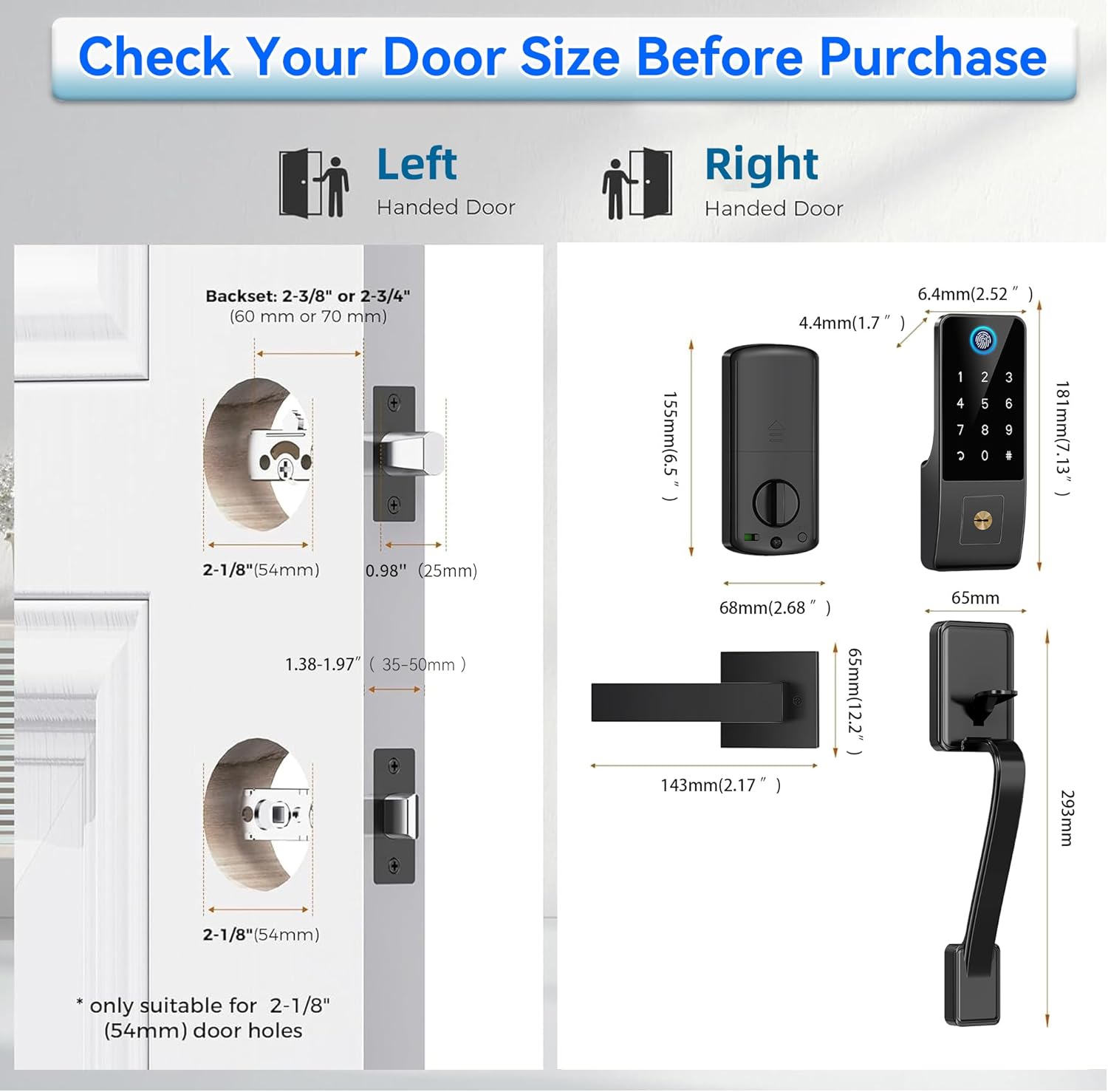
Diagram showing door dimensions, backset (2-3/8" or 2-3/4"), and bore hole size (2-1/8" or 54mm) for installation.
2.2 Door Handing Adjustment
The lock is ambidextrous and can be adjusted for both left and right-handed doors. This adjustment can be made via the mobile application or through a programming code.

Illustration demonstrating the lock's suitability for both left and right-handed door configurations.
2.3 Basic Installation Steps
- Install the deadbolt latch into the door edge.
- Mount the exterior assembly, ensuring the spindle passes through the latch.
- Install the interior mounting plate.
- Connect the cable from the exterior assembly to the interior assembly.
- Secure the interior assembly to the mounting plate.
- Insert 4 AA batteries (not included) into the battery compartment.
- Test the lock functionality with a physical key before closing the battery cover.
For detailed, step-by-step instructions, please refer to the included user manual diagram or the manufacturer's online resources.
3. Operating Instructions
3.1 Unlock Methods
The YOSIMIKA Smart Fingerprint Door Lock provides multiple ways to unlock your door:

Visual representation of unlocking methods: Fingerprint, Key Fob (IC Card), Passcode, and Physical Key.
- Fingerprint ID: Place your registered finger on the sensor for quick unlocking. The system recognizes fingerprints in approximately 0.3 seconds.
- PIN Code: Enter your programmed passcode on the touchscreen keypad. Utilize the anti-peep function by entering random digits before or after your actual code.
- App Control: Use the dedicated mobile application to unlock the door remotely, manage user access, and generate temporary passcodes.
- IC Card: Tap the provided IC card on the designated area of the lock for entry.
- Physical Key: In case of power failure or emergency, use the backup physical keys provided. The keyhole is located under a cover on the exterior unit.
- Voice Command: With a G2 Gateway (sold separately), you can integrate the lock with smart home systems for voice-activated unlocking.
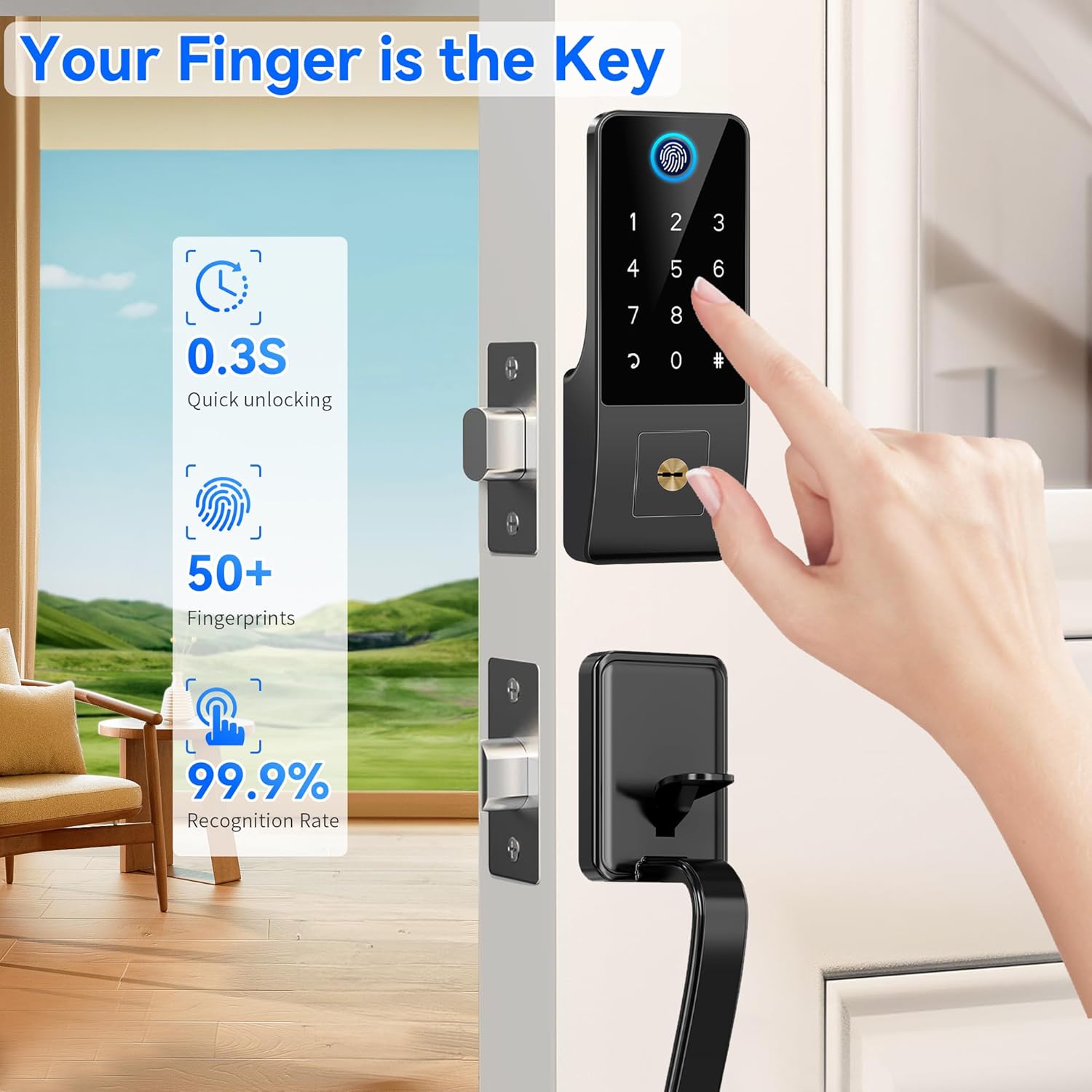
A hand demonstrating fingerprint unlocking on the smart lock, highlighting 0.3s quick unlocking and 99.9% recognition rate.
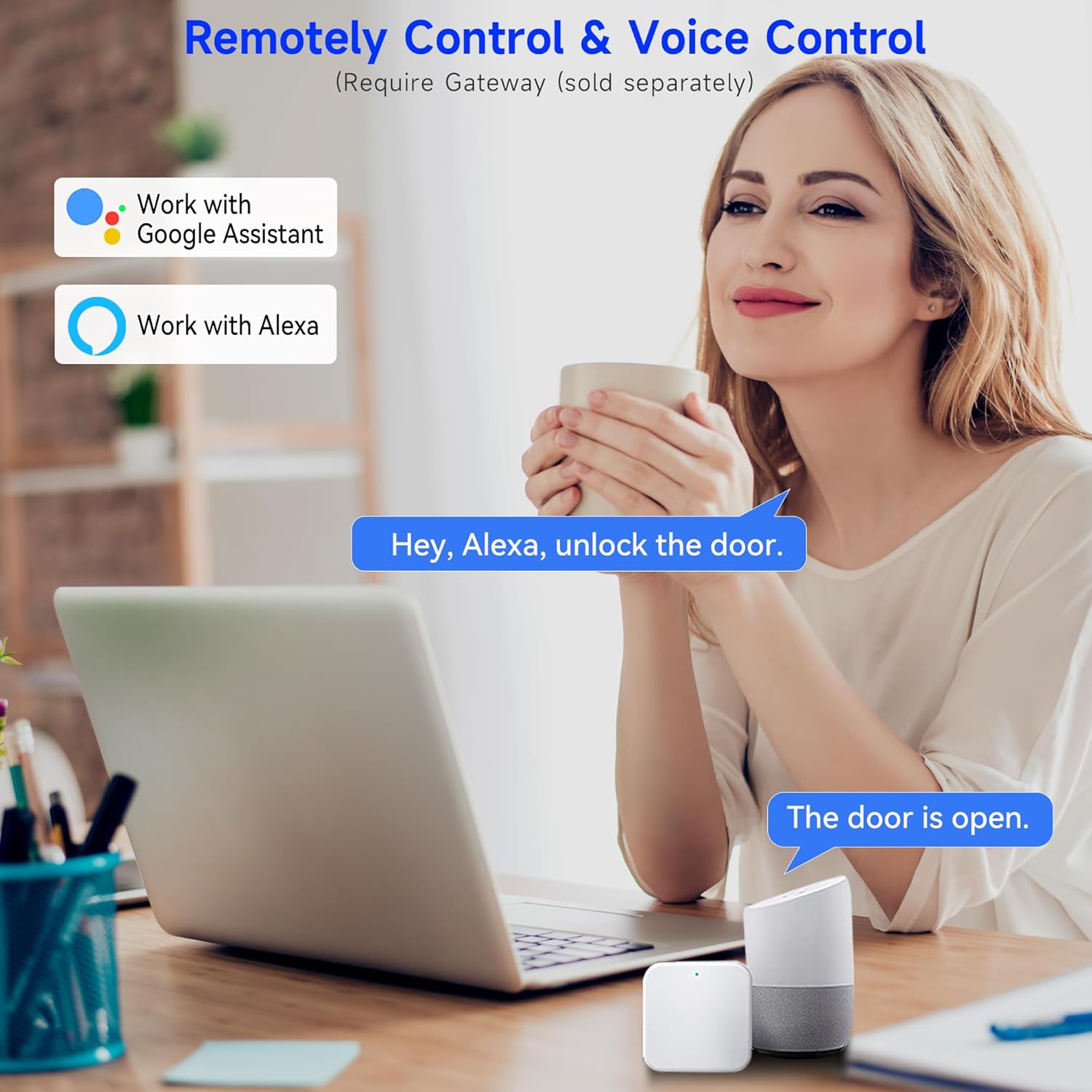
A person using a laptop and smart speaker, illustrating compatibility with Google Assistant and Alexa for voice control (G2 Gateway required).
3.2 Auto-Lock and One-Touch Locking
The lock features an adjustable auto-lock function, allowing the door to automatically lock after a set period (e.g., 5-15 minutes). You can also manually lock the door with a single touch by pressing and holding the '#' key for 2 seconds on the keypad.

A child interacting with the smart lock, demonstrating the auto-lock feature with customizable delay times (5s-15min) and one-touch locking by pressing '#' for 2 seconds.
3.3 Remote Access and Monitoring
Through the mobile application, you can:
- Share eKeys with guests or service providers.
- Generate temporary or recurring passcodes.
- View a detailed log of all unlock and lock events.
- Receive real-time alerts for lock activity.

A smartphone screen displaying a list of unlock records, showing who unlocked the door and when, accessible when connected to the smart lock.
3.4 Privacy Mode
Activate Privacy Mode to restrict access. When enabled, only physical keys, the administrator password, and the administrator app can unlock the door, enhancing security for specific situations.

An illustration of Privacy Mode, indicating that only the physical key, admin password, and admin app can open the lock when activated.
4. Maintenance
4.1 Battery Replacement
The lock operates on 4 AA batteries. When the battery level is low, the lock will provide an alert. Replace all four batteries simultaneously with new, high-quality alkaline batteries. Battery life can vary based on usage frequency; frequent use, especially during initial setup and programming, may lead to faster depletion.
4.2 Cleaning
Clean the lock's exterior with a soft, dry cloth. Avoid using abrasive cleaners, solvents, or harsh chemicals, as these can damage the finish and electronic components. Ensure the fingerprint sensor and keypad remain clean for optimal performance.
5. Troubleshooting
- Difficulty Pairing with App: Ensure the lock's touchscreen is active immediately after a hard reset (using the reset button) and that the app is ready to search for the lock. Proximity to the lock is also important during pairing.
- Touchscreen Not Responding: If the touchscreen is unresponsive, try touching the fingerprint reader to activate it. If it only stays on briefly, ensure the lock is properly powered and try a soft reset if necessary.
- Physical Key Access Issues: The keyhole is located under a beauty cover. Carefully locate and remove this cover to access the keyhole. Avoid forcing the cover to prevent damage.
- Lock Not Responding: Check battery levels. If batteries are low or depleted, replace them immediately. If the issue persists, perform a hard reset and re-pair with the app.
- Fingerprint Recognition Failure: Ensure your finger is clean and dry. Re-register your fingerprint if recognition continues to fail. Ensure the fingerprint sensor is clean.
6. Specifications
| Feature | Specification |
|---|---|
| Brand | YOSIMIKA |
| Model Number | YA1H-BK-N |
| Material | Zinc |
| Color | Matte Black |
| Exterior Finish | Matte Black |
| Item Weight | 2.07 Kilograms |
| Item Depth | 1.33 inches |
| Lock Type | Deadbolt Lock |
| Hand Orientation | Ambidextrous |
| Smart Home Compatibility | Smart Home Compatible (with G2 Gateway) |
| Included Components | Deadbolt Lock, Door Latch, Strike Plate, 3 IC Cards, 2 Backup Keys, User Manual, Accessories |
7. Warranty and Support
For warranty information and technical support, please refer to the documentation included with your product or contact YOSIMIKA customer service directly. Keep your purchase receipt for warranty claims.