
1. Important Safety Instructions
Please read these instructions carefully before using your shredder. Keep this manual for future reference.
- Keep children and pets away from the shredder.
- Keep loose clothing, jewelry, hair, and ties away from the paper entry slot.
- Do not insert fingers or other body parts into the paper entry slot.
- Do not shred metal objects such as paper clips (unless specified for your model), staples (unless specified for your model), or credit cards (unless specified for your model) through the paper entry slot.
- Always unplug the shredder when not in use or before moving, cleaning, or emptying the waste bin.
- Do not operate the shredder if the power cord is damaged.
- Do not place the shredder near heat sources or in direct sunlight.
- Ensure the shredder is placed on a stable, level surface.
2. Product Overview
The BONSAII Customizable Shredder is designed for secure disposal of sensitive documents and other materials. This model (C149-C) features a cross-cut mechanism and a 3.4-gallon bin, with options for various configurations.
2.1 Shredder Components

This image displays the BONSAII Customizable Shredder, highlighting its modular design with a removable shredder head and a waste bin. Multiple color options are shown, illustrating the product's customizable aesthetic.
- Shredder Head: Contains the cutting mechanism and control panel.
- Waste Bin: Collects shredded material. Model C149-C includes a 3.4-gallon bin.
- Paper Entry Slot: For inserting documents.
- CD/Credit Card Slot: (If applicable to your model) Separate slot for shredding optical media and plastic cards.
- Control Panel: Buttons and indicators for operation.
- Optional Handle: Some models feature an integrated handle for portability.
- Optional Wheels: Some models include 360-degree swivel wheels for easy movement.
2.2 Shredding Capabilities and Security Levels

This image illustrates the different shredding methods offered by BONSAII shredders: Strip Cut (Security Level P-2), Cross Cut (Security Level P-4), and Micro Cut (Security Level P-4). Each type shows the resulting paper confetti size, demonstrating varying levels of document security.
BONSAII shredders offer various cut types and security levels:
- Strip Cut (P-2): Shreds paper into long strips. Suitable for general documents.
- Cross Cut (P-4): Shreds paper into small, rectangular pieces. Provides higher security for sensitive documents. Model C149-C is a Cross Cut shredder.
- Micro Cut (P-4): Shreds paper into very small, confetti-like pieces. Offers the highest security for highly confidential information.
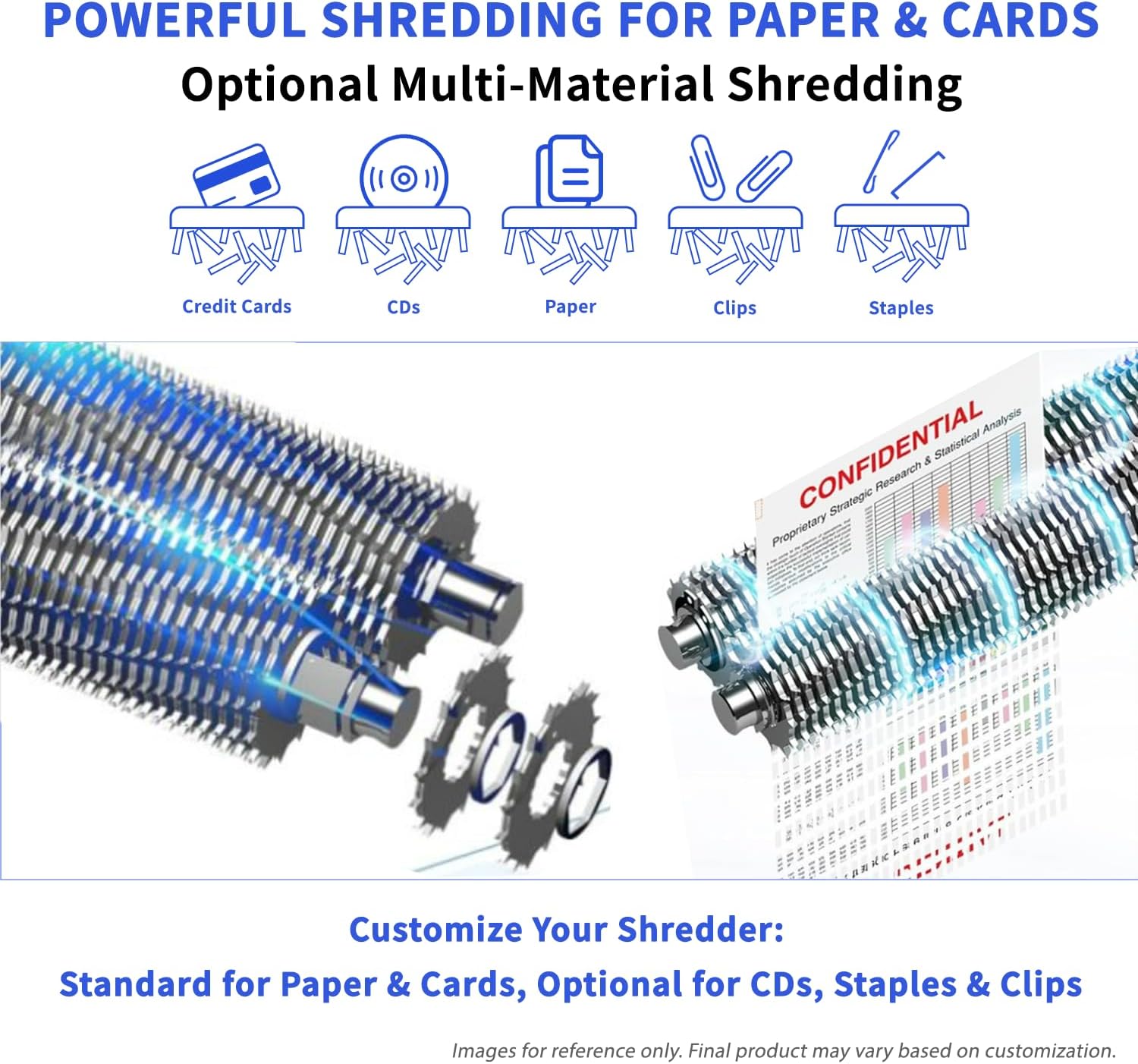
This image depicts the internal shredding mechanism of the BONSAII shredder, illustrating its capability to process various materials including paper, credit cards, CDs, staples, and paper clips. The image emphasizes the robust cutting blades.
The shredder can process various materials:
- Paper documents
- Credit cards (via dedicated slot if available)
- CDs/DVDs (via dedicated slot if available)
- Staples (check model specifications)
- Small paper clips (check model specifications)
3. Setup
- Unpack: Carefully remove all components from the packaging.
- Position: Place the waste bin on a flat, stable surface.
- Assemble: Carefully place the shredder head onto the waste bin, ensuring it is securely seated.
- Connect Power: Plug the power cord into a standard electrical outlet.
4. Operation
4.1 Basic Shredding
- Power On: Locate the power switch (usually on the back or side) and turn it to the 'ON' position.
- Select Mode: On the control panel, select the 'Auto' mode. The shredder is now ready to operate.
- Insert Documents: Feed paper into the paper entry slot. The shredder will automatically start and stop once shredding is complete. Do not exceed the maximum sheet capacity (6 sheets for model C149-C) to prevent jams.
- Shredding CDs/Credit Cards: If your model has a dedicated slot, insert one CD or credit card at a time into the designated slot.
4.2 Continuous Run Time and Overheat Protection

This image summarizes key features of the BONSAII shredder, including its waste bin capacity of up to 5.5 gallons, a continuous shredding time of up to 60 minutes, and a 100% jam-proof system for reliable operation.
The shredder is designed for continuous operation for up to 60 minutes. After this period, or if the motor overheats, the shredder will automatically shut off to prevent damage. Allow the shredder to cool down for approximately 40-60 minutes before resuming operation. An indicator light on the control panel will typically signal an overheat condition.
4.3 Jam-Proof System
Your BONSAII shredder is equipped with a jam-proof system to minimize paper jams. If a jam occurs, the shredder may automatically reverse to clear the paper. If this does not resolve the jam, refer to the Troubleshooting section.
5. Maintenance
5.1 Emptying the Waste Bin

This image highlights a BONSAII shredder with a transparent window on its waste bin, allowing users to easily monitor the fill level. An optional handle is also visible, enhancing the unit's mobility.
Empty the waste bin regularly to prevent paper jams and ensure optimal performance. Unplug the shredder, lift the shredder head off the bin, and dispose of the shredded material. Replace the shredder head securely before plugging the unit back in.
5.2 Oiling the Shredder Blades
To maintain optimal performance and extend the life of your shredder, it is recommended to oil the cutting blades regularly, especially after emptying the waste bin 2-3 times or if you notice a decrease in performance. Use shredder oil (vegetable oil is not recommended) by applying a thin line across the paper entry slot, then run a few sheets of paper through the shredder.
5.3 Cleaning the Exterior
Wipe the exterior of the shredder with a soft, dry cloth. Do not use abrasive cleaners or solvents.
6. Troubleshooting
| Problem | Possible Cause | Solution |
|---|---|---|
| Shredder does not turn on. | Not plugged in; Power switch off; Overheat protection activated; Waste bin not properly seated. | Ensure power cord is securely plugged in; Turn power switch to 'ON'; Allow shredder to cool down; Re-seat the waste bin correctly. |
| Paper jam. | Too much paper inserted; Paper folded or crumpled; Staples/clips not removed (if not supported). | Press the 'Reverse' button to clear the jam. If unsuccessful, unplug the shredder and carefully remove paper manually. Reduce paper quantity for future shredding. |
| Shredder stops during operation. | Overheat protection activated; Waste bin full. | Allow shredder to cool down; Empty the waste bin. |
7. Specifications
| Feature | Detail |
|---|---|
| Model Number | C149-C |
| Product Dimensions | 6.89 x 13.39 x 13.98 inches |
| Item Weight | 39 pounds |
| Cut Type | Cross Cut |
| Sheet Capacity (C149-C) | Up to 6 sheets per pass |
| Bin Capacity (C149-C) | 3.4 Gallons |
| Continuous Run Time | Up to 60 minutes |
| Special Features | Jam Proof, Portable (with optional features) |
8. Warranty and Support
For warranty information or technical support, please refer to the warranty card included with your product or contact BONSAII customer service through their official website. Please have your model number (C149-C) and purchase date available when contacting support.