
Introduction
Thank you for choosing the JYX U120 USB Condenser RGB Microphone. This microphone is designed to provide clear and professional audio for various applications, including streaming, gaming, recording, and online communication. It features integrated echo and volume controls, dynamic RGB LED lighting, and a real-time monitoring headphone output for an enhanced user experience. This manual provides detailed instructions for setup, operation, and maintenance to ensure optimal performance.

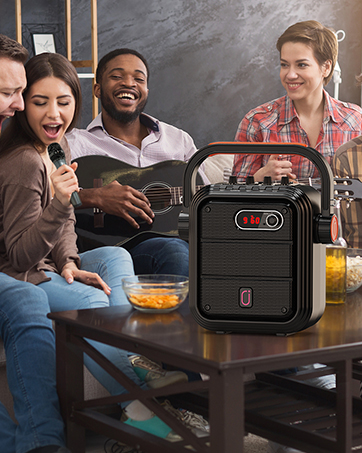
The JYX U120 microphone is suitable for a wide range of applications including meetings, live streaming, recording, karaoke, and gaming.
Package Contents
Please check the package contents upon unboxing to ensure all items are present:
- JYX U120 USB Condenser RGB Microphone with Base
- USB-C to USB-A Cable
- Headphones (for monitoring)
- User Manual
Included components: Microphone, data cable, and headphones.
Product Overview
Familiarize yourself with the microphone's components and controls:

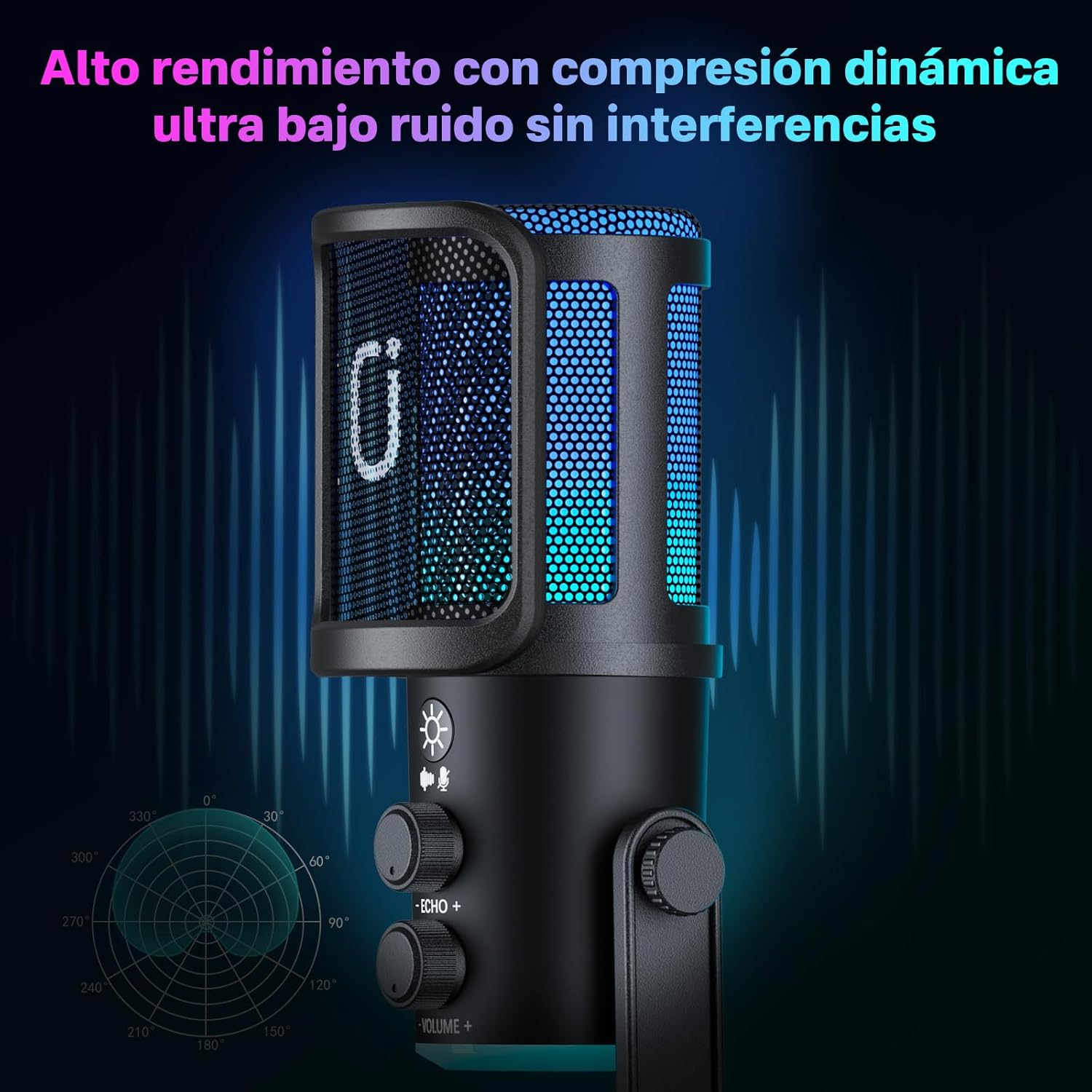
Key controls on the microphone: Light button, Echo volume adjustment, and Output volume adjustment.
- Microphone Head: Captures audio.
- RGB LED Lighting: Customizable lighting effects.
- Light Button: Press to cycle through RGB lighting modes.
- Echo Control Knob: Adjusts the echo effect level.
- Volume Control Knob: Adjusts the microphone's output volume.
- Headphone Jack (3.5mm): For real-time audio monitoring.
- USB-C Port: Connects the microphone to your computer.
- Stable Base: Provides stability on flat surfaces.
Setup Instructions
Follow these steps to set up your JYX U120 microphone:
- Place the Microphone: Position the microphone on a stable, flat surface, such as your desk. Ensure it is close enough to your mouth for optimal voice capture.
- Connect to Computer: Use the provided USB-C to USB-A cable. Plug the USB-C end into the microphone's USB-C port and the USB-A end into an available USB port on your computer (Windows or Mac).
- System Recognition: Your computer should automatically recognize the microphone as a new audio device. No additional drivers are typically required for Windows or macOS.
- Select as Default Device:
- Windows: Go to Sound Settings > Input and select "JYX U120 Microphone" as your input device.
- macOS: Go to System Preferences > Sound > Input and select "JYX U120 Microphone".
- Connect Headphones (Optional): For real-time monitoring, plug your headphones into the 3.5mm headphone jack on the microphone.

Connect the microphone to your computer via USB for an immersive audio experience.
Operating Instructions
Once set up, you can begin using your microphone and adjusting its settings:
- Adjust Microphone Position: For best sound quality, speak directly into the front of the microphone.
- Adjust Output Volume: Use the Volume Control Knob on the microphone to adjust the overall output volume. This controls how loud your voice is to others.
- Adjust Echo Effect: Use the Echo Control Knob to add or reduce the echo effect to your voice. Turn clockwise to increase echo, counter-clockwise to decrease.
- Real-time Monitoring: If headphones are connected, you will hear your own voice in real-time without latency. This helps you monitor your audio quality.
- Software Settings: For specific applications (e.g., OBS, Zoom, Discord), ensure the JYX U120 Microphone is selected as the input device within the application's audio settings. Adjust gain levels within the software if necessary.

Both volume and echo effects are fully adjustable for an immersive audio experience.
The microphone features intelligent reception intensity adjustment to minimize distortion and loud noise during use.
RGB Lighting Control
The JYX U120 microphone features dynamic RGB LED lighting to enhance your setup. To control the lighting:
- Change Lighting Modes: Press the Light Button (usually indicated by a sun or lightbulb icon) on the microphone to cycle through various RGB lighting effects and colors.
- Turn Off Lighting: Continue pressing the Light Button until the lights turn off, or select a static color if preferred.
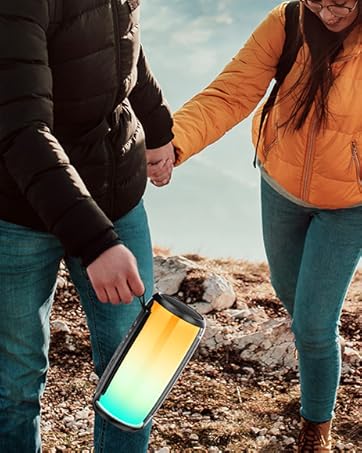
The microphone offers various dynamic light effects to match your mood or setup.

The JYX U120 microphone is available in various RGB lighting options.
Maintenance
To ensure the longevity and optimal performance of your microphone, follow these maintenance guidelines:
- Cleaning: Use a soft, dry cloth to wipe the microphone's exterior. Avoid using liquid cleaners or abrasive materials, as they can damage the finish or internal components.
- Storage: When not in use, store the microphone in a clean, dry place away from extreme temperatures and humidity.
- Handling: Handle the microphone with care. Avoid dropping it or subjecting it to strong impacts, which can affect its sensitive internal components.
- Cable Care: Do not bend or crimp the USB cable excessively. Store it neatly to prevent damage.
Troubleshooting
If you encounter issues with your JYX U120 microphone, refer to the following common problems and solutions:
| Problem | Possible Cause | Solution |
|---|---|---|
| No sound output from microphone | Microphone not selected as input device; Loose USB connection; Volume too low. | Check computer's sound settings and select JYX U120; Reconnect USB cable; Increase microphone volume using the knob and software settings. |
| Sound is distorted or noisy | Microphone too close/far; High gain setting; Environmental noise. | Adjust microphone distance; Lower gain in software; Reduce background noise. |
| RGB lighting not working | Lighting turned off; USB power issue. | Press the Light Button to cycle modes; Try a different USB port. |
| No sound in headphones (monitoring) | Headphones not fully plugged in; Headphone volume too low. | Ensure headphones are securely connected; Adjust the microphone's volume knob. |
If the problem persists after trying these solutions, please contact JYX customer support.
Specifications
| Brand | JYX |
| Model | U120 |
| Connectivity Technology | USB |
| Connector Type | USB, USB Type-C |
| Color | Black |
| Dimensions (L x W x H) | 17 x 8 x 23 centimeters |
| Power Source | Corded Electric |
| Impedance | 2.2 Ohms |
| Compatible Devices | Personal Computer, Laptop, Voice Recorder, Karaoke Machine |
| Recommended Uses | Singing, Karaoke, Streaming, Videoconferencing, Gaming |
| Country of Origin | China |
| Manufacturer Part Number | JYX-U120 |
Warranty and Support
The JYX U120 USB Condenser RGB Microphone comes with a 1-year product warranty from the date of purchase.
For technical support, warranty claims, or any questions regarding your product, please contact JYX customer service:
- Email: service@jyxspeaker.com
- Online Support: Visit the official JYX website for FAQs and additional resources.
Please have your purchase receipt and product model number (U120) ready when contacting support.


