1. Introduction
This manual provides essential instructions for setting up, operating, and maintaining your Hisense 32A5Q QLED Smart TV. Please read this manual thoroughly before using your television to ensure proper and safe operation. Keep this manual for future reference.
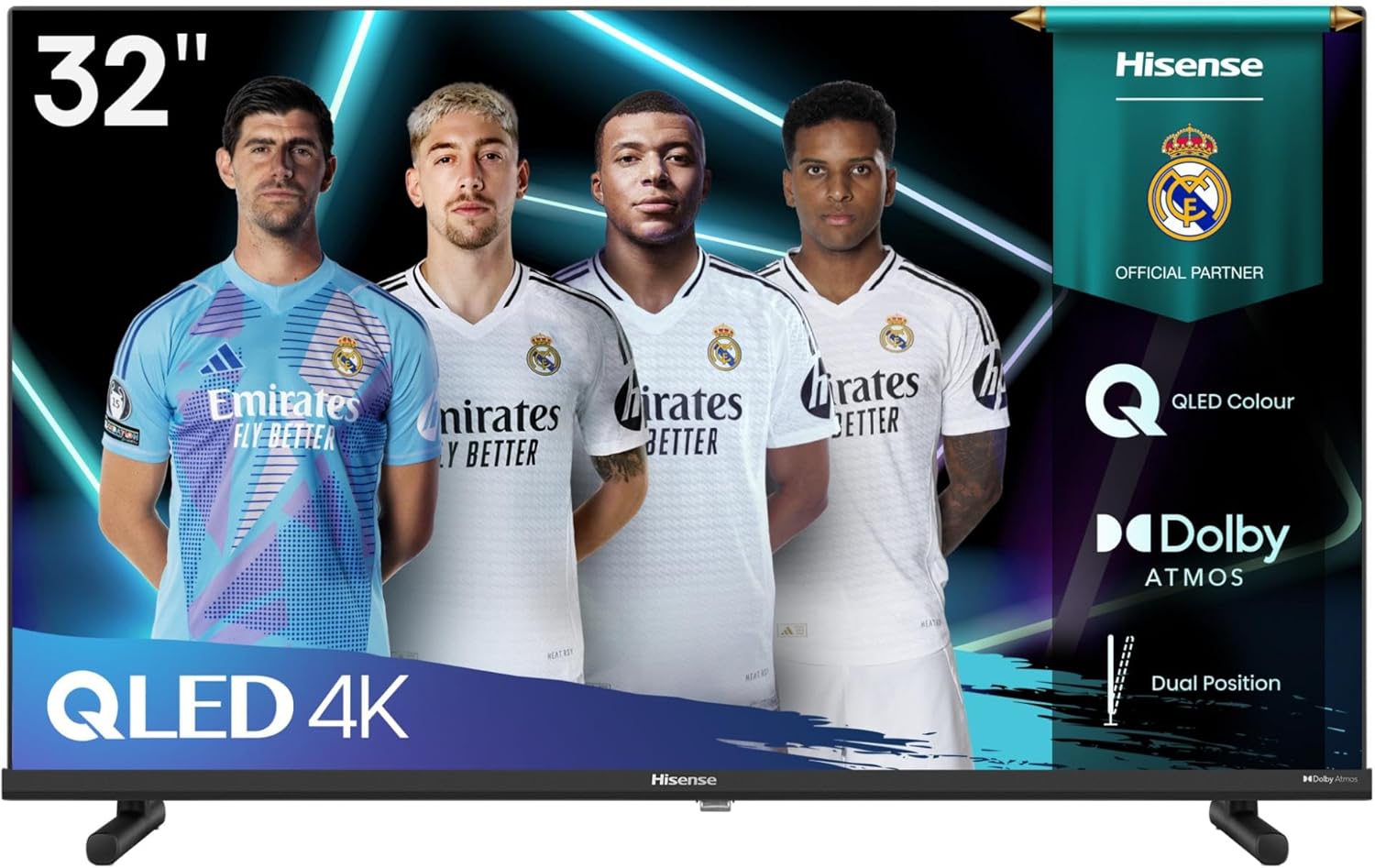
Image 1.1: Front view of the Hisense 32A5Q QLED Smart TV, highlighting its 32-inch screen, QLED technology, Dolby Atmos audio, and dual-position stand capability.
Key Features:
- QLED Colors: Experience visual pleasure with QLED Colour. Every image is rich, vibrant, and realistic, ensuring that each color, from the most subtle to the most vibrant, stands out.
- Frameless Design: Hisense's borderless design redefines elegance in TV aesthetics. With a virtually non-existent bezel, it offers a pure and uninterrupted viewing experience. It integrates perfectly into any decor, maximizing every scene.
- VIDAA Smart TV: Our latest generation operating system effortlessly unifies your preferred international and local content, tailored to your unique preferences and easy to find.
- Smart Home Ready: Integrate your smart home into a single access point. Activate cinema mode via Google Home or Apple Home, or enjoy uninterrupted music throughout all rooms.
- Voice Control: Experience Hisense voice remote control and elevate your TV control to the next level of convenience. By pressing a button, activate voice commands to navigate programs, adjust volume, or interact with virtual assistants effortlessly.
- Dolby Atmos: Immersive audio experience.
- Game Mode: Optimized settings for gaming.
- USB Type-C Input: Versatile connectivity.
- Dual Position Stand: Flexible placement options.
- Automatic TNT Channel Management: Simplified channel setup.
2. Setup
2.1 Unpacking
Carefully remove the TV from its packaging. Ensure all accessories are present: remote control, power cable, and stand components. Retain the packaging for potential future transport or service.
2.2 Stand Installation
Your Hisense TV comes with a dual-position stand, allowing for flexible placement. Follow these steps:
- Place the TV screen-down on a soft, flat surface to prevent damage.
- Identify the stand components and the corresponding screw holes on the TV's bottom panel.
- Attach the stand legs using the provided screws. Ensure they are securely fastened. Refer to the diagram included in the quick start guide for specific screw locations and stand orientations (vertical or tilted).
2.3 Connecting Power
Connect the power cable to the TV's power input port, then plug the other end into a wall outlet. Ensure the power outlet is easily accessible.
2.4 Connecting External Devices
Your TV supports various connections:
- RF Input: Connect your antenna or cable TV source to the RF input port for terrestrial or cable broadcasts.
- USB Type-C: Use the USB Type-C port for connecting compatible devices, such as laptops or smartphones, for video, audio, and data transfer.
- Other Ports: Refer to the TV's back panel for additional ports like HDMI, USB-A, and audio outputs for connecting other devices (e.g., gaming consoles, soundbars, USB storage).
2.5 Initial Power-On and First-Time Setup
After connecting power and any desired devices:
- Press the power button on the remote control or the TV.
- The TV will guide you through the first-time setup wizard. Follow the on-screen prompts to:
- Select your preferred language.
- Connect to your Wi-Fi network.
- Scan for available channels (for RF input).
- Agree to terms and conditions for Smart TV features.
3. Operating
3.1 Remote Control Overview
Familiarize yourself with the remote control buttons. Key functions include:
- Power Button: Turns the TV on/off.
- Volume Up/Down: Adjusts audio level.
- Channel Up/Down: Changes TV channels.
- Navigation Buttons (Arrow Keys, OK): For menu navigation and selection.
- Home Button: Accesses the VIDAA Smart TV interface.
- Voice Control Button: Activates the voice assistant (Alexa).
- Input Button: Selects input sources (HDMI, USB, RF).
3.2 Navigating VIDAA Smart TV
Press the Home button on your remote to access the VIDAA Smart TV interface. From here, you can:
- Browse and launch streaming applications.
- Access connected devices.
- Manage TV settings.
- Discover personalized content recommendations.
3.3 Using Voice Control (Alexa)
To use Alexa voice control:
- Ensure your TV is connected to the internet and Alexa is enabled in the settings.
- Press the Voice Control button on your remote.
- Speak clearly into the remote's microphone. You can ask Alexa to change channels, adjust volume, search for content, or control compatible smart home devices.
3.4 Smart Home Integration
Your Hisense TV is Smart Home Ready. You can integrate it with Google Home or Apple Home ecosystems. Follow the instructions provided by Google Home or Apple Home apps to add your TV as a device. This allows for voice control and automation of TV functions within your smart home setup.
3.5 Game Mode
For an optimized gaming experience, activate Game Mode through the TV settings. This mode reduces input lag, providing a more responsive gaming session.
3.6 TV Sharing Function
The TV sharing function allows you to cast content from compatible devices (e.g., smartphones, tablets) to your TV screen. Ensure both devices are connected to the same Wi-Fi network and follow the casting instructions on your mobile device.
3.7 Dolby Atmos Audio
Your TV supports Dolby Atmos for an immersive audio experience. For optimal sound, ensure your audio system (if external) also supports Dolby Atmos and is correctly configured.
4. Maintenance
4.1 Cleaning the TV
- Screen: Gently wipe the screen with a soft, lint-free cloth. For stubborn marks, use a screen-cleaning solution specifically designed for TVs, applied to the cloth, not directly to the screen.
- Body: Wipe the TV's frame and back panel with a soft, dry cloth. Avoid using abrasive cleaners or solvents.
4.2 Software Updates
Your Hisense TV may receive software updates to improve performance and add new features. Ensure your TV is connected to the internet. You can check for updates manually in the TV's settings menu or enable automatic updates.
5. Troubleshooting
If you encounter issues with your TV, refer to the following common problems and solutions:
- No Power: Check if the power cable is securely plugged into both the TV and the wall outlet. Ensure the outlet is functional.
- No Picture/Sound: Verify the correct input source is selected. Check cable connections to external devices. For no sound, check volume levels and mute status.
- Remote Control Not Working: Replace the batteries (1 AAAA battery required). Ensure there are no obstructions between the remote and the TV's IR sensor.
- Network Connection Issues: Restart your router and modem. Check Wi-Fi settings on the TV. If using a wired connection, ensure the Ethernet cable is properly connected.
- Picture Quality Issues: Adjust picture settings (brightness, contrast, color) in the TV menu. Ensure the input source is providing a high-quality signal.
If problems persist, consider performing a factory reset (found in the TV's settings menu). Note that a factory reset will erase all personalized settings and data.
6. Specifications
| Feature | Specification |
|---|---|
| Brand | Hisense |
| Model Number | 32A5Q |
| Screen Size | 32 Inches |
| Display Technology | QLED |
| Resolution | 1080p (Full HD) |
| Refresh Rate | 60 Hz |
| Operating System | VIDAA Smart TV |
| Special Features | QLED, Frameless Design, VIDAA Smart TV, Smart Home Ready, Alexa Voice Control, Dolby Atmos, Game Mode, USB Type-C Input, Automatic TNT Channel Management |
| Connections | RF, USB Type-C, (Other standard ports like HDMI, USB-A, Audio Out are typically present) |
| Total USB Ports | 1 (USB Type-C) |
| Included Components | Power Cable, Stand, Remote Control |
| Aspect Ratio | 16:9 |
| Product Dimensions (D x W x H) | 8.4 cm x 72.6 cm x 43 cm |
| Remote Control Batteries | 1 AAAA battery required |
7. Warranty and Support
For warranty information and customer support, please refer to the warranty card included with your product or visit the official Hisense website for your region. You can also contact Hisense customer service for assistance with product registration, technical support, or service inquiries.