1. Introduction
This manual provides essential information for the setup, operation, and maintenance of your BOSGAME GVP 7600M eGPU Graphic Card Dock. Please read this manual thoroughly before using the device to ensure optimal performance and longevity.

Image 1: BOSGAME GVP 7600M eGPU Graphic Card Dock. This image displays the sleek, compact design of the eGPU unit.
2. Package Contents
Verify that all items are present in the package:
- AMD RX 7600M XT eGPU x1

Image 2: Accessory Showcase. This image shows the GVP7600 eGPU unit, power adapter, USB4 cable, Oculink cable, and user manual.
3. Product Overview
3.1 Key Features
- Integrated AMD Radeon RX 7600M XT GPU with 8GB GDDR6 VRAM.
- Supports Thunderbolt 3/4, USB4, and OCuLink connections.
- Expandable M.2 2280 PCIe 3.0 SSD slot (up to 4TB).
- Multiple video outputs: 2x HDMI 2.1 (4k60Hz), 2x DP 2.0 (4k120Hz).
- Supports up to 4 displays simultaneously.
- RJ45 Ethernet port and two USB-A 3.2 ports.
- TGP Toggle Button for switching between 100W (Balanced Mode) and 120W (Full Performance) GPU TDP.
- Portable aluminum alloy enclosure, weighing 1.92lb.

Image 3: AMD Radeon RX 7600M XT Display Chip. This image highlights the RDNA3 architecture, 6nm process technology, and key interfaces like Oculink, USB4, and mode switching buttons.
3.2 Interface Layout
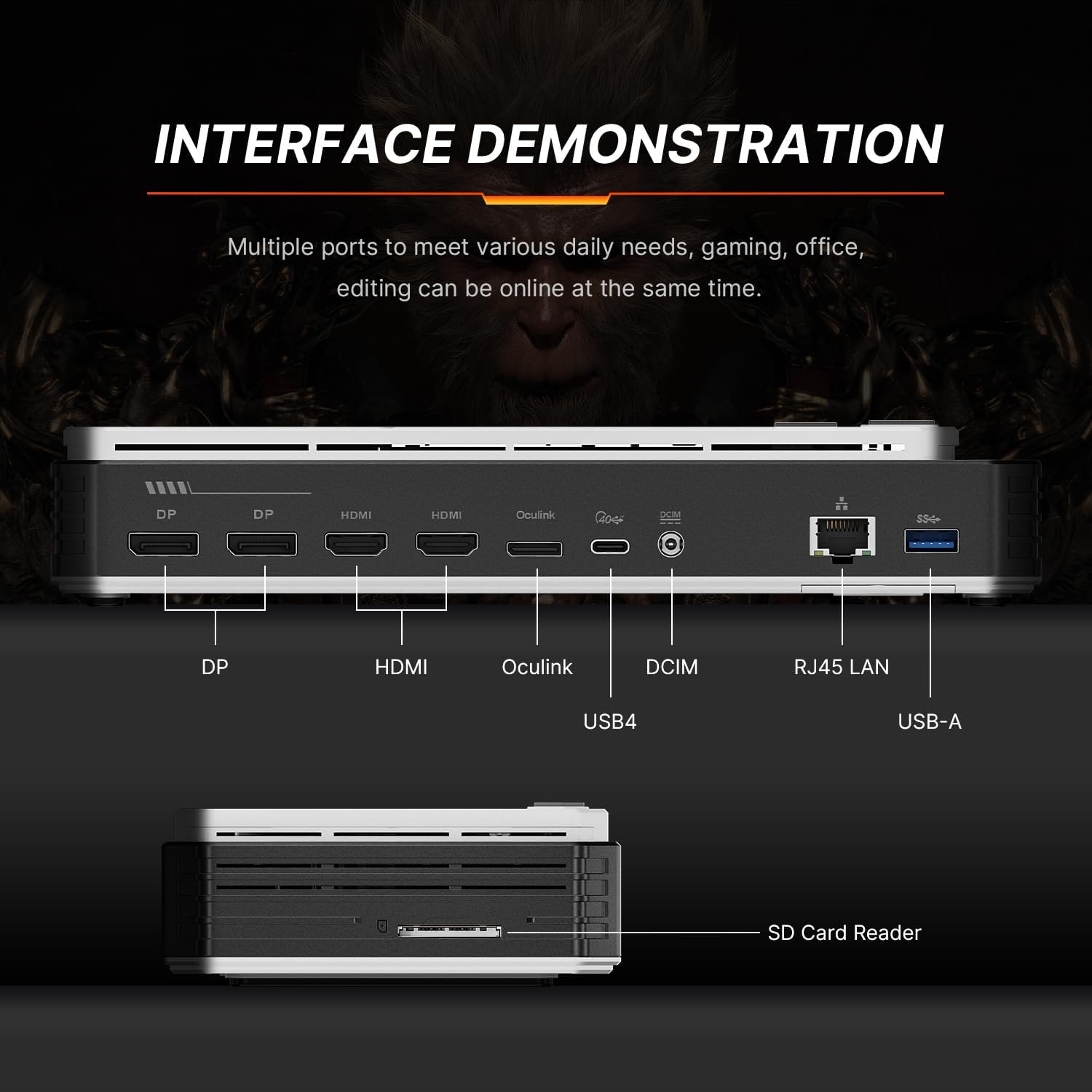
Image 4: Interface Demonstration. This image details the various ports on the eGPU including DP, HDMI, Oculink, DCIN, USB4, RJ45 LAN, USB-A, and an SD Card Reader.
3.3 Internal Components

Image 5: AMD Radeon RX 7600M XT Display Chip. This image shows the core GPU chip with RDNA3 architecture and 6nm process technology.

Image 6: Powerful Heat Dissipation. This image illustrates the internal cooling system, featuring a large cooling fan and copper tubes for effective heat dissipation.

Image 7: Scalable M.2 NVMe 2280. This image shows the internal M.2 2280 slot for SSD expansion, allowing for increased storage performance and capacity.
4. Setup Instructions
4.1 Initial Connection
- Connect the eGPU to your host device (laptop, PC, or handheld console) using a Thunderbolt 3/4, USB4, or OCuLink cable.
- Connect the eGPU to a power source using the provided power adapter.
- Connect your display(s) to the eGPU using HDMI 2.1 or DisplayPort 2.0 cables.
- Power on the eGPU by pressing the power button.
4.2 Driver Installation
After initial connection, your operating system should detect the new hardware. Follow these steps to install the necessary drivers:
- If prompted, allow your operating system to search for and install drivers automatically.
- If automatic installation fails or for optimal performance, download the latest AMD Radeon drivers from the official AMD website or BOSGAME support page.
- Run the downloaded driver installer and follow the on-screen instructions. A system restart may be required.
4.3 SSD Expansion (Optional)
To expand storage:
- Locate the M.2 2280 PCIe 3.0 SSD slot on the eGPU unit.
- Carefully insert a compatible M.2 2280 SSD into the slot.
- Secure the SSD with the provided screw (if applicable).
- Once connected, the SSD should be detected by your operating system. You may need to initialize and format the drive via Disk Management (Windows) or Disk Utility (macOS) before use.
5. Operating Instructions
5.1 Power Modes (TGP Toggle)
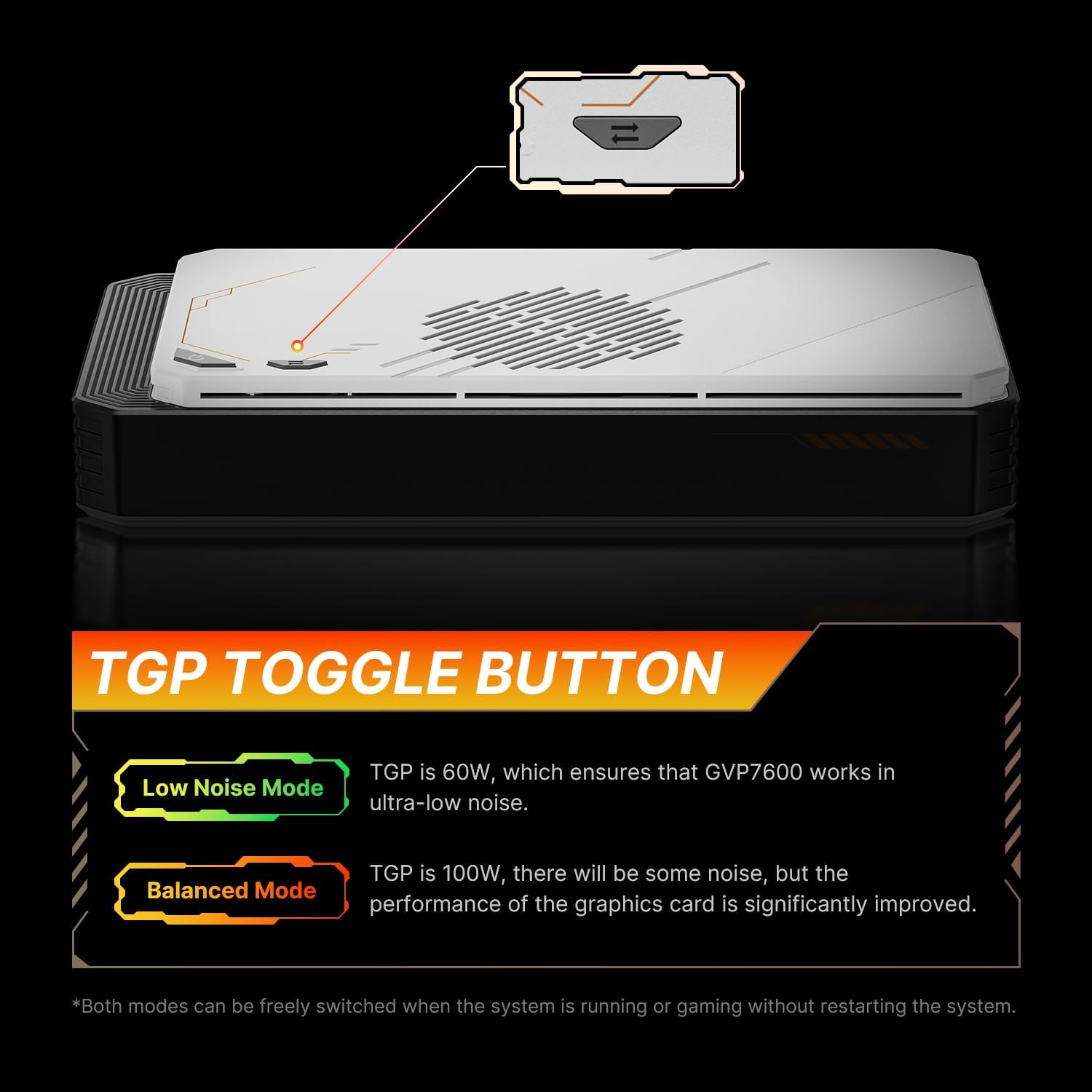
Image 8: TGP Toggle Button. This image shows the TGP toggle button on the eGPU, indicating the Low Noise Mode (60W) and Balanced Mode (100W).
Your BOSGAME GVP 7600M eGPU features a TGP (Total Graphics Power) toggle button to switch between performance modes:
- Balanced Mode (100W): Default setting, offering a balance of performance and lower noise levels.
- Full Performance Mode (120W): Short press the TGP button to activate. This mode provides maximum GPU performance, which may result in increased fan noise.
These modes can be switched freely while the system is running or during gaming without requiring a system restart.
5.2 Multi-Display Setup
The eGPU supports up to four external displays simultaneously. Connect your monitors to the available HDMI 2.1 and DisplayPort 2.0 outputs. Configure display settings (resolution, refresh rate, extended/duplicated desktop) through your operating system's display settings.
5.3 Gaming Performance

Image 9: Gaming Framerate Measurement. This chart compares the framerates of the RT 7600M XT against the RTX 3060 in various games at 2560x1440 resolution.

Image 10: 3DMark Time Spy Score. This image shows the 3DMark Time Spy score for the RX 7600M XT (10090), RTX 4060 (9942), and RTX 3060 (8192).
The BOSGAME GVP 7600M eGPU is designed to enhance gaming performance on compatible devices. For optimal gaming experience, ensure your host device meets the game's system requirements and that the latest GPU drivers are installed.
Video 1: BOSGAME eGPU docking station with AMD Radeon RX 7600M XT. This video demonstrates the eGPU's features and gaming capabilities.
6. Maintenance
- Keep the eGPU in a well-ventilated area to prevent overheating.
- Regularly clean the exterior with a soft, dry cloth.
- Avoid blocking the air vents on the unit.
- Do not expose the device to extreme temperatures, humidity, or direct sunlight.
7. Troubleshooting
7.1 No Display Output
- Ensure all cables (power, host connection, display) are securely connected.
- Verify the eGPU is powered on.
- Check your display's input source settings.
- Ensure the latest GPU drivers are installed.
- Try connecting to a different display port on the eGPU.
7.2 Poor Performance in Games
- Ensure the eGPU is in Full Performance Mode (120W TGP).
- Verify that the latest GPU drivers are installed.
- Check game settings and reduce graphics quality if necessary.
- Ensure your host device's CPU and RAM meet the game's requirements.
- Monitor eGPU temperature to ensure it's not throttling due to overheating.
7.3 SSD Not Detected
- Ensure the M.2 SSD is correctly inserted and secured in its slot.
- Check Disk Management (Windows) or Disk Utility (macOS) to initialize and format the new SSD.
8. Specifications

Image 11: Product Parameter Configuration. This table provides a detailed breakdown of the eGPU's specifications.
| Feature | Detail |
|---|---|
| Product Model | GVP7600 |
| Product Chips | AMD Radeon RX 7600M XT |
| Production Process | 6nm |
| Graphics Card Architecture | RDNA 3.0 |
| Unit of Calculation | 32 |
| Memory Capacity | 8GB |
| Gaming Frequency | 2300MHz |
| Memory Speed | Up to 18Gbps |
| GPU Power (TDP) | Up to 120W |
| Product Interface | DP*2, HDMI*2, Oculink*1, USB4*1, DCIM*1, RJ45 LAN*1, SD Card Reader*1 |
| TGP Switch | Supports switching between Low Noise Mode (60W) and Equalization Mode (100W) while running/gaming. |
| Dimensions | 11.1 x 6.3 x 4.21 inches |
| Item Weight | 4.86 pounds |
9. Warranty and Support
BOSGAME provides reliable after-sales service for your eGPU. All products have FCC, ROHS, and CE certifications.
- Warranty: 3 years of professional factory support.
- Customer Service: 24/7 online customer service is available for any inquiries or issues.


