
NBCP 736B
NBCP Wireless PS4 Controller Instruction Manual
Model: 736B
1. Introduction
Thank you for choosing the NBCP Wireless PS4 Controller. This elite gamepad is designed for an enhanced gaming experience across multiple platforms, including PS4, PS4 Slim, PS4 Pro, and PC. It features advanced functionalities such as customizable macro keys, turbo mode, dual vibration, Hall effect triggers, a responsive touchpad, 6-axis gyro, USB-C connectivity, and an audio jack. This manual provides detailed instructions on setup, operation, maintenance, and troubleshooting to help you get the most out of your controller.
2. Package Contents
- 1 x NBCP Wireless PS4 Controller
- 1 x USB-C Charging Cable
- 1 x User Manual
3. Product Overview
Familiarize yourself with the various components of your NBCP Wireless PS4 Controller:
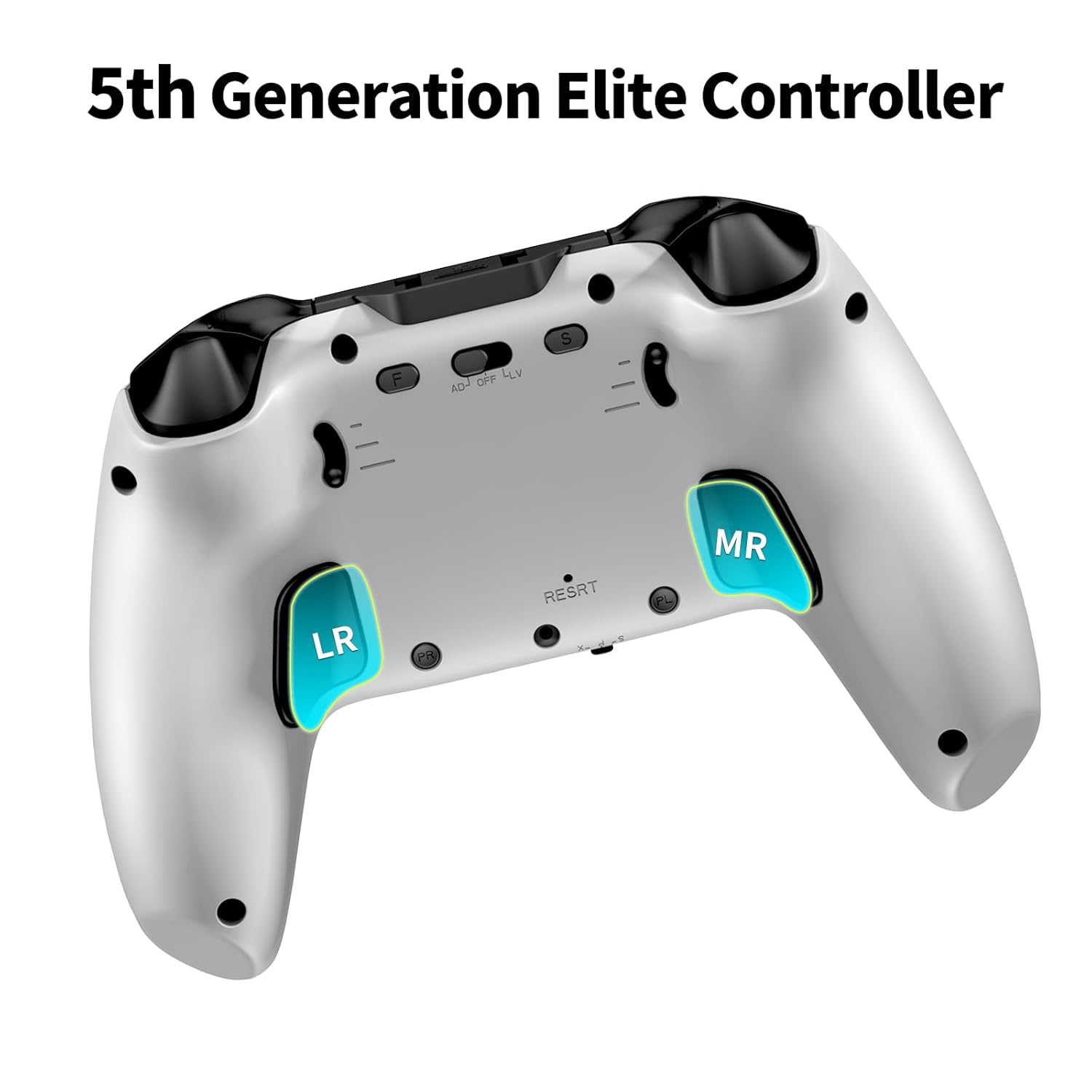
Figure 3.1: Front view of the NBCP Wireless PS4 Controller.
- Analog Sticks: Two high-precision joysticks for movement and camera control.
- Directional Pad (D-Pad): For precise directional input.
- Action Buttons: Standard PlayStation layout (Triangle, Circle, Cross, Square).
- Touchpad: Multi-touch sensitive surface for interactive gameplay.
- SHARE Button: For sharing gameplay moments.
- OPTIONS Button: For in-game menus and options.
- PS Button: For accessing the PlayStation system menu or turning the controller on/off.
- L1/R1 Buttons: Shoulder buttons.
- L2/R2 Triggers: Hall effect linear triggers for precise input.
- Macro Back Buttons (LR/MR): Programmable buttons on the rear for custom commands.
- USB-C Port: For wired connection and charging.
- 3.5mm Audio Jack: For connecting headphones or headsets.
- Light Bar: Integrated glowing light bar for status indication and immersion.

Figure 3.2: Rear view showing the programmable macro buttons (LR/MR).
4. Setup
4.1. Compatibility
The NBCP Wireless PS4 Controller is compatible with PlayStation 4 (PS4, PS4 Slim, PS4 Pro) and PC (Windows 7/8/10/11).

Figure 4.1: Controller compatibility across various platforms.
4.2. Wired Connection (PC)
To connect the controller to your PC via a wired connection:
- Connect one end of the provided USB-C cable to the controller's USB-C port.
- Connect the other end of the USB-C cable to an available USB port on your PC.
- The controller will be automatically recognized by your PC. Drivers may install automatically.
4.3. Wireless Connection (PS4/PC Bluetooth)
To connect the controller wirelessly:
- Ensure the controller is sufficiently charged.
- For PS4: Turn on your PS4 console. With the controller off, press and hold the PS button and SHARE button simultaneously until the light bar flashes rapidly. On your PS4, go to Settings > Devices > Bluetooth Devices and select the controller from the list to pair.
- For PC (Bluetooth): Ensure your PC has Bluetooth enabled. With the controller off, press and hold the PS button and SHARE button simultaneously until the light bar flashes rapidly. On your PC, go to Bluetooth & other devices settings, click "Add Bluetooth or other device," select "Bluetooth," and choose the controller from the list to pair.
5. Operating Instructions
5.1. Customizable Macro Keys
The controller features fully programmable macro keys (LR and MR) on the back, allowing you to map up to 17 custom commands for enhanced gaming efficiency.
Programming Steps:
- Press and hold the 'SET' button (usually a small button near the macro keys) until the light bar changes color or flashes, indicating macro programming mode.
- Press the macro button (LR or MR) you wish to program.
- Input the sequence of buttons you want to assign (e.g., R1, R2, Square, Triangle).
- Press the 'SET' button again to save the macro. The light bar will return to its normal state.
Figure 5.1: Macro programming key settings for LR and MR buttons.
5.2. Turbo Mode
Activate Turbo mode for rapid-fire functionality, ideal for games requiring quick, repeated button presses. There are 3 adjustable Turbo speeds: 5/s, 12/s, and 20/s.
Activation:
- Press the 'TURBO' button (often labeled 'T' or with a rocket icon) and the desired action button simultaneously to enable Turbo for that button.
- To adjust Turbo speed, press the 'TURBO' button and the Right Analog Stick UP/DOWN.
- To disable Turbo for a specific button, repeat the activation step. To disable all Turbo functions, press and hold the 'TURBO' button for 3 seconds.

Figure 5.2: Auto & Manual Turbo settings with adjustable speeds.
5.3. Hall Effect Triggers
The Hall effect triggers (L2/R2) provide precise and consistent input without stick drift, offering two linear triggering modes: Short and Long.
Adjusting Trigger Modes:
- Locate the physical switches near the L2/R2 triggers (if present, refer to product diagrams).
- Toggle the switch to select between 'Short' (quicker response, ideal for shooters) and 'Long' (full range of motion, ideal for racing games).
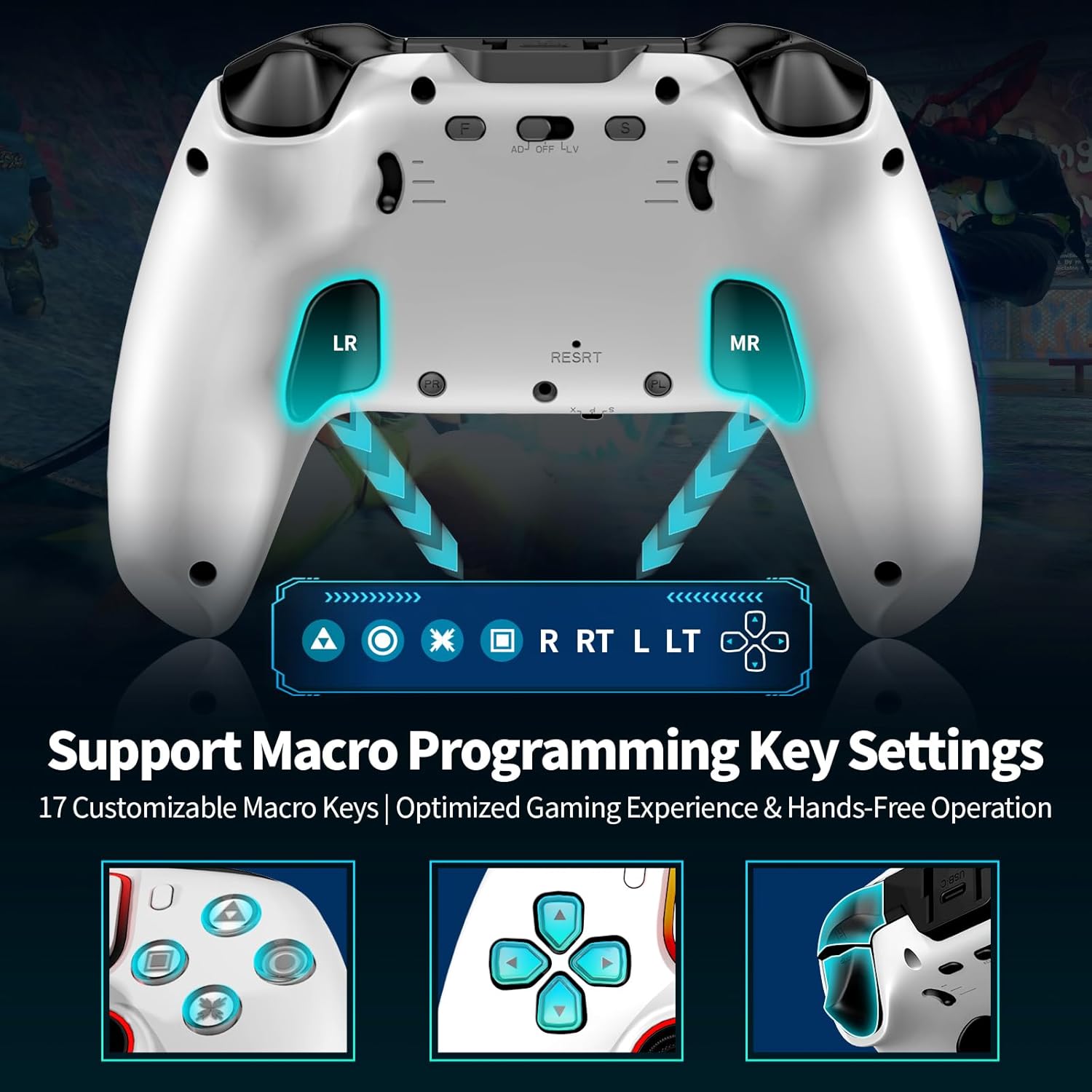
Figure 5.3: Hall effect triggers with two linear triggering modes.
5.4. Touchpad, Lightbar & Audio Support
- Touchpad: The integrated multi-touchpad functions as an additional input method in compatible games.
- Lightbar: The glowing lightbar indicates controller status (e.g., player assignment, charging) and provides immersive visual feedback during gameplay.
- Audio Jack: Plug any standard 3.5mm headset into the audio jack for in-game audio and voice chat.

Figure 5.4: RGB running lights and ambient lighting on the controller.
5.5. 6-Axis Gyro Sensor & Dual Vibration
- 6-Axis Gyro Sensor: The built-in gyroscope provides motion control capabilities, enhancing immersion and control in games that support it.
- Dual Vibration: Dual motors provide excellent vibration feedback, increasing the sense of realism and excitement during gameplay. Vibration intensity can often be adjusted in game settings or through specific controller functions.

Figure 5.5: Illustration of 6-axis gyro sensor and dual-motor shock features.
5.6. Left Stick and Directional Buttons Swap Function
This controller supports swapping the functions of the Left Analog Stick and the Directional Buttons (D-Pad).
To Swap: While the controller is successfully connected, simultaneously press the Up button on the D-Pad and the Left Analog Stick (L3) for about 2 seconds. The light ring will flash and the controller will vibrate as confirmation.
To Revert: Repeat the same operation.

Figure 5.6: Visual guide for swapping Left Stick and Directional Buttons.
6. Calibration
Regular calibration ensures optimal performance and accuracy of your controller's inputs.

Figure 6.1: Visual guide for controller calibration procedures.
6.1. Joystick Calibration
If you experience stick drift or inaccurate joystick movement:
- With the controller off, hold the 'F' button (Function/Macro button) and the Triangle button simultaneously for 2 seconds until the light ring flashes slowly.
- Rotate both joysticks fully 1-2 times in a circular motion and then return them to the center position.
- Press the Triangle button again to save the calibration.
6.2. Gyroscope Calibration
To calibrate the 6-axis gyroscope for accurate motion control:
- With the controller off, hold the 'F' button and the Square button simultaneously for 2 seconds until the light ring flashes.
- Place the controller horizontally on a flat, stable surface.
- Press the Square button again to save the calibration.
6.3. Trigger Calibration
To ensure optimal response from the L2/R2 triggers:
- With the controller connected (wired or wireless), hold the 'F' button and the Circle button simultaneously for 2 seconds until the light ring flashes.
- Press both L2 and R2 triggers fully 1-2 times.
- Press the Circle button again to save the calibration.
7. Maintenance
Proper care will extend the life of your controller:
- Cleaning: Use a soft, dry cloth to wipe down the controller. For stubborn dirt, slightly dampen the cloth with water or a mild cleaning solution. Avoid harsh chemicals.
- Storage: Store the controller in a cool, dry place away from direct sunlight and extreme temperatures.
- Charging: Use only the provided USB-C cable or a certified equivalent for charging. Avoid overcharging by disconnecting once fully charged.
- Handling: Avoid dropping the controller or exposing it to excessive force, which can damage internal components.
8. Troubleshooting
If you encounter issues with your NBCP Wireless PS4 Controller, try the following solutions:
| Problem | Possible Solution |
|---|---|
| Controller does not turn on. | Ensure the controller is charged. Connect it via USB-C cable to a power source or console. |
| Cannot connect wirelessly. | Ensure Bluetooth is enabled on your device. Try re-pairing the controller (PS button + SHARE button). Ensure no other Bluetooth devices are interfering. |
| Input lag or unresponsive buttons. | Ensure the controller is fully charged. Move closer to the console/PC to reduce interference. Try a wired connection. Perform joystick/button calibration. |
| Stick drift or inaccurate joystick movement. | Perform Joystick Calibration as described in Section 6.1. |
| Vibration not working. | Check in-game settings to ensure vibration is enabled. Some PC games may not support vibration via Bluetooth. |
| Audio jack not working. | Ensure your headset is properly plugged in. Check audio settings on your console/PC to ensure output is directed to the controller. |
| Controller disconnects frequently. | Ensure the controller is charged. Reduce distance to the console/PC. Check for firmware updates (if available from NBCP). |
8.1. Resetting the Controller
If the controller becomes unresponsive, you can perform a hard reset. Locate the small reset button (often a pinhole) on the back of the controller. Use a paperclip or a similar thin object to press and hold the reset button for 3-5 seconds. This will power cycle the controller.
9. Specifications
| Feature | Detail |
|---|---|
| Model Number | 736B |
| Compatibility | PS4, PS4 Slim, PS4 Pro, PC (Windows 7/8/10/11) |
| Connectivity | Bluetooth Wireless, USB-C Wired |
| Battery Capacity | 1200mAh (Up to 8 hours gameplay) |
| Special Features | Macro Back Buttons, Turbo Mode, Dual Vibration, Hall Effect Triggers, Touchpad, 6-Axis Gyro, Audio Jack |
| Dimensions | 6.69 x 4.65 x 3.19 inches |
| Weight | 13.7 ounces |
10. Official Product Video
Watch the official product video for a visual guide on the NBCP Wireless PS4 Controller's features and operation.
Video 10.1: Overview of the PS4 Wireless Controller by DOYO-US.
11. Warranty & Support
For warranty information and technical support, please refer to the warranty card included with your product or visit the official NBCP website. You may also contact the seller directly through the platform where you purchased the product for assistance.
Ask a question about this manual
Ask about setup, troubleshooting, compatibility, parts, safety, or missing instructions. Manuals+ will review the question and use this page’s manual context to help answer it.