
1. Introduction
This manual provides detailed instructions for the installation, operation, and maintenance of your MUBILIFE 4K 8MP Wireless Outdoor Security Camera System. Please read this manual thoroughly before using the product to ensure proper setup and functionality. Keep this manual for future reference.

Image: Overview of the MUBILIFE 4K 8MP Wireless Outdoor Security Camera System, showing four cameras with solar panels, a HomeBase unit, and a smartphone displaying multi-camera view.
2. Product Overview
2.1 Key Features
- 4K Ultra HD & 8MP Resolution: Captures clear video with 8x digital zoom and a 110° wide-angle lens.
- No Monthly Fees: Utilizes local storage, eliminating subscription costs.
- 64GB Local Storage HomeBase: Built-in memory card supports up to 180 days of loop recording.
- Dual-Band Wi-Fi (2.4GHz & 5GHz): HomeBase extends Wi-Fi coverage up to 300 meters for stable connections.
- Solar-Powered: Cameras are sustained by solar panels with approximately 3 hours of daily sunlight.
- AI Detection: Differentiates between humans, pets, parcels, and vehicles.
- Color Night Vision: Provides vivid color images in low-light conditions.
- 360° Pan & Tilt: Offers full 360° view with automatic motion tracking.
- IP66 Weatherproof: Designed for outdoor use in various weather conditions (-4°F to 140°F).
- Cross-Camera Tracking: Links events across multiple cameras for a seamless activity timeline.
- Multi-User Sharing: Allows up to 4 users to view live feeds simultaneously.
- Voice Assistant Integration: Compatible with Amazon Alexa and Google Assistant.
2.2 Package Contents (4-Cam Kit)
- 4x 4K Security Cameras
- 4x Solar Panels
- 1x HomeBase (supports up to 6 cameras)
- 4x Camera Brackets
- 1x Ethernet Cable
- 8x Screw Packs (for mounting)
- 4x USB Charging Cables
- 1x Power Cable (for HomeBase)
- 1x Service Card
- 1x User Manual (this document)
- 1x 64GB Memory Card (pre-installed in HomeBase)

Image: All components included in the MUBILIFE 4-Cam Kit, laid out on a blue surface.
3. Setup Guide
3.1 Charge Cameras
Before installation, fully charge each camera using the provided USB charging cables. This ensures the cameras have sufficient power for initial setup and operation, especially if solar charging is not immediately optimal.
3.2 Power On the HomeBase
Connect the HomeBase to your home router's LAN port using the Ethernet cable and plug it into a power outlet using the power cable.
- Positioning Requirements: Place the HomeBase on a tabletop at least 4 feet high. Avoid basement placement to optimize signal.
- Signal Optimization: Maintain a minimum 5-foot distance between the HomeBase and your router to prevent signal interference.

Image: Diagram showing the HomeBase connected to a router and power, with recommended placement guidelines.
3.3 App Installation and Camera Pairing
Download the Koocam app from the App Store (iOS) or Google Play Store (Android). Follow the in-app instructions to create an account and pair your cameras with the HomeBase. This typically involves scanning a QR code on the camera or HomeBase.
Download the Koocam App: https://www.dzeesja.com/download/

Image: Screenshot of the Koocam app interface and QR codes for downloading the app.
3.4 Mount Cameras and Solar Panels
Select appropriate outdoor locations for your cameras, ensuring a clear line of sight and optimal solar panel exposure. Use the provided brackets and screw packs for secure installation.
- Adjust Solar Panel Angle: Position the solar panel at a 45° angle, facing upward, for optimal charging efficiency. Ensure no obstructions like leaves block the panel.
- Connect Solar Panel to Camera: Remove the rubber cover from the camera's charging port. Feed the Type-C connector through the silicone grommet and insert it into the camera's charging port.
- Ensure Weatherproofing: For enhanced weather resistance, ensure the rubber plug fully covers the charging port, providing a tight and secure seal after connecting the solar panel.

Image: Visual guide for adjusting solar panel angle, connecting the solar panel to the camera, and ensuring the charging port is sealed for weatherproofing.
4. Operating Instructions
4.1 Live View and Recording
Access live 4K Ultra HD video streams through the Koocam app. Recordings are automatically stored on the HomeBase's 64GB memory card when motion is detected. You can also initiate manual recordings from the app.

Image: A smartphone screen displaying a clear 4K 8MP security camera feed, demonstrating the ability to zoom in on details like a license plate.
4.2 Motion Detection and Tracking
The cameras feature AI-powered motion detection to identify humans, vehicles, and pets. When motion is detected, the 360° pan and tilt function automatically tracks the subject, ensuring continuous coverage.
- Cross-Camera Tracking: The system can link related events across multiple cameras, creating a synchronized timeline of activity.
- Custom Zones: Define specific areas within the camera's view for motion detection to reduce false alerts.
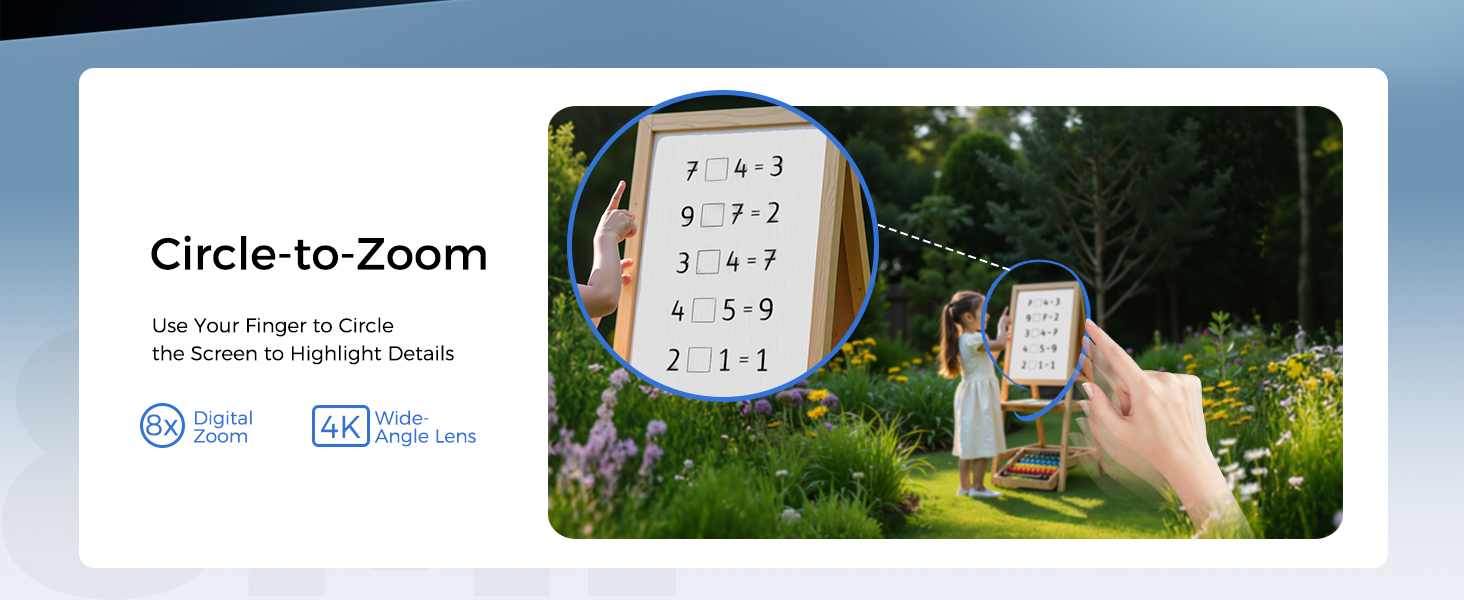
Image: A sequence of images showing a dog moving across different camera views (front door, side yard, garage), illustrating the multi-camera event tracking feature.
4.3 Night Vision
The cameras provide both color night vision and infrared night vision. Color night vision offers detailed, full-color images in low-light conditions, while infrared provides clear black-and-white footage in complete darkness.

Image: Comparison of color night vision and infrared night vision, showing a car in a driveway at night with both modes.
4.4 Two-Way Audio and Alarms
Utilize the built-in microphone and speaker for two-way communication. The system can also trigger an alarm siren and send instant alerts to your phone when suspicious activity is detected.

Image: A visual representation of an intelligent alarm push notification on a smartphone, showing a detected person and an alarm message.
4.5 Multi-Area Monitoring and Sharing
The Koocam app allows simultaneous monitoring of up to four different camera feeds on a single split screen. You can also share access to your camera feeds with up to four other users (family or coworkers).

Image: A smartphone displaying a split-screen view of four different camera feeds, illustrating simultaneous multi-area monitoring.
4.6 Voice Assistant Linkage
Integrate your MUBILIFE security cameras with Amazon Alexa or Google Assistant for voice control. For example, you can say, "Alexa, show me the garden" to view a specific camera feed on a compatible smart display.

Image: A smart display showing a camera feed, with text indicating voice commands for Amazon Alexa and Google Assistant.
5. Maintenance
5.1 Solar Panel Care
- Regularly clean the surface of the solar panels to remove dust, dirt, or debris that may reduce charging efficiency. Use a soft, damp cloth.
- Ensure no new obstructions (e.g., growing tree branches) block sunlight from reaching the panels.
- During prolonged cloudy or rainy periods, the camera will operate on its internal battery. If the battery level becomes critically low, consider temporarily charging the camera via USB.

Image: A MUBILIFE camera with its solar panel, depicted in both sunny and rainy conditions, highlighting its continuous operation.
5.2 Weatherproofing Checks
- Periodically inspect the camera's charging port and its rubber seal to ensure it remains intact and provides a tight seal against moisture.
- Verify that all mounting screws are secure, especially after strong winds or storms.
6. Troubleshooting
- Camera Not Connecting to HomeBase:
- Ensure the HomeBase is powered on and connected to your router.
- Verify the camera is within the HomeBase's Wi-Fi range (up to 300m unobstructed).
- Re-attempt the pairing process through the Koocam app.
- Check if the camera battery is charged.
- Poor Video Quality:
- Ensure a strong Wi-Fi signal between the camera and HomeBase.
- Clean the camera lens if it appears dirty or smudged.
- Check for obstructions in the camera's field of view.
- Solar Panel Not Charging:
- Ensure the solar panel is positioned at a 45° angle and receives direct sunlight for at least 3 hours daily.
- Remove any obstructions (leaves, dirt) from the panel surface.
- Verify the solar panel cable is securely connected to the camera and the charging port is sealed.
- Frequent False Motion Alerts:
- Adjust motion detection sensitivity in the Koocam app.
- Set up custom detection zones to exclude areas with frequent irrelevant motion (e.g., public roads, swaying trees).
- Ensure AI detection is enabled to filter out non-human/vehicle motion.
7. Specifications
| Feature | Specification |
|---|---|
| Model Name | M802 |
| Video Resolution | 4K Ultra HD (8MP Effective Still Resolution) |
| Viewing Angle | 360 Degrees (Pan & Tilt) |
| Night Vision Range | 30 Feet (Color Night Vision & Infrared) |
| Connectivity | Wireless (Dual-Band Wi-Fi: 2.4GHz & 5GHz) |
| Power Source | Solar Powered (with rechargeable Lithium Polymer battery) |
| Local Storage | 64GB (built-in HomeBase, supports up to 180 days loop recording) |
| Weather Resistance | IP66 Waterproof |
| Operating Temperature | -4°F to 140°F (-20°C to 60°C) |
| Dimensions (Item) | 16 x 10 x 6 inches |
| Weight (Item) | 1.5 Pounds |
| Compatible Voice Assistants | Amazon Alexa, Google Assistant |
8. Warranty and Support
MUBILIFE offers a 1-year replacement warranty for this product. Additionally, lifetime technical support is available to assist with any issues or questions you may have.
For technical assistance or warranty claims, please contact MUBILIFE customer service:
- Email: support@mubilife.net

Image: Graphic detailing MUBILIFE's customer support, including professional team, lifetime technical support, and quick response.


