
1. Introduction
The AULA F108 is a full-size wireless mechanical keyboard designed for versatile use across various operating systems and devices. It features tri-mode connectivity (Bluetooth 5.0, 2.4GHz wireless, and USB-C wired), hot-swappable switches, PBT keycaps, RGB backlighting, and a robust internal structure for enhanced typing experience.
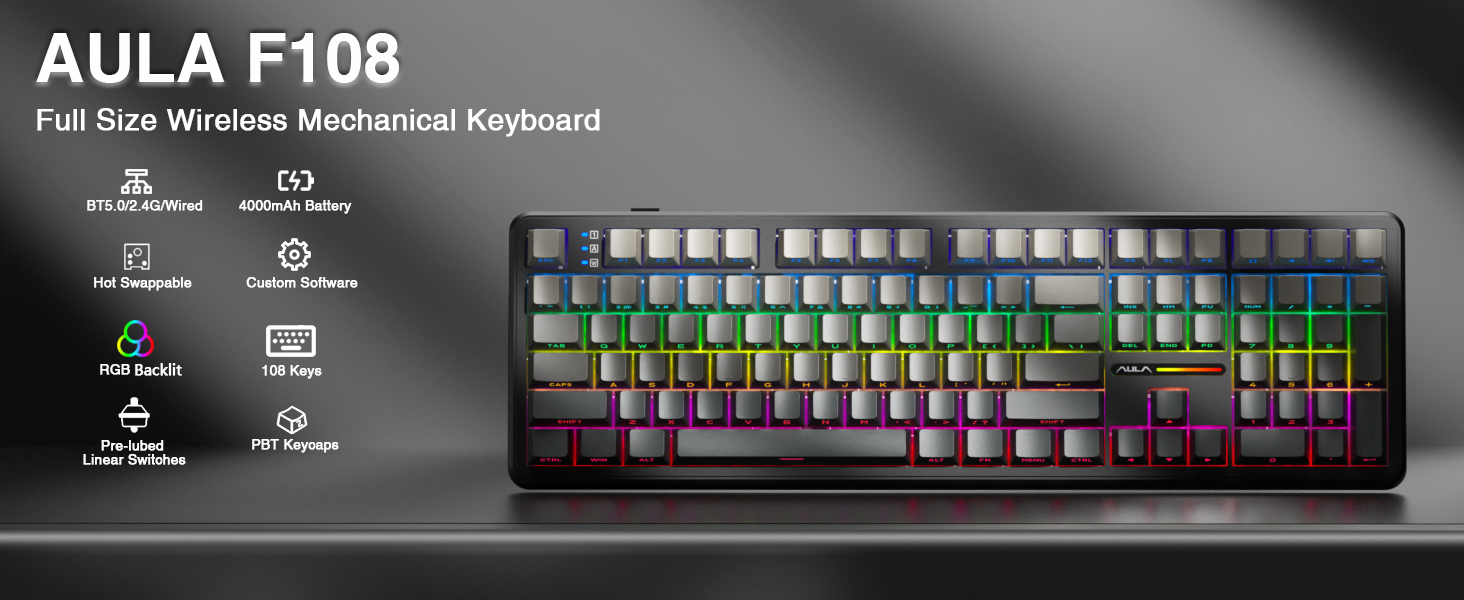
Image: Overview of the AULA F108 Wireless Mechanical Keyboard, showcasing its full-size layout and key features such as tri-mode connection, 4000mAh battery, hot-swappable design, RGB backlight, PBT keycaps, pre-lubed linear switches, and custom software compatibility.
2. Package Contents
Verify that all items are present in the package:
- Mechanical Keyboard x1
- Extra Switches x2
- Keycap/Switches Puller x1
- USB Cable x1
- 2.4GHz Receiver x1
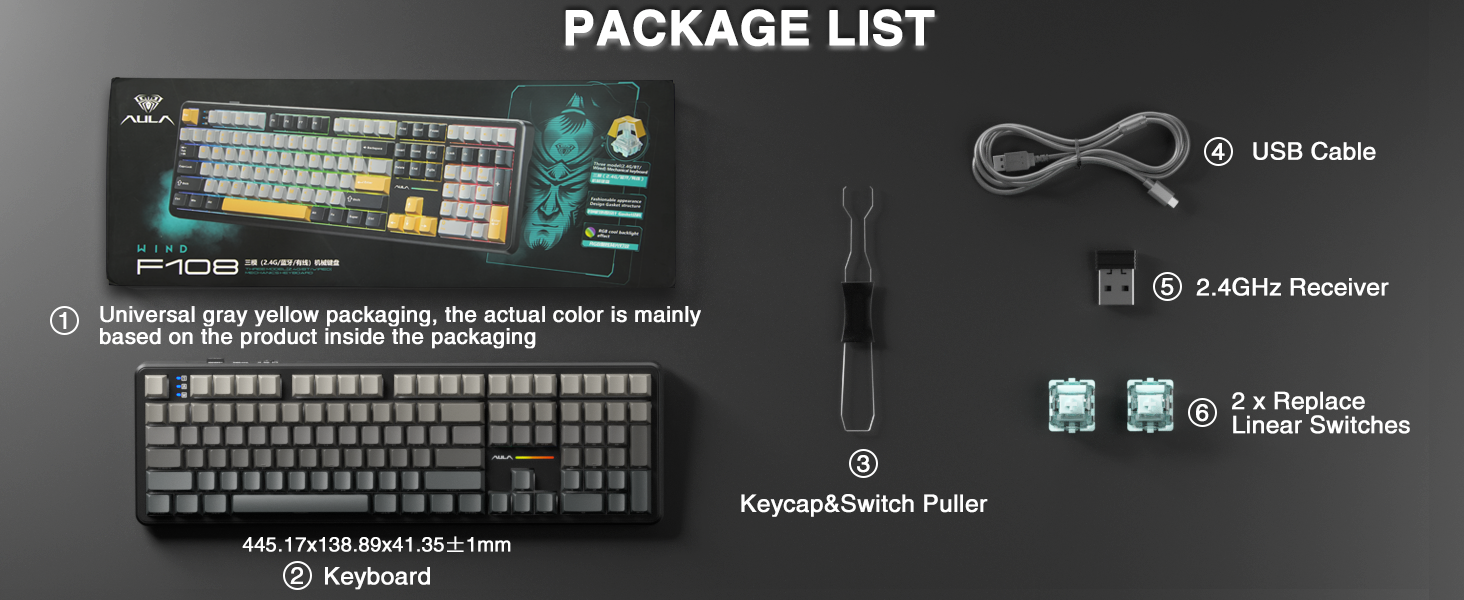
Image: A visual representation of the package contents, including the AULA F108 keyboard, USB cable, 2.4GHz receiver, keycap/switch puller, and two extra switches.
3. Product Overview
3.1 Key Features
- Tri-mode Connectivity: Supports Bluetooth 5.0, 2.4GHz wireless, and USB-C wired connections.
- Hot-swappable Sockets: Compatible with 3-pin and 5-pin mechanical switches for customization.
- PBT Keycaps: Durable, fade-resistant, and sweat-proof keycaps with side-printed legends.
- RGB Backlighting: Multiple dynamic effects and customizable colors.
- Advanced Structure: Five layers of sound-absorbing foam for reduced noise and improved typing feel.
- 4000mAh Battery: Long-lasting power for wireless operation.
3.2 Components
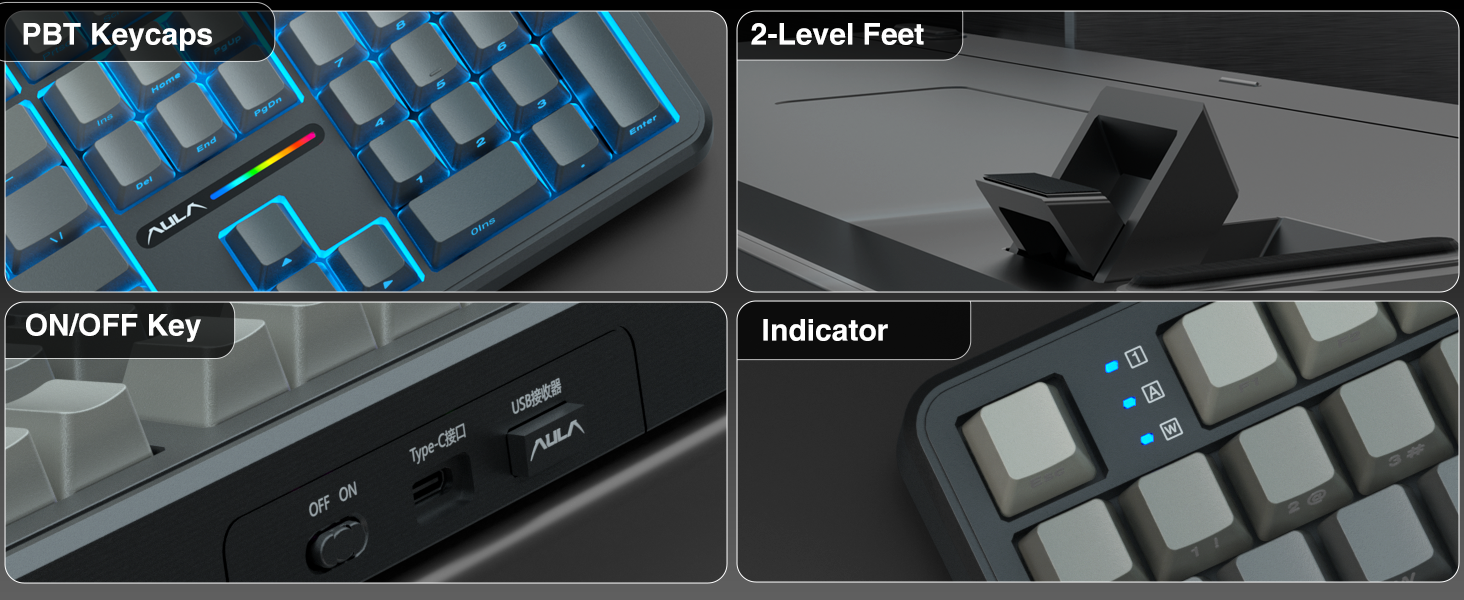
Image: Detailed views of the AULA F108 keyboard's physical features, including the texture of PBT keycaps, the two-level adjustable kickstands, the ON/OFF switch and Type-C port, and the status indicator lights.
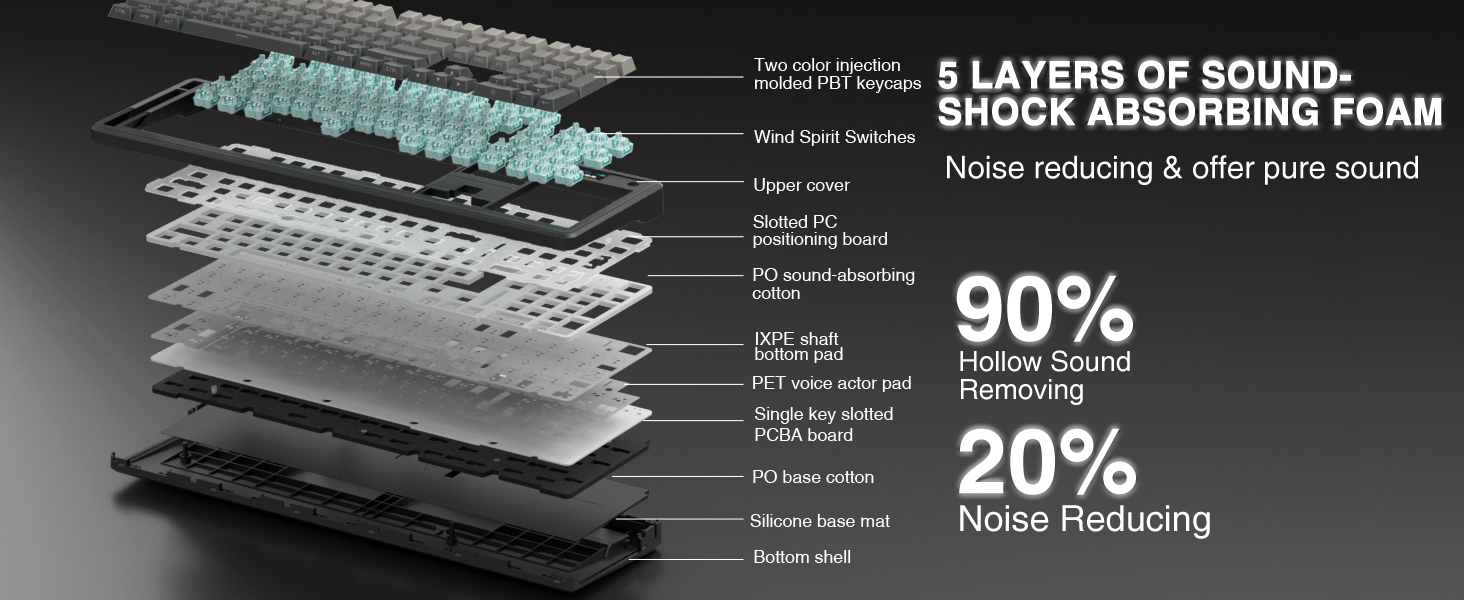
Image: An exploded diagram illustrating the five-layer sound-shock absorbing foam structure of the AULA F108 keyboard, designed to reduce hollow sound and noise.
4. Setup
4.1 Wired Connection
- Connect the provided USB-C cable to the keyboard's Type-C port.
- Connect the other end of the USB-C cable to an available USB port on your computer.
- The keyboard will be automatically recognized and ready for use.
4.2 2.4GHz Wireless Connection
- Locate the 2.4GHz USB receiver.
- Insert the receiver into an available USB port on your computer.
- Turn on the keyboard using the ON/OFF switch located on the side.
- Press Fn + ~ to switch to 2.4GHz wireless mode. The indicator light will confirm the connection.
4.3 Bluetooth 5.0 Connection
- Turn on the keyboard using the ON/OFF switch.
- Press Fn + 1, Fn + 2, or Fn + 3 to select a Bluetooth channel. The indicator light for the selected channel will blink, indicating pairing mode.
- On your device (PC, Mac, laptop, tablet, smartphone), enable Bluetooth and search for new devices.
- Select "AULA F108" from the list of available devices to pair.
- Once paired, the indicator light will stop blinking and remain solid.
- To switch between paired Bluetooth devices, press Fn + 1/2/3.
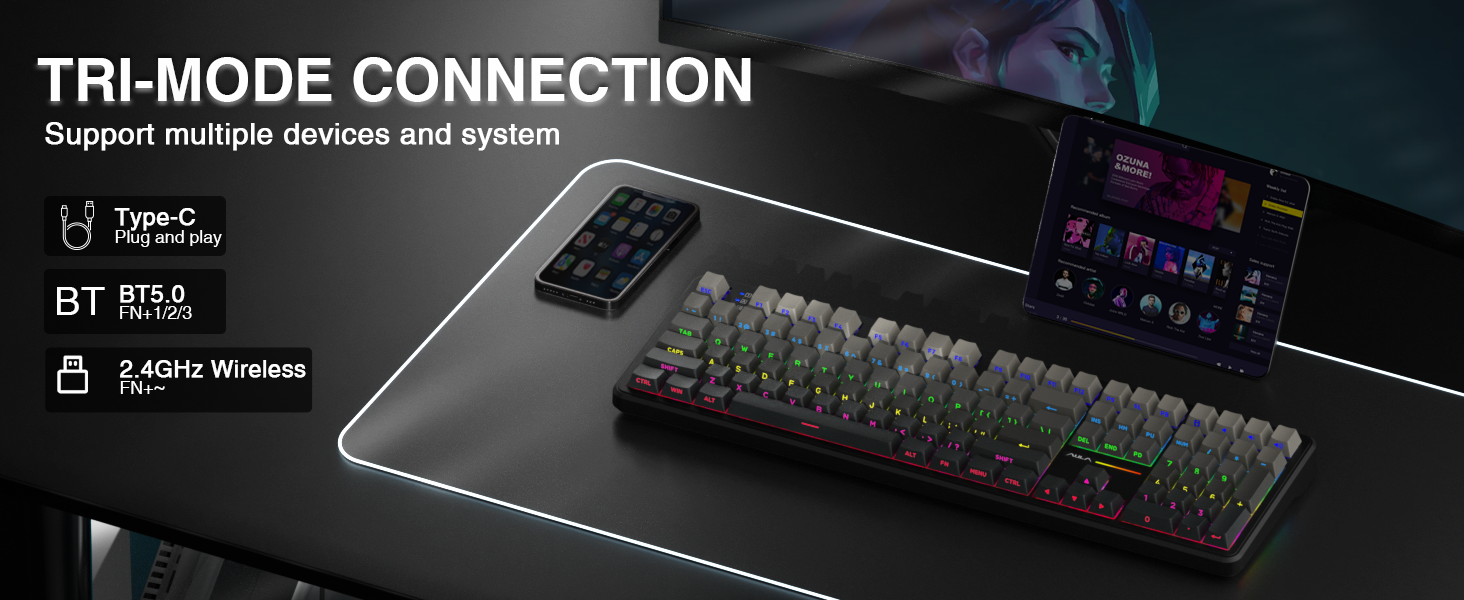
Image: A visual guide to the tri-mode connection, showing the Type-C wired, Bluetooth 5.0, and 2.4GHz wireless options, along with shortcut keys for switching between modes and operating systems.
5. Operating Instructions
5.1 System Compatibility Switching
The keyboard is compatible with Windows, Mac, iOS, and Android operating systems. Use the following shortcuts to switch system layouts:
- Fn + W: Switch to Windows layout
- Fn + E: Switch to Mac layout
- Fn + Q: Switch to Android layout
- Fn + R: Switch to iOS layout
Note: In Linux systems, incompatible driver versions may cause abnormal F-zone functionality. This is a normal phenomenon and does not indicate a defect.
5.2 RGB Backlight Control
Adjust the keyboard's RGB backlighting using the following shortcut keys:
- Fn + \|: Switch between 16 lighting effects or turn off the backlight.
- Fn + Tab: Switch lighting colors.
- Fn + ↑: Increase lighting brightness.
- Fn + ↓: Decrease lighting brightness.
- Fn + ←: Decrease lighting speed.
- Fn + →: Increase lighting speed.
For side-light adjustment:
- Fn + Left Shift: Switch side-light mode.
- Fn + Left Ctrl: Switch side-light speed.
- Fn + Left Alt: Switch side-light brightness.
- Fn + Z: Switch side-light colors.
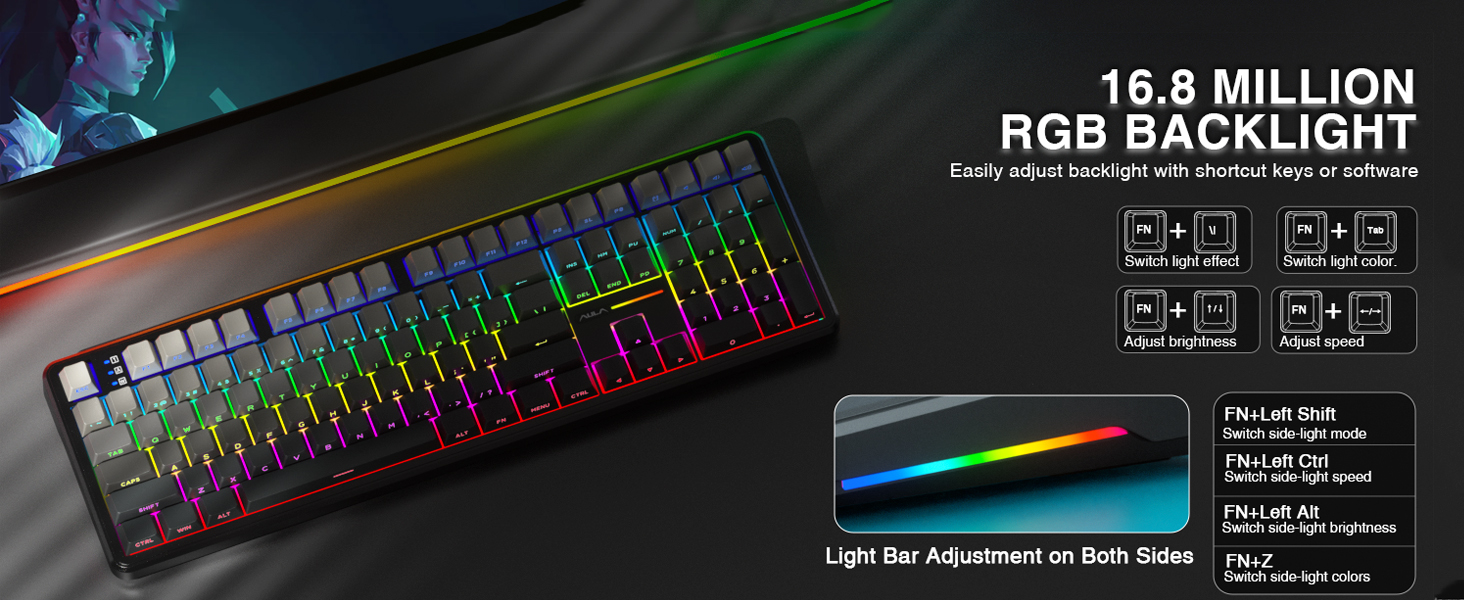
Image: A visual guide to adjusting the 16.8 million RGB backlight effects, brightness, and speed using keyboard shortcuts, including controls for the side light bars.
5.3 Programmable Software
The AULA F108 offers programmable software for advanced customization, including macro recording, key remapping, and custom RGB effects. The driver is compatible with Windows systems only and functions in wired mode.
Download the driver from: bit.ly/m/AULA
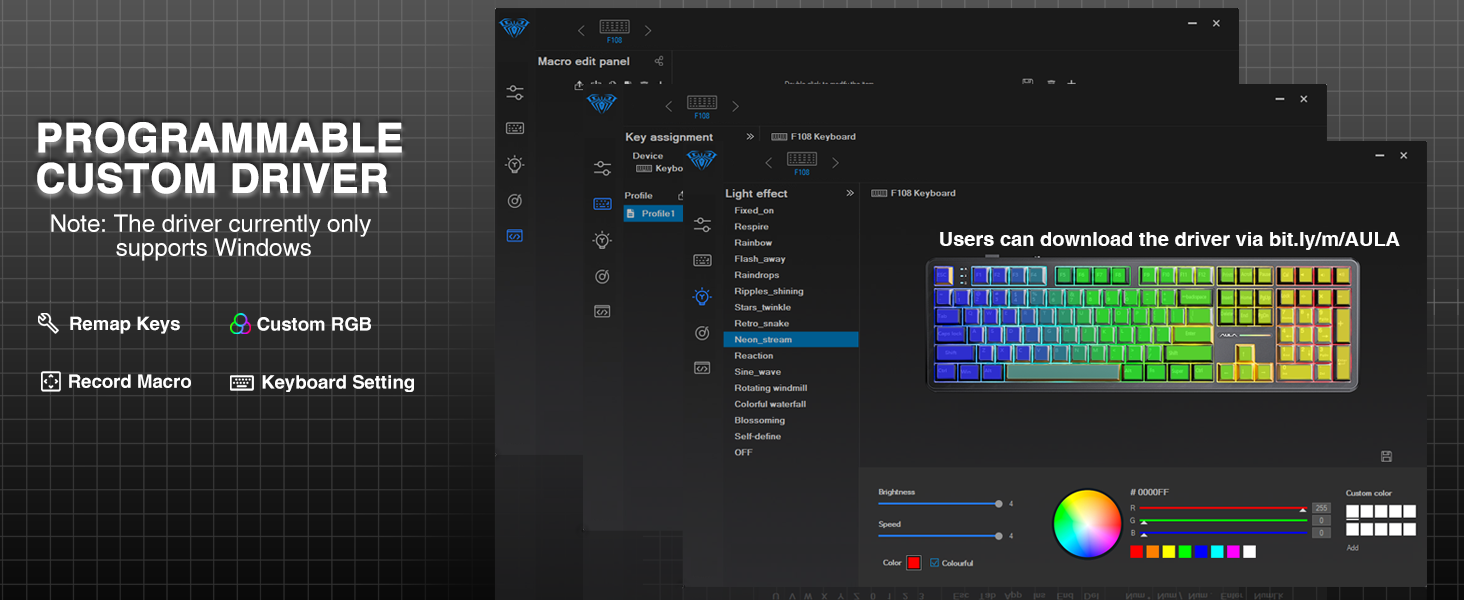
Image: A screenshot of the AULA F108 custom driver software interface, demonstrating options for remapping keys, customizing RGB lighting, and recording macros. Note: Driver supports Windows only in wired mode.
5.4 Battery Management
The keyboard is equipped with a 4000mAh high-capacity battery. To check the battery level, press Fn + B.
- Approximate battery life with backlight ON: 10 hours
- Approximate battery life with backlight OFF: 100 hours
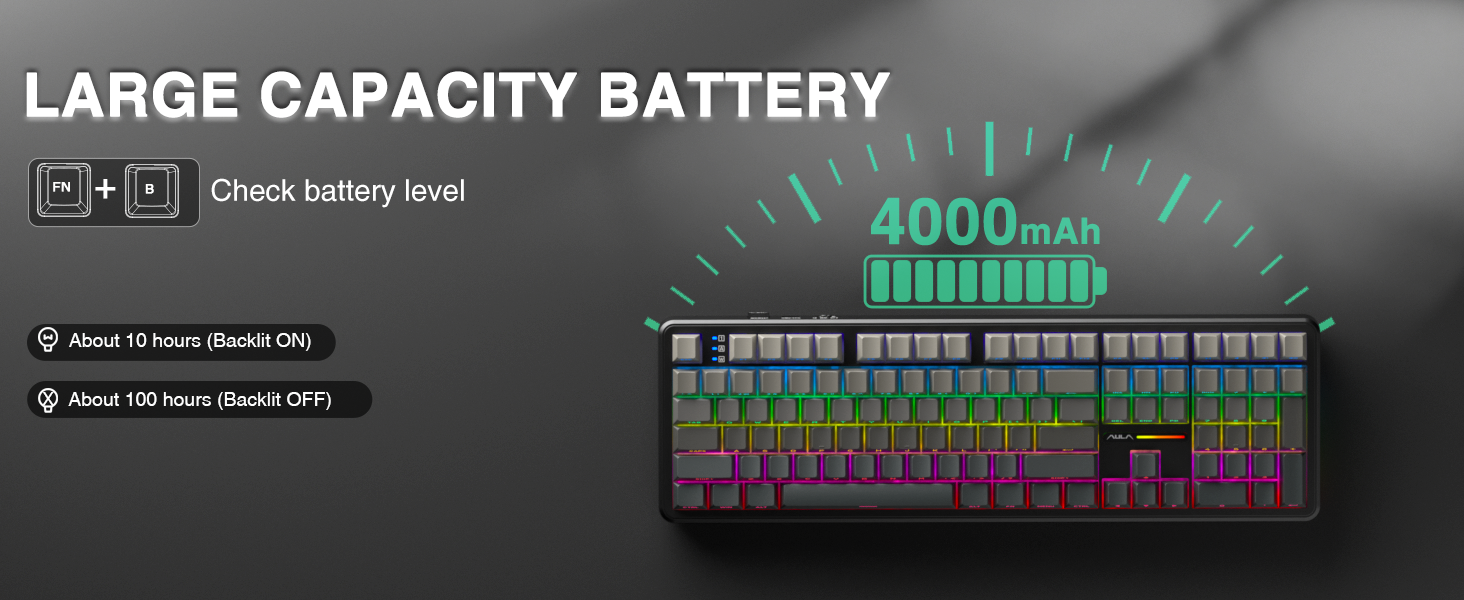
Image: Illustration highlighting the 4000mAh battery capacity of the AULA F108 keyboard, with estimated usage times of approximately 10 hours with backlight on and 100 hours with backlight off.
6. Maintenance
6.1 Cleaning
- Disconnect the keyboard from all power sources before cleaning.
- Use a soft, lint-free cloth slightly dampened with water or a mild cleaning solution to wipe the keycaps and keyboard surface.
- For dust and debris between keycaps, use compressed air or a small brush.
- Avoid using harsh chemicals or abrasive materials.
6.2 Hot-Swapping Switches
The AULA F108 features hot-swappable sockets, allowing you to change switches without soldering.
- Power Off: Ensure the keyboard is powered off and disconnected from any device.
- Remove Keycap: Use the included keycap puller to gently remove the desired keycap.
- Remove Switch: Use the included switch puller to carefully grip the switch and pull it straight up.
- Insert New Switch: Align the pins of the new 3-pin or 5-pin switch with the holes on the PCB. Press the switch firmly until it clicks into place. Ensure pins are not bent.
- Replace Keycap: Place the keycap back onto the new switch.
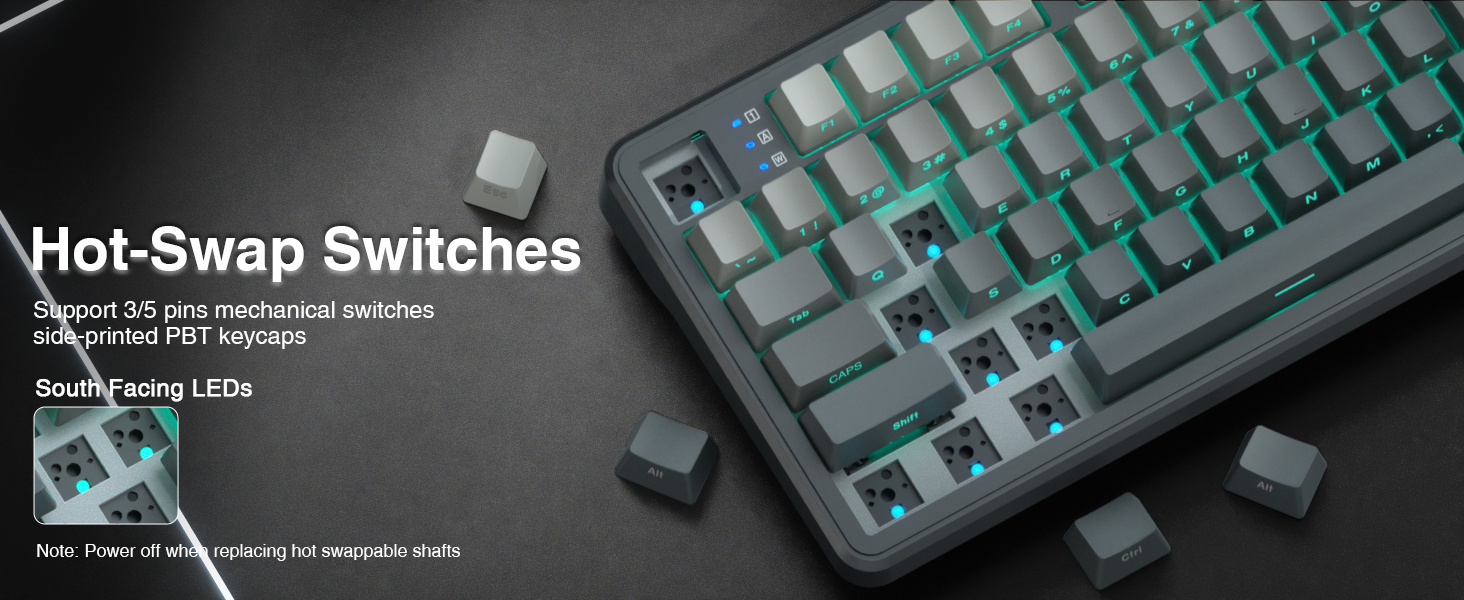
Image: Instructions for hot-swapping switches, showing the removal of keycaps and switches, and the insertion of new 3-pin or 5-pin mechanical switches. Emphasizes powering off the keyboard before performing this action.
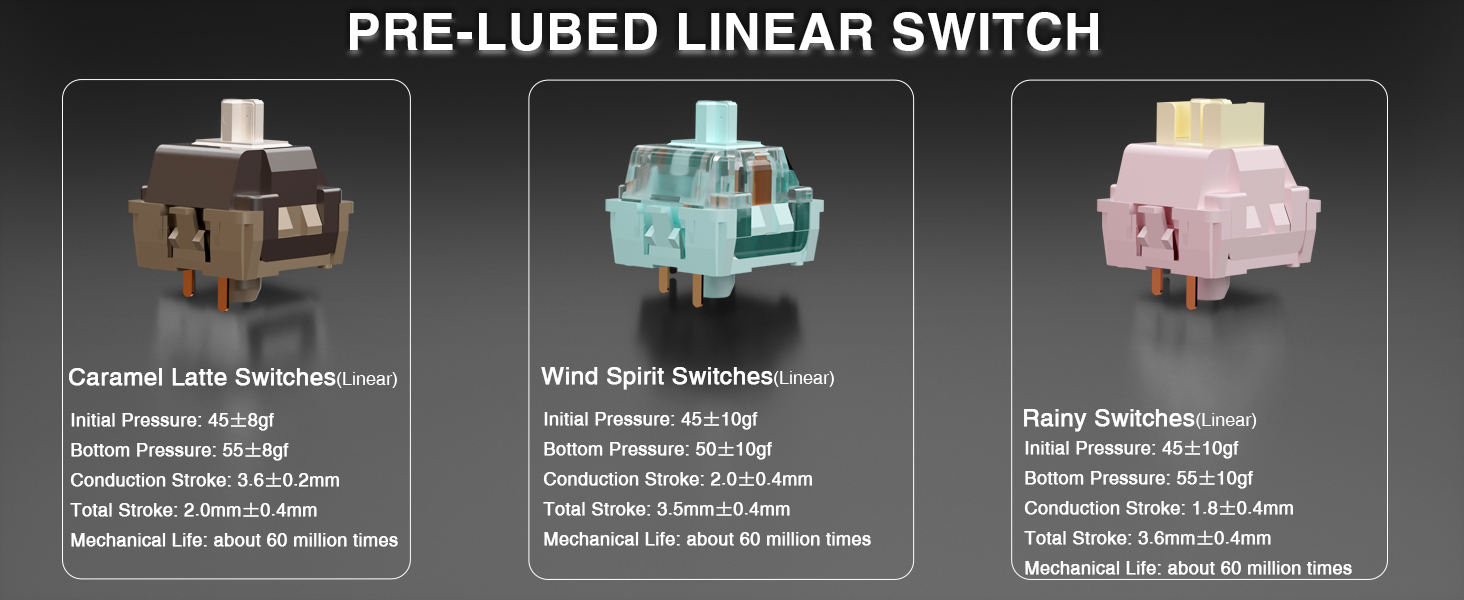
Image: Detailed specifications of the pre-lubed Wind Spirit linear switches, including initial pressure, bottom pressure, conduction stroke, total stroke, and mechanical life, highlighting their smooth operation.
7. Troubleshooting
- Keyboard not responding:
- Ensure the keyboard is powered on.
- Check the connection mode (wired, 2.4GHz, or Bluetooth) and ensure it matches your device's connection.
- For 2.4GHz, ensure the USB receiver is properly inserted.
- For Bluetooth, ensure the keyboard is paired and selected on your device. Try re-pairing if necessary.
- Check battery level (Fn + B) and charge if low.
- RGB backlight not working or incorrect:
- Use Fn + \| to cycle through lighting effects or turn the backlight on/off.
- Adjust brightness with Fn + ↑/↓.
- If using custom software, ensure the keyboard is in wired mode and the software is correctly configured.
- Keys not registering or double-typing:
- This may indicate a faulty switch. Use the included switch puller to replace the affected switch with one of the extra switches provided.
- Ensure the new switch is properly seated and its pins are not bent.
- F-zone functionality abnormal on Linux:
- This is a known compatibility issue with certain Linux driver versions and is considered normal behavior.
8. Specifications
| Feature | Detail |
|---|---|
| Model Number | F108 |
| Brand | AULA |
| Connectivity Technology | 2.4GHz Wireless, BT5.0, USB-C |
| Keyboard Description | Mechanical |
| Keycap Material | PBT |
| Switches | Pre-lubed Linear (Wind Spirit) |
| Hot-swappable | Yes (3-pin/5-pin compatible) |
| Backlighting | RGB |
| Battery | 4000mAh Lithium Ion (included) |
| Estimated Battery Life (Backlight ON) | Approx. 10 hours |
| Estimated Battery Life (Backlight OFF) | Approx. 100 hours |
| Compatible Devices | Gaming Console, Laptop, PC, Smartphone, Tablet |
| Item Weight | 2.6 pounds |
| Package Dimensions | 18.5 x 7 x 2.5 inches |
9. Warranty and Support
AULA is committed to providing quality products and after-sales service. For specific warranty details and support inquiries, please refer to the official AULA website or contact your retailer.
For driver downloads and additional resources, visit: bit.ly/m/AULA


