1. Important Safety Instructions
Please read all instructions carefully before using the WEWATCH WP01 projector. Keep this manual for future reference.
- Do not block ventilation openings. Ensure adequate airflow around the projector to prevent overheating.
- Do not expose the projector to rain or moisture to avoid electric shock or fire.
- Use only the power adapter supplied with the projector.
- Avoid looking directly into the projector lens when the lamp is on, as it can cause eye damage.
- Place the projector on a stable, level surface to prevent it from falling.
- Do not attempt to disassemble or repair the projector yourself. Refer all servicing to qualified personnel.
2. Package Contents
Verify that all items are present in your package:
- WEWATCH WP01 Projector
- Remote Control
- Power Adapter
- HDMI Cable
- User Manual
3. Product Overview
Familiarize yourself with the components of your WEWATCH WP01 projector.

Image: The WEWATCH WP01 projector shown with its remote control, highlighting its sleek design and front lens.
3.1 Front and Side View
- Lens: Projects the image onto the screen.
- Focus Adjustment: Manual focus slider for fine-tuning image clarity.
- Ventilation Openings: For heat dissipation.
3.2 Rear and Connectivity Ports

Image: Close-up of the WEWATCH WP01 projector's rear panel, showing various input and output ports including Audio, USB, and HDMI.
- HDMI Ports (x2): Connect to laptops, gaming consoles (PS4/PS5), and other HDMI-enabled devices.
- USB Port (x1): Connect USB drives for media playback.
- Audio Out (3.5mm Jack): Connect external headphones or soundbars.
- Power Input: Connect the power adapter.
4. Setup
4.1 Initial Power On
- Connect the power adapter to the projector's power input and then to a power outlet.
- Press the power button on the projector or the remote control to turn it on.
- The projector will automatically perform autofocus and keystone correction upon startup.
4.2 Network Connection (Wi-Fi)
Connect your projector to a Wi-Fi network for access to streaming apps and online content.

Image: Illustration showing the WEWATCH WP01 projector's dual-band 2.4G and 5G WiFi capabilities, enabling seamless screen mirroring from various devices.
- Navigate to the "Settings" menu on the projector's interface.
- Select "Network" or "Wi-Fi Settings".
- Choose your desired Wi-Fi network from the list and enter the password.
- The projector supports both 2.4G and 5G Wi-Fi for stable and fast streaming.
4.3 Bluetooth Pairing
Connect external Bluetooth speakers or headphones for enhanced audio, or use the projector as a Bluetooth speaker.

Image: Diagram illustrating the WEWATCH WP01's immersive Dolby Audio and bidirectional Bluetooth functionality, allowing connection to external speakers or using the projector as a Bluetooth speaker.
- Go to "Settings" and select "Bluetooth".
- Turn on Bluetooth and search for available devices.
- Select your Bluetooth device from the list to pair.
- To use the projector as a Bluetooth speaker, select the corresponding option in the Bluetooth settings.
5. Operating the Projector
5.1 Smart Features and Streaming
The WEWATCH WP01 comes with pre-installed official streaming applications.

Image: Screenshot of the WEWATCH WP01's smart TV interface, displaying pre-installed applications like Netflix, YouTube, and Prime Video, accessible via remote control.
- Access Netflix, YouTube, and Prime Video directly from the home screen using the remote control.
- Use the "Open Browser" feature to browse and stream other online content.
- Enjoy immersive audio with integrated Dolby Digital Sound.
5.2 Image Adjustment
The projector features intelligent adjustment technologies for optimal image quality.

Image: Visual representation of the WEWATCH WP01's 4-in-1 intelligent calibration features: Autofocus, Automatic Keystone Correction, Intelligent Screen Alignment, and Obstacle Avoidance, along with 50-100% zoom.
- Autofocus: The projector automatically adjusts focus for a sharp image. Manual fine-tuning is possible via F+/F- buttons on the remote.
- Automatic Keystone Correction: Corrects distorted images (trapezoid effect) automatically, even with oblique projection.
- Intelligent Screen Alignment: Automatically adjusts the screen to fit the projection surface.
- Obstacle Avoidance: Detects and avoids objects in the projection path to prevent distortion.
- Zoom (50%-100%): Adjust the image size without moving the projector.
5.3 Projection Modes
The WP01 supports various projection orientations:
- Front Projection: Project from the front of the screen.
- Rear Projection: Project from behind a translucent screen.
- Front Ceiling Projection: Mount the projector on the ceiling and project from the front.
- Rear Ceiling Projection: Mount the projector on the ceiling and project from the rear.
5.4 Connecting External Devices
Utilize the multiple ports to connect various devices.
- HDMI: Connect gaming consoles, laptops, or other media players. Select the corresponding HDMI input from the projector's source menu.
- USB: Insert a USB drive to play videos, photos, or music directly.
- Audio Out: Connect external speakers, soundbars, or headphones for a customized audio experience.
5.5 Screen Size and Projection Distance
The WEWATCH WP01 can project a large image, transforming any space into a cinema.
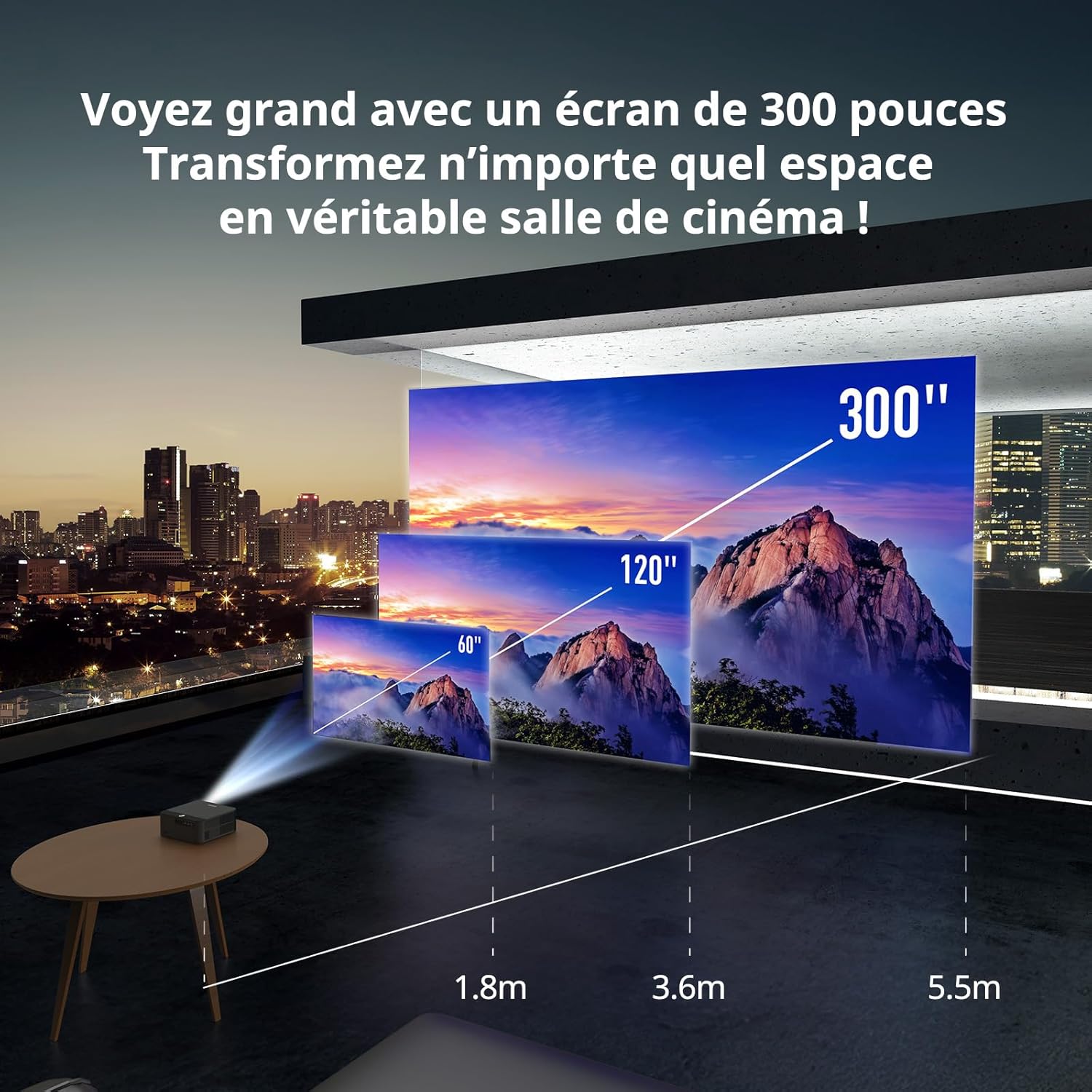
Image: Diagram illustrating various projection distances and corresponding screen sizes (60", 120", 300") for the WEWATCH WP01 projector, demonstrating its flexibility for different room sizes.
| Screen Size (Inches) | Approx. Projection Distance (Meters) |
|---|---|
| 60" | 1.8m |
| 120" | 3.6m |
| 300" | 5.5m |
Note: Optimal viewing experience may vary based on ambient light conditions.
6. Maintenance
6.1 Cleaning the Lens
Use a soft, lint-free cloth specifically designed for optical lenses. Do not use abrasive cleaners or cloths that could scratch the lens surface.
6.2 Ventilation
Regularly check and clean the ventilation openings to ensure proper airflow and prevent dust buildup. Blocked vents can lead to overheating and reduced projector lifespan.
6.3 General Cleaning
Wipe the projector's exterior with a soft, dry cloth. Avoid using liquid cleaners directly on the device.
7. Troubleshooting
If you encounter issues with your WEWATCH WP01 projector, refer to the following common problems and solutions:
| Problem | Possible Cause | Solution |
|---|---|---|
| No image on screen | Power cable disconnected; Incorrect input source; Projector in standby mode. | Check power connection; Select correct HDMI/USB input; Press power button to wake up. |
| Image is blurry | Out of focus; Incorrect projection distance. | Adjust focus manually using the slider or F+/F- buttons; Adjust projector distance to screen. |
| Image is distorted (trapezoid) | Projector not perpendicular to screen. | The projector has automatic keystone correction. If manual adjustment is needed, go to image settings. |
| No sound | Volume too low; Muted; External audio device not connected or selected. | Increase volume; Unmute; Check external audio connections and settings. |
| Wi-Fi connection issues | Incorrect password; Router too far; Network interference. | Re-enter password; Move projector closer to router; Try 2.4Ghz band if 5Ghz is unstable. |
8. Specifications
Detailed technical specifications for the WEWATCH WP01 Projector.
| Feature | Detail |
|---|---|
| Brand | WEWATCH |
| Model Number | WP01 |
| Color | Anthracite |
| Display Resolution | Native 1920 x 1080 Pixels (Full HD) |
| Brightness | 700 ISO Lumens |
| Contrast Ratio | 1500:1 |
| HDR Support | HDR10 |
| Connectivity Technology | HDMI (x2), USB (x1), 3.5mm Audio Jack, Wi-Fi (2.4G/5G), Bluetooth 5.0 (Bidirectional) |
| Special Features | Screen Alignment, Autofocus, Digital Keystone Correction, Automatic Obstacle Avoidance, Built-in Speaker, Pre-installed Netflix/YouTube/Prime Video (Official License) |
| Compatible Devices | Game Console, Laptop, Tablet, Smartphone, Speaker |
| Product Dimensions | 28L x 24W x 10.6H cm |
| Form Factor | Desktop |
| Recommended Uses | Home Cinema, Professional, Education, Video Games |
9. Warranty and Support
WEWATCH products are designed and manufactured to the highest quality standards. For warranty information and technical support, please refer to the official WEWATCH website or contact their customer service directly.
For further assistance, you may visit the WEWATCH store on Amazon: WEWATCH Official Store
Please have your model number (WP01) and purchase details ready when contacting support.


