
Introduction
Welcome to the world of Nintendo Switch 2! This manual provides essential information for setting up, operating, and maintaining your new console and the included Mario Kart World digital game. The Nintendo Switch 2 + Mario Kart World bundle offers an exclusive gaming experience, combining the innovative console with the thrilling racing game.
The Nintendo Switch 2 features include:
- Integrated voice chat for online play.
- New Joy-Con controllers with magnetic attachment and mouse functionality.
- Enhanced graphics processing power.
- 7.9-inch LCD screen.
- Up to 4K resolution output to compatible TVs.
- Frame rates up to 120 fps with compatible titles and TVs.
- Adjustable stand for versatile play.
- Two USB-C ports.
- Clear sound and 3D spatial audio.
- 256 GB internal system memory, expandable via microSD card.
- Backward compatibility with original Nintendo Switch titles.
Mario Kart World allows you to race across diverse environments, including plains, cities, water, and volcanoes, all interconnected to form your ultimate racetrack. Engage in races with up to 24 players and experience the new Survival mode with continuous, step-by-step elimination challenges. Enjoy local multiplayer with up to 4 players on a single console or compete online with up to 24 players, utilizing GameChat for communication with friends.
Setup
Follow these steps to set up your Nintendo Switch 2 console:
- Unpack the Console: Carefully remove all components from the packaging. You should find the Switch 2 base unit, TV dock, two Joy-Con controllers, a Joy-Con grip, two Joy-Con wrist straps, a power adapter, and an HDMI cable.
- Attach Joy-Cons: Slide the left and right Joy-Con controllers onto the sides of the Nintendo Switch 2 console until you hear a click. They attach magnetically.
- Initial Power On: Press the Power button located on the top of the console to turn it on. Follow the on-screen instructions to select your language, region, and set up an internet connection.
- Charging the Console: Connect the power adapter to the console's USB-C port or to the TV dock. Plug the adapter into a wall outlet. The console will begin charging.
- TV Mode Setup (Optional):
- Open the back cover of the TV dock.
- Connect the HDMI cable from the dock's HDMI OUT port to an HDMI input on your TV.
- Connect the power adapter to the dock's AC IN port.
- Place the Nintendo Switch 2 console into the dock, ensuring it slides all the way down. The console screen will turn off, and the display will appear on your TV.
- Download Mario Kart World: Your bundle includes a digital download code for Mario Kart World. Once your console is connected to the internet and your Nintendo Account is set up, navigate to the Nintendo eShop and enter the provided download code to redeem and install the game.

Image: The Nintendo Switch 2 console with both Joy-Con controllers attached, ready for portable play.
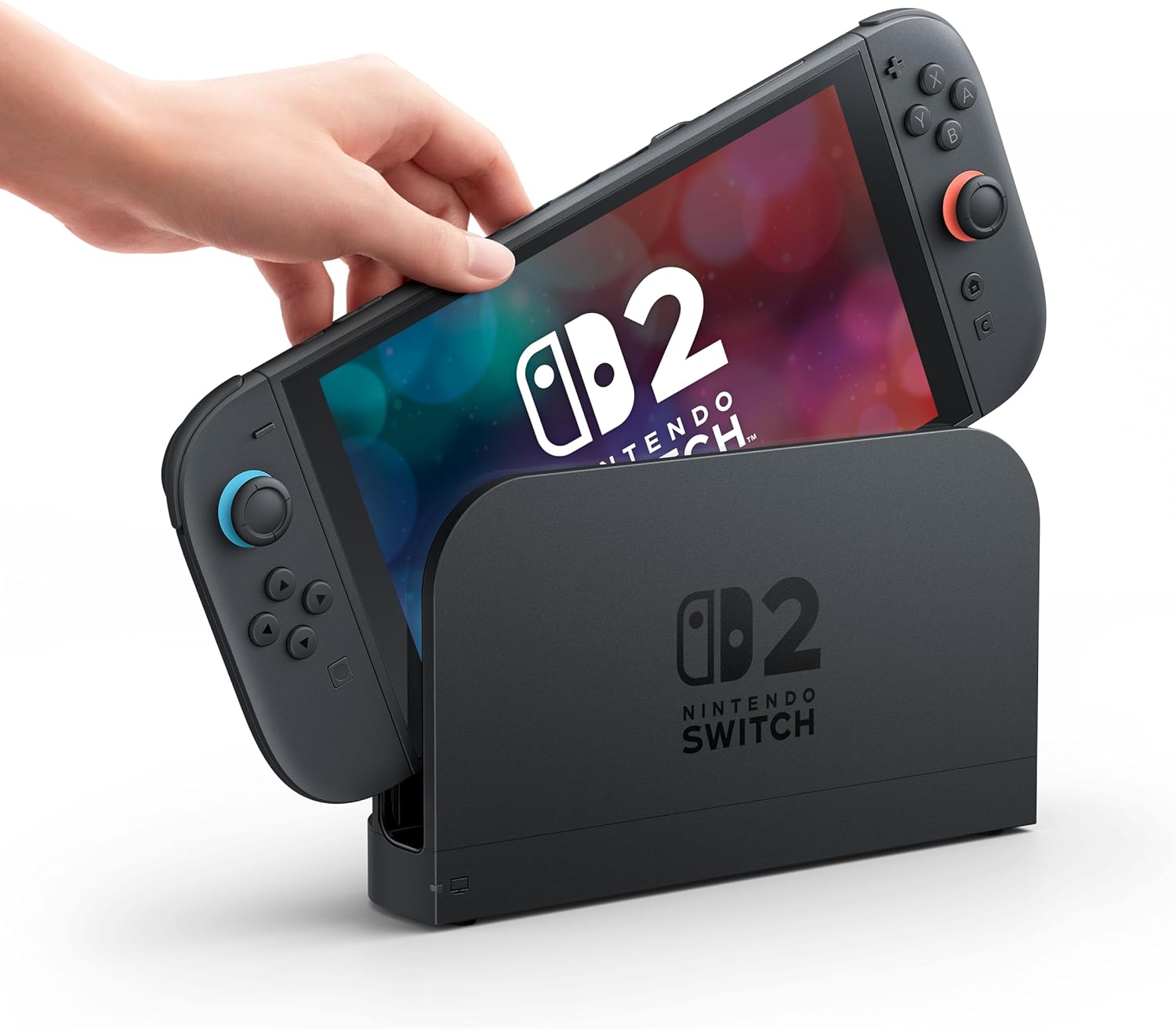
Image: A hand gently placing the Nintendo Switch 2 console into its dedicated TV dock, preparing for TV mode gameplay.
Operating Instructions
The Nintendo Switch 2 offers flexible play styles:
Portable Mode
With the Joy-Con controllers attached, the console functions as a handheld device. Use the 7.9-inch LCD touchscreen for navigation or the physical buttons on the Joy-Cons. The console's internal battery provides power for gaming on the go.
Tabletop Mode
Detach the Joy-Con controllers and extend the adjustable stand on the back of the console. This allows you to place the console on a flat surface and use the detached Joy-Cons wirelessly for multiplayer gaming or solo play. The new magnetic Joy-Cons offer improved stability and responsiveness.

Image: The Nintendo Switch 2 console standing upright on its adjustable kickstand, with both Joy-Con controllers detached and ready for wireless use in tabletop mode.
TV Mode
Insert the console into the TV dock (as described in Setup) to play games on your television. The console supports up to 4K resolution and 120 fps on compatible TVs and games. Use the Joy-Cons either attached to the Joy-Con grip or individually for multiplayer. The Joy-Cons can also be used as a mouse for certain applications or games.
Online Play and Communication
Connect your console to the internet via Wi-Fi or the LAN port on the TV dock. Engage in online multiplayer battles in games like Mario Kart World with up to 24 players. The integrated voice chat feature allows you to communicate with other players during online sessions.

Image: A dynamic screenshot from Mario Kart World, showcasing multiple characters racing on a vibrant track, illustrating the multiplayer experience.
Maintenance
Proper care will ensure the longevity of your Nintendo Switch 2:
- Cleaning: Use a soft, dry cloth to clean the console, screen, and Joy-Cons. For stubborn smudges, slightly dampen the cloth with water. Avoid using harsh chemicals or abrasive materials.
- Screen Protection: While the screen is durable, applying a screen protector is recommended to prevent scratches, especially during portable use or when docking/undocking.
- Storage: Store the console and accessories in a cool, dry place away from direct sunlight, extreme temperatures, and excessive dust.
- Battery Care: To maintain battery health, avoid fully discharging the battery frequently. If storing the console for an extended period, charge it to about 50% every few months.
- Docking: When inserting the console into the TV dock, do so gently to avoid scratching the screen or damaging the USB-C connector.
Troubleshooting
Here are solutions to common issues you might encounter:
| Problem | Solution |
|---|---|
| Console does not power on. | Ensure the console is charged. Connect the power adapter and allow it to charge for at least 30 minutes before attempting to power on again. |
| No display on TV in TV Mode. | Check that the HDMI cable is securely connected to both the dock and the TV. Ensure the TV is set to the correct HDMI input. Verify the power adapter is connected to the dock and a power outlet. |
| Joy-Cons not responding or disconnecting. | Ensure Joy-Cons are charged. Re-attach them to the console or re-pair them wirelessly by pressing the SYNC button on the Joy-Con and then a button on the controller. Ensure no strong interference sources are nearby. |
| Screen scratches easily. | This is a known characteristic. It is highly recommended to apply a screen protector to prevent scratches. |
| Short battery life. | Adjust screen brightness, disable Wi-Fi/Bluetooth when not needed, and close background applications to conserve battery. For optimal performance, ensure the console is fully charged before use. |
| Games load slowly. | Ensure you have sufficient free space on the console's internal memory or microSD card. Restarting the console can sometimes resolve performance issues. |
Specifications
- Model Number: HC
- Product Dimensions: 22 x 22 x 10.7 cm
- Weight: 420 grams
- Battery: 1 Lithium-ion battery (included)
- Internal Storage: 256 GB (expandable via microSD)
- Screen: 7.9-inch LCD
- TV Output Resolution: Up to 4K (with compatible TV and titles)
- Frame Rate: Up to 120 fps (with compatible TV and titles)
- Ports: 2x USB-C (on console), 1x HDMI, 2x USB 2.0, 1x LAN, 1x AC (on dock)
- Release Date: June 5, 2025
- Language: English (User Interface)
- Software Updates Guaranteed Until: Unknown
Warranty and Support
For information regarding product warranty and returns, please refer to the retailer's specific policies. Generally, if you wish to return a product within 30 days of receipt because you changed your mind, please consult the retailer's help page. If you received a defective or damaged product, please consult the retailer's help page for assistance. For specific information on purchases made on the Marketplace, please consult the relevant help page.
For technical support or further assistance with your Nintendo Switch 2 console or Mario Kart World game, please visit the official Nintendo support website or contact their customer service.


