
1. Introduction to the Samsung Galaxy A16 5G
Congratulations on your new Samsung Galaxy A16 5G smartphone! This guide is designed to help you understand and utilize all the features and functions of your device, whether you are a beginner or an advanced user. The Samsung Galaxy A16 5G is a powerful tool for communication, entertainment, and productivity.

Figure 1.1: Front cover of the official user guide for the Samsung Galaxy A16 5G.
This manual provides clear, step-by-step instructions to ensure you can master your smartphone with ease. From initial setup to advanced features, we cover essential topics to enhance your user experience.
2. Getting Started: Setup and Initial Configuration
2.1 Installing SIM and MicroSD Cards
To begin using your Galaxy A16 5G, you will need to install your nano SIM card for cellular service and optionally a MicroSD card for expanded storage.
- Locate the SIM/MicroSD card tray on the side of your device.
- Insert the ejection pin into the small hole next to the tray to open it.
- Place your nano SIM card into the SIM slot and your MicroSD card (if applicable) into the designated MicroSD slot, ensuring correct orientation.
- Gently push the tray back into the device until it clicks into place.
2.2 Powering On/Off and Restarting
To power on your device, press and hold the Power key until the Samsung logo appears. To power off, press and hold the Power key and Volume Down key simultaneously, then select "Power off" from the options. To restart, select "Restart" from the same menu.
2.3 First-Time Setup and Data Transfer
Upon first power-on, follow the on-screen prompts to complete the initial setup. This includes selecting your language, connecting to Wi-Fi, and signing into your Google account. You can also transfer data from your previous device using Samsung Smart Switch during this process or later.

Figure 2.1: Illustrative screenshots demonstrating the initial setup process, including language selection.
3. Operating Your Samsung Galaxy A16 5G
3.1 Calls, Contacts, and Messaging
- Making and Receiving Calls: Tap the Phone icon, dial a number, and tap the call button. To answer an incoming call, swipe up on the green phone icon.
- Saving Contacts: Open the Phone app, go to the Contacts tab, and tap the '+' icon to add a new contact.
- Sending and Reading Messages: Open the Messages app. Tap the new message icon to compose a message. Select a contact or enter a number, type your message, and tap send.
3.2 Security Features
Enhance your device security using various methods:
- Face Recognition: Go to Settings > Biometrics and security > Face recognition to set up.
- Fingerprints: Go to Settings > Biometrics and security > Fingerprints to register your fingerprints.
- Samsung Account and Samsung Pass: Set up your Samsung account for cloud services and use Samsung Pass for secure login management.
- Secure Folder and Extend Unlock: Utilize these features for enhanced privacy and convenience.
3.3 Camera and Gallery
Capture moments with your Galaxy A16 5G's camera and manage your media.
- Taking Photos: Open the Camera app and tap the shutter button. Explore different modes like Portrait, Pro, and Panorama.
- Managing Photos: All captured photos and videos are stored in the Gallery app. You can organize, edit, and share them from here.
- Capturing Screenshots: Press the Volume Down key and Power key simultaneously to take a screenshot.

Figure 3.1: Overview of the Galaxy A16 5G's physical features and key screen elements.
3.4 Connectivity and Sharing
- Wi-Fi Connection: Go to Settings > Connections > Wi-Fi, turn on Wi-Fi, and select your network.
- Mobile Hotspot: Share your phone's internet connection via Settings > Connections > Mobile Hotspot and Tethering.
- Quick Share and Bluetooth: Use Quick Share for fast file transfers to other Galaxy devices, and Bluetooth for connecting to accessories.
- Minimizing Data Use: Monitor and manage your data usage in Settings > Connections > Data usage.
3.5 Customization and Internet Browsing
- Customizing Your Phone: Personalize your device through Settings > Wallpaper and style, Themes, and Sounds and vibration.
- Searching the Internet: Use the pre-installed web browser (e.g., Google Chrome or Samsung Internet) to browse the web.
- Printing: Connect to a compatible printer via Wi-Fi Direct or a printing service app to print documents and photos directly from your phone.
4. Maintenance and Care
To ensure the longevity and optimal performance of your Samsung Galaxy A16 5G, follow these maintenance guidelines:
- Keep your device clean by gently wiping it with a soft, dry cloth. Avoid harsh chemicals.
- Protect your screen with a screen protector and use a protective case to prevent physical damage.
- Regularly update your software to benefit from the latest security patches and feature enhancements.
- Manage your storage by regularly clearing unnecessary files and apps to maintain performance.
- Optimize battery life by adjusting screen brightness, disabling unused features like Bluetooth or Wi-Fi when not needed, and closing background apps.
5. Troubleshooting Common Issues
If you encounter issues with your Galaxy A16 5G, consider these common troubleshooting steps before seeking professional support:
- Device Unresponsive: Perform a forced restart by pressing and holding the Power key and Volume Down key for more than 7 seconds.
- App Crashing: Clear the app's cache and data via Settings > Apps > [App Name] > Storage. If the issue persists, reinstall the app.
- Connectivity Problems (Wi-Fi/Bluetooth): Toggle Wi-Fi or Bluetooth off and on. Restart your device or reset network settings (Settings > General management > Reset > Reset network settings).
- Battery Draining Quickly: Check battery usage in Settings > Battery and device care > Battery to identify power-hungry apps. Reduce screen brightness and disable unnecessary features.
- Storage Full: Delete old photos/videos, uninstall unused apps, or move files to cloud storage or a MicroSD card.
6. Product Specifications
Key specifications for the Samsung Galaxy A16 5G:
| Feature | Detail |
|---|---|
| ASIN | B0F2J79GZJ |
| Publisher | Independently published |
| Publication Date | March 25, 2025 |
| Language | English |
| Print Length | 145 pages |
| ISBN-13 | 979-8315527756 |
| Item Weight | 9.8 ounces |
| Dimensions | 6 x 0.33 x 9 inches |
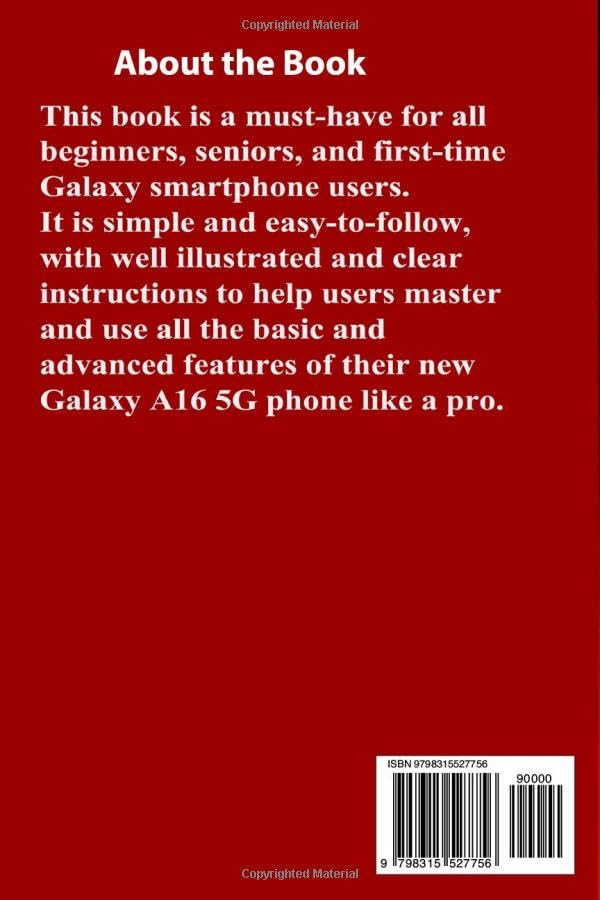
Figure 6.1: Back cover of the user guide, displaying the ISBN-13 barcode.
7. Support and Warranty Information
For further assistance or warranty claims regarding your Samsung Galaxy A16 5G smartphone, please refer to the official Samsung support channels.
- Online Support: Visit the official Samsung website for FAQs, troubleshooting guides, and software downloads.
- Customer Service: Contact Samsung customer service for personalized assistance. Refer to your device's packaging or Samsung's website for contact numbers.
- Warranty: Your Samsung Galaxy A16 5G comes with a standard manufacturer's warranty. Please retain your proof of purchase for any warranty-related services. Details of the warranty period and coverage can be found on Samsung's official website or in the warranty card included with your device.


