
Introduction
Thank you for choosing the TCL 65Q6C 65-inch 4K QD-Mini LED Google TV. This manual provides essential information for the safe and efficient use of your television. Please read it thoroughly before operating the device and retain it for future reference.
Key Features
- QD-Mini LED Technology: Enhances color accuracy and contrast, improving overall display quality. Precise dimming reaches 512 zones, with over a billion shades of perfect vivid colors.
- High Brightness HDR: Enjoy unparalleled brightness with high HDR technology, offering deep contrast and stunning highlights for an immersive viewing experience. See every detail come to life with amazing clarity and vibrant colors.
- QLED Display: Features 93% DCI-P3 color gamut coverage, providing unparalleled color for stunning and vibrant visuals and enhanced color accuracy.
- 144Hz Native Refresh Rate: Experience ultra-smooth motion with a native 144Hz refresh rate, ideal for gaming and fast-paced scenes.
- Onkyo 2.1 Hi-Fi Audio System: Delivers rich and immersive sound for a complete home entertainment experience.

Figure 1: Front view of the TCL 65Q6C 65-inch 4K QD-Mini LED Google TV.

Figure 2: Illustrates the advantages of QD-Mini LED technology over ordinary LED TVs, highlighting improvements in color, brightness, and contrast.

Figure 3: An overview of the key technologies and design elements integrated into the TCL 65Q6C TV.
Setup
1. Unpacking and Inspection
Carefully remove the TV from its packaging. Inspect for any damage. Ensure all accessories are present: remote control, power cable, stand components, and screws.
2. Stand Installation (Optional)
If using the TV stand, place the TV face down on a soft, flat surface. Attach the stand bases to the TV using the provided screws, ensuring they are securely fastened.
3. Wall Mounting (Optional)
For wall mounting, refer to the VESA mounting standard: 600 x 400 mm. Use a compatible wall mount bracket (sold separately) and follow its instructions carefully. Professional installation is recommended for safety.

Figure 4: Side profile of the TV, illustrating its slim design and port locations.
4. Connecting Devices
- Power: Connect the power cable to the TV and then to a wall outlet.
- HDMI Devices: Use HDMI cables to connect external devices like gaming consoles, Blu-ray players, or set-top boxes to the HDMI ports. This model supports HDMI connectivity.
- USB Devices: Connect USB drives for media playback or other compatible devices to the USB ports. This model includes USB 3.0 ports.
- Audio Systems: For external audio, connect via HDMI (ARC/eARC) or Bluetooth. The TV features an Onkyo 2.1 Hi-Fi audio system with Dolby Atmos support.

Figure 5: Rear view of the TV, highlighting the VESA mounting points and various input/output connections.
5. Initial Power-On and Google TV Setup
After connecting power, press the power button on the remote control. Follow the on-screen instructions to complete the initial setup, including network connection, Google account login, and channel scanning.
Operating
1. Remote Control Functions
The remote control allows you to navigate the Google TV interface, adjust volume, change channels, select inputs, and access smart features. Familiarize yourself with the button layout for optimal use.
2. Google TV Interface
Your TV runs on Google TV, providing a personalized home screen with content recommendations, access to streaming apps, and Google Assistant voice control. Use the directional pad on your remote to navigate menus and select items.
3. Input Selection
To switch between connected devices (e.g., HDMI 1, USB), press the 'Input' button on your remote and select the desired source from the on-screen menu.
4. Voice Control
Press the Google Assistant button on your remote and speak into the microphone to search for content, control smart home devices, get answers, and more.
5. Gaming Features
The TCL 65Q6C is optimized for gaming with its 144Hz native refresh rate and Game Master mode. Ensure your gaming console is connected to an HDMI port that supports high refresh rates for the best experience.
Figure 6: Demonstrates the smooth and clear motion provided by the 144Hz native refresh rate, ideal for fast-paced content and gaming.
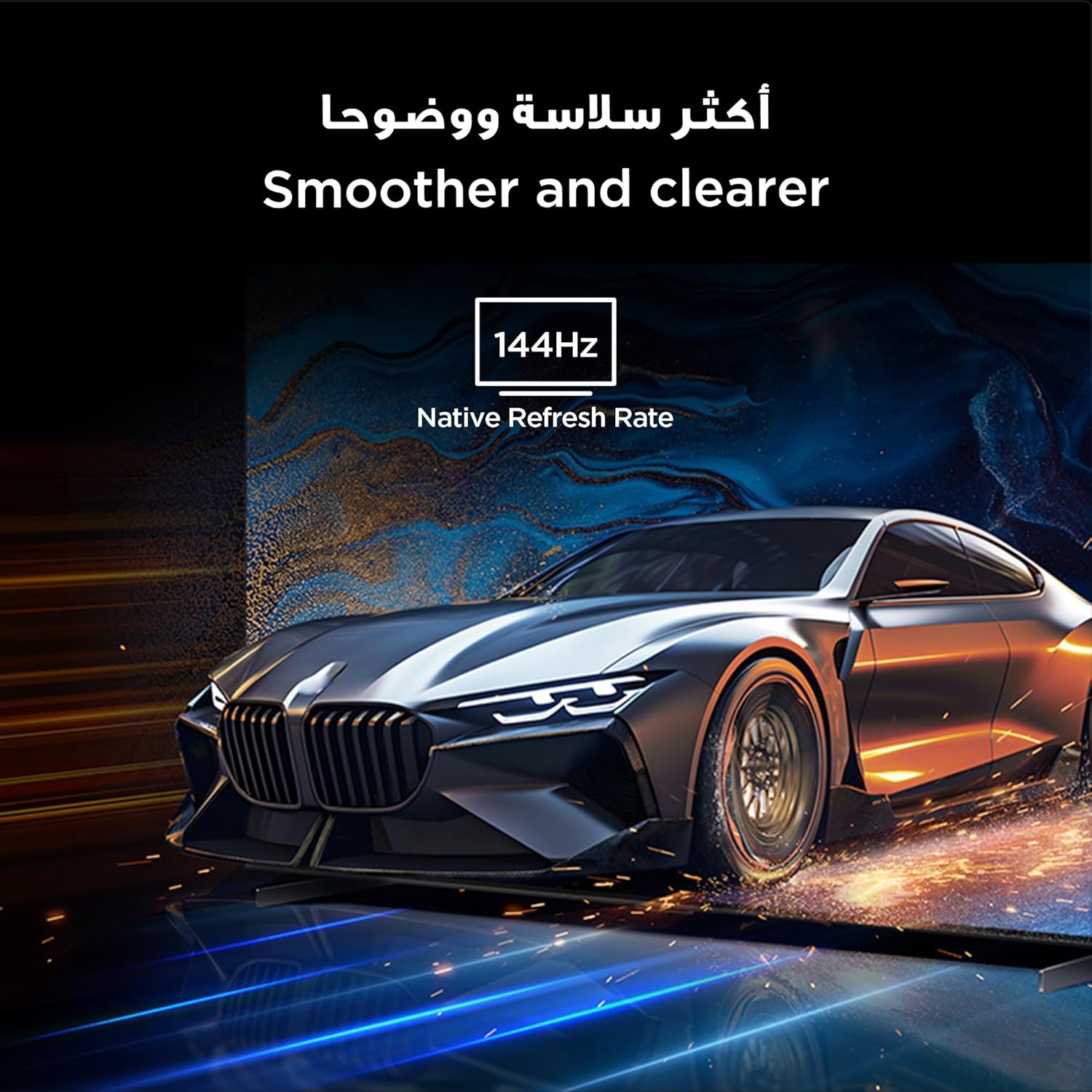
Figure 7: Highlights the immersive audio experience delivered by the integrated Onkyo 2.1 sound system, defining a new standard for home theater.
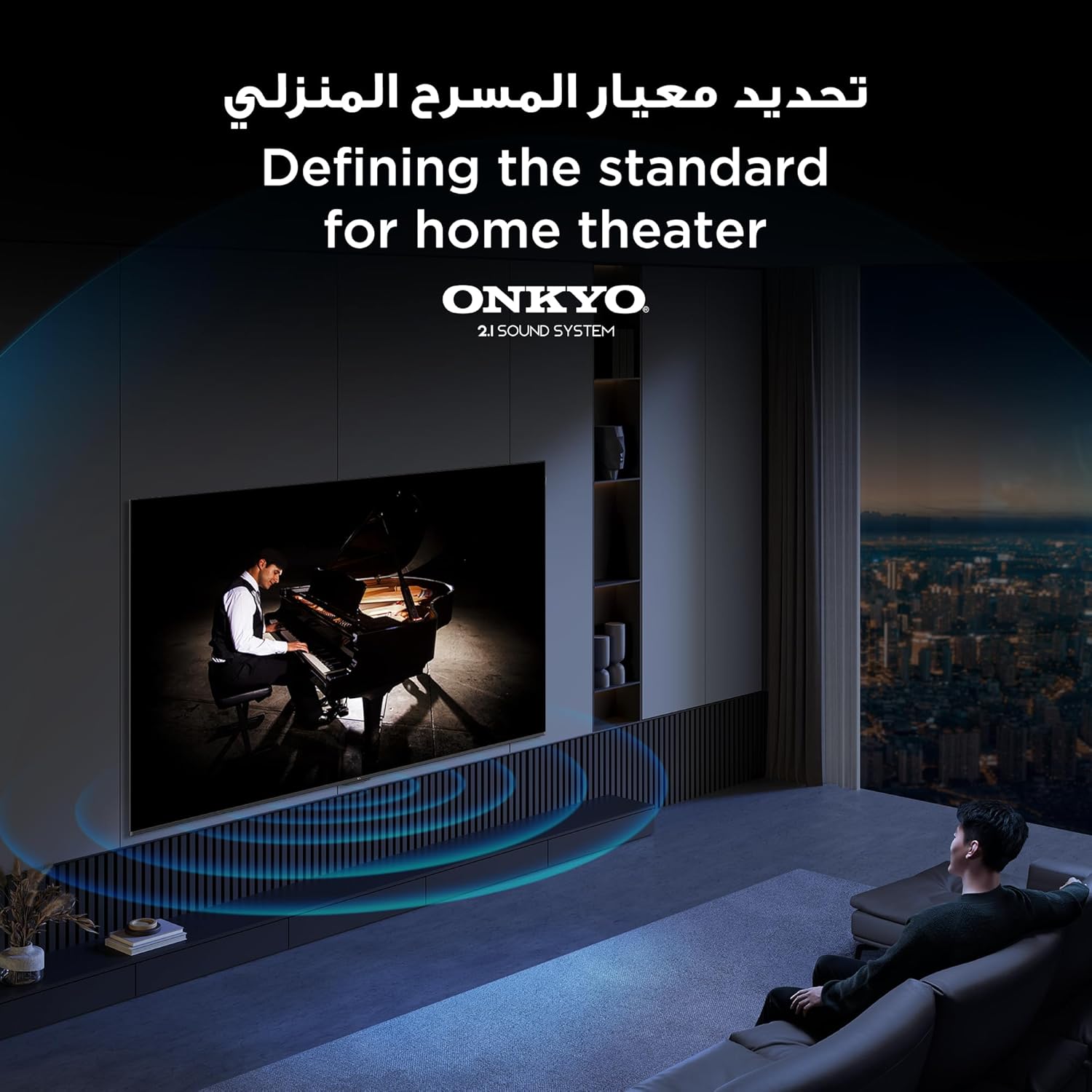
Figure 8: Visual representation of the AiPQ Pro Processor, which intelligently perceives, thinks, and produces optimized visuals and audio.

Figure 9: Illustrates the smart control capabilities of the TCL TV, allowing users to manage other TCL smart devices within their home.
Maintenance
1. Cleaning the Screen
Gently wipe the screen with a soft, lint-free cloth. For stubborn marks, use a screen-cleaning solution specifically designed for TVs, applied to the cloth, not directly to the screen.
2. Cleaning the Frame
Wipe the TV frame and stand with a soft, dry cloth. Avoid using abrasive cleaners or solvents.
3. Software Updates
Ensure your TV is connected to the internet to receive automatic software updates. These updates improve performance and add new features. You can also manually check for updates in the TV's settings menu.
4. Safe Handling
Avoid placing heavy objects on the TV. Do not block ventilation openings. Disconnect the power cable during lightning storms or when the TV will be unused for extended periods.
Troubleshooting
This section addresses common issues you might encounter with your TCL 65Q6C TV.
No Power
- Check if the power cable is securely connected to both the TV and the wall outlet.
- Ensure the wall outlet is functioning by plugging in another device.
- Press the power button on the TV itself, not just the remote, to rule out a remote issue.
No Picture / Distorted Picture
- Verify that the correct input source is selected (e.g., HDMI 1, HDMI 2).
- Check all cable connections (HDMI, antenna) for looseness or damage.
- Try connecting a different device to the same HDMI port to see if the issue is with the source device.
- Adjust picture settings (brightness, contrast, color) in the TV menu.
No Sound / Distorted Sound
- Ensure the volume is not muted or set too low.
- Check audio output settings in the TV menu to ensure the correct output (e.g., TV speakers, external audio system) is selected.
- If using external speakers, check their power and connections.
Remote Control Not Working
- Replace the batteries in the remote control.
- Ensure there are no obstructions between the remote and the TV's IR sensor.
- If it's a Bluetooth remote, try re-pairing it with the TV (refer to the TV's settings for pairing instructions).
Network Connection Issues
- Restart your Wi-Fi router and modem.
- Check the Wi-Fi password if connecting wirelessly.
- If possible, try connecting the TV to the internet via an Ethernet cable.
- Go to the TV's network settings to diagnose the connection.
Factory Reset
If problems persist, a factory reset may resolve them. Be aware that this will erase all your settings and installed apps. Navigate to Settings > System > About > Reset > Factory data reset.
Specifications
| Feature | Description |
|---|---|
| Brand | TCL |
| Model Name | 65Q6C |
| Model Number | 65Q6C |
| Model Series | Q6C |
| Manufacturing Year | 2025 |
| Screen Size | 65 Inches |
| Display Technology | Mini LED, LED |
| Resolution | 4K |
| Refresh Rate | 144 Hz |
| Image Contrast Ratio | High |
| HDR Format Support | HDR10+ |
| Motion Enhancement Technology | Native 144Hz Refresh Rate |
| Image Quality Enhancement Technology | QD-Mini LED, QLED, HDR 10+ |
| Screen Backlight Technology | Mini LED |
| Operating System | Google TV |
| Supported Internet Services | Google TV for Gaming |
| Connectivity Technology | HDMI, USB, Bluetooth |
| Hardware Interface | HDMI, USB, Bluetooth |
| Total HDMI Ports | 1 |
| Total USB Ports | 1 |
| Total USB 3.0 Ports | 1 |
| Wireless Communication Technology | Bluetooth |
| Speaker Description | Onkyo 2.1 Channel Hi-Fi Speakers |
| Surround Sound Channel Configuration | 2.1 |
| Built-in Surround Sound Format | Dolby Atmos |
| Control Method | Remote |
| Mounting Type | Wall Mount |
| VESA Mounting Standard | 600 x 400 mm |
| Item Weight | 24.2 kilograms |
Warranty
This TCL television comes with a limited warranty. The specific terms and duration of the warranty may vary by region and retailer. Please refer to the warranty card included in your product packaging or visit the official TCL website for detailed warranty information. Keep your purchase receipt as proof of purchase for any warranty claims.
Support
For further assistance, technical support, or service inquiries, please utilize the following resources:
- TCL Official Website: Visit www.tcl.com for product information, FAQs, and support contact details specific to your region.
- Customer Service: Refer to the contact information provided in your warranty documentation or on the TCL website for direct customer support.
- Online Resources: Many common issues can be resolved by consulting the online support sections or user forums available on the TCL website.