
1. Introduction
Thank you for choosing the EDUPLINK M6Pro Bluetooth Speaker. This portable wireless speaker is designed to deliver high-fidelity audio with deep bass, featuring IPX7 waterproofing, TWS stereo pairing, and a dynamic RGB light show. This manual provides detailed instructions to help you get the most out of your device.
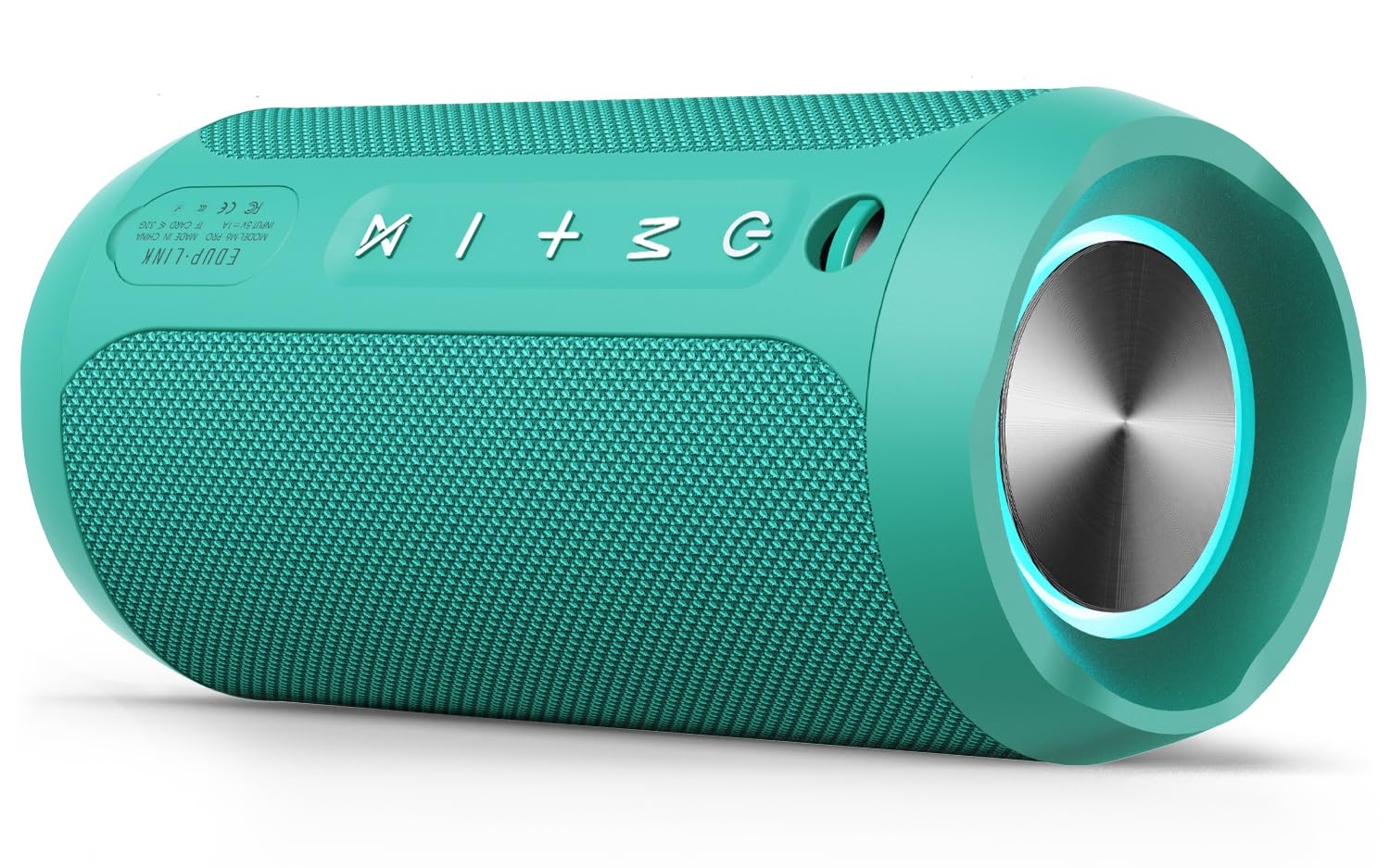
Image: The EDUPLINK M6Pro Bluetooth Speaker in teal, showcasing its cylindrical design.
2. Package Contents
Please check the box for the following items:
- 1 x Portable Bluetooth Speaker (M6Pro)
- 1 x USB Charging Cable
- 1 x AUX Cable
- 1 x Lanyard
- 1 x User Manual (this document)
3. Product Overview & Controls
Familiarize yourself with the speaker's buttons and ports for optimal use.

Image: Side view of the EDUPLINK M6Pro speaker, highlighting the control panel with power, mode, volume, and TWS buttons.
Control Buttons:
- Power Button (⏻):
- Long press: Power On/Off.
- Short press (while playing): Play/Pause music.
- Mode Button (M):
- Short press: Switch between Bluetooth, TF Card, and AUX modes.
- Long press: Disconnect current Bluetooth device.
- Volume Up / Next Track (+):
- Short press: Increase volume.
- Long press: Skip to the next track.
- Volume Down / Previous Track (-):
- Short press: Decrease volume.
- Long press: Go to the previous track.
- TWS Button (⋈):
- Short press: Initiate TWS pairing (see Section 5).
- Long press: Disconnect TWS pairing.
Ports (under protective flap):
- USB-C Charging Port: For charging the speaker.
- TF Card Slot: Insert a MicroSD card (up to 32GB) for direct music playback.
- AUX Input (3.5mm): Connect external audio devices using the provided AUX cable.
4. Setup & Basic Operation
4.1 Charging the Speaker
- Open the protective rubber flap on the side of the speaker.
- Connect the provided USB-C charging cable to the speaker's charging port and the other end to a USB power adapter (not included).
- The LED indicator will show charging status. A full charge takes approximately 3 hours.
4.2 Powering On/Off
- To power on, long press the Power button (⏻) until you hear an audible prompt.
- To power off, long press the Power button (⏻) again until you hear an audible prompt.
4.3 Bluetooth Pairing
- Ensure the speaker is powered on and in Bluetooth mode (indicated by a flashing blue LED). If not, short press the Mode (M) button to switch.
- On your mobile device, enable Bluetooth and search for available devices.
- Select "EDUPLINK M6Pro" from the list.
- Once paired, the LED indicator will turn solid blue, and you will hear a confirmation sound.
5. TWS (True Wireless Stereo) Pairing
To achieve a more immersive stereo sound experience, you can pair two EDUPLINK M6Pro speakers together.

Image: Two EDUPLINK M6Pro speakers positioned to illustrate True Wireless Stereo (TWS) pairing.
- Ensure both EDUPLINK M6Pro speakers are powered on and not connected to any Bluetooth device.
- On one speaker (this will be your primary speaker), short press the TWS button (⋈). The speaker will emit a sound indicating it's searching for another speaker.
- On the second speaker, short press the TWS button (⋈).
- The two speakers will automatically connect to each other. You will hear a confirmation sound once TWS pairing is successful.
- Now, connect your mobile device to the primary speaker via Bluetooth (as described in Section 4.3). Both speakers will play audio in stereo.
- To disconnect TWS pairing, long press the TWS button (⋈) on either speaker.
6. Hard Reset Procedure
If your speaker is experiencing connectivity issues, is stuck connected to an incorrect device, or is not pairing correctly, a hard reset can resolve these problems by clearing its connection history.
- Ensure the speaker is powered on.
- Simultaneously press and hold the Volume Up (+) and Volume Down (-) buttons for approximately 1-2 seconds until the speaker powers off.
- Once powered off, the speaker's connection history will be cleared.
- Power the speaker back on (long press Power button). It will enter Bluetooth pairing mode.
- On your mobile device, go to your Bluetooth settings and "forget" or "unpair" the "EDUPLINK M6Pro" device if it was previously connected.
- Proceed with Bluetooth pairing as described in Section 4.3 to connect the speaker as a new device.
7. Waterproofing (IPX7)
The EDUPLINK M6Pro speaker features an IPX7 waterproof rating, meaning it can be submerged in water up to 1 meter (3 feet) for 30 minutes. This makes it suitable for use by the pool, at the beach, or in the shower.

Image: The EDUPLINK M6Pro speaker partially submerged in water, demonstrating its IPX7 waterproof capability.
Important: Ensure the protective rubber flap covering the charging, TF card, and AUX ports is securely closed before exposing the speaker to water.
8. Specifications
| Feature | Detail |
|---|---|
| Model Name | M6Pro |
| Brand | EDUPLINK |
| Connectivity Technology | Bluetooth, Auxiliary |
| Bluetooth Version | 5.0 |
| Bluetooth Range | Up to 80 feet (24 meters) |
| Water Resistance Level | IPX7 (Waterproof) |
| Speaker Maximum Output Power | 24 Watts |
| Audio Output Mode | Stereo (with TWS pairing) |
| Playtime | Up to 20 Hours |
| Charging Time | Approximately 3 Hours |
| Battery Capacity | 20 Amp Hours (2 Lithium Metal batteries) |
| Input Voltage | 5 Volts |
| Frequency Response | 20 Hz - 20 KHz |
| Signal-to-Noise Ratio | 80 dB |
| Product Dimensions | 2.76"D x 6.3"W x 2.76"H (7cm D x 16cm W x 7cm H) |
| Item Weight | 14.8 ounces (420 Grams) |
| Material | Thermoplastic Polyurethane (TPU) |
| Special Features | LED Light, Portable, Shockproof, Stereo Pairing, Waterproof |
| Compatible Devices | Desktop, Laptop, Projector, Smartphone, Tablet |
| Control Method | App |
9. Troubleshooting
- Speaker won't turn on: Ensure the battery is charged. Connect the speaker to a power source using the USB-C cable.
- Cannot pair with Bluetooth device:
- Ensure the speaker is in Bluetooth pairing mode (flashing blue LED).
- Make sure the speaker is not already connected to another device. Long press the Mode (M) button to disconnect.
- Perform a hard reset (see Section 6).
- On your device, "forget" or "unpair" the speaker from your Bluetooth list and try pairing again.
- Ensure your device is within the 80-foot Bluetooth range.
- No sound:
- Check the volume levels on both the speaker and your connected device.
- Ensure the speaker is correctly paired via Bluetooth or the AUX/TF card is properly inserted and selected.
- TWS pairing failed:
- Ensure both speakers are M6Pro models and are not connected to any other Bluetooth device.
- Place the speakers close to each other during pairing.
- Try performing a hard reset on both speakers before attempting TWS pairing again.
10. Warranty & Support
The EDUPLINK M6Pro Bluetooth Speaker comes with a limited warranty. For specific warranty details, please refer to the product packaging or contact EDUPLINK customer support. For further assistance or technical support, please visit the official EDUPLINK website or contact their customer service channels.
Online Support: Visit the EDUPLINK Store on Amazon


