
1. Introduction
Thank you for purchasing the EDUPLINK M6Pro IPX7 Waterproof Portable Bluetooth Speaker. This manual provides essential information for the safe and effective use of your speaker. Please read it thoroughly before operation and retain it for future reference.
2. Safety Information
- Do not expose the speaker to extreme temperatures or direct sunlight for prolonged periods.
- Avoid dropping or subjecting the speaker to strong impacts.
- Keep the speaker away from medical devices, as it contains magnets.
- Use only the provided charging cable or a certified equivalent.
- Do not attempt to disassemble, repair, or modify the speaker. This will void the warranty.
- Ensure the charging port cover is securely closed when using the speaker near water to maintain its IPX7 waterproof rating.
3. Package Contents
Verify that all items are present in your package:
- 1 x EDUPLINK M6Pro Portable Bluetooth Speaker
- 1 x USB Charging Cable
- 1 x AUX Cord
- 1 x Lanyard
- 1 x User Manual (this document)
4. Product Overview
Familiarize yourself with the speaker's components and controls.
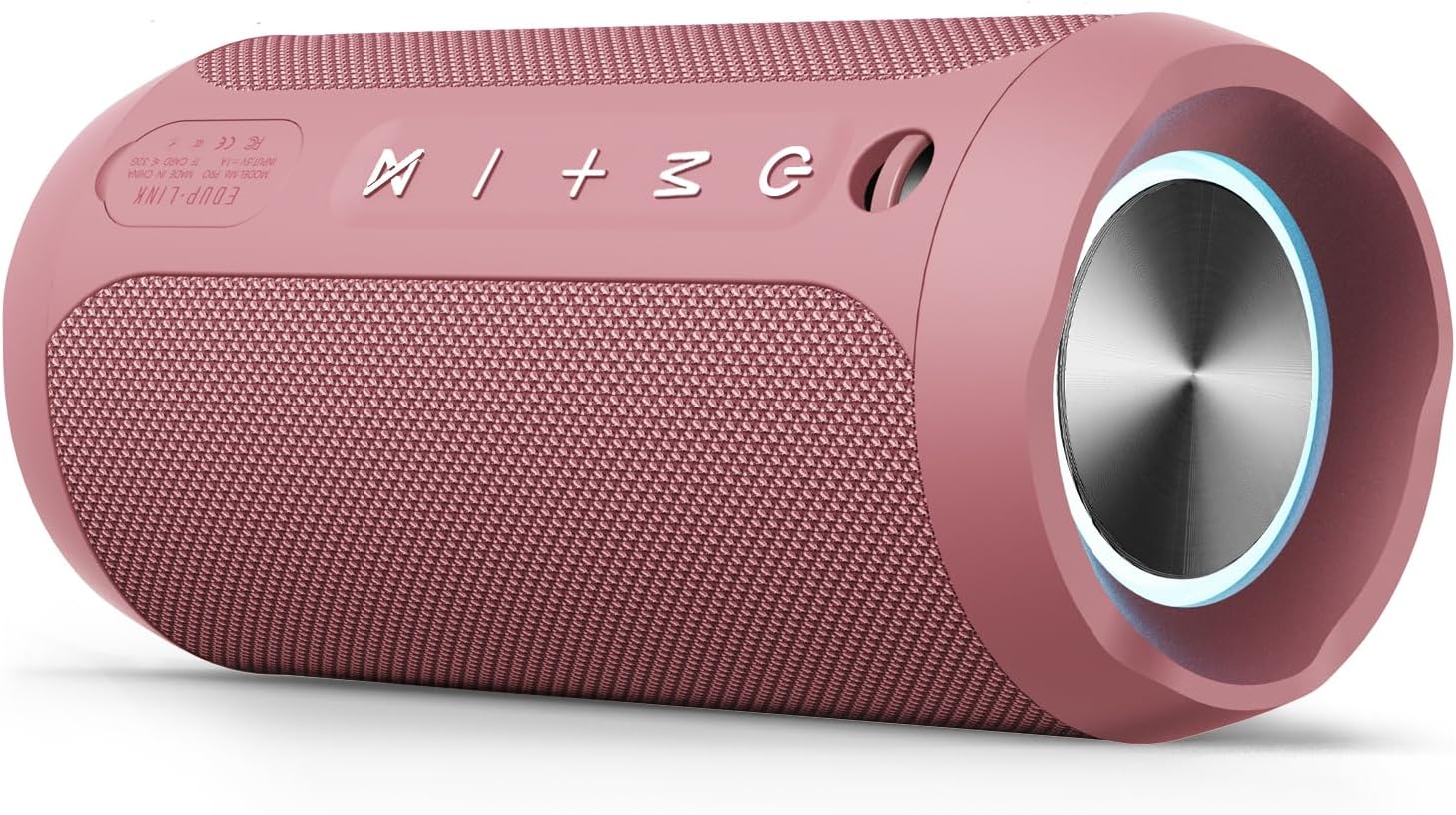
Image: Front view of the EDUPLINK M6Pro Bluetooth Speaker, showcasing its design and speaker grille.

Image: Top view of the EDUPLINK M6Pro Bluetooth Speaker, highlighting the control buttons and ports.
Control Buttons:
- Power Button (⏻): Press and hold to power on/off. Short press to control RGB lights.
- Mode Button (M): Short press to switch between Bluetooth, TF Card, and AUX modes.
- Volume Up (+): Short press to increase volume. Long press for next track.
- Volume Down (-): Short press to decrease volume. Long press for previous track.
- Play/Pause Button (⏵/⏸): Short press to play/pause. In Bluetooth mode, short press to answer/end calls. Long press to reject calls.
- TWS Pairing Button (⋈): Short press to activate TWS pairing mode.
Ports:
- USB-C Charging Port: For charging the speaker.
- TF Card Slot: For playing music directly from a MicroSD card.
- AUX Input: For wired audio connection using the provided AUX cable.
5. Setup
5.1 Charging the Speaker
- Open the protective cover on the side of the speaker to access the charging port.
- Connect the USB-C end of the charging cable to the speaker's charging port.
- Connect the USB-A end of the charging cable to a 5V/1A USB power adapter (not included) or a computer's USB port.
- The LED indicator will illuminate during charging and turn off when fully charged. A full charge takes approximately 3 hours.
- Ensure the protective cover is securely closed after charging to maintain waterproof integrity.
5.2 Powering On/Off
- To Power On: Press and hold the Power button (⏻) for 2-3 seconds until you hear an audible prompt and the LED indicator lights up.
- To Power Off: Press and hold the Power button (⏻) for 2-3 seconds until you hear an audible prompt and the LED indicator turns off.
5.3 Bluetooth Pairing
- Ensure the speaker is powered on and in Bluetooth mode (the LED indicator will flash blue). If not, short press the Mode button (M) to switch to Bluetooth mode.
- On your mobile device (smartphone, tablet, etc.), enable Bluetooth and search for available devices.
- Select "EDUPLINK M6Pro" from the list of devices.
- Once successfully paired, you will hear an audible confirmation, and the LED indicator will turn solid blue.
- The speaker will automatically attempt to reconnect to the last paired device when powered on.
6. Operating Instructions
6.1 Basic Audio Control
- Play/Pause: Short press the Play/Pause button (⏵/⏸).
- Volume Up: Short press the Volume Up (+) button.
- Volume Down: Short press the Volume Down (-) button.
- Next Track: Long press the Volume Up (+) button.
- Previous Track: Long press the Volume Down (-) button.
6.2 TWS (True Wireless Stereo) Pairing
You can pair two EDUPLINK M6Pro speakers together for a stereo sound experience.
- Ensure both speakers are powered on and in Bluetooth mode, but not connected to any device.
- On one speaker (this will be the primary speaker), short press the TWS Pairing button (⋈). The speaker will emit a pairing tone.
- The two speakers will automatically connect to each other. Once connected, you will hear a confirmation tone, and the LED indicator on the primary speaker will flash blue, while the secondary speaker's LED will be solid blue.
- Now, connect your mobile device to the primary speaker via Bluetooth as described in section 5.3.
- To disconnect TWS, short press the TWS Pairing button (⋈) on either speaker.
6.3 TF Card Playback
The speaker supports playing audio files directly from a MicroSD (TF) card.
- Insert a MicroSD card (up to 32GB, formatted to FAT32) with audio files into the TF card slot.
- The speaker will automatically switch to TF Card mode and begin playing. If not, short press the Mode button (M) to select TF Card mode.
- Use the Play/Pause and Volume buttons to control playback.
6.4 AUX Input
Connect external audio devices using the 3.5mm AUX cable.
- Connect one end of the provided AUX cable to the speaker's AUX input port.
- Connect the other end to the audio output jack of your external device.
- The speaker will automatically switch to AUX mode. If not, short press the Mode button (M) to select AUX mode.
- Audio playback is controlled via the connected external device.
6.5 RGB Light Control
The speaker features dynamic RGB lighting.
- Short press the Power button (⏻) to cycle through different light modes or turn the lights off.

Image: The EDUPLINK M6Pro speaker illustrating its various playback modes (Bluetooth, AUX, TF Card) and features like 20H playtime, 360° stereo sound, IP67 dust/waterproof rating, and RGB lighting.
7. Maintenance
- Cleaning: Wipe the speaker with a soft, damp cloth. Do not use abrasive cleaners or solvents.
- Storage: Store the speaker in a cool, dry place away from direct sunlight and extreme temperatures.
- Battery Care: If not used for extended periods, charge the speaker at least once every three months to prolong battery life.
8. Troubleshooting
| Problem | Possible Cause | Solution |
|---|---|---|
| Speaker does not power on. | Low battery. | Charge the speaker for at least 30 minutes. |
| Cannot pair via Bluetooth. | Speaker not in pairing mode; device Bluetooth off; too far from device. | Ensure speaker is in Bluetooth mode (flashing blue LED). Turn device Bluetooth off/on. Move speaker closer to device (within 80 feet). |
| No sound. | Volume too low; incorrect mode; device not playing. | Increase speaker and device volume. Ensure correct mode (Bluetooth, TF, AUX). Check if audio is playing on the connected device. |
| TWS pairing fails. | Speakers already connected to a device; too far apart. | Ensure both speakers are disconnected from any device. Place speakers close to each other. Try resetting both speakers. |
| Poor audio quality/distortion. | Low battery; device too far; interference. | Charge the speaker. Move closer to the connected device. Avoid strong electromagnetic interference. |
9. Specifications
| Brand | EDUPLINK |
| Model Name | M6Pro |
| Speaker Type | Waterproof Portable Speaker |
| Connectivity Technology | Bluetooth |
| Bluetooth Version | 5.0 |
| Wireless Range | Up to 80 Feet (24 meters) |
| Water Resistance Level | IPX7 (Submersible up to 1 meter for 30 minutes) |
| Speaker Maximum Output Power | 24 Watts |
| Battery Capacity | 3600mAh (2 Lithium Metal batteries) |
| Playtime | Up to 20 hours (at 50% volume) |
| Charging Time | Approximately 3 hours |
| Input Voltage | 5 Volts |
| Frequency Response | 20 Hz - 20 KHz |
| Signal-to-Noise Ratio | 80 dB |
| Impedance | 4 Ohm |
| Product Dimensions | 2.76"D x 6.3"W x 2.76"H (7cm x 16cm x 7cm) |
| Item Weight | 14.8 ounces (420 Grams) |
| Material | Thermoplastic Polyurethane (TPU) |
| Special Features | LED Light, Portable, Shockproof, Stereo Pairing, Waterproof |
| Compatible Devices | Smartphones, Tablets, Laptops, Desktop Computers, Projectors |
10. Warranty and Support
The EDUPLINK M6Pro speaker comes with a limited warranty. Please refer to the warranty card included in your package for specific terms and conditions. For technical support or customer service inquiries, please contact EDUPLINK customer support through the retailer where you purchased the product or visit the official EDUPLINK website.


