
Introduction
Thank you for choosing the Yonvim Dash Cam. This manual provides detailed instructions to help you set up, operate, and maintain your device, ensuring optimal performance and longevity. Please read this manual thoroughly before using the product.
What's in the Box
- 1x Yonvim Dash Camera
- 1x 32GB Memory Card (pre-installed)
- 1x Car Charger (cigarette lighter power cord, 11.5ft)
- 2x Adhesive Pads
- 1x Windshield Sticker
- 1x Product Manual

Figure 1: All components included in the Yonvim Dash Cam package.
Product Overview
Key Components
The Yonvim Dash Cam features a compact design with a 3.39-inch IPS screen for clear viewing. It is equipped with a 2.5K QHD lens offering a 160-degree wide-angle view, ensuring comprehensive coverage of the road.
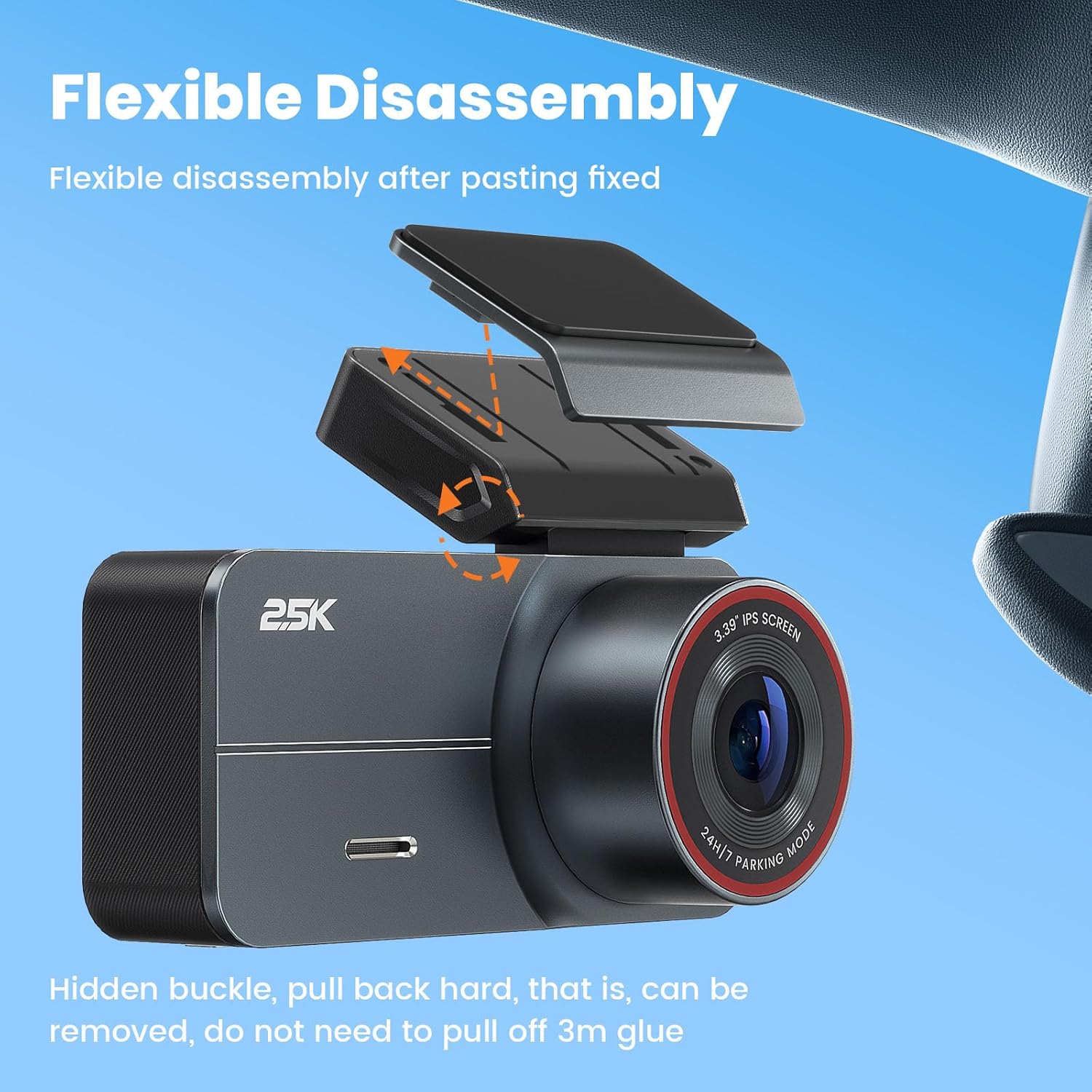
Figure 2: Flexible disassembly feature allows easy removal of the dash cam from its mount.
The device is designed for flexible disassembly, allowing for easy removal from its fixed position after installation. This feature is convenient for reviewing footage or storing the device when not in use.
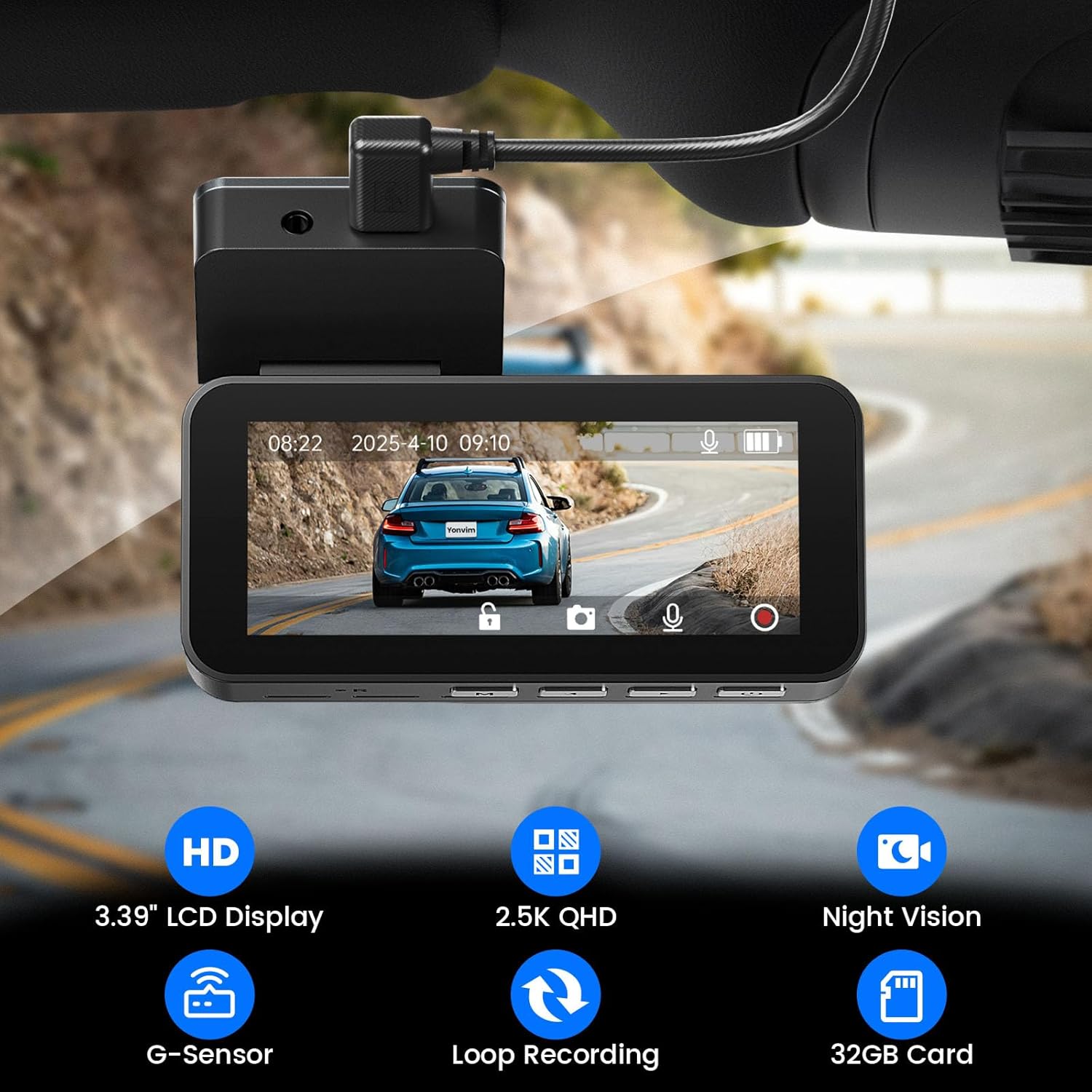
Figure 3: Dash Cam display highlighting key features including HD screen, 2.5K QHD, Night Vision, G-Sensor, Loop Recording, and 32GB Card support.
Key features include 2.5K Ultra HD clarity, 160° wide-angle coverage, a 3.39" IPS screen, G-Sensor for incident detection, and seamless loop recording. A 32GB memory card is included, with support for up to 256GB.
Setup
Installation Guide
- Clean the area on your windshield where you intend to mount the dash cam.
- Apply the provided windshield sticker to the desired location on the windshield.
- Attach one of the adhesive pads to the dash cam mount.
- Firmly press the dash cam mount onto the windshield sticker.
- Insert the 32GB memory card into the designated slot on the dash cam.
- Connect the car charger (cigarette lighter power cord) to the dash cam's USB-C port and plug the other end into your vehicle's cigarette lighter socket.
- Adjust the camera angle to ensure optimal road coverage.
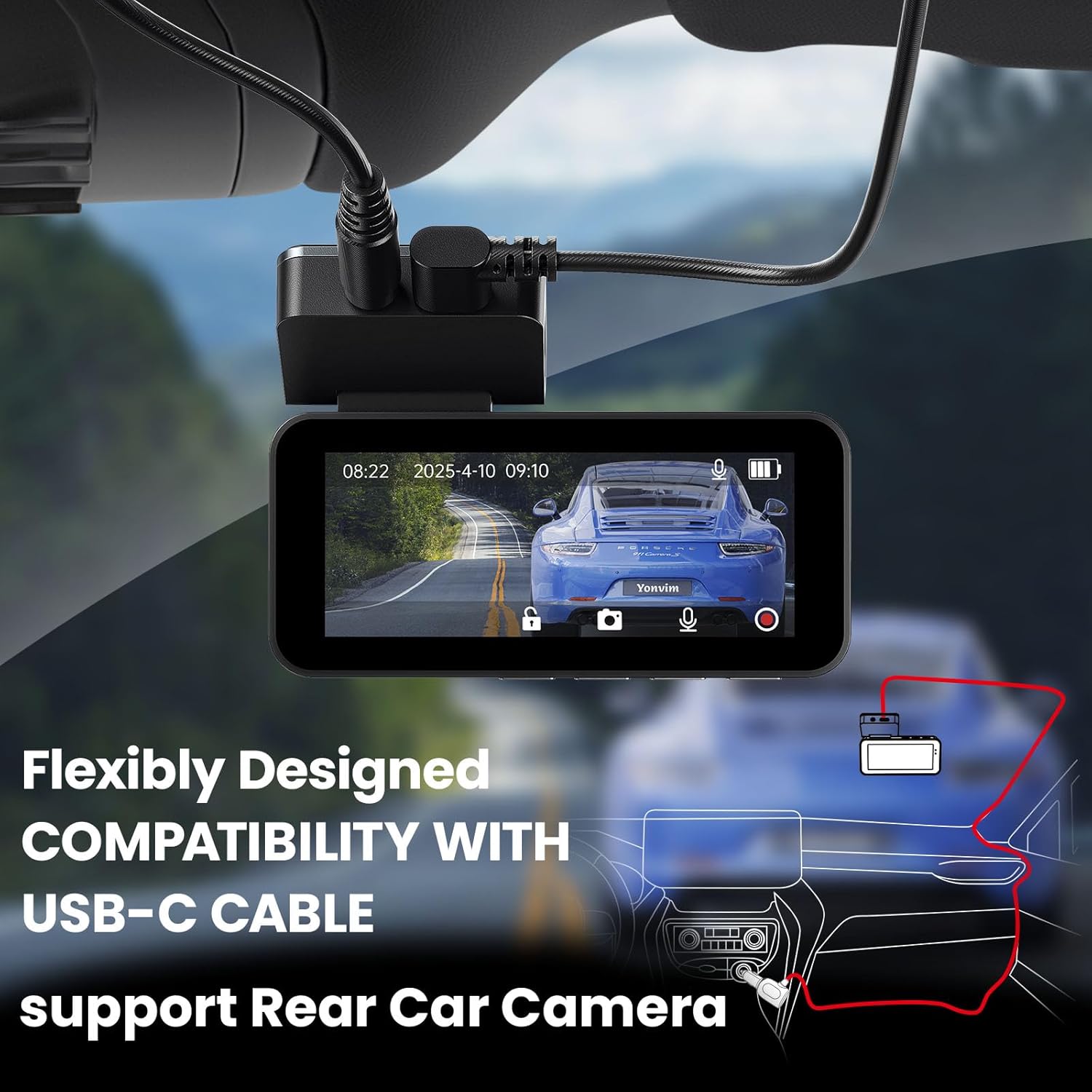
Figure 4: The dash cam's USB-C port allows for flexible power connection and supports an optional rear camera (sold separately).
Setup Video
Video 1: Official setup and overview of the Yonvim Dash Cam, demonstrating its features and installation process.
Operating Instructions
Basic Operation
The dash cam automatically powers on and begins recording when connected to your vehicle's power supply. The screen will display the live view from the camera. Control buttons are located on the bottom of the device for navigation and settings adjustments.
- Power Button: Press to turn the device on/off. Long press to access playback mode.
- Menu (M) Button: Press to enter the system settings menu.
- Arrow Buttons: Use to navigate through menu options.
- OK Button (often integrated with Power/Menu): Confirm selections in the menu.
Key Features
- Loop Recording: The dash cam continuously records video in segments (e.g., 1, 2, or 3 minutes). When the memory card is full, it automatically overwrites the oldest unlocked files to ensure continuous recording. The included 32GB card can be expanded up to 256GB.
- G-Sensor: This built-in gravity sensor detects sudden movements or impacts (e.g., collisions, sudden braking). When triggered, it automatically locks the current video segment, preventing it from being overwritten by loop recording. This ensures critical footage is preserved as evidence.
- 24H Parking Monitoring: With an optional hardwire kit (not included), the dash cam can monitor your vehicle even when parked. It will automatically begin recording if it detects vibration or impact, providing security surveillance.
- Night Vision: The advanced lens and processor enable clear footage capture even in low-light conditions, ensuring visibility of road signs and license plates during night driving.

Figure 5: G-Sensor automatically locks video files during sudden impacts to secure evidence.

Figure 6: 24-hour parking monitoring feature (requires hardwire kit) records automatically upon detecting vibration.
Specifications
| Feature | Detail |
|---|---|
| Product Dimensions | 5.51 x 4.72 x 2.76 inches |
| Item Weight | 10.5 ounces |
| Item Model Number | DC339C |
| Connectivity Technology | USB |
| Special Features | G-Sensor, Night Vision |
| Color | Red Lens Front |
| Video Capture Resolution | 2.5K |
| Mounting Type | Windshield Mount |
Troubleshooting
- Camera not powering on: Ensure the car charger is securely plugged into both the dash cam and the vehicle's cigarette lighter socket. Check if the vehicle's power outlet is active.
- Recording issues (e.g., not recording, corrupted files): Verify that the 32GB memory card is properly inserted. If issues persist, try formatting the card through the camera's settings menu. If the card is old or frequently used, consider replacing it.
- Video quality is poor: Ensure the camera lens is clean and free from smudges or dust. Check the resolution setting in the camera's menu to ensure it's set to 2.5K for optimal quality.
- G-Sensor is too sensitive/not sensitive enough: Adjust the G-Sensor sensitivity setting in the camera's menu. A higher sensitivity will lock more files, while a lower sensitivity will reduce false triggers.
- Screen turns off during recording: This is often a power-saving feature. Check the 'Screen Saver' setting in the menu. The camera continues to record even when the screen is off.
Warranty & Support
Yonvim is committed to providing excellent customer support. Your dash cam comes with a 10-year free warranty and lifetime professional technical support. For any questions or assistance, please do not hesitate to contact us.
- 24/7 Technical Support: Available to ensure a smooth user experience.
- Contact Email: support@yonvim.tech
Figure 7: Yonvim's commitment to reliable and trustworthy customer support.