
1. Introduction
This user manual provides comprehensive instructions for the installation, operation, and maintenance of your EsaSam M95S Android 13 Car Radio. Please read this manual thoroughly before using the product to ensure proper functionality and to prevent damage. Keep this manual for future reference.
The EsaSam M95S is a 9-inch Android 13 car stereo system designed for seamless integration into VW Touareg models manufactured between 2002 and 2012. It features a 4-core processor and a 1024*600 resolution screen, offering a range of multimedia and navigation capabilities.
2. Safety Information
Observe the following safety precautions to ensure safe operation and to prevent damage to the device or vehicle:
- Do not attempt to operate the device while driving if it distracts you from the road. Always prioritize road safety.
- Ensure all wiring connections are secure and correctly insulated to prevent short circuits or electrical hazards.
- Avoid exposing the device to extreme temperatures, direct sunlight for prolonged periods, or excessive moisture.
- Do not disassemble or modify the unit. This may cause damage and void the warranty.
- If you encounter any issues, refer to the troubleshooting section or contact customer support.
3. What's in the Box
Carefully unpack the box and ensure all items are present. If any items are missing or damaged, contact your retailer immediately.

The image displays the various components supplied with the EsaSam M95S car radio, including the main head unit, essential wiring harnesses, RCA cables, USB cables, camera input, microphone, GPS antenna, and a backup camera. A 4G antenna is included with M300S, M500S, M600S, M700S, M800S models.
- EsaSam M95S Car Radio Main Unit
- Power Wiring Harness
- RCA Input/Output Cables
- 2 x USB Cables
- Camera Input Cable
- Microphone (MIC)
- GPS Antenna
- Backup Camera
- Instruction Manual (this document)
- Note: A 4G Antenna is included only with M300S, M500S, M600S, M700S, M800S models.
4. Installation
Warning: Installation of this product requires technical knowledge. It is highly recommended to seek professional installation from a qualified technician to avoid damage to the unit or your vehicle's electrical system.
4.1 Pre-Installation Check
Before beginning installation, ensure your vehicle is compatible with the EsaSam M95S. This unit is designed for VW Touareg models from 2002 to 2012. If your original car center console differs from the images provided, please consult with your seller for confirmation. Some car models may have multiple wiring harness variations; provide photos of your original car interface if unsure.
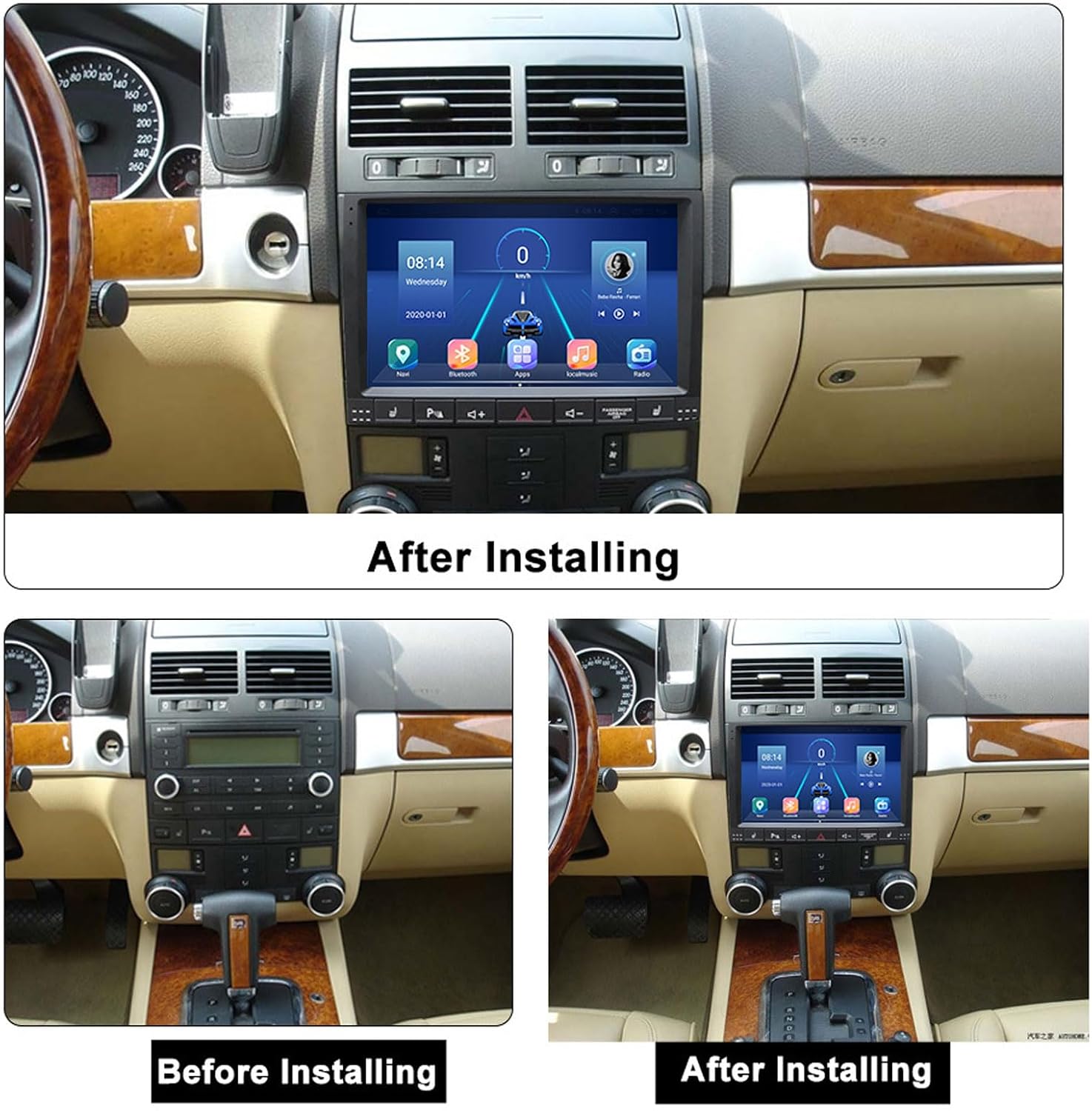
This image illustrates the appearance of the car dashboard before and after the EsaSam M95S car radio is installed, showing seamless integration.
4.2 Wiring Connections
Connect the provided wiring harness to the car radio and your vehicle's existing wiring. Ensure each connection is secure. Refer to the wiring diagram (usually printed on the harness or included in a separate sheet) for specific connections such as power, ground, speakers, and steering wheel controls.
- Power (Yellow): Connect to constant 12V power.
- Accessory (Red): Connect to switched 12V power (ACC).
- Ground (Black): Connect to vehicle chassis ground.
- Speaker Wires: Connect to corresponding vehicle speaker wires (e.g., Front Left +, Front Left -).
- Steering Wheel Control (SWC): Connect to the vehicle's steering wheel control wires. Configuration may be required in the unit's settings.
- Backup Camera Input: Connect the camera input cable to the reverse camera. Ensure the reverse trigger wire is connected to the vehicle's reverse light signal.
- GPS Antenna: Mount the GPS antenna in a location with a clear view of the sky, typically on the dashboard or under the windshield.
- USB Cables: Route the USB cables to an accessible location for connecting external devices.
- Microphone: Connect the external microphone and position it for optimal voice pickup.
5. Operating Instructions
Your EsaSam M95S car radio runs on Android 13, providing a user-friendly interface and access to various applications and features.

This graphic highlights key operational features such as downloading apps, Bluetooth 4.0 connectivity, FM/AM radio, 1080P video playback, GPS navigation, automatic reverse camera input, screen mirroring, and music playback options.
5.1 Basic Functions
- Power On/Off: Press and hold the power button (usually on the front panel) to turn the unit on or off. A short press typically mutes or unmutes the audio.
- Volume Control: Use the physical volume knob/buttons or on-screen controls to adjust the audio level.
- App Download: Connect to Wi-Fi and access the pre-installed app store (e.g., Google Play Store) to download and install various applications.
- Bluetooth 4.0:
- Go to the Bluetooth settings on the car radio.
- Enable Bluetooth on your mobile phone and search for available devices.
- Select the car radio's Bluetooth name (e.g., "CarBT") from your phone's list and pair.
- Once connected, you can make/receive calls, import contacts, and stream Bluetooth audio.
- Wi-Fi Connectivity:
- Access the Wi-Fi settings from the main menu.
- Turn on Wi-Fi and select your desired network.
- Enter the password if prompted to connect to the internet.
- FM/AM Radio: Select the Radio application. You can scan for stations, save presets, and enjoy FM/AM broadcasts. RDS (Radio Data System) is supported.
- USB Playback: Insert a USB drive into one of the provided USB ports. The unit will automatically detect and allow you to browse and play media files (audio, video, images).
- High Definition 1080P Video Playback: The unit supports playing high-definition video files up to 1080P resolution.
5.2 Advanced Features

This image demonstrates the split-screen capability, allowing two applications to run simultaneously. It also shows integration with original steering wheel controls, the internal cooling fan (available on M300S, M500S, M600S, M700S, M800S models), and wireless connectivity for Apple CarPlay and Android Auto.
- CarPlay & Android Auto:
The M95S supports both Apple CarPlay and Android Auto. You can connect your smartphone wirelessly or via USB to access compatible apps, navigation, music, and messaging directly on the car radio screen.
- Ensure your phone's Bluetooth and Wi-Fi are enabled.
- Open the CarPlay/Android Auto app on the car radio.
- Follow the on-screen prompts to pair your phone.
- Steering Wheel Controls: The unit supports integration with your vehicle's original steering wheel controls. After installation, you may need to configure the buttons in the system settings to match their functions.
- Split Screen Functionality: This feature allows you to display two applications simultaneously on the screen, such as navigation and music, or radio and a video. To activate, long-press the recent apps button or drag an app to one side of the screen.
- GPS Navigation: The unit comes with pre-installed navigation capabilities. You can download your preferred navigation apps (e.g., Google Maps, Waze) from the app store and use them offline or online.
- Reverse Camera Input: When the vehicle is shifted into reverse gear, the unit automatically displays the feed from the connected AHD 720P backup camera, providing a clear view of the area behind your vehicle.
- Mirror Link: Connect your smartphone via USB to mirror its screen content directly onto the car radio display.
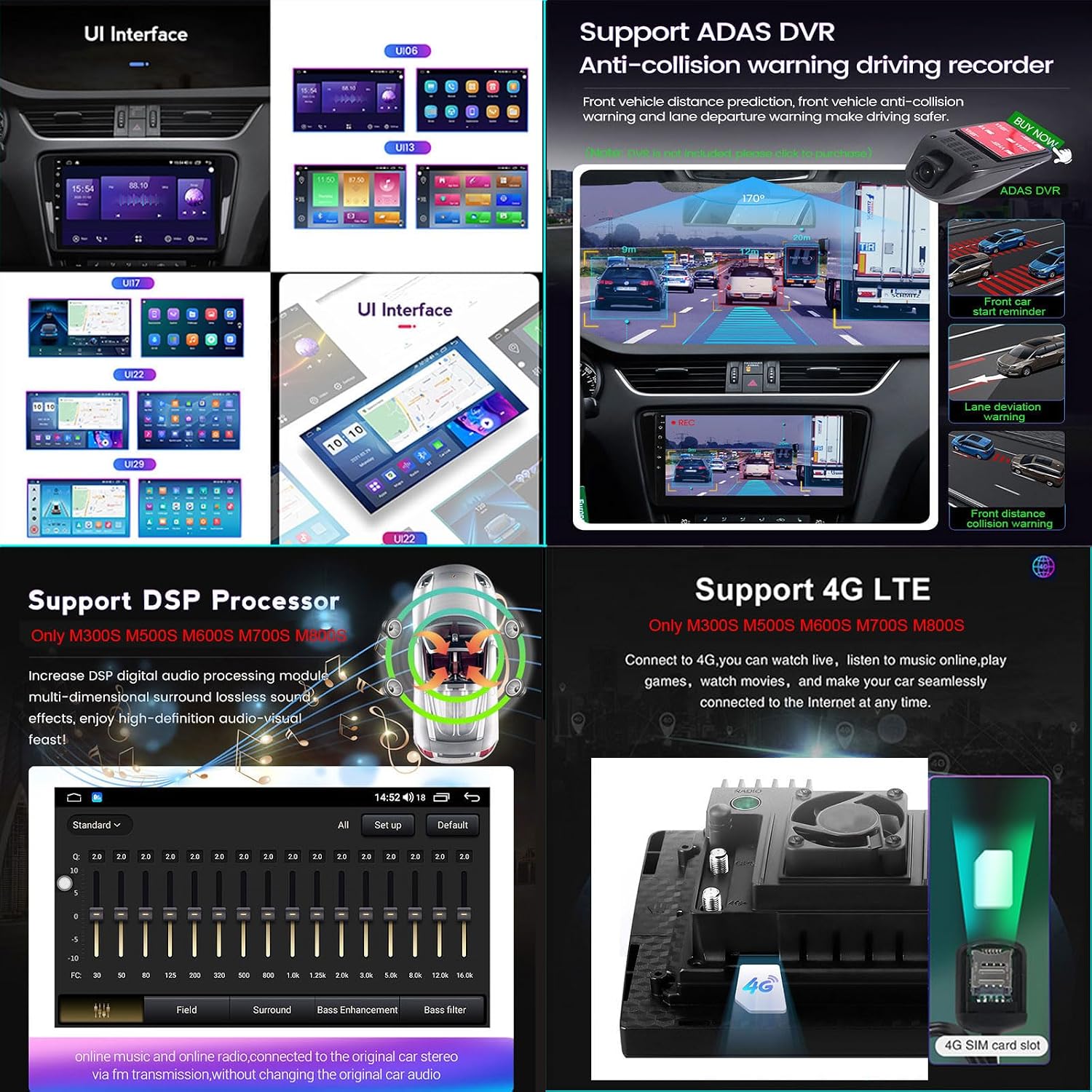
The image displays different user interface options, support for ADAS DVR (Anti-collision warning, lane departure warning), the DSP sound processing module for enhanced audio (M300S, M500S, M600S, M700S, M800S), and 4G LTE connectivity for internet access (M300S, M500S, M600S, M700S, M800S).
- ADAS DVR Support: The unit supports external ADAS (Advanced Driver-Assistance Systems) DVRs for features like front collision warning, lane departure warning, and driving recording. (DVR unit sold separately).
- DSP Sound Processor: (Available on M300S, M500S, M600S, M700S, M800S models) These models include a built-in DSP (Digital Signal Processor) module, allowing for advanced sound customization and enhanced audio quality.
- 4G LTE Connectivity: (Available on M300S, M500S, M600S, M700S, M800S models) These models support the insertion of a 4G SIM card for direct internet access, enabling online music, video streaming, and real-time navigation without relying on a Wi-Fi hotspot.
- Built-in Cooling Fan: (Available on M300S, M500S, M600S, M700S, M800S models) These models feature an integrated cooling fan to help dissipate heat, ensuring stable performance during prolonged use, especially in hot climates.

This graphic details the support for a 360-degree panoramic camera system, 5GHz WiFi for faster transmission, the high-definition 1280*720 screen resolution (available on M300S, M500S, M600S, M700S, M800S models), and the Android 13 operating system.
- 360 Panoramic Camera Support: The unit can integrate with a 360-degree panoramic camera system (sold separately) to provide a comprehensive view around your vehicle, enhancing parking and maneuvering safety.
- 5GHz WiFi: (Available on M300S, M500S, M600S, M700S, M800S models) These models support 5GHz Wi-Fi for faster and more stable wireless internet connections.
6. Maintenance
- Cleaning the Screen: Use a soft, lint-free cloth to gently wipe the screen. For stubborn smudges, slightly dampen the cloth with water or a screen-cleaning solution. Avoid harsh chemicals or abrasive materials.
- Software Updates: Periodically check for software updates through the unit's system settings. Updates can improve performance, add new features, and fix bugs. Ensure a stable internet connection during updates.
- General Care: Keep the unit free from dust and debris. Avoid placing heavy objects on the unit or exposing it to direct impacts.
7. Troubleshooting
If you encounter issues with your EsaSam M95S car radio, refer to the following common problems and solutions:
- No Power:
- Check all power connections (yellow, red, black wires) to ensure they are securely connected.
- Verify the vehicle's fuse for the radio is not blown.
- No Sound:
- Check the volume level and ensure the unit is not muted.
- Verify speaker wire connections.
- Ensure the correct audio source is selected.
- Bluetooth Connection Issues:
- Ensure Bluetooth is enabled on both the car radio and your phone.
- Delete previous pairings on both devices and try pairing again.
- Restart both devices.
- GPS Signal Loss:
- Ensure the GPS antenna is properly connected and mounted in a location with a clear view of the sky.
- Move the vehicle to an open area away from tall buildings or tunnels.
- Backup Camera Not Displaying:
- Check the camera input cable connection.
- Verify the reverse trigger wire is correctly connected to the vehicle's reverse light signal.
- Ensure the camera itself is powered and functioning.
If these steps do not resolve the issue, please contact customer support for further assistance.
8. Specifications
This graphic details the support for a 360-degree panoramic camera system, 5GHz WiFi for faster transmission, the high-definition 1280*720 screen resolution (available on M300S, M500S, M600S, M700S, M800S models), and the Android 13 operating system.
| Feature | EsaSam M95S (2G+32G) | Other Models (M300S, M500S, M600S, M700S, M800S) |
|---|---|---|
| Operating System | Android 13 | Android 13 |
| Processor | 4 Cores | 8 Cores |
| Screen Size | 9 Inch | 9 Inch |
| Screen Resolution | 1024*600 | 1280*720 |
| Bluetooth Version | Bluetooth 4.0 | Bluetooth 5.0 |
| Wi-Fi Support | 2.4GHz | 2.4GHz & 5GHz |
| CarPlay / Android Auto | Supported (Wired/Wireless) | Supported (Wired/Wireless) |
| Backup Camera Support | AHD 720P | AHD 1080P |
| DSP Sound Processing | No | Yes |
| 4G SIM Card Support | No | Yes |
| Built-in Cooling Fan | No | Yes |
| Item Weight | 2.5 Kilograms | 2.5 Kilograms (approx.) |
9. Warranty and Support
9.1 Warranty Information
EsaSam provides a warranty for this product during the specified warranty period. Please refer to your purchase documentation or contact your retailer for specific warranty terms and conditions. The warranty typically covers manufacturing defects but does not cover damage caused by improper installation, misuse, accidents, or unauthorized modifications.
9.2 Customer Support
If you encounter any problems during the installation or use of your EsaSam M95S car radio, or if you have questions not covered in this manual, please do not hesitate to contact our customer support team. You can typically find contact information (such as an email address) on the store homepage where you purchased the product. Our team is ready to assist you with technical support and troubleshooting.