
1. Product Overview
The GATEXPERT TUYA WIFI CONTROL module is designed to provide smart control capabilities for your 24VDC sliding gate opener or swing gate opener. This module allows you to operate your gate remotely using the TUYA or SMART LIFE mobile applications, enhancing convenience and accessibility.
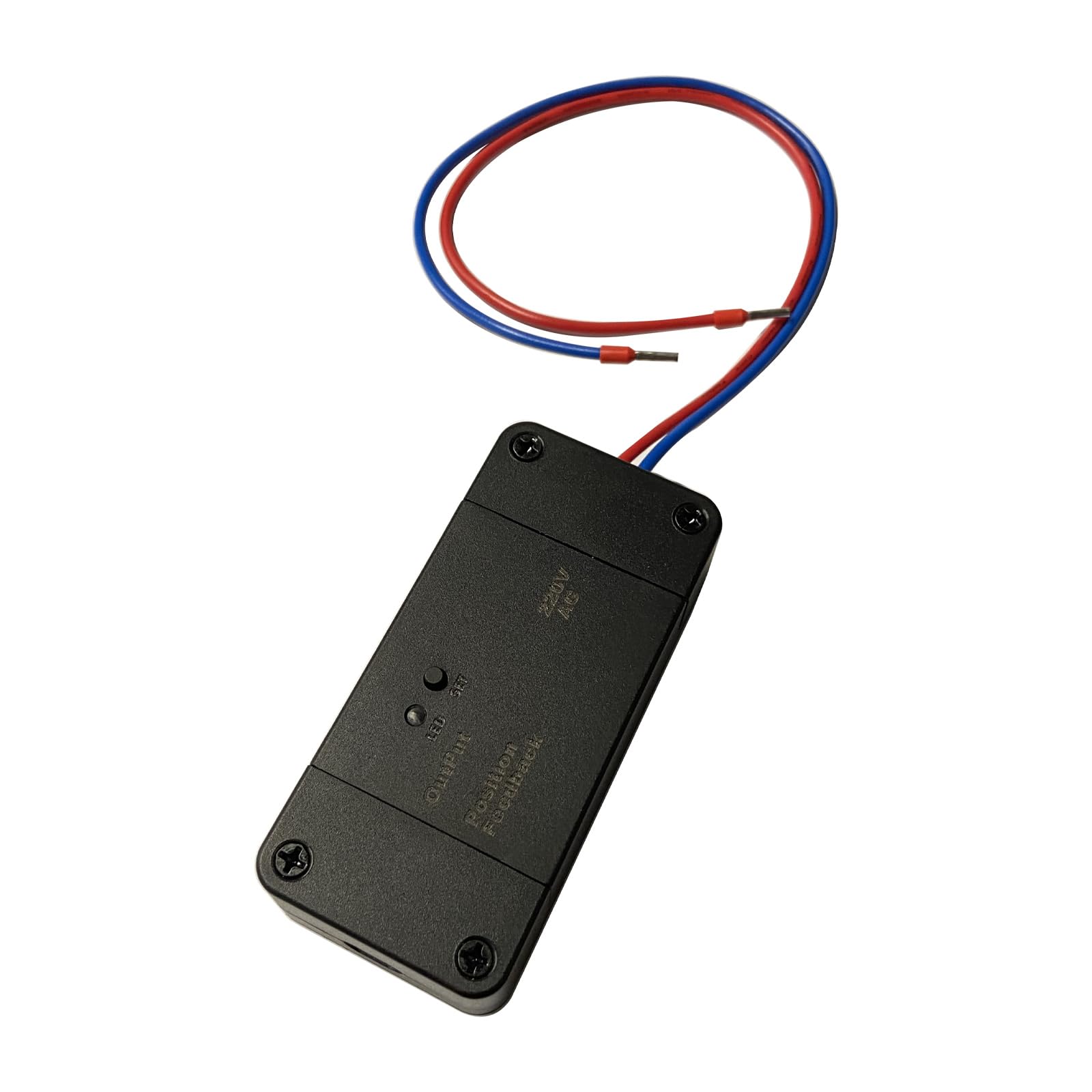
Image 1.1: The GATEXPERT TUYA WIFI CONTROL module with its connecting wires.
2. Safety Information
Please read and understand all safety instructions before installation and operation. Failure to follow these instructions may result in injury or damage to the product.
- Ensure power is disconnected from the gate opener system before performing any wiring or installation.
- Installation should be performed by qualified personnel if you are unsure about electrical wiring.
- Keep children and pets away from the gate area during operation.
- Do not attempt to modify the module or its components.
- Verify all connections are secure and correct before restoring power.
3. Package Contents
Verify that all items are present in the package:
- 1pc of 24V Tuya WiFi Control Module
4. Setup and Installation
4.1 Component Identification

Image 4.1: Top view of the control module showing LED, SET button, Output, and Position Feedback labels.
4.2 Wiring Instructions
The GATEXPERT TUYA WIFI CONTROL module is compatible with GateXpert 24VDC sliding gate openers and swing gate openers. Follow these steps to connect the module to your gate opener's control board:
- Disconnect Power: Ensure the main power supply to your gate opener system is completely disconnected before beginning any wiring.
- Identify Connections: Locate the appropriate 24VDC power output and control input terminals on your gate opener's main control board. Refer to your gate opener's manual for specific terminal identification.
- Connect Power: Connect the power wires from the TUYA WIFI CONTROL module to the 24VDC power output terminals on your gate opener's control board. Observe polarity if specified.
- Connect Control Wires: Connect the control wires from the TUYA WIFI CONTROL module to the designated control input terminals on your gate opener's control board. These terminals typically trigger the open/close function.
- Secure Connections: Ensure all wire connections are tight and secure to prevent accidental disconnections or short circuits.
- Restore Power: Once all connections are verified, restore power to your gate opener system.

Image 4.2: Example wiring of the TUYA WIFI CONTROL module to a gate opener control board.
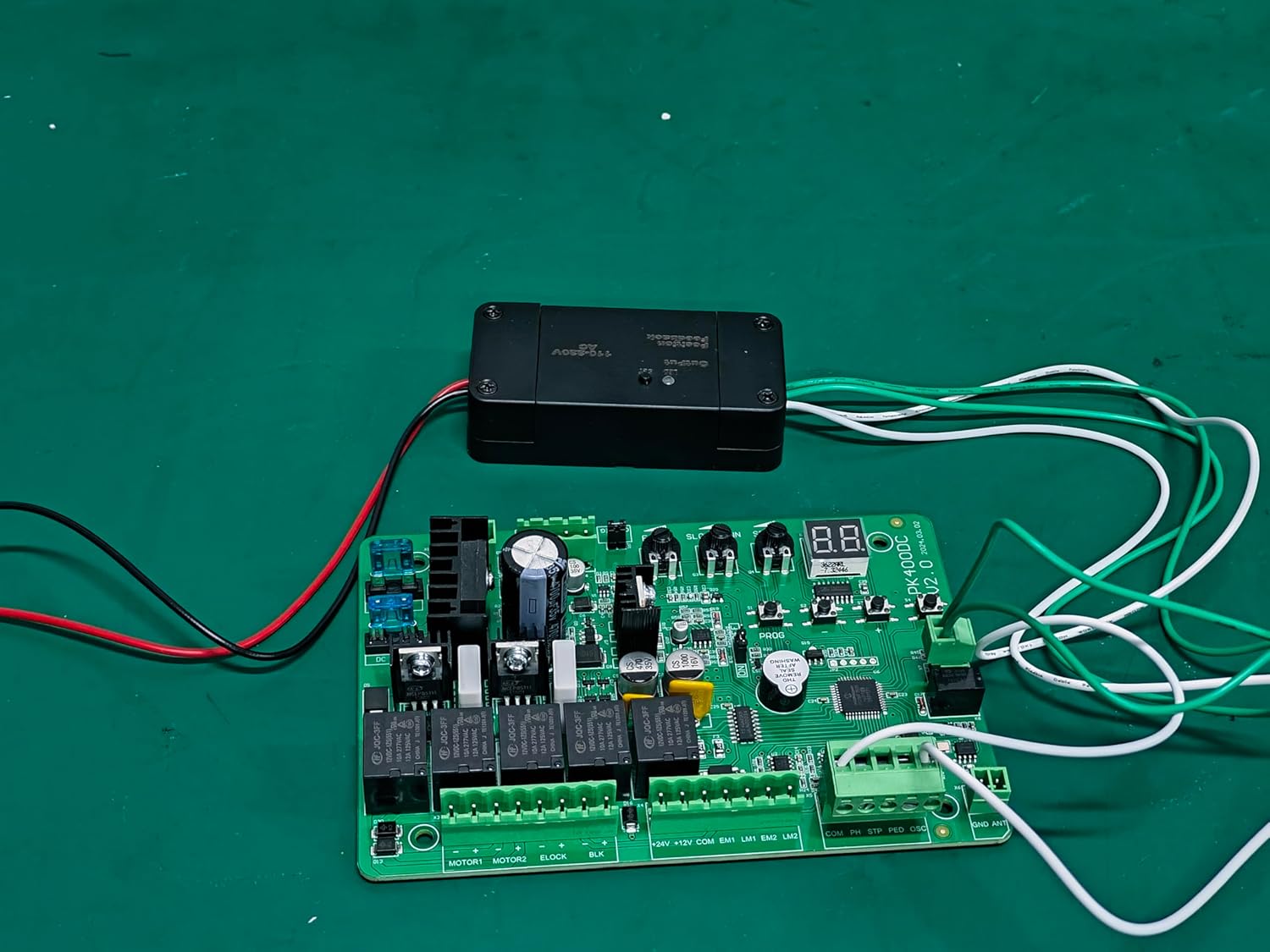
Image 4.3: Another view of the TUYA WIFI CONTROL module connected to a gate opener control board.
4.3 Video: Wiring Demonstration
Video 4.1: A short demonstration showing the connection of the 12-24V Tuya WiFi module to an SL500DC control board. This video provides a visual guide for the wiring process.
4.4 App Integration (Tuya / Smart Life)
To control your gate opener via your smartphone, you need to integrate the module with the Tuya or Smart Life app:
- Download App: Download and install the 'Tuya Smart' or 'Smart Life' app from your mobile device's app store (Google Play Store for Android, Apple App Store for iOS).
- Register/Login: Open the app and register for a new account or log in if you already have one.
- Add Device: Follow the in-app instructions to add a new device. Typically, you will select 'Add Device' or the '+' icon, then choose the appropriate device category (e.g., 'Gate Opener' or 'Switch').
- Pairing Mode: Put the GATEXPERT TUYA WIFI CONTROL module into pairing mode. This usually involves pressing and holding the 'SET' button on the module until the LED indicator blinks rapidly. Refer to the module's specific instructions for pairing mode activation.
- Connect to Wi-Fi: The app will guide you through connecting the module to your home 2.4GHz Wi-Fi network. Ensure your phone is connected to the same Wi-Fi network during the pairing process.
- Device Renaming: Once successfully added, you can rename the device within the app for easier identification (e.g., "Front Gate").
5. Operating Instructions
After successful setup and app integration, you can control your gate opener using the Tuya Smart or Smart Life app:
- Open/Close Gate: Open the app and select your gate opener device. You will typically see a button or toggle to open or close the gate.
- Status Monitoring: The app may provide real-time status of your gate (e.g., open, closed, opening, closing), depending on the gate opener's capabilities and feedback integration.
- Scheduling: Utilize the app's scheduling features to set automatic open/close times for your gate.
- Voice Control: If integrated with smart home assistants (e.g., Amazon Alexa, Google Assistant), you can use voice commands to operate your gate.
6. Maintenance
The GATEXPERT TUYA WIFI CONTROL module requires minimal maintenance. Follow these general guidelines:
- Keep the module clean and free from dust and moisture.
- Periodically check all wiring connections to ensure they remain secure.
- Ensure your Wi-Fi network is stable for consistent operation.
- Keep the app updated to the latest version for optimal performance and security.
7. Troubleshooting
If you encounter issues with your GATEXPERT TUYA WIFI CONTROL module, refer to the following common troubleshooting steps:
- Module Not Responding: Check if the module has power. Verify all wiring connections are correct and secure.
- Cannot Connect to Wi-Fi: Ensure your Wi-Fi network is 2.4GHz. Check your Wi-Fi password. Move the module closer to your Wi-Fi router if signal strength is weak. Restart your router and try pairing again.
- App Control Issues: Ensure your mobile device has an active internet connection. Check if the app is updated. Try restarting the app or your phone.
- Gate Not Operating: Verify that the gate opener itself is functioning correctly when operated manually or with its original remote. Ensure the control wires from the module are correctly connected to the gate opener's input terminals.
- LED Indicator Behavior: Consult the module's specific LED indicator patterns (e.g., solid, slow blink, rapid blink) to diagnose its status.
8. Specifications
| Manufacturer | GATEXPERT |
| Item Model Number | TUYA WIFI CONTROL |
| Product Dimensions | 1.65 x 3.54 x 0.98 inches |
| Item Weight | 3.2 ounces |
| Color | Black |
| Included Components | 1pc of 24V tuya wifi control |
| Batteries Required? | No |
| Date First Available | March 26, 2025 |
9. Warranty and Support
For warranty information and technical support, please refer to the GATEXPERT official website or contact their customer service directly. Keep your purchase receipt for warranty claims.