
1. Setup Instructions
Follow these steps to quickly set up your PEIOUS Wireless Mouse:
- Unpack: Remove the mouse and USB receiver from the packaging.
- Locate USB Receiver: The USB receiver is typically stored in a compartment on the underside of the mouse. Gently slide open the compartment to retrieve it.
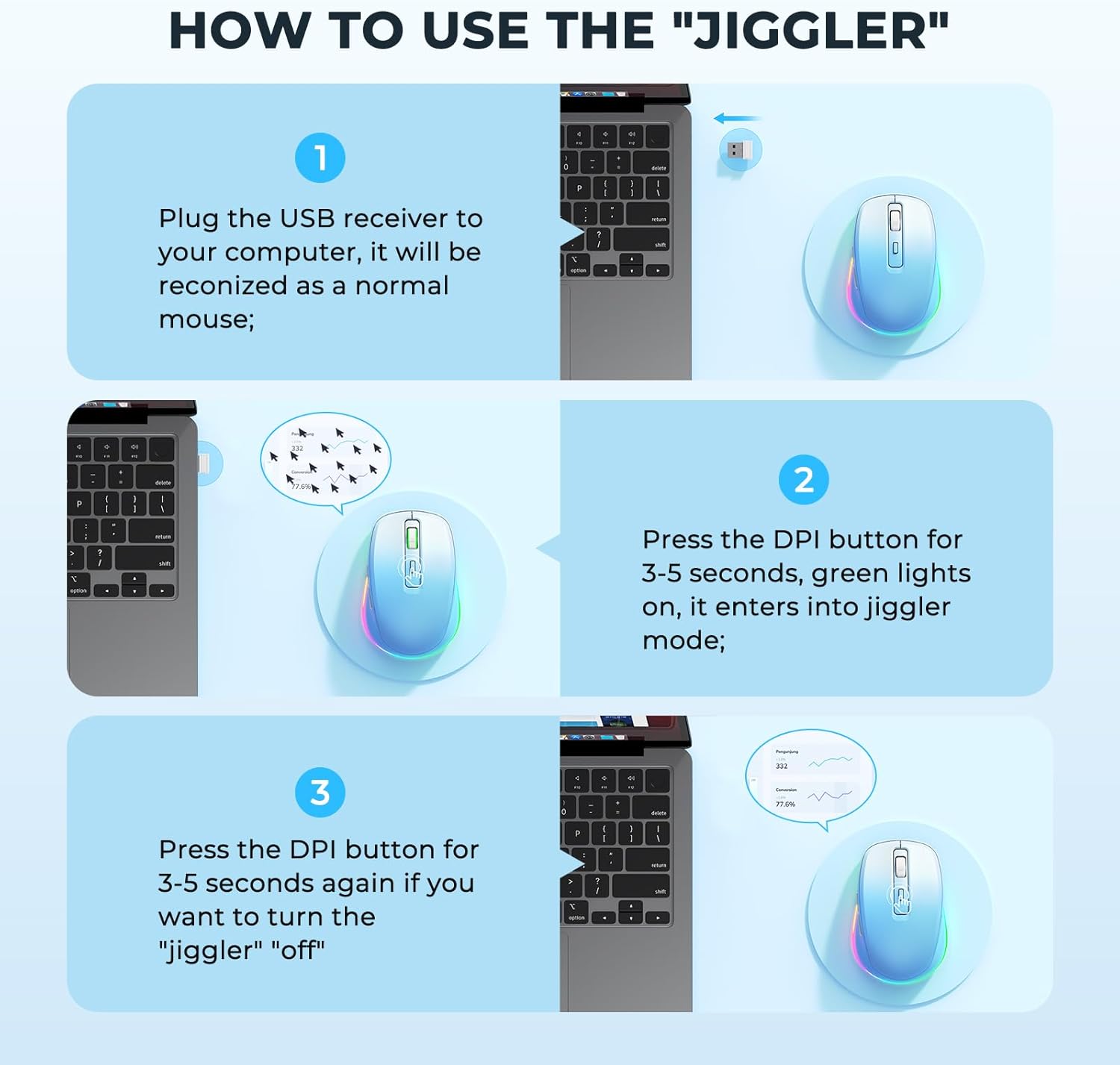
- Connect Receiver: Insert the USB receiver into an available USB port on your computer (laptop or desktop). Your computer should automatically recognize the device.
- Power On: Locate the power switch on the underside of the mouse and slide it to the "ON" position.
- Initial Charge: For optimal performance, it is recommended to fully charge the mouse before first use. Connect the provided USB-C charging cable to the mouse's charging port and to a USB power source.

2. Operating Instructions
2.1 Basic Mouse Functions
The PEIOUS Wireless Mouse operates like a standard computer mouse:
- Left Button: Primary click function.
- Right Button: Secondary click function, typically for context menus.
- Scroll Wheel: Scroll up or down through documents and web pages.
- Forward/Backward Buttons: Located on the side, these buttons allow for quick navigation (e.g., browsing web pages).
2.2 DPI Adjustment
The mouse features adjustable DPI (Dots Per Inch) settings to control cursor sensitivity. Press the DPI button (located near the scroll wheel) to cycle through different sensitivity levels (e.g., 800, 1200, 1600, 2000 DPI). Choose the setting that best suits your preference and task.

2.3 Activating Mouse Jiggler Mode
The built-in mouse jiggler feature prevents your computer from entering sleep mode or locking, keeping your status active during breaks or when away from your desk.
- Activate Jiggler: Press and hold the DPI button for 3-5 seconds. The LED lights on the mouse will turn green, indicating that the jiggler mode is active.
- Deactivate Jiggler: To turn off the jiggler mode, press and hold the DPI button again for 3-5 seconds. The green lights will turn off.
2.4 LED Light Modes
The mouse features dynamic LED lighting. Use the Light Mode Switch on the underside of the mouse to change or turn off the lighting effects.

3. Maintenance
3.1 Charging the Mouse
The PEIOUS Wireless Mouse is equipped with a rechargeable Lithium-Ion battery. When the battery is low, connect the provided USB-C cable to the charging port on the front of the mouse and to a USB power source. The LED lights may indicate charging status.

3.2 Cleaning
To clean the mouse, use a soft, dry cloth. Avoid using liquid cleaners or abrasive materials, as these may damage the device.
4. Troubleshooting
- Mouse not responding: Ensure the USB receiver is securely plugged into your computer and the mouse is powered on. Check battery level and charge if necessary.
- Jiggler mode not activating: Make sure you are pressing and holding the DPI button for the specified 3-5 seconds until the green lights appear.
- Intermittent connection: Try plugging the USB receiver into a different USB port. Ensure there are no major obstructions or strong interference sources between the mouse and the receiver.
- Cursor movement is erratic: Adjust the DPI settings using the DPI button. Ensure the mouse sensor on the underside is clean and free from debris.
5. Product Specifications
| Feature | Detail |
|---|---|
| Brand | PEIOUS |
| Model | SEYC-JY203 |
| Connectivity Technology | 2.4G USB Mouse |
| Movement Detection Technology | Optical |
| Special Features | LED Lights, Built-in Jiggler, Rechargeable, Portable, Ergonomic |
| Batteries | 1 Lithium Ion battery (included) |
| Item Weight | 4.6 ounces |
| Package Dimensions | 4.61 x 3.27 x 1.65 inches |
| Rated Voltage | 3.7V |
| Rated Current | 20mA |
| Number of Keys | 6 |
6. Warranty and Support
For warranty information and technical support, please refer to the documentation included with your purchase or visit the official PEIOUS website. Keep your proof of purchase for any warranty claims.