
Bettdow AC1061
Bettdow AC1061 Smart Multimedia Projector User Manual
Model: AC1061
Brand: Bettdow
1. Introduction
The Bettdow AC1061 Smart Multimedia Projector is designed to provide a versatile and immersive viewing experience. It integrates dual operating systems, Android 9.0 (AOSP) and officially licensed Google TV, offering access to a wide range of applications and a smooth user interface.
This projector delivers a native 1920x1080 resolution with support for 4K HDR10+ content. With 850 ANSI lumens brightness and a 1500:1 contrast ratio, it produces clear, bright, and detailed images. The AC1061 is equipped with the latest WiFi 6 technology and Bluetooth 5.0 for enhanced connectivity. Dual 10W HiFi speakers with Dolby Audio support provide an immersive sound experience.
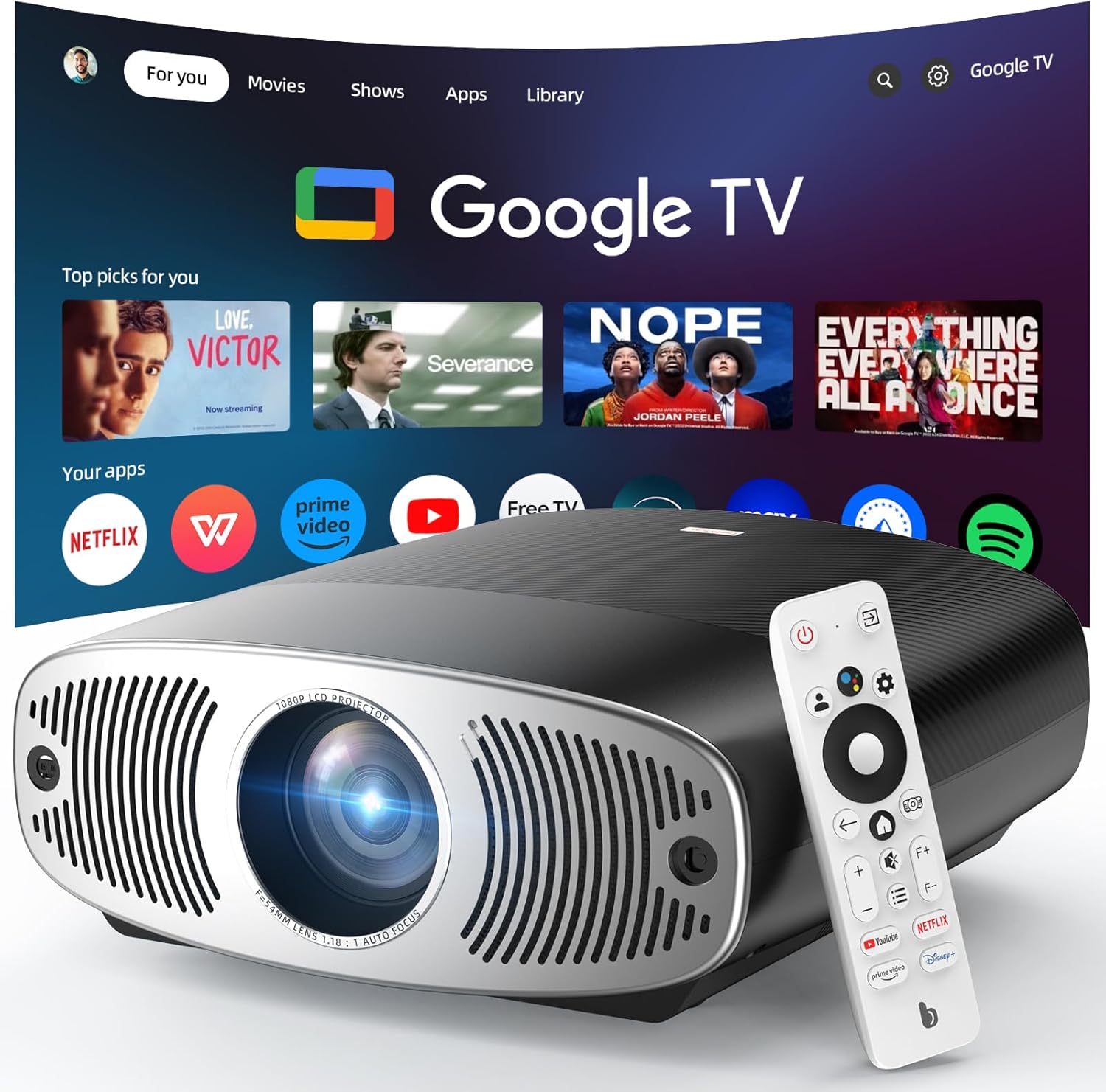
Image 1.1: The Bettdow AC1061 projector in a home setting, projecting the Google TV interface onto a screen. The remote control is also visible.
2. Setup Guide
2.1 Unpacking and Placement
Carefully remove all components from the packaging. Ensure the projector is placed on a stable, flat surface. The projector can be positioned on a desktop, mounted on the ceiling, or placed on a tripod, depending on your viewing requirements.

Image 2.1: Illustration of flexible projection sizes and various installation options for the projector, including desktop, ceiling mount, and tripod.
2.2 Power Connection
- Connect the power adapter to the projector's power input port.
- Plug the power adapter into a suitable electrical outlet.
- Press the power button on the projector or remote control to turn on the device.
2.3 Initial Setup and Network Connection
- Upon first startup, follow the on-screen prompts to complete the initial setup, including language selection and time zone.
- Navigate to the network settings and connect to your WiFi network (2.4G or 5G) using the provided remote control.
- Log in to your Google account to access Google TV features and applications.
3. Operating Instructions
3.1 Focus and Keystone Correction
The projector offers both manual and automatic adjustments for image clarity and alignment.
- Manual Focus: Use the focus knob on the projector or the dedicated buttons on the remote control to manually adjust the image sharpness.
- Automatic Keystone Correction: The projector automatically corrects image distortion up to ±30 degrees, ensuring a rectangular image even when projected at an angle.
- Automatic Focus: The system detects and adjusts focus automatically for a clear image without manual intervention.
- Automatic Screen Adjustment: The projector recognizes screen borders to fit the image perfectly.
- Automatic Obstacle Avoidance: Integrated sensors detect obstacles and adjust the projection angle to ensure a complete and uninterrupted image.
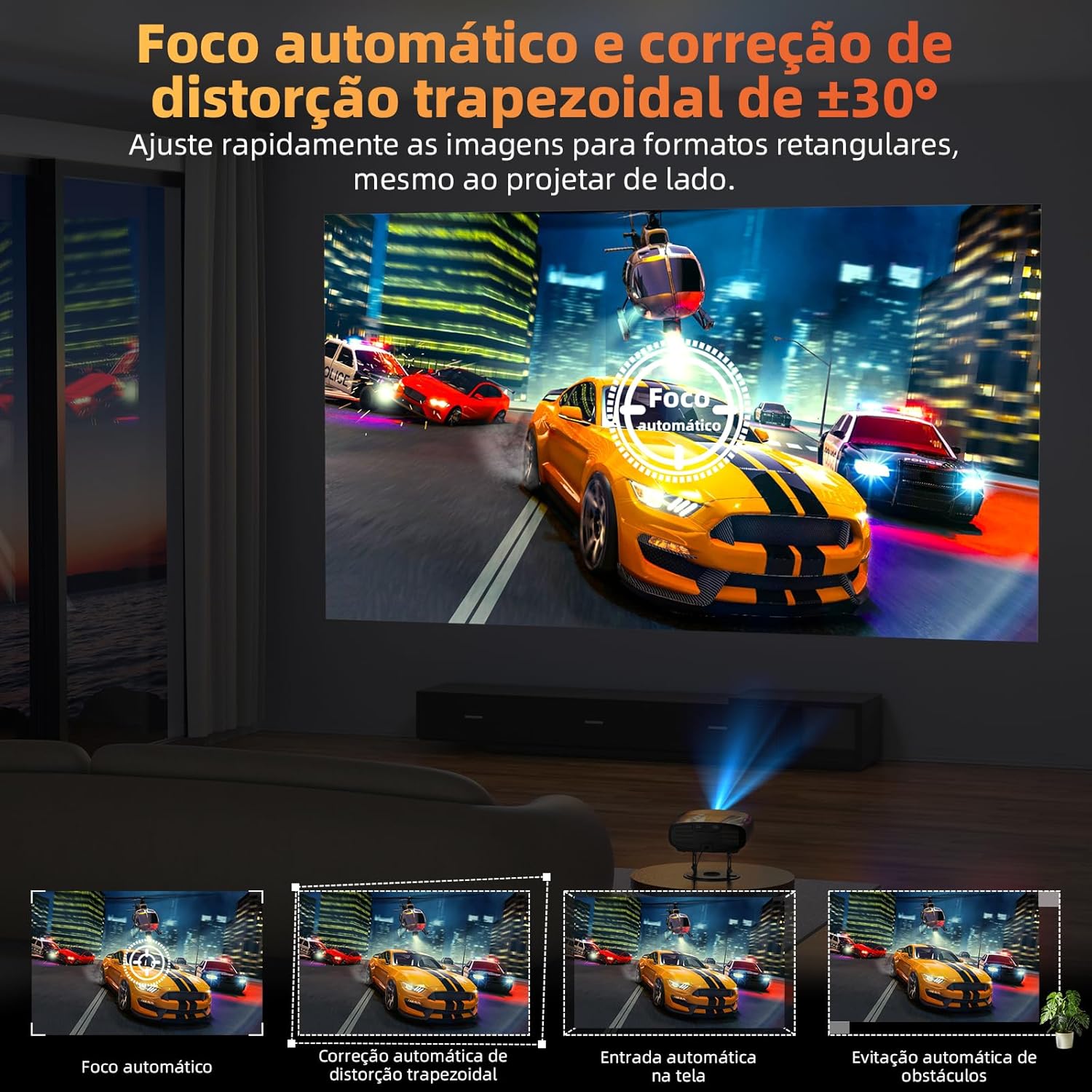
Image 3.1: Visual explanation of the automatic focus and keystone correction features, ensuring a clear and properly shaped image.
3.2 Google TV and Applications
With officially licensed Google TV, you can access a vast library of streaming applications directly from the projector.
- Navigate the Google TV interface using the remote control.
- Access popular streaming services such as Netflix, Disney+, YouTube, Prime Video, and HBO with a single click.
- Explore and download additional applications from the Google Play Store.

Image 3.2: The projector displays the official Google TV home screen, highlighting direct access to numerous streaming applications.

Image 3.3: The projector is shown alongside icons representing its extensive app ecosystem, including Google TV, Netflix, and YouTube.
3.3 Google Voice Assistant
The integrated Google Voice Assistant allows for convenient control using voice commands.
- Press the dedicated voice assistant button on the remote control.
- Speak commands such as "Open Netflix," "Find Batman movie," or "Increase the volume."
- The projector supports multiple languages for voice control.
3.4 WPS Office Support
The projector supports direct viewing and editing of WPS Office documents.
- Access the WPS Office application from the Google TV interface.
- Open and view various document formats directly on the projected screen.
- For editing, connect a compatible keyboard and mouse via USB or Bluetooth.

Image 3.4: The projector's capability to display Office documents directly, suitable for business or educational presentations.
3.5 Connectivity
The projector offers various connectivity options for external devices.
- HDMI: Connect TV boxes, DVD players, game consoles, or other HDMI-compatible devices.
- USB: Connect USB drives for media playback or external peripherals like keyboards and mice.
- AV: Connect older devices using an AV cable.
- 3.5mm Audio Jack: Connect wired headphones or external speakers.
- Bluetooth 5.0: Pair with wireless headphones or Bluetooth speakers for audio output.
- WiFi 6 (2.4G/5G): Connect to your home network for streaming and online content.
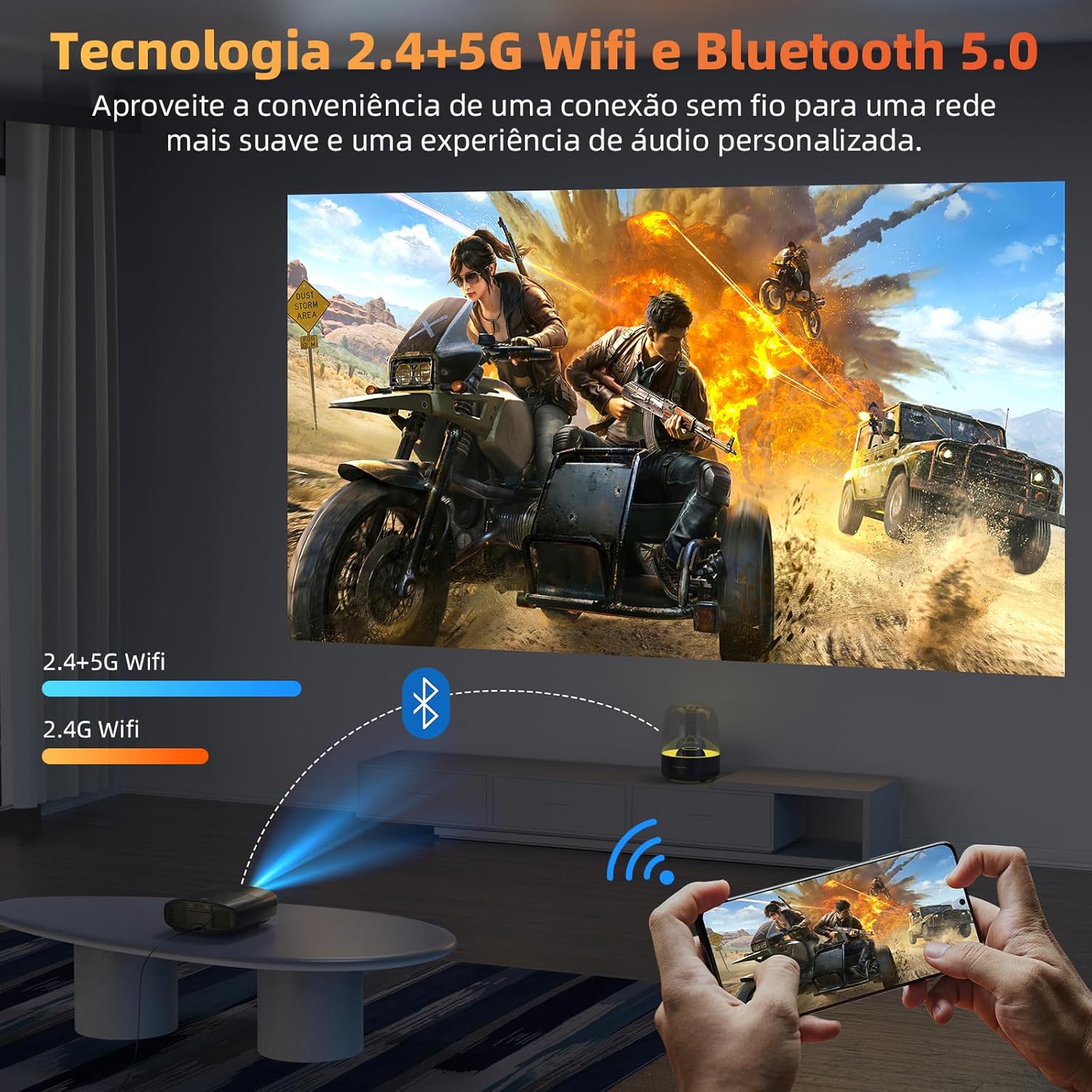
Image 3.5: The projector's WiFi 6 and Bluetooth 5.0 capabilities, allowing seamless wireless connection to devices like smartphones for content sharing.
3.6 Audio Output
The projector features integrated dual 10W HiFi speakers with Dolby Audio support for a rich sound experience.
- Adjust the volume using the remote control.
- For enhanced audio, connect external speakers via Bluetooth or the 3.5mm audio jack.
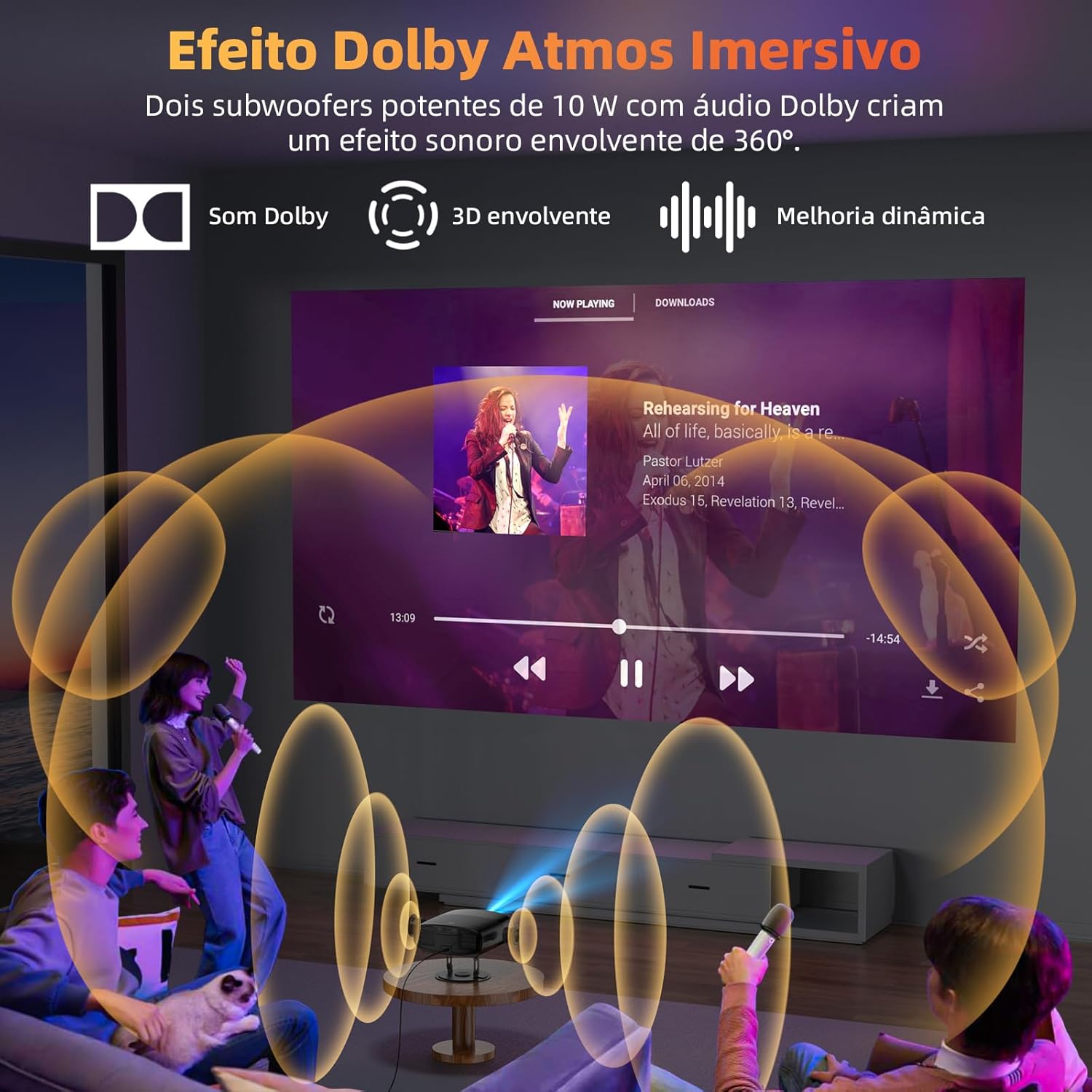
Image 3.6: The immersive audio experience provided by the projector's dual 10W subwoofers and Dolby Audio support.
4. Maintenance
4.1 Dust Prevention
The projector features a fully sealed engine design, which helps prevent dust from entering the interior components. This design contributes to a longer lifespan for the projector and reduces fan noise.
4.2 Lamp Life
The projector lamp has an estimated lifespan of 30,000 hours under normal operating conditions.
4.3 Cleaning
- Use a soft, dry cloth to clean the exterior of the projector.
- For the lens, use a specialized lens cleaning cloth and solution to avoid scratches.
- Ensure the projector is powered off and unplugged before cleaning.
5. Troubleshooting
If you encounter issues with your Bettdow AC1061 projector, refer to the following common problems and solutions:
5.1 No Power
- Ensure the power cable is securely connected to both the projector and the electrical outlet.
- Verify that the power outlet is functioning correctly by plugging in another device.
- Check if the power indicator light on the projector is on.
5.2 No Image or Blurred Image
- Check the input source to ensure it is correctly selected (e.g., HDMI 1, USB).
- Adjust the focus manually using the remote control or the focus knob on the projector.
- Ensure the projection surface is flat and clear of obstructions.
- Verify that the keystone correction is properly applied, either automatically or manually.
5.3 No Sound
- Increase the volume on the projector and the connected source device.
- Check if the audio output is set correctly (e.g., internal speakers, Bluetooth, 3.5mm jack).
- If using an external audio device, ensure it is properly connected and powered on.
5.4 Remote Control Not Responding
- Replace the batteries in the remote control.
- Ensure there are no obstructions between the remote control and the projector's IR receiver.
- Point the remote control directly at the projector.
5.5 Network Connection Issues
- Ensure your WiFi router is powered on and functioning.
- Check the WiFi password and re-enter if necessary.
- Move the projector closer to the WiFi router to improve signal strength.
- Restart both the projector and your WiFi router.
6. Specifications
| Feature | Specification |
|---|---|
| Brand | Bettdow |
| Model Name | AC1061 |
| Native Resolution | 1920 x 1080 (Full HD) |
| Supported Resolution | Up to 3840 x 2160 (4K) |
| Brightness | 850 ANSI Lumens |
| Contrast Ratio | 1500:1 |
| Aspect Ratio | 16:9 |
| Projection Size | 50 - 200 inches |
| Projection Distance | 1.44 - 9.2 meters |
| Lamp Life | 30,000 hours |
| Operating System | Android 9.0 (AOSP) + Google TV |
| Wireless Connectivity | WiFi 6 (2.4G/5G), Bluetooth 5.0 |
| Audio | Dual 10W HiFi Speakers, Dolby Audio Support |
| Input Interfaces | HDMI, USB, AV, 3.5mm Audio Jack |
| Special Features | Portable, Auto Focus, Auto Keystone Correction, Google Voice Assistant, WPS Office Support |
| Product Weight | 3.78 Kilograms |
| Dimensions (Packaging) | 41.4 x 34.4 x 14.3 cm |

Image 6.1: A detailed diagram outlining the physical dimensions and connectivity ports (USB, headphone jack, HDMI) of the Bettdow AC1061 projector.
7. Warranty and Support
7.1 Manufacturer's Warranty
The Bettdow AC1061 projector comes with a manufacturer's warranty of 6 months from the date of purchase. This warranty covers defects in materials and workmanship under normal use.
Please retain your proof of purchase for warranty claims.
7.2 Customer Support
For technical assistance, troubleshooting beyond this manual, or warranty inquiries, please contact Bettdow customer support. Refer to the product packaging or the official Bettdow website for contact information.
Related documentsAC1061

Ask a question about this manual
Ask about setup, troubleshooting, compatibility, parts, safety, or missing instructions. Manuals+ will review the question and use this page’s manual context to help answer it.