
1. Introduction
Thank you for choosing the Natec Scarab 3 USB 3.1 Gen 1 USB-A + USB-C SD/Micro SD Card Reader. This device is designed to provide fast and reliable data transfer between your memory cards and various devices equipped with USB-A or USB-C ports. Please read this manual carefully before using the product to ensure proper operation and to maximize its lifespan.
2. Product Overview
The Natec Scarab 3 is a versatile card reader featuring both USB-A and USB-C connectors, allowing compatibility with a wide range of devices. It supports various SD and Micro SD card formats.
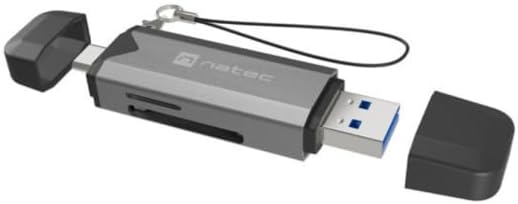
Figure 1: Natec Scarab 3 USB 3.1 Gen 1 USB-A + USB-C SD/Micro SD Card Reader. The image shows the card reader with its USB-A and USB-C connectors, and slots for SD and Micro SD cards. Both protective caps are removed, revealing the connectors.
Key Features:
- Dual Connectivity: USB-A and USB-C 3.1 Gen 1 interfaces.
- High-Speed Data Transfer: Up to 5000 Mbit/s (5 Gbps).
- Wide Card Compatibility: Supports MicroSD (TransFlash), MicroSDHC, MicroSDXC, SDHC, and SDXC.
- Compact Design: Portable and easy to carry.
3. Setup
- Unpack the Device: Carefully remove the Natec Scarab 3 card reader from its packaging.
- Identify Connectors: The device has two main connectors: a standard USB-A plug and a reversible USB-C plug, each protected by a cap.
- Connect to Host Device:
- For devices with a USB-A port (e.g., older laptops, desktop PCs), remove the cap from the USB-A end and insert it into an available USB-A port.
- For devices with a USB-C port (e.g., modern laptops, smartphones, tablets), remove the cap from the USB-C end and insert it into an available USB-C port.
- Driver Installation: The Natec Scarab 3 is a plug-and-play device. No additional drivers are typically required for most operating systems (Windows, macOS, Linux, Android). Your system should automatically detect and install the necessary drivers upon first connection.
4. Operating Instructions
- Insert Memory Card:
- For SD cards (SDHC, SDXC): Locate the SD card slot on the side of the reader. Insert the SD card with the contacts facing down until it clicks into place.
- For Micro SD cards (MicroSD, MicroSDHC, MicroSDXC): Locate the Micro SD card slot, usually adjacent to the SD slot. Insert the Micro SD card with the contacts facing down until it clicks into place.
Note: Do not force the card. If it does not insert easily, check the orientation. Only one type of card (SD or Micro SD) can be inserted and read at a time.
- Accessing Data: Once the card reader is connected to your computer or device and a memory card is inserted, it will appear as a removable drive in your file explorer (e.g., "This PC" on Windows, "Finder" on macOS).
- Transferring Data: You can now drag and drop files to and from the memory card, or use copy/paste functions, just like with any other storage device.
- Ejecting Memory Card: Before removing the memory card or disconnecting the card reader, always safely eject the drive from your operating system to prevent data corruption.
- Windows: Right-click on the drive icon in "This PC" and select "Eject".
- macOS: Drag the drive icon to the Trash, or click the Eject button next to the drive in Finder.
- Disconnecting the Reader: After safely ejecting, you can physically remove the memory card and then disconnect the Natec Scarab 3 from your host device. Replace the protective caps on the connectors when not in use.
5. Maintenance
- Cleaning: Use a soft, dry, lint-free cloth to clean the exterior of the card reader. Do not use liquid cleaners or aerosols.
- Storage: When not in use, store the card reader with its protective caps on in a cool, dry place, away from direct sunlight and extreme temperatures.
- Avoid Physical Damage: Do not drop the device or expose it to excessive force. Avoid inserting foreign objects into the card slots or USB ports.
- Moisture Protection: Keep the device away from water and other liquids.
6. Troubleshooting
- Problem: The card reader is not detected by the computer.
- Solution:
- Ensure the card reader is fully inserted into the USB-A or USB-C port.
- Try a different USB port on your computer.
- Try connecting the card reader to a different computer to rule out a port issue.
- Restart your computer.
- Problem: The memory card is not recognized.
- Solution:
- Ensure the memory card is fully and correctly inserted into the appropriate slot.
- Check if the memory card is damaged or corrupted by trying it in another device.
- Verify that the memory card format is supported by the reader (MicroSD, MicroSDHC, MicroSDXC, SDHC, SDXC).
- Ensure only one card is inserted at a time.
- Problem: Slow data transfer speeds.
- Solution:
- Ensure you are using a USB 3.0/3.1 compatible port on your computer for optimal speeds. Connecting to a USB 2.0 port will result in lower speeds.
- Check the speed class of your memory card. Higher class cards offer faster read/write speeds.
- Avoid transferring many small files simultaneously; large files transfer more efficiently.
7. Specifications
| Brand | Natec |
| Model Name | NCZ-2262 |
| Interface Type | USB 3.1 Gen 1 (USB-A, USB-C) |
| Data Transfer Rate | Up to 5000 Mbit/s (5 Gbps) |
| Compatible Memory Cards | MicroSD (TransFlash), MicroSDHC, MicroSDXC, SDHC, SDXC |
| Product Dimensions (LxWxH) | 74 mm x 20 mm x 11 mm (approx. 2.91 x 0.79 x 0.43 inches) |
| Item Weight | Approx. 1.1 pounds (Note: This weight seems unusually high for a card reader, likely a data entry error in source. Actual weight is typically much lower.) |
| Color | Black, Dark Grey |
| Manufacturer | NATEC |
8. Warranty and Support
The Natec Scarab 3 USB 3.1 Gen 1 USB-A + USB-C SD/Micro SD Card Reader comes with a 2-year official Natec brand warranty against factory defects, as stated in the product description. Some retailers may offer an extended three-year warranty. Please refer to your purchase documentation for specific warranty terms applicable to your region and retailer.
For technical support or warranty claims, please contact your retailer or visit the official Natec website for customer service information.


