
1. Introduction
This manual provides essential information for setting up, operating, maintaining, and troubleshooting your HONOR 200 5G Smartphone. Please read this manual carefully to ensure proper use and to maximize the performance of your device.
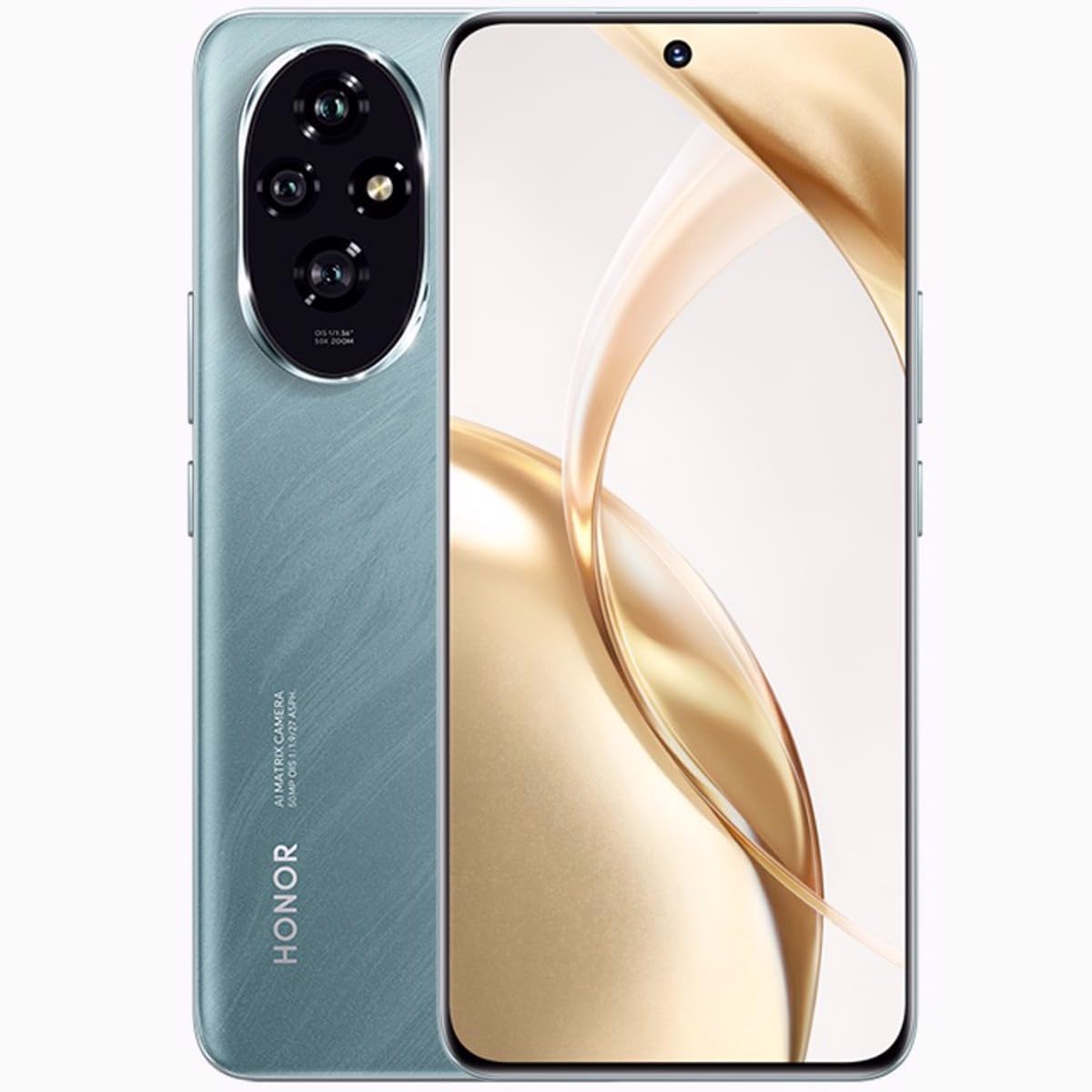
Image 1.1: Front view of the HONOR 200 5G Smartphone in Emerald Green.
2. What's in the Box
Verify that all items are present in your product package:
- HONOR 200 5G Smartphone
- USB Cable
- Quick Start Guide (may vary by region)
- Safety Information (may vary by region)
3. Setup
3.1. SIM Card Installation
The HONOR 200 supports Dual SIM functionality. Ensure your device is powered off before inserting or removing SIM cards.
- Locate the SIM card tray on the side of your device.
- Insert the SIM ejector tool (not included) into the small hole next to the tray and push gently until the tray pops out.
- Place your Nano-SIM cards into the designated slots on the tray, ensuring the gold contacts face down and the cut corner aligns correctly.
- Carefully push the SIM card tray back into the slot until it is flush with the device.
3.2. Initial Power On and Setup
To power on your device, press and hold the Power button until the HONOR logo appears. Follow the on-screen instructions to complete the initial setup, including language selection, Wi-Fi connection, Google account setup, and security settings.
3.3. Charging the Battery
Connect the provided USB cable to the charging port on your phone and the other end to a compatible power adapter (not included) or a computer's USB port. The device features a 5200mAh non-removable battery. For optimal performance, use HONOR-approved chargers and cables.
4. Operating Your Device
4.1. Display and Navigation
The HONOR 200 features a 6.7-inch OLED display with 1200 x 2664 pixels resolution and 1 billion colors. Navigate the interface using touch gestures: tap to select, swipe to scroll, pinch to zoom.
4.2. Camera Usage
Your device is equipped with a versatile camera system:
- Rear Cameras: 50 MP (main), 50 MP, 12 MP
- Front Camera: 50 MP
Open the Camera app from the home screen or app drawer. Tap the shutter button to take a photo. Swipe left or right to switch between different camera modes (e.g., Photo, Video, Portrait).
4.3. Connectivity
The HONOR 200 supports various connectivity options:
- Cellular Networks: GSM, 3G, 4G LTE, 5G (SA/NSA + ESIM). Ensure compatibility with your network provider.
- Wi-Fi: Connect to wireless networks for internet access.
- Bluetooth: Pair with wireless accessories like headphones or speakers.
- GPS: Utilize for location services and navigation.
4.4. Dual SIM Functionality
With Dual SIM support, you can use two different phone numbers or network plans simultaneously. Manage your SIM preferences for calls, messages, and mobile data in the Settings menu under 'Mobile network' or 'SIM management'.
5. Maintenance
5.1. Battery Care
To prolong battery life:
- Avoid extreme temperatures.
- Do not fully discharge the battery frequently.
- Use the provided or HONOR-approved charging accessories.
- Optimize battery settings in the device's 'Battery' menu.
5.2. Cleaning Your Device
Use a soft, lint-free cloth to clean the screen and body of your phone. Avoid using harsh chemicals or abrasive materials. Do not expose the device to excessive moisture.
5.3. Software Updates
Regularly check for and install software updates to ensure your device has the latest features, security patches, and performance improvements. You can check for updates in 'Settings' > 'System & updates' > 'Software update'.
6. Troubleshooting
6.1. Device Not Powering On
- Ensure the battery is charged. Connect the device to a charger for at least 10 minutes before attempting to power on again.
- Press and hold the Power button for 10-15 seconds to force a restart.
6.2. Network Connectivity Issues
- Check if your SIM card is properly inserted.
- Verify that mobile data is enabled in your device settings.
- Restart your device.
- Contact your network provider to confirm service availability in your area.
6.3. Apps Crashing or Freezing
- Close and reopen the app.
- Clear the app's cache and data in 'Settings' > 'Apps' > [App Name] > 'Storage'.
- Ensure the app is updated to its latest version.
6.4. Factory Reset
If persistent issues occur, you may consider a factory reset. Warning: This will erase all data on your device. Back up important data before proceeding. Go to 'Settings' > 'System & updates' > 'Reset' > 'Reset phone'.
7. Specifications
| Feature | Detail |
|---|---|
| Model Name | Honor 200 |
| Operating System | Android 14 |
| Processor | Qualcomm SM7550-AB Snapdragon 7 Gen 3 (4 nm), Octa-core (1x2.63 GHz Cortex-A715 & 4x2.4 GHz Cortex-A715 & 3x1.8 GHz Cortex-A510) |
| RAM | 12 GB |
| Internal Storage | 512 GB |
| Display | 6.7 inches OLED, 1B colors, 1200 x 2664 pixels resolution |
| Rear Camera | 50 MP, 50 MP, 12 MP |
| Front Camera | 50 MP |
| Battery Capacity | 5200 mAh (non-removable) |
| Dimensions (H x W x D) | 161.5 x 74.6 x 7.7 mm (6.36 x 2.94 x 0.30 in) |
| Weight | 187 g (6.60 oz) |
| Connectivity | GSM, 3G, 4G, 5G, GPS |
| Special Features | Dual SIM |
8. Warranty and Support
Your HONOR 200 5G Smartphone is covered by a limited warranty. Please refer to the warranty card included in your product package or visit the official HONOR website for detailed warranty terms and conditions specific to your region.
For technical support, service inquiries, or further assistance, please visit the official HONOR support website or contact their customer service. Keep your proof of purchase for warranty claims.
Official HONOR Website: https://www.hihonor.com/global/support/


