
Introduction
Welcome to the user manual for your new Acer Swift 16 AI Laptop. This document provides essential information for setting up, operating, maintaining, and troubleshooting your device. The Acer Swift 16 AI is a high-performance Copilot+ PC featuring a 16.0-inch Touch OLED 2.8K Display, an Intel Ultra 7 processor, 16GB LPDDR5X RAM, and a 1TB PCIe NVMe SSD, running on Windows 11 Pro.
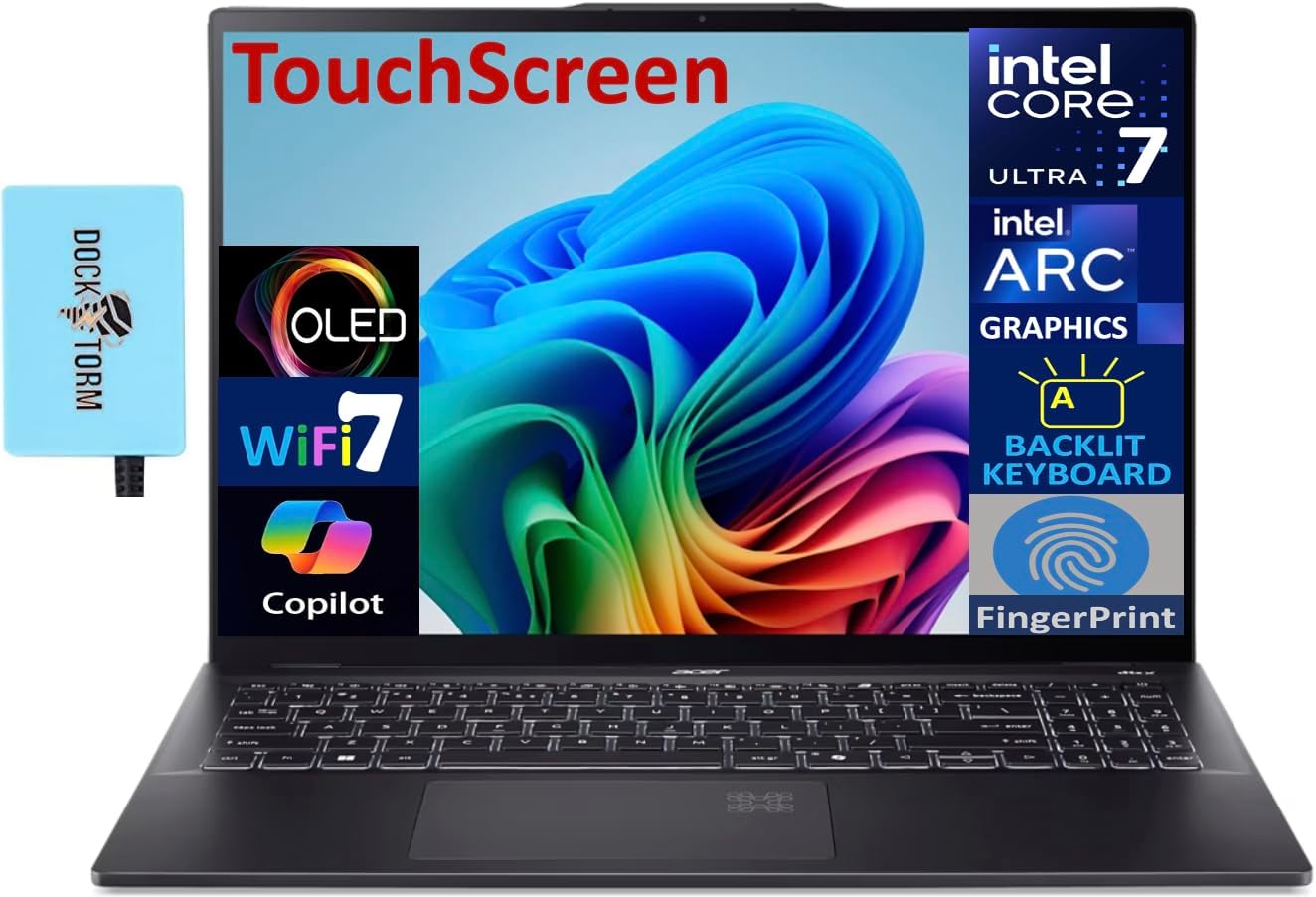
Image: The Acer Swift 16 AI Laptop, showcasing its touchscreen display, Intel Core Ultra 7 processor, Intel Arc graphics, Wi-Fi 7, Copilot, backlit keyboard, and fingerprint sensor features. A Dockztorm USB hub is also visible.
Setup
1. Initial Power-On
- Unpacking: Carefully remove the laptop and all accessories from the packaging.
- Charging: Connect the provided power adapter to the laptop's Type-C power-in port and then to a power outlet. Allow the battery to charge sufficiently before first use. The laptop features a 3-Cell 70 WHr Battery.
- First Boot: Open the laptop lid. The system may power on automatically. If not, press the power button.
2. Operating System Configuration (Windows 11 Pro)
- Follow the on-screen instructions to complete the Windows 11 Pro setup. This includes selecting your region, language, connecting to a Wi-Fi network, and creating a user account.
- Ensure you have an active internet connection for updates and initial setup.
3. Connecting Peripherals
Your Acer Swift 16 AI laptop comes with various ports for connecting external devices:
- USB Ports: Connect USB devices to the USB 3.2 ports or the Thunderbolt 4 (Type-C) ports.
- HDMI: Use the HDMI port to connect to external displays or projectors.
- Headset Jack: Plug in headphones or a headset for audio input/output.
- Dockztorm Portable USB Hub: The included Dockztorm USB Hub can be connected to a USB port to expand connectivity options, offering super speedy data sync rates up to 5Gbps.

Image: Diagram illustrating the ports on the Acer Swift 16 AI Laptop, including HDMI, USB 3.2, and two Thunderbolt 4 Type-C ports on one side, and a headset jack and another USB 3.2 port on the other side.
Operating Your Laptop
1. Display and Input
- Touch OLED Display: Your laptop features a 16.0" Touch OLED 2.8K (2880x1800) 120Hz display. Interact directly with the screen using touch gestures for navigation and input.
- Backlit Keyboard: The keyboard is backlit for comfortable typing in various lighting conditions. Use the designated function key (Fn) combination to adjust the backlight intensity.
- Fingerprint Reader: For enhanced security and quick login, configure the integrated fingerprint reader through Windows Hello settings.

Image: Top-down view of the Acer Swift 16 AI Laptop's backlit keyboard and large touchpad, highlighting the layout and design.
2. Connectivity
- Wi-Fi 7 (802.11be): Connect to high-speed wireless networks for internet access.
- Bluetooth 5.4: Pair with Bluetooth-enabled devices such as headphones, mice, or external speakers.
- Thunderbolt 4: Utilize the two Thunderbolt 4 ports for high-speed data transfer, external display connections, and power delivery.
3. Copilot+ PC Features
As a Copilot+ PC, your laptop integrates advanced AI capabilities to enhance productivity and creativity. Explore features like enhanced search, content generation, and intelligent assistance through the Copilot interface in Windows 11 Pro.
Maintenance
1. Battery Care
- To prolong battery life, avoid fully discharging the battery frequently.
- Store the laptop in a cool, dry place when not in use for extended periods.
- Use only the original Acer power adapter or a compatible replacement.
2. Cleaning
- Screen: Use a soft, lint-free cloth slightly dampened with water or a screen cleaner specifically designed for OLED displays. Avoid harsh chemicals.
- Chassis and Keyboard: Wipe surfaces with a soft, dry cloth. For stubborn dirt, a slightly damp cloth can be used. Ensure no liquid enters the ports or vents.
3. Software Updates
- Regularly check for and install Windows updates to ensure system stability, security, and performance.
- Keep your drivers updated, especially for graphics and network adapters, through Acer's official support website or Windows Update.
Troubleshooting
This section addresses common issues you might encounter. For more complex problems, refer to Acer's official support resources.
1. Power Issues
- Laptop not turning on: Ensure the power adapter is securely connected and the battery has sufficient charge. Try a different power outlet.
- Battery not charging: Verify the power adapter and cable are not damaged. Check the charging port for debris.
2. Display Problems
- No display: Connect an external monitor to check if the issue is with the laptop's internal display. Restart the laptop.
- Flickering or distorted image: Update your graphics drivers. Adjust display resolution and refresh rate settings.
3. Connectivity Issues
- Wi-Fi not connecting: Ensure Wi-Fi is enabled. Restart your router and laptop. Check network settings in Windows.
- Bluetooth device not pairing: Ensure the Bluetooth device is in pairing mode and within range. Check Bluetooth settings on your laptop.
Specifications
| Feature | Detail |
|---|---|
| Model Name | Swift 16 AI |
| Display | 16.0" Touch OLED 2.8K (2880x1800) 120Hz |
| Processor | Intel Ultra 7-256V (2.20GHz, up to 4.8 GHz, 12MB Cache, 8-Cores, 8-Threads) |
| Graphics | Intel Arc Integrated Graphics |
| RAM | 16GB LPDDR5X OnBoard |
| Storage | 1TB PCIe NVMe SSD |
| Operating System | Windows 11 Pro-64 |
| Wireless Connectivity | 802.11be (Wi-Fi 7), Bluetooth 5.4 |
| Ports | HDMI, 2x Thunderbolt 4 (Type-C), USB 3.2, Headphone/Microphone Combo Jack |
| Battery | 3-Cell 70 WHr |
| Power Supply | 65W PSU, Type-C Power-In |
| Keyboard | Backlit Standard Keyboard |
| Security Features | Fingerprint Reader |
| Color | Ice Black |
| Dimensions (LxWxH) | 14 x 9.88 x 0.65 inches |
| Weight | 3.35 pounds |
Warranty and Support
1. Warranty Information
Your Acer Swift 16 AI Laptop comes with a 1-Year Manufacturer Warranty from GreatPriceTech. This warranty covers defects in materials and workmanship under normal use. Please retain your proof of purchase for warranty claims.
2. Technical Support
For technical assistance, warranty claims, or further inquiries, please contact GreatPriceTech support. Refer to the documentation provided with your purchase for specific contact details or visit their official support website.