
1. Introduction
Welcome to your Yosoo Fingerprint Cabinet Lock. This manual provides detailed instructions for the installation, setup, operation, and maintenance of your new keyless biometric lock. Please read this manual thoroughly before installation and use to ensure proper function and longevity of the product.
2. Safety Information
- Do not expose the lock to extreme temperatures or direct sunlight for prolonged periods.
- Avoid contact with water or other liquids. This product is designed for indoor and protected outdoor use.
- Use only 4 AAA dry batteries. Do not mix old and new batteries, or different types of batteries.
- Do not attempt to disassemble or modify the lock. This may void the warranty and cause damage.
- Keep the reset pointer and small accessories out of reach of children.
3. Package Contents
Please verify that all items listed below are included in your package:
- 1 x Cabinet Lock Unit
- 1 x Stopper
- 1 x Reset Pointer
- 14 x Screws (various sizes for installation)
- 4 x Accessories (mounting plates/brackets)
- 2 x Positioning Paper (for drilling guidance)
4. Product Overview and Specifications
The Yosoo Fingerprint Cabinet Lock provides secure, keyless access using advanced fingerprint recognition technology. It is suitable for various applications including drawers, lockers, and desks.
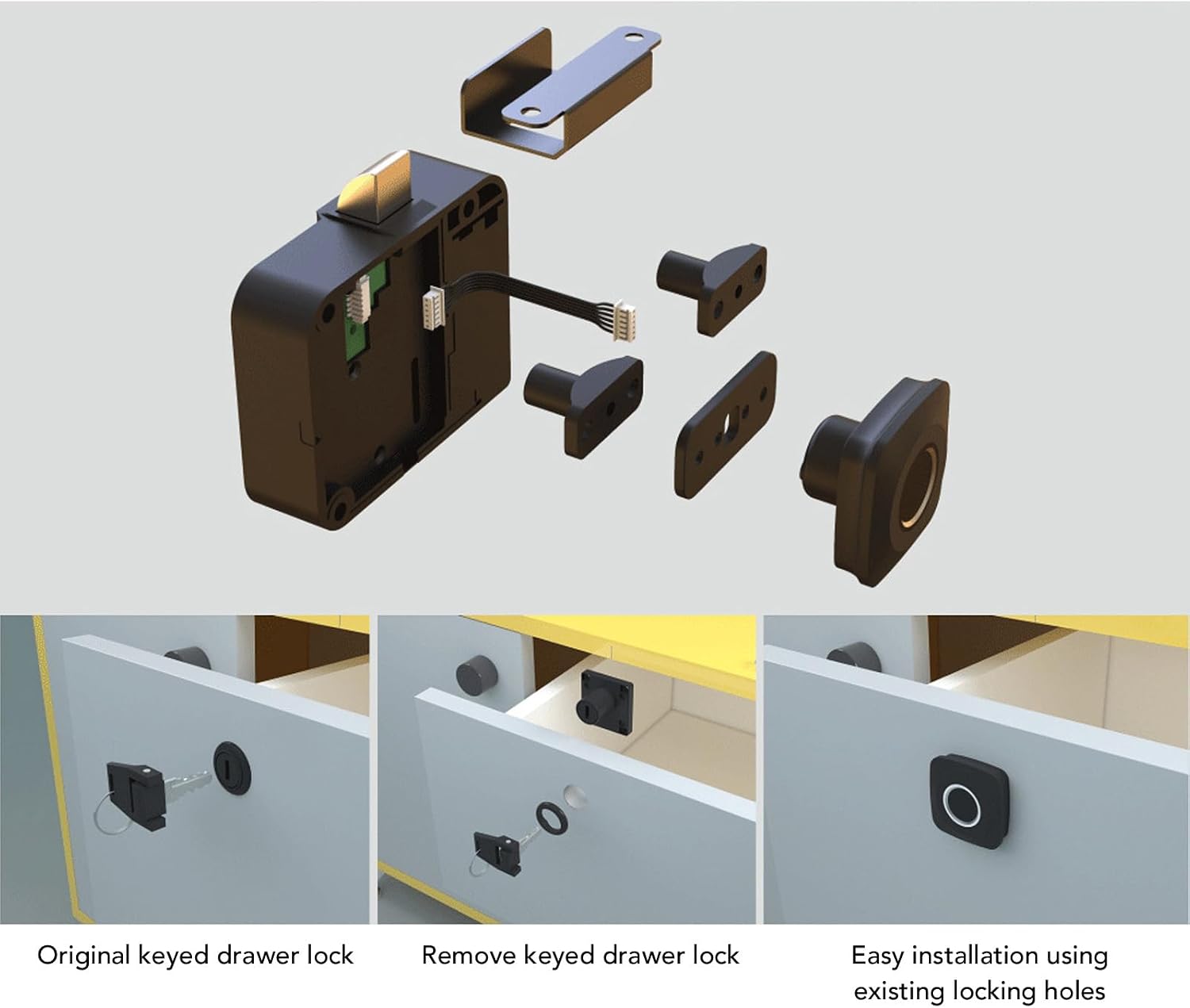
Figure 1: Exploded view of the Yosoo Fingerprint Cabinet Lock components, showing the main lock body, fingerprint sensor, and various mounting accessories.

Figure 2: Dimensions of the fingerprint sensor unit, measuring 36mm / 1.4 inches on each side.
Specifications:
| Feature | Description |
|---|---|
| Item Type | Fingerprint Cabinet Lock |
| Product Material | ABS, Zinc Alloy |
| Power Source | 4 x AAA Dry Batteries (not included) |
| Gross Weight | 145g / 5.1oz |
| Model Name | Yosoor6e0dnkcf8 |
5. Installation Guide
5.1 Before Installation
- Ensure the cabinet or drawer material is suitable for drilling.
- Gather necessary tools: drill, screwdriver, pencil.
- Insert 4 AAA batteries into the main lock unit.
5.2 Step-by-Step Installation
Follow these steps carefully for proper installation. Refer to the installation diagram (Figure 3) for visual guidance.
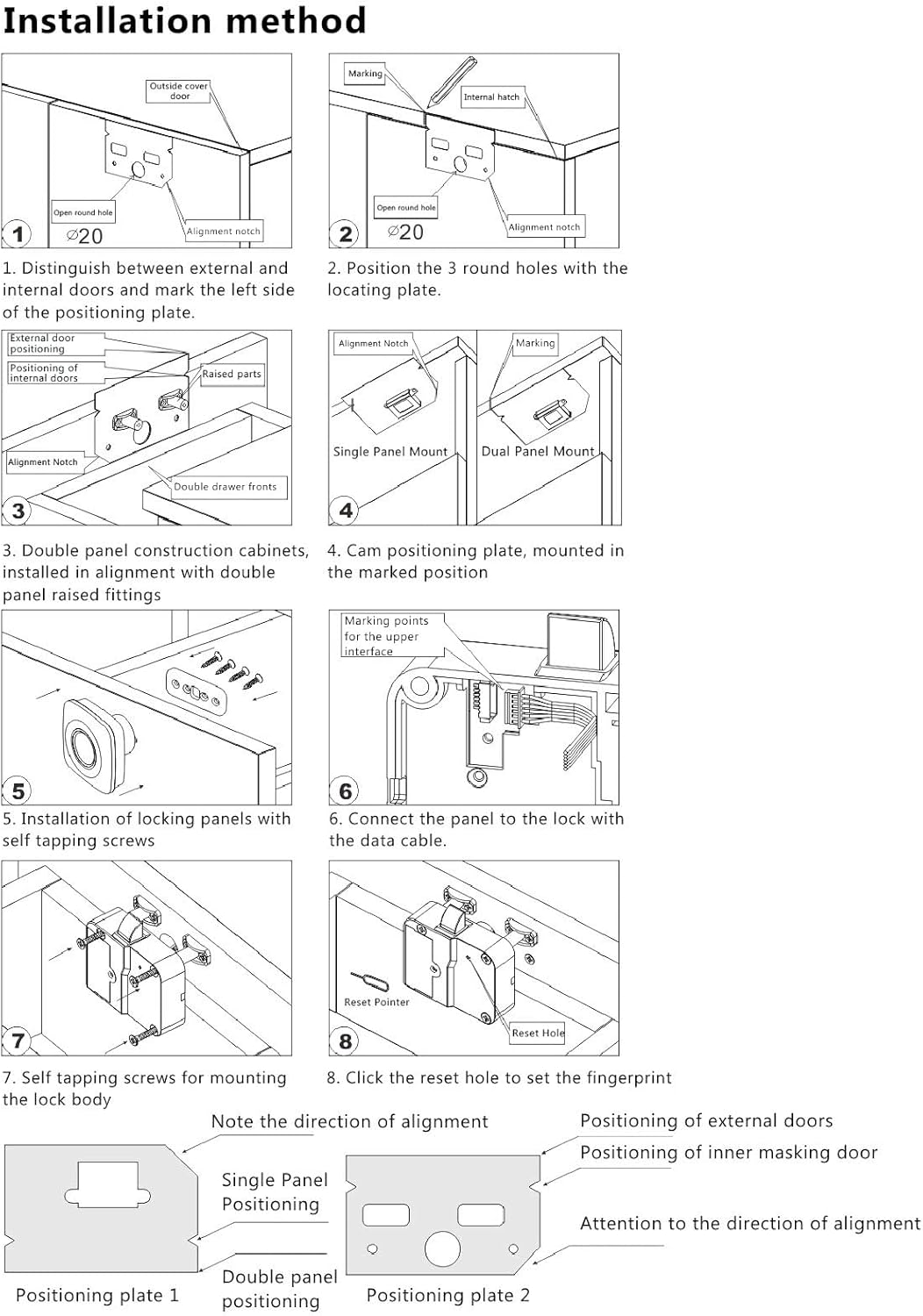
Figure 3: Detailed installation method diagram, illustrating steps for mounting the lock and sensor.
- Distinguish External and Internal Doors: Identify the external and internal sides of your cabinet or drawer. Position the fingerprint sensor on the external side and the main lock unit on the internal side.
- Positioning Plate: Use the provided positioning paper to mark the location for the fingerprint sensor and the three round holes for the locating plate. Drill the marked holes.
- Double Panel Construction: For cabinets with double panel construction, install the lock in alignment with the double panel raised fittings.
- Cam Positioning Plate: Mount the cam positioning plate in the marked position on the internal side of the cabinet.
- Locking Panels Installation: Install the locking panels using self-tapping screws.
- Connect Data Cable: Connect the data cable from the fingerprint sensor to the main lock unit. Ensure the connection is secure.
- Mount Lock Body: Securely mount the main lock body using self-tapping screws.
- Reset Fingerprint: After installation, use the reset pointer to press the reset hole on the main lock unit to clear any pre-existing data and prepare for new fingerprint registration.

Figure 4: Visual guide demonstrating the replacement of an original keyed drawer lock with the Yosoo Fingerprint Cabinet Lock, utilizing existing locking holes for easy installation.
6. Operating Instructions
6.1 Initial Setup (Admin Fingerprint Registration)
- After installation and reset (if performed), the lock is in initial setup mode.
- Place your finger on the fingerprint sensor. The indicator light will flash blue.
- Lift and place your finger repeatedly (typically 5-10 times) until the indicator light turns green, indicating successful registration of the administrator fingerprint.
- The first registered fingerprint is automatically designated as the administrator.
6.2 Adding User Fingerprints
- Place the administrator's finger on the sensor and hold until the blue light flashes.
- While the blue light is flashing, have the new user place their finger on the sensor.
- Lift and place the new user's finger repeatedly until the indicator light turns green.
- Repeat for additional user fingerprints. The lock can store multiple fingerprints.
6.3 Unlocking
To unlock the cabinet or drawer:
- Place a registered finger on the fingerprint sensor.
- If the fingerprint is recognized, the indicator light will turn green, and the lock will disengage.
- If the fingerprint is not recognized, the indicator light will flash red. Try again or use another registered finger.

Figure 5: The fingerprint sensor in use, demonstrating the quick identification process for unlocking.
6.4 Deleting Fingerprints / Factory Reset
To delete all registered fingerprints and perform a factory reset:
- Locate the reset hole on the main lock unit (refer to Figure 3, step 8).
- Use the provided reset pointer or a similar thin object to press and hold the reset button for approximately 5-10 seconds.
- The indicator light will flash, then turn off, indicating that all fingerprints have been cleared and the lock has been reset to factory defaults.
- You will need to register a new administrator fingerprint after a factory reset.
7. Maintenance
7.1 Battery Replacement
The lock is powered by 4 AAA dry batteries. When the battery power is low, the indicator light may flash red rapidly or emit a warning sound during operation. Replace batteries promptly to ensure continuous functionality.
- Locate the battery compartment on the main lock unit.
- Open the compartment cover.
- Remove the old batteries and insert 4 new AAA dry batteries, ensuring correct polarity (+/-).
- Close the battery compartment cover.
7.2 Cleaning
To maintain optimal performance:
- Wipe the fingerprint sensor and lock body with a soft, dry cloth.
- Do not use abrasive cleaners, solvents, or harsh chemicals, as these can damage the surface or internal components.
8. Troubleshooting
- Lock not responding: Check battery levels and replace if necessary. Ensure the data cable between the sensor and lock unit is securely connected.
- Fingerprint not recognized: Ensure your finger is clean and dry. Try placing your finger in different positions on the sensor. If the issue persists, re-register your fingerprint.
- Indicator light flashes red rapidly: This indicates low battery. Replace all 4 AAA batteries immediately.
- Cannot register new fingerprints: Ensure you are using an administrator fingerprint to initiate the registration process. If the lock is full, consider performing a factory reset to clear all existing fingerprints.
9. Warranty and Support
Yosoo products are manufactured to high-quality standards. For warranty information, technical support, or any questions regarding your Fingerprint Cabinet Lock, please refer to the contact information provided with your purchase or visit the official Yosoo website. Please have your model number (Yosoor6e0dnkcf8) available when contacting support.