1. Introduction
Thank you for choosing the TWSYOXPR V380 Pro WiFi IP Camera. This outdoor security video monitor features 12MP 6K resolution with triple lenses and triple screens, providing comprehensive surveillance for your property. Designed for robust outdoor use, it includes advanced features like night vision, two-way audio, and multiple connection options. This manual provides detailed instructions for setup, operation, and maintenance to ensure optimal performance of your device.
For any issues or questions not covered in this manual, please refer to the support section or contact customer service.

Figure 1.1: TWSYOXPR V380 Pro WiFi IP Camera Overview
This image shows the front view of the V380 Pro WiFi IP Camera, highlighting its three distinct camera lenses and two external antennas for enhanced connectivity. The central lens is positioned above the lower, larger lens, with two additional lenses on either side of the central unit. The camera body is dark gray or black.
2. Product Features
- 12MP 6K Ultra HD Resolution: Three lenses combine to deliver 12MP (4MP+4MP+4MP) high-pixel, 6K ultra HD image quality for exquisite detail and clear monitoring without blind spots.
- Unique Triple-Screen Design: Simultaneously display multiple perspectives, enhancing monitoring efficiency and allowing comprehensive control via the mobile APP.
- Advanced Night Vision: Equipped with high-performance infrared LED and warm light, supporting three night vision modes: infrared, full color, and human detection full color. Effective up to 10 meters.
- IP66 Waterproof and Weatherproof: Designed to withstand severe weather conditions, ensuring stable operation in rain, wind, and storms.
- Two-Way Audio: Real-time talkback functionality allows communication through the camera via the mobile APP.
- PTZ Control: Pan (355°) and Tilt (90°) rotation for flexible monitoring angles, controllable via the APP.
- Multiple Connection Methods: Supports 2.4GHz WiFi, AP hotspot, and RJ45 network port for versatile connectivity.
- Motion Detection and Alarm: AI function for motion detection with picture push notifications.
- Storage: Supports up to 128GB TF card (not included, unless specified in package).
3. Package Contents
Please check the package contents upon unboxing. If any items are missing or damaged, contact customer support immediately.
- V380 Pro WiFi IP Camera
- Power Adapter (AU Plug)
- Mounting Screws and Anchors
- User Manual (this document)
- 64GB MicroSD Card (if "Cam Add 64GB Card" variant purchased)

Figure 3.1: Camera with Included 64GB Card (if applicable)
This image displays the V380 Pro WiFi IP Camera alongside a 64GB MicroSD card, indicating that this variant includes the storage card in the package.
4. Setup Guide
4.1. Physical Installation
- Choose a Location: Select an outdoor location that provides the desired viewing angle and is within range of your Wi-Fi network or has access to an Ethernet cable. Ensure the location is suitable for power connection.
- Mount the Camera: Use the provided mounting screws and anchors to securely attach the camera to a wall or pole. Ensure the camera is mounted at a height that provides optimal coverage and security.
- Connect Power: Plug the power adapter into the camera's power input port and then into a suitable power outlet.
4.2. App Installation and Network Connection
- Download the V380 Pro App: Search for "V380 Pro" in your mobile device's app store (Google Play Store for Android or Apple App Store for iOS) and download the official application.
- Register/Login: Open the V380 Pro app and follow the on-screen instructions to register a new account or log in if you already have one.
- Add Device:
- Tap the "+" icon to add a new device.
- Select your camera model or scan the QR code usually found on the camera or its packaging.
- Network Configuration:
- Wireless Connection (Wi-Fi): Select Wi-Fi connection, enter your 2.4GHz Wi-Fi network name (SSID) and password. Follow the app's prompts to connect the camera to your Wi-Fi.
- Wired Connection (LAN Cable): Connect an Ethernet cable from your router to the camera's RJ45 port. The camera should automatically connect to the network.
- AP Hotspot Transmission: If no Wi-Fi is available, the camera can create its own Wi-Fi hotspot. Connect your phone directly to this hotspot (usually named "MV..." or "V380...") and manage the camera locally within 10 meters.
- Complete Setup: Once connected, name your camera and set up any initial preferences within the app.

Figure 4.1: Connection Methods
This diagram illustrates the three primary ways to connect the V380 Pro camera to a network: wirelessly via a router, wired via an Ethernet cable to a router, and directly via the camera's built-in WiFi hotspot for local access.
5. Operating Instructions
5.1. Live View and Triple Screen Monitoring
Once connected, open the V380 Pro app and select your camera to view the live feed. The unique triple-screen design allows you to view feeds from all three lenses simultaneously. You can switch between views or focus on a specific lens as needed within the app interface.
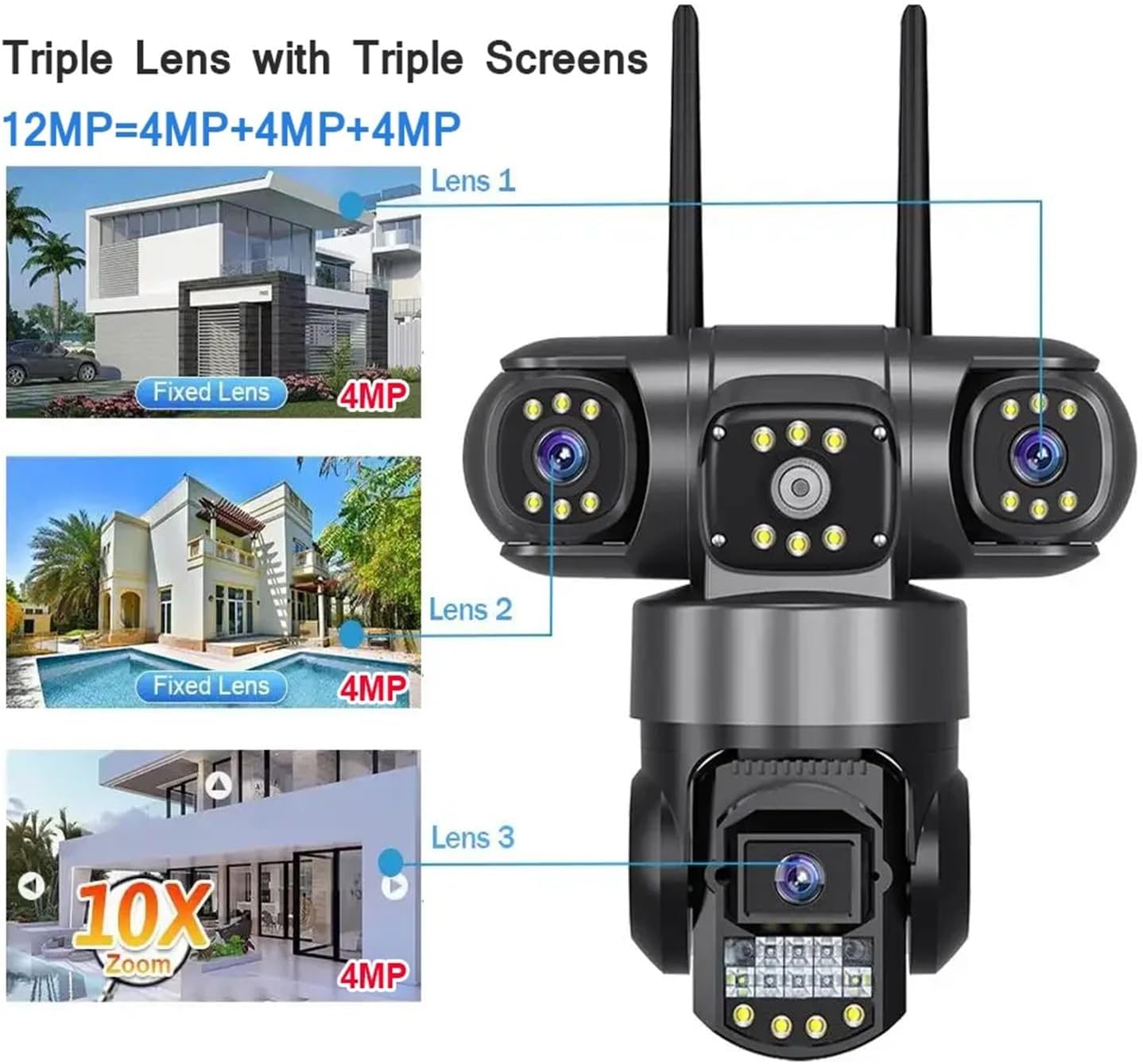
Figure 5.1: Triple Lens with Triple Screens
This image visually explains how the three 4MP lenses combine to achieve a 12MP resolution and how each lens provides a distinct view, which can be displayed simultaneously on three screens within the app.
5.2. PTZ Control (Pan/Tilt/Zoom)
The camera supports Pan (horizontal) and Tilt (vertical) movements. Use the directional controls within the V380 Pro app to adjust the camera's viewing angle. The camera can pan 355° horizontally and tilt 90° vertically. Digital zoom functions are also available through the app.

Figure 5.2: PTZ Control and Three Screens Monitoring
This image illustrates the camera's ability to rotate horizontally (pan 320 degrees) and vertically (tilt 90 degrees). It also shows a smartphone displaying three simultaneous camera feeds, demonstrating the multi-screen monitoring capability.
5.3. Two-Way Audio
The camera is equipped with a microphone and speaker, enabling two-way audio communication. Tap the microphone icon in the app to speak through the camera, and listen to audio from the camera's surroundings.

Figure 5.3: Two-Way Audio Communication
This image visually represents the two-way audio feature, showing a user communicating with someone near the camera via their mobile phone, with speech bubbles illustrating the real-time conversation.
5.4. Night Vision Modes
The camera offers multiple night vision modes to suit different lighting conditions:
- Full Light Mode: Warm light is continuously on, providing full-color night vision.
- Infrared Night Mode: Warm light is off, using infrared for black and white night vision.
- Double Light Mode: By default, the camera uses infrared night vision. The warm-up light automatically enables full-color night vision when motion is detected.
You can configure these modes within the V380 Pro app settings.

Figure 5.4: Night Vision Modes
This image displays four different scenarios demonstrating the camera's night vision capabilities: Full Light mode for continuous color, Infrared Night Mode for standard black and white, and two examples of Double Light Mode, where the camera switches to color upon motion detection.
5.5. Recording and Playback
The camera supports continuous recording or event-triggered recording (e.g., motion detection) to a MicroSD card (up to 128GB) or cloud storage (subscription may be required). Access recorded footage through the "Playback" section in the V380 Pro app.
5.6. Motion Detection and Alarms
Enable motion detection in the app settings to receive instant alerts (picture push notifications) on your mobile device when movement is detected. You can adjust sensitivity and set detection zones.
6. Maintenance
- Cleaning: Regularly wipe the camera lenses and body with a soft, damp cloth to remove dust and dirt. Do not use harsh chemicals or abrasive cleaners.
- Firmware Updates: Check the V380 Pro app periodically for firmware updates. Keeping the firmware updated ensures optimal performance and security.
- Power Connection: Ensure the power cable and adapter are securely connected and free from damage.
- Network Connection: Verify your Wi-Fi signal strength or Ethernet cable connection periodically to ensure stable streaming.
- MicroSD Card: If using a MicroSD card, format it periodically through the app to maintain performance and prevent data corruption.
7. Troubleshooting
| Problem | Possible Cause | Solution |
|---|---|---|
| Camera offline in app | No power; Wi-Fi disconnected; Router issue; Incorrect Wi-Fi password. | Check power connection. Restart camera and router. Reconfigure Wi-Fi settings in app. Ensure 2.4GHz Wi-Fi is used. |
| No recording to SD card | SD card full; SD card not inserted correctly; SD card faulty; Recording settings incorrect. | Check SD card insertion. Format SD card via app. Replace SD card if faulty. Verify recording settings in app. |
| Poor image quality | Dirty lens; Low network bandwidth; Insufficient lighting. | Clean the camera lens. Ensure stable network connection. Adjust night vision mode or add external lighting. |
| Two-way audio not working | Microphone/speaker muted in app; Network latency; Volume too low. | Check audio settings in app. Ensure app has microphone permissions. Verify network stability. Adjust volume. |
| Motion detection not triggering | Sensitivity too low; Detection zone not set; Feature disabled. | Increase motion detection sensitivity. Define detection zones. Ensure motion detection is enabled in app settings. |
8. Specifications
- Model: dongguanshijianyingbaihuoshanghang
- Brand: TWSYOXPR
- AI Function: Motion Detection
- Case Material: Plastic
- Color Night Vision: Yes
- Operating Temperature: -10°C to 60°C (14°F to 140°F)
- IP Level: IP66 (Waterproof/Weatherproof)
- Power Supply: Mains power supply (12V)
- Scene: Indoor and Outdoor
- Megapixels: 12 Million Pixels (4MP per lens, 3 lenses total)
- TF Card Support: Up to 128GB (TF card not included unless specified in variant)
- Installation Mode: Wall-mounted, Vertical Pole Type
- Audio Output: Two-way audio
- Minimum Illumination: 0.1 Lux
- Viewing Angle: 80°
- Video Compression Format: H.265
- IR Light Distance: 10 meters
- Pan-Tilt Rotation: Horizontal: 355°, Vertical: 90°
- Network Connection: 2.4Ghz WiFi, AP hotspot, RJ45 network port
- APP: V380 Pro
- Item Weight: 1.76 ounces (50 Grams)
- Package Dimensions: 1.18 x 0.79 x 0.39 inches
9. Warranty and Support
This product comes with a standard manufacturer's warranty. Please refer to the product packaging or the seller's information for specific warranty terms and duration. Keep your purchase receipt as proof of purchase.
For technical support, troubleshooting assistance, or warranty claims, please contact the seller or manufacturer directly. Contact information can usually be found on the product packaging or the online marketplace where the product was purchased.
Manufacturer: dongguanshijianyingbaihuoshanghang