
GoPro Max360 (2025)
GoPro MAX 360 (2025) Action Camera User Manual
Model: Max360 (2025)
Introduction
The GoPro MAX 360 (2025) is an advanced action camera designed for capturing immersive 360-degree video and traditional HERO-style footage. It features 6K dual-lens 360 video capabilities, robust stabilization, and voice control, making it ideal for various adventure and creative recording scenarios. This manual provides essential information for setting up, operating, maintaining, and troubleshooting your GoPro MAX 360 (2025).
Key features include 5.6K30 resolution for 360 videos, a new 1/4-20 mounting system for expanded accessory compatibility, and the ability to capture wide-angle HERO-style footage using a single lens. It supports multiple creative modes like PowerPano for 270° distortion-free stills and TimeWarp for variable-speed time-lapse. The camera utilizes HEVC video format for efficient file storage and offers four lens sizes: Narrow, Linear, Wide, and Max SuperView. HyperSmooth stabilization with in-camera horizon leveling ensures steady footage in both HERO and 360 modes. Spherical audio is captured using six microphones for an immersive surround-sound experience.
What's in the Box
Verify that all the following items are included in your package:
- GoPro MAX (2025) Action Camera
- GoPro Enduro 1600mAh Rechargeable Battery
- Rubber Lens Caps (Pair)
- Curved Adhesive Mount
- Mounting Buckle with Thumbscrew
- USB (C-C) Cable - 18 inches
- Microfiber Bag
- Extreme 32GB microSDHC Memory Card (UHS-I / V30 / U3 / A1)

Image: Contents of the GoPro MAX 360 (2025) bundle, including the camera, battery, memory card, charging cable, lens caps, and mounting accessories.
Setup
1. Charging the Battery
Before first use, fully charge the GoPro Enduro 1600mAh Rechargeable Battery. Connect the included USB-C cable to the camera's USB-C port and the other end to a USB power adapter (not included) or a computer's USB port. The camera's status lights will indicate charging status.

Image: The GoPro MAX 360 (2025) with its side door open, revealing the battery and microSD card slots for charging and installation.
2. Inserting the microSD Card
The GoPro MAX 360 (2025) requires a high-speed microSD card (UHS-I / V30 / U3 / A1 recommended) for recording. Insert the included 32GB microSDHC card into the designated slot next to the battery, ensuring the gold contacts face the correct direction. Gently push until it clicks into place.
3. Attaching Mounts
The camera features built-in folding mounting fingers. Extend these fingers to attach the camera to the included Curved Adhesive Mount or other GoPro-compatible accessories using the Mounting Buckle with Thumbscrew. Ensure the thumbscrew is tightened securely.

Image: Side profile of the GoPro MAX 360 (2025) highlighting its integrated folding mounting fingers, which allow for direct attachment to GoPro accessories.
Operating the Camera
Powering On/Off
- Power On: Press the Mode button (usually on the side) to turn on the camera.
- Power Off: Press and hold the Mode button for a few seconds until the camera powers down.
Switching Modes
The GoPro MAX 360 (2025) offers several capture modes:
- 360 Video: Captures immersive spherical video at 5.6K30 resolution.
- HERO Mode: Records traditional wide-angle video (1440p60 / 1080p60) using a single lens.
- 360 Photo: Captures 16.6MP stitched 360-degree photos.
- HERO Photo: Captures 5.5MP wide-angle photos.
- PowerPano: Takes 270° distortion-free panoramic stills.
- TimeWarp: Records stabilized time-lapse video with variable speed.
Use the touchscreen display to navigate between modes and adjust settings. Swipe left or right to switch between video, photo, and time-lapse modes. Tap the mode icon to access sub-modes and settings.

Image: The front of the GoPro MAX 360 (2025) displaying its touchscreen, which is used for mode selection, settings adjustment, and previewing footage.
Recording Video / Taking Photos
Press the Shutter button (top of the camera) to start or stop recording video, or to take a photo. The camera will provide an audible beep and visual indicator when recording begins and ends.
Voice Control
The GoPro MAX 360 (2025) supports voice commands for hands-free operation. Say "GoPro, start recording" to begin video capture, or "GoPro, take a photo" to capture an image. Refer to the on-screen prompts or the GoPro app for a full list of commands.
Connectivity
- Wi-Fi & Bluetooth: Use the GoPro Quik app on your smartphone to connect to the camera for remote control, media transfer, and editing.
- GPS: The camera includes GPS functionality to tag your footage with location data.
- Live Streaming: Stream your adventures live in 1080p resolution.
Maintenance
Cleaning the Camera
- Lenses: Use the included microfiber bag or a soft, lint-free cloth to gently wipe the lenses. For stubborn smudges, slightly dampen the cloth with water. Avoid abrasive materials or harsh chemicals.
- Body: Wipe the camera body with a soft, damp cloth. Ensure all ports and doors are closed before cleaning, especially if using water.
- Microfiber Bag: The included microfiber bag can be used for storage and light cleaning.
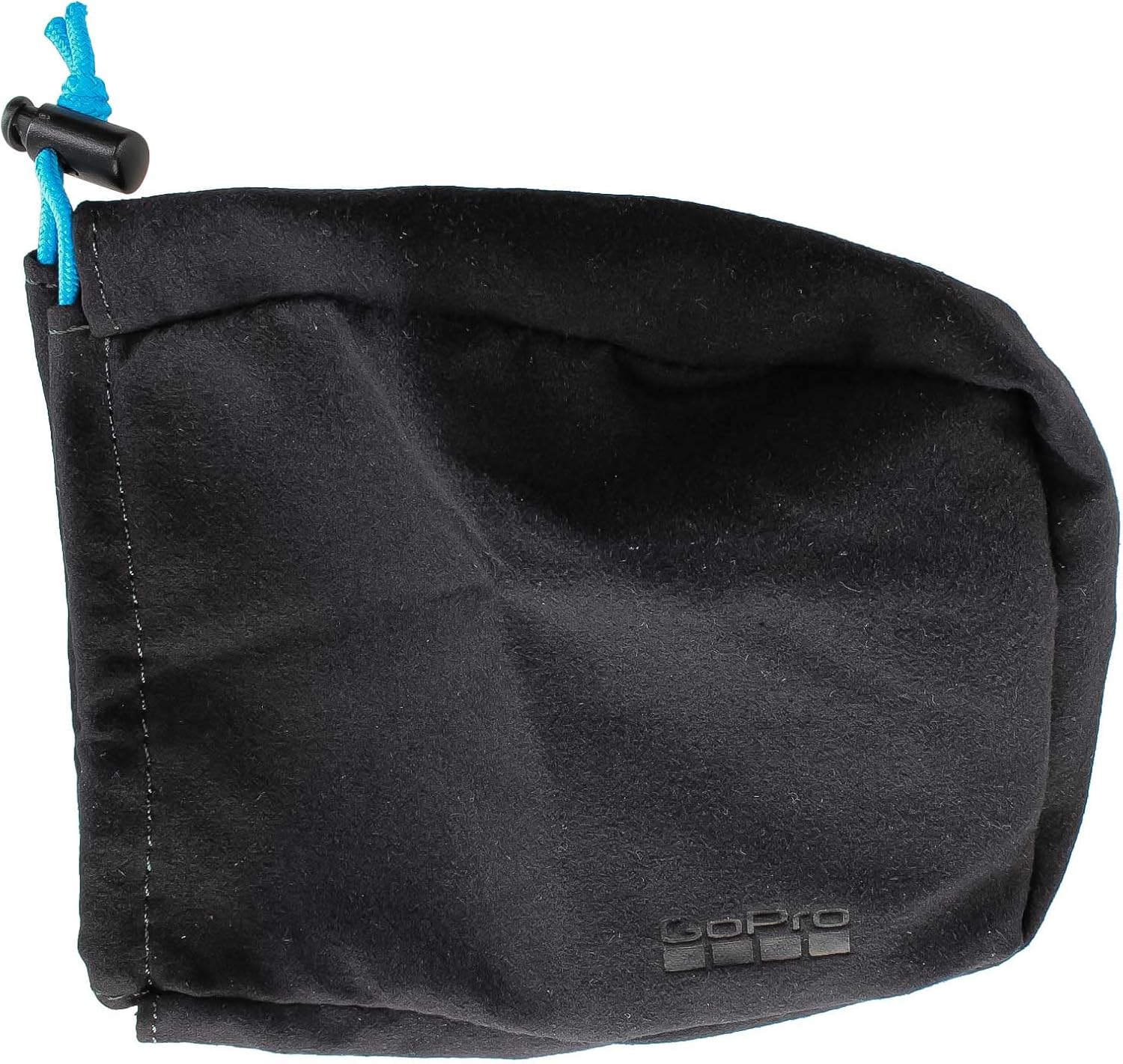
Image: The black microfiber bag provided with the GoPro MAX 360 (2025), useful for protecting the camera and cleaning its lenses.
Waterproof Care
The GoPro MAX 360 (2025) is waterproof up to 16 feet (5 meters) without additional housing. To maintain its waterproof integrity:
- Always ensure the battery door and USB-C port cover are fully closed and latched before exposing the camera to water.
- After use in saltwater, rinse the camera thoroughly with fresh water and allow it to air dry completely before opening any doors.
- Inspect the rubber seals on the doors periodically for any debris or damage.
Troubleshooting
Camera Not Powering On
- Ensure the battery is fully charged.
- Verify the battery is inserted correctly.
- Try removing and reinserting the battery.
Recording Issues (Freezing, Corrupted Files)
- Use a recommended high-speed microSD card (UHS-I / V30 / U3 / A1).
- Format the microSD card regularly within the camera's settings.
- Ensure the camera's firmware is up to date.
Overheating
It is normal for the camera to become warm during extended recording, especially in high-resolution modes or warm environments. If the camera displays an overheating warning, stop recording and allow it to cool down before resuming use.
Connectivity Problems
- Ensure Wi-Fi and Bluetooth are enabled on both the camera and your mobile device.
- Restart both the camera and your mobile device.
- Forget the camera from your device's Bluetooth/Wi-Fi settings and re-pair.
Specifications
| Feature | Detail |
|---|---|
| Brand | GoPro |
| Model Name | Max360 (2025) |
| Video Capture Resolution | 5.6K (Spherical), 1440p/1080p (HERO Mode) |
| Photo Resolution | 16.6MP (360 Photo), 5.5MP (HERO Photo) |
| Waterproof Depth | Up to 16 feet (5 meters) without housing |
| Stabilization | MAX HyperSmooth Digital Stabilization with Horizon Leveling |
| Audio | Spherical Audio (6 Microphones) |
| Connectivity | GPS, Wi-Fi, Bluetooth, USB-C |
| Flash Memory Type | MicroSDHC (UHS-I / V30 / U3 / A1 recommended) |
| Battery | GoPro Enduro 1600mAh Rechargeable Lithium Ion |
| Dimensions | 1.6 x 2.5 x 2.7 inches |
| Item Weight | 13.9 ounces |
Warranty and Support
For detailed warranty information and technical support, please visit the official GoPro support website. You can find FAQs, troubleshooting guides, firmware updates, and contact information for customer service.
GoPro Support: https://gopro.com/help
Product Registration: Register your product online to receive important updates and support.
Related documentsMax360 (2025)

Ask a question about this manual
Ask about setup, troubleshooting, compatibility, parts, safety, or missing instructions. Manuals+ will review the question and use this page’s manual context to help answer it.