
Introduction
This manual provides detailed instructions for the installation, operation, and maintenance of your MekedeTech Android 13 Car Touch Screen Head Unit. This unit is specifically designed for the Nissan Serena C27 models from 2020 to 2022, offering an enhanced in-car entertainment and navigation experience with its 11.5-inch QLED display and Android 13 operating system. Please read this manual thoroughly before using the product to ensure proper function and safety.
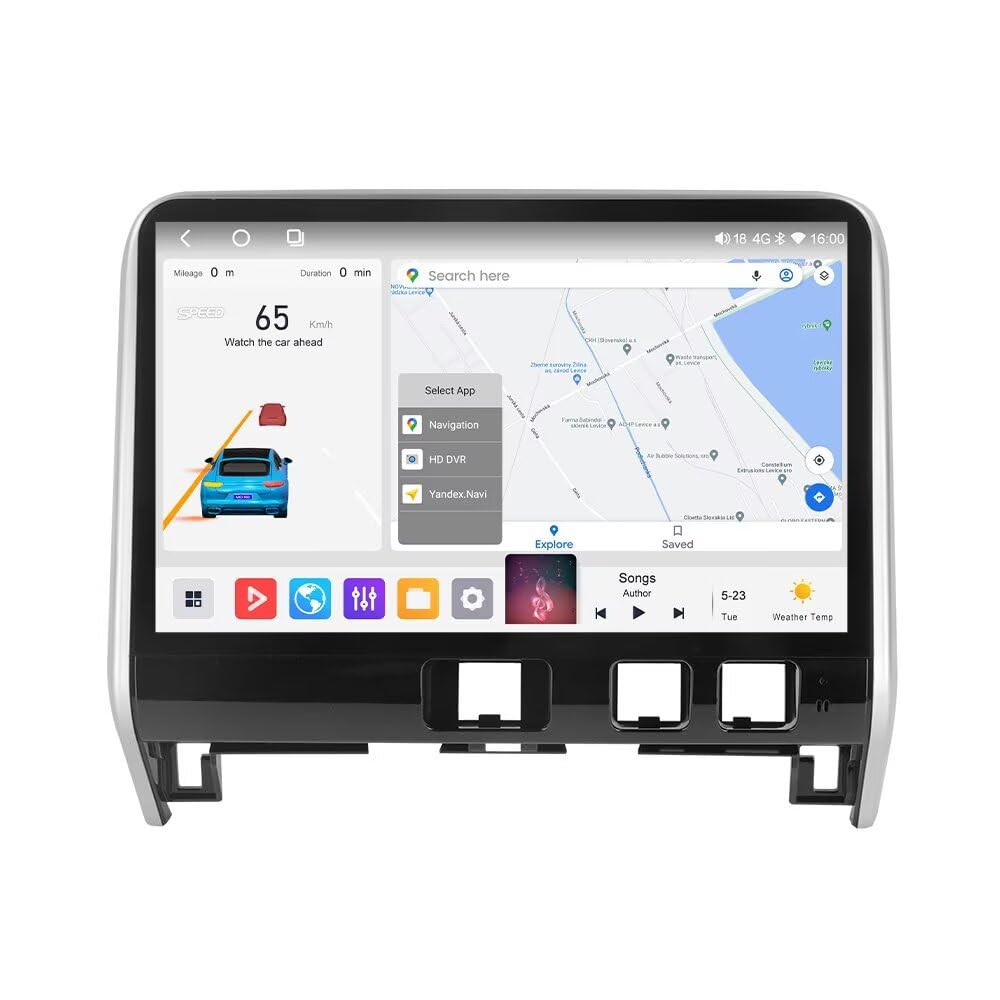
Image: The MekedeTech Android 13 Car Touch Screen Head Unit, showcasing its large display and integration into a vehicle dashboard.
Package Contents
Verify that all items listed below are included in your package. If any items are missing or damaged, please contact customer support.

Image: A visual representation of the components included in the product package, such as the main unit, various cables, and antennas.
- Main Head Unit (Machine)
- Power Cable
- RCA Cable
- Reversing Camera (optional, if included in your specific package)
- Audio Out Cable
- 4G Antenna
- GPS Antenna
- Microphone (MIC)
- USB Plugs (x3)
Setup
1. Installation
The MekedeTech head unit is designed for a direct fit in Nissan Serena C27 models (2020-2022). The wiring harness is largely plug-and-play, minimizing the need for splicing. However, professional installation is highly recommended to ensure correct wiring, secure mounting, and optimal performance, especially for features like the reversing camera and steering wheel controls.
Ensure the vehicle's power is disconnected before beginning installation. Carefully follow the vehicle-specific wiring diagrams and mounting instructions. After installation, reconnect power and perform initial system checks.

Image: A visual comparison of the car's dashboard before and after the installation of the new Android head unit, highlighting the integrated appearance.
2. Initial Power On and Configuration
- After installation, turn on your vehicle's ignition. The head unit should power on automatically.
- Follow the on-screen prompts for initial setup, including language selection, time zone, and network connection.
- Connect to a Wi-Fi network or insert a 4G SIM card (if applicable) to enable internet access for app downloads and online services.
- Calibrate steering wheel controls if necessary through the system settings.
Operating Instructions
1. Wireless CarPlay and Android Auto
The head unit supports wireless CarPlay for iOS devices and wireless Android Auto for Android devices, providing seamless integration of your smartphone's features.
- Connection Steps:
- Enable Bluetooth on your smartphone and the head unit.
- Pair your smartphone with the head unit via Bluetooth.
- On the head unit, select the "Car Link" application.
- Follow the on-screen instructions to establish the wireless CarPlay or Android Auto connection.
- Note: CarPlay and Android Auto can also be connected via a USB cable for a wired connection.

Image: Instructions for connecting iOS and Android smartphones wirelessly to the head unit for CarPlay and Android Auto functionality.
2. Steering Wheel Control (SWC)
The head unit supports your vehicle's existing steering wheel controls, allowing you to manage audio playback, volume, and calls without taking your hands off the wheel. This feature enhances driving safety and convenience.
- Access the SWC settings in the system menu to program or calibrate buttons if they do not function automatically after installation.
- Common functions include volume up/down, track skip, mode selection, and answer/end call.

Image: A visual demonstration of using steering wheel controls to operate the head unit's functions, such as music playback.
3. DSP Processor (Digital Sound Processor)
The integrated DSP chip allows for high-precision professional audio tuning. You can adjust various frequencies and sound characteristics to customize your audio experience.
- Access the DSP settings through the main menu.
- Adjust the 36-band equalizer to fine-tune bass, treble, and mid-range frequencies.
- Explore options for sound field, surround effects, bass enhancement, and bass filter to optimize sound output.
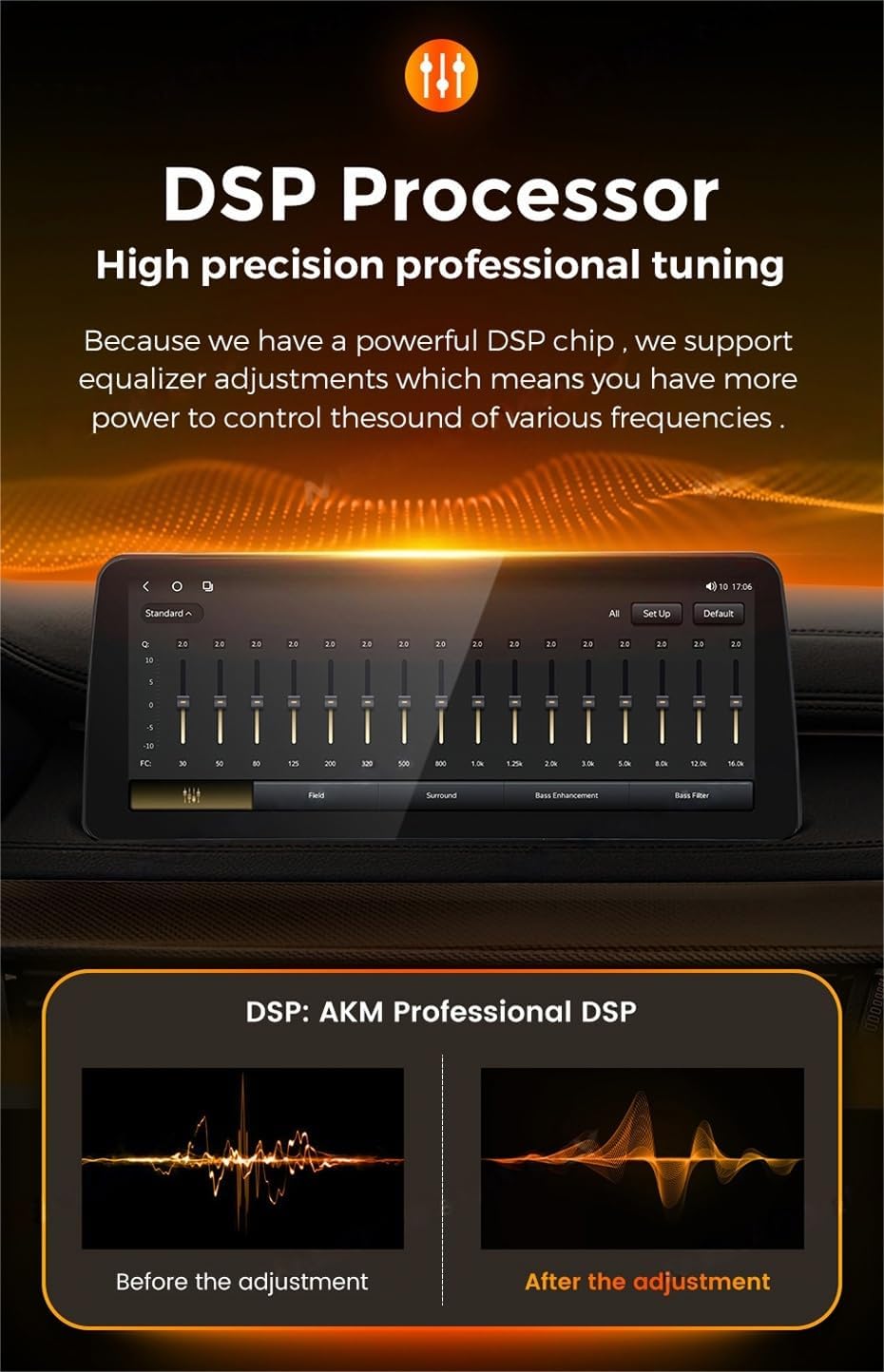
Image: The DSP interface on the head unit, demonstrating the equalizer and sound adjustment options, along with a visual representation of sound before and after DSP processing.
4. RDS Radio (FM/AM)
The head unit features an RDS-enabled FM/AM radio tuner, supporting both automatic and manual station searching. The TDA 7850 and TDA 7708 power amplifiers ensure clear audio reception.
- Navigate to the Radio application from the main menu.
- Use the automatic search function to scan for available stations or manually tune to a specific frequency.
- Drag and drop station icons to customize your channel list for quick access.

Image: The radio interface of the head unit, showing FM/AM tuning and station management features.
5. 4G LTE Functionality
The head unit includes a built-in 4G LTE module and a SIM card slot, allowing you to connect to the internet directly via a cellular network. This provides continuous online access for navigation, streaming, and app usage without relying on a Wi-Fi hotspot.
- Insert a compatible 4G SIM card into the designated slot (refer to installation guide for location).
- Ensure mobile data is enabled in the system settings.
- The unit will automatically connect to the 4G network, providing internet access.
6. GPS Navigation
With the built-in GPS module and included GPS antenna, the head unit supports various online map applications. You can download and use your preferred navigation software from the Google Play Store.
- Ensure the GPS antenna is properly installed and positioned for optimal signal reception.
- Download and install your desired navigation app (e.g., Google Maps, Waze) from the Play Store.
- Use the app to plan routes, view real-time traffic, and receive turn-by-turn directions.
7. Display Door and Light Switch Status
For vehicles equipped with CANbus support, the head unit can display real-time information about your car's door status (open/closed) and light switch status (on/off). This feature provides convenient visual feedback directly on the screen.

Image: Visual indicators on the head unit screen showing the status of car doors and lights, available with CANbus integration.
Maintenance
- Screen Cleaning: Use a soft, lint-free cloth specifically designed for electronics to clean the QLED touch screen. Do not use abrasive cleaners or solvents.
- Software Updates: Periodically check for system software updates through the unit's settings menu to ensure optimal performance and access to new features.
- Environmental Conditions: Avoid exposing the unit to extreme temperatures, direct sunlight for prolonged periods, or excessive moisture.
- Cable Connections: Ensure all cables are securely connected. Loose connections can lead to intermittent issues.
Troubleshooting
| Problem | Possible Cause | Solution |
|---|---|---|
| Unit does not power on. | Loose power connection, blown fuse, vehicle power issue. | Check power cable connections. Inspect vehicle fuses. Consult a professional installer. |
| No sound output. | Volume too low, mute activated, incorrect audio settings, loose speaker wires. | Increase volume. Check mute status. Verify audio output settings. Ensure speaker wires are connected. |
| GPS signal is weak or lost. | GPS antenna improperly installed or obstructed. | Ensure GPS antenna has a clear view of the sky and is securely connected. |
| CarPlay/Android Auto not connecting. | Bluetooth not paired, 'Car Link' app not selected, phone compatibility issue. | Verify Bluetooth pairing. Open 'Car Link' app. Ensure phone OS is compatible. Try wired connection. |
| Touch screen unresponsive. | System freeze, temporary software glitch. | Restart the head unit (refer to system settings for restart option or power cycle the vehicle). |
Specifications
- Model Number: 4+64G
- Operating System: Android 13 OS
- CPU: 8-Core A53 1.6GHz
- Memory: 4GB RAM, 64GB ROM
- Display Size: 11.5 inch QLED Touch Screen
- Display Resolution: 1920*720
- Power Output: 4*50W
- Special Features: Bluetooth, Touchscreen, Wireless CarPlay, Wireless Android Auto, Built-in 4G LTE, WiFi, AM/FM Radio, Built-in DSP (36 EQ band), GPS Navigation
- Connectivity Technology: Wireless (Bluetooth, WiFi, 4G LTE)
- Human Interface Input: Buttons, Keyboard, Microphone, Touchscreen
- Map Type: Worldwide (via online apps)
Warranty
This MekedeTech head unit comes with a 1-Year Warranty from the date of purchase. The warranty covers manufacturing defects and malfunctions under normal use. It does not cover damage caused by improper installation, misuse, accidents, or unauthorized modifications. Please retain your proof of purchase for warranty claims.
Support
For technical assistance, troubleshooting, or warranty inquiries, please contact MekedeTech customer support. You can typically find contact information on the official MekedeTech website or through your original point of purchase.
Manufacturer: Shenzhen Mekede Technology Co.,Ltd
For additional resources and product information, visit the MekedeTech Store on Amazon.
