1. Introduction
Thank you for choosing the Gueray HJG146CD Retro CD Player with Speakers. This device combines classic aesthetics with modern functionality, offering multiple playback options including CD, Bluetooth, FM radio, USB, and AUX. This manual provides essential information for safe and efficient use of your new CD player.
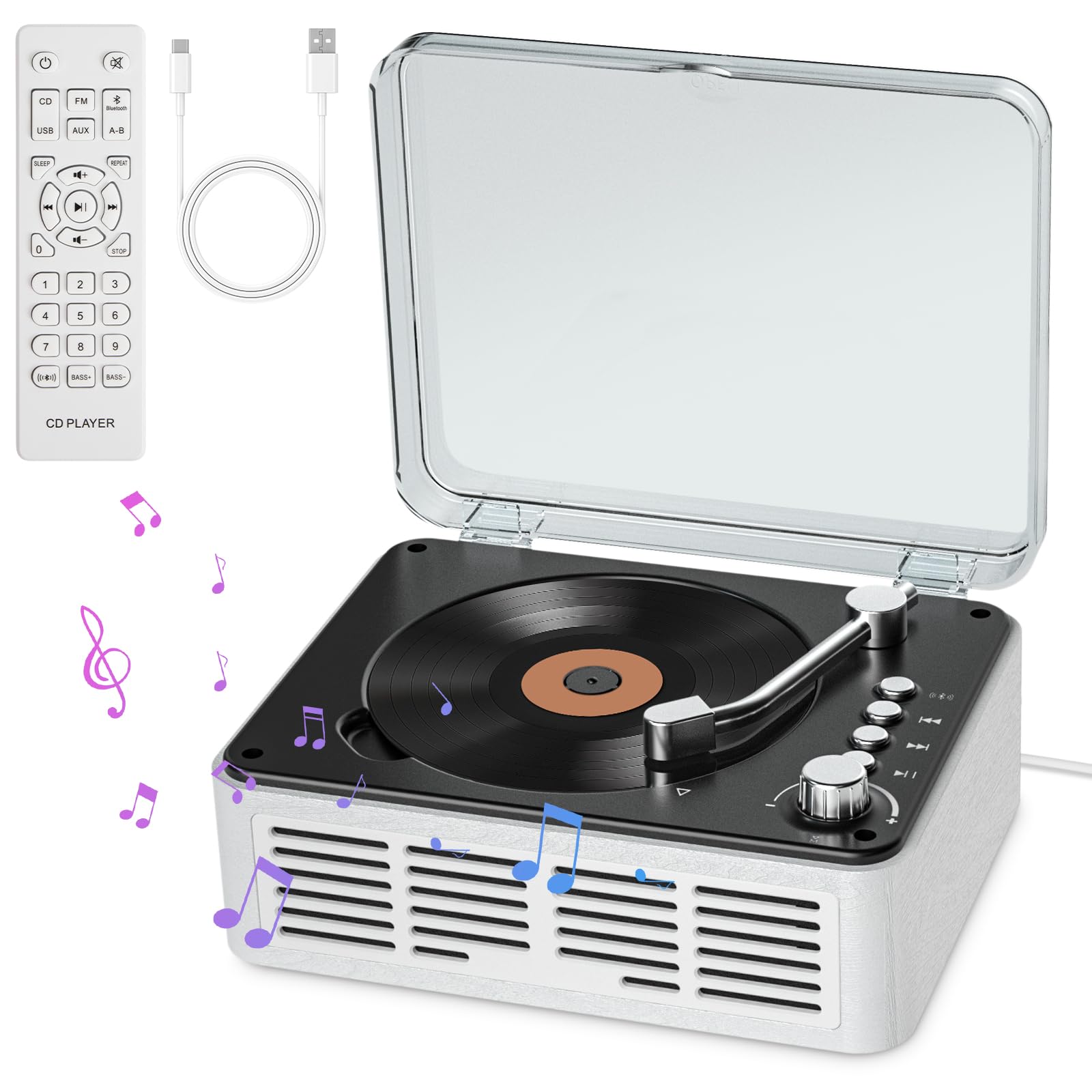
Image: Front view of the Gueray HJG146CD Retro CD Player with its protective lid closed.
Video: An overview of the Gueray YRQ146 Retro CD Player, demonstrating its various uses and features.
2. What's in the Box
- CD Player
- Remote Control
- User Manual
- Type-C Power Cable (1.5m)
- 5V-2A USB Adapter

Image: Visual representation of all items included in the product package.
3. Setup
- Power Connection: Connect the provided Type-C power cable to the CD player's power input and plug the USB adapter into a standard wall outlet. Ensure the power button on the back of the unit is in the 'ON' position.
- Placement: Place the CD player on a stable, flat surface. Ensure adequate ventilation around the unit.
- Initial Power On: The unit will power on and display the current mode.
4. Operating Instructions
4.1 Mode Selection
Press the 'MODE' button on the top panel or the remote control to cycle through available modes: CD, FM Radio, USB, AUX, Bluetooth Receiver, and Bluetooth Transmitter.

Image: Visual guide to the six available playback modes on the CD player.
4.2 CD Playback
- Switch to CD mode.
- Gently lift the transparent lid.
- Place a CD onto the spindle, ensuring it is seated correctly.
- Close the lid. The CD player will automatically begin reading the disc.
- Use the Play/Pause, Next/Previous Track buttons, and the volume knob on the unit or remote control to manage playback.
4.3 Bluetooth Receiver Mode
This mode allows you to stream audio from your smartphone, tablet, or other Bluetooth-enabled devices to the CD player's speakers.
- Switch the CD player to Bluetooth Receiver mode. The display will show "BT IN" or similar, and an audible prompt will confirm the mode.
- On your external device (e.g., smartphone), enable Bluetooth and search for available devices.
- Select "Y-CD-146" from the list of devices to pair.
- Once paired, you can play music from your device, and the audio will output through the CD player's speakers. Adjust volume using both your device and the CD player's volume control.

Image: Illustration of the Bluetooth Receiver function, connecting to various smart devices.
Video: Detailed instructions on how to connect your mobile phone to the CD player using Bluetooth Receiver mode.
4.4 Bluetooth Transmitter Mode
This mode allows the CD player to transmit audio from a playing CD to external Bluetooth headphones or speakers.
- Switch the CD player to Bluetooth Transmitter mode. The display will show "BT OUT" or similar, and an audible prompt will confirm the mode.
- Ensure your Bluetooth headphones or speakers are in pairing mode and not connected to any other device.
- The CD player will automatically search for and connect to nearby Bluetooth audio devices.
- Once connected, the CD audio will play through your external Bluetooth device.

Image: Illustration of the Bluetooth Transmitter function, connecting to wireless headphones or a Bluetooth speaker.
4.5 FM Radio Mode
- Switch to FM Radio mode.
- Use the tuning controls (usually Next/Previous Track buttons) to scan for radio stations.
- The display will show the current frequency.

Image: A person enjoying music in FM Mode, highlighting the relaxed listening experience.
4.6 USB Playback
- Switch to USB mode.
- Insert a USB flash drive containing audio files into the USB port.
- The player will automatically detect and begin playing compatible audio files.
4.7 AUX Mode
- Switch to AUX mode.
- Connect an external audio device (e.g., MP3 player) to the AUX input port using a 3.5mm audio cable (not included).
- Play audio from your external device. The sound will output through the CD player's speakers.

Image: The CD player being used in AUX Mode, demonstrating its versatility in different environments.
4.8 Remote Control
The included remote control allows convenient operation of all functions from a distance. Ensure the remote has working batteries and is pointed towards the front of the CD player.

Image: A hand holding the remote control, illustrating its use with the CD player.
5. Maintenance
- Cleaning: Use a soft, dry cloth to clean the exterior of the unit. Do not use abrasive cleaners or solvents.
- CD Care: Handle CDs by their edges. Clean dirty CDs with a soft, lint-free cloth, wiping from the center outwards.
- Storage: When not in use for extended periods, unplug the device and store it in a cool, dry place.
- Ventilation: Ensure the ventilation grilles are not obstructed to prevent overheating.
6. Troubleshooting
| Problem | Possible Cause | Solution |
|---|---|---|
| No power | Power cable not connected; Power outlet faulty; Power button off | Check power cable connection; Try a different outlet; Ensure power button on back is ON |
| CD not playing/skipping | CD dirty or scratched; CD inserted incorrectly; Player in wrong mode | Clean or replace CD; Reinsert CD correctly; Switch to CD mode |
| No sound | Volume too low; Mute activated; Incorrect mode selected | Increase volume; Deactivate mute; Select correct playback mode |
| Bluetooth pairing issues | Device too far; Bluetooth not enabled on external device; Incorrect Bluetooth mode on player | Move devices closer; Enable Bluetooth on external device; Ensure player is in correct Bluetooth mode (Receiver/Transmitter) |
| FM radio poor reception | Weak signal; Interference | Adjust player position; Try tuning to a stronger station |
7. Specifications
- Model Number: HJG146CD
- Brand: Gueray
- Connectivity Technology: Bluetooth
- Color: White
- Compatible Devices: Headphone, Smartphone, Speaker
- Style: Retro
- Package Dimensions: 9.33 x 8.11 x 4.29 inches
- Item Weight: 2.61 pounds
- Manufacturer: Gueray
- Date First Available: March 25, 2025
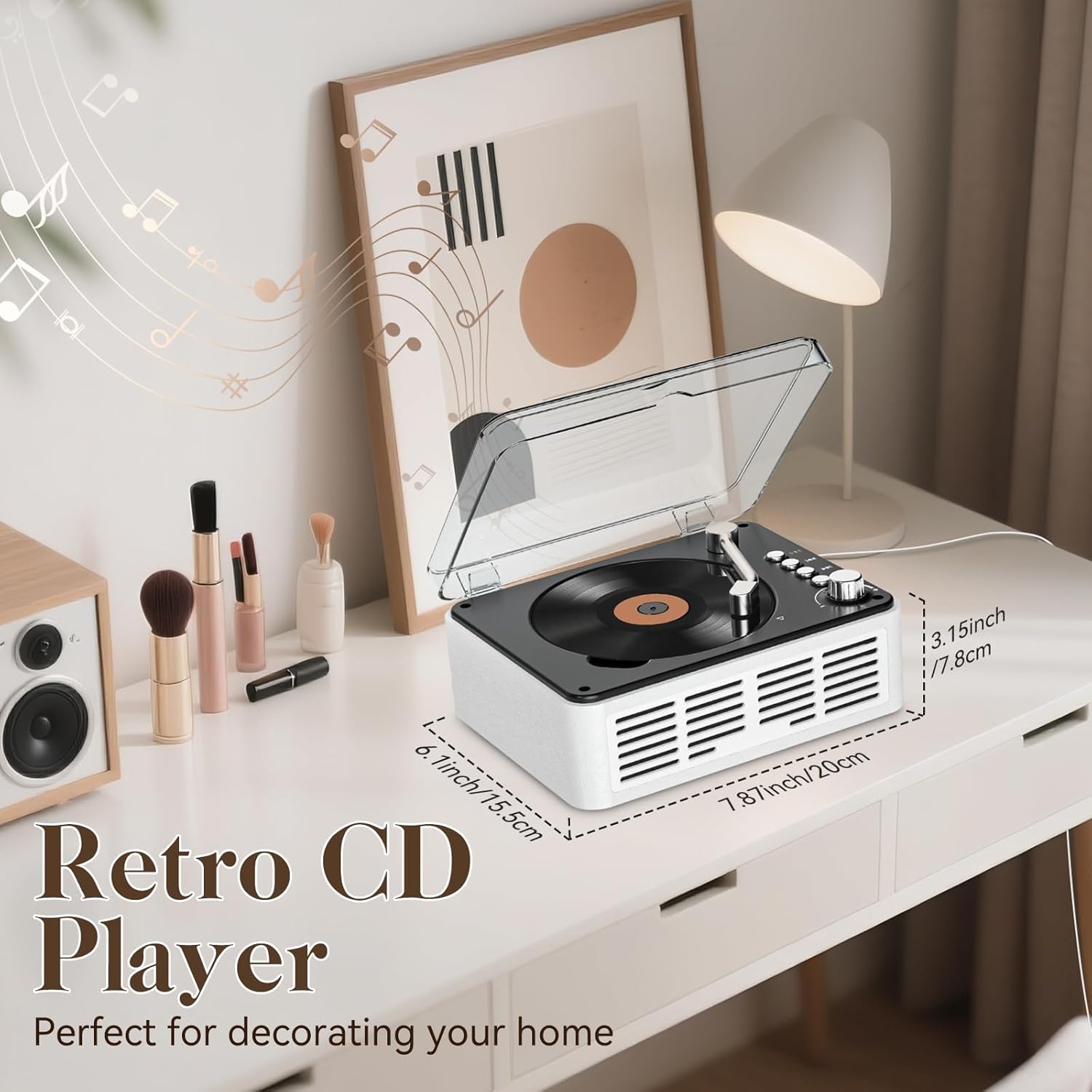
Image: The Gueray HJG146CD CD Player with its key dimensions indicated.
8. Warranty and Support
For warranty information or technical support, please refer to the contact details provided on the product packaging or visit the official Gueray website. Keep your purchase receipt as proof of purchase for any warranty claims.