1. Introduction
This manual provides detailed instructions for the setup, operation, and maintenance of your Veout V1 Pro 16-inch 2.5K 144Hz Portable Gaming Monitor. Please read this manual thoroughly before using the product to ensure optimal performance and longevity. Keep this manual for future reference.

Image: The Veout V1 Pro monitor, showcasing its high-resolution and refresh rate capabilities.
2. Key Features
- 2.5K Ultra HD Display: 2560×1600 resolution with 188 PPI and a 16:10 aspect ratio for enhanced content efficiency. Features 8-bit color depth (16.7 million colors) and ΔE < 3 color accuracy.
- 144Hz High Refresh Rate + FreeSync: IPS panel with 100% sRGB gamut, 144Hz refresh rate, and AMD FreeSync technology for smooth visuals. 1ms fast response time, low-blue-light, and flicker-free technology for reduced eye fatigue. (Note: Max 120Hz via HDMI, 144Hz via USB-C).
- Ultra-Slim Aluminum Design: Weighs 1.58lbs and is 0.36 inches thick. Features a built-in aluminum stand adjustable from 0° to 75° and supports portrait mode.
- Universal Compatibility: Dual USB-C ports and Mini HDMI for plug-and-play connection to laptops, smartphones, PS4/5, Xbox, and Switch 1/2. Built-in speakers included.
- Global Certifications: Passed FCC, CE, RoHS, UKCA, KC, and PSE safety certifications. Holds original design patents and the MUSE Design Gold Award.
3. What's in the Box
Verify that all items are present in the package:
- 1 x 16'' Portable Monitor
- 1 x USB-C to USB-A Cable
- 1 x USB-C to USB-C Cable
- 1 x Mini-HDMI to HDMI Cable
- 1 x 15W Power Adapter
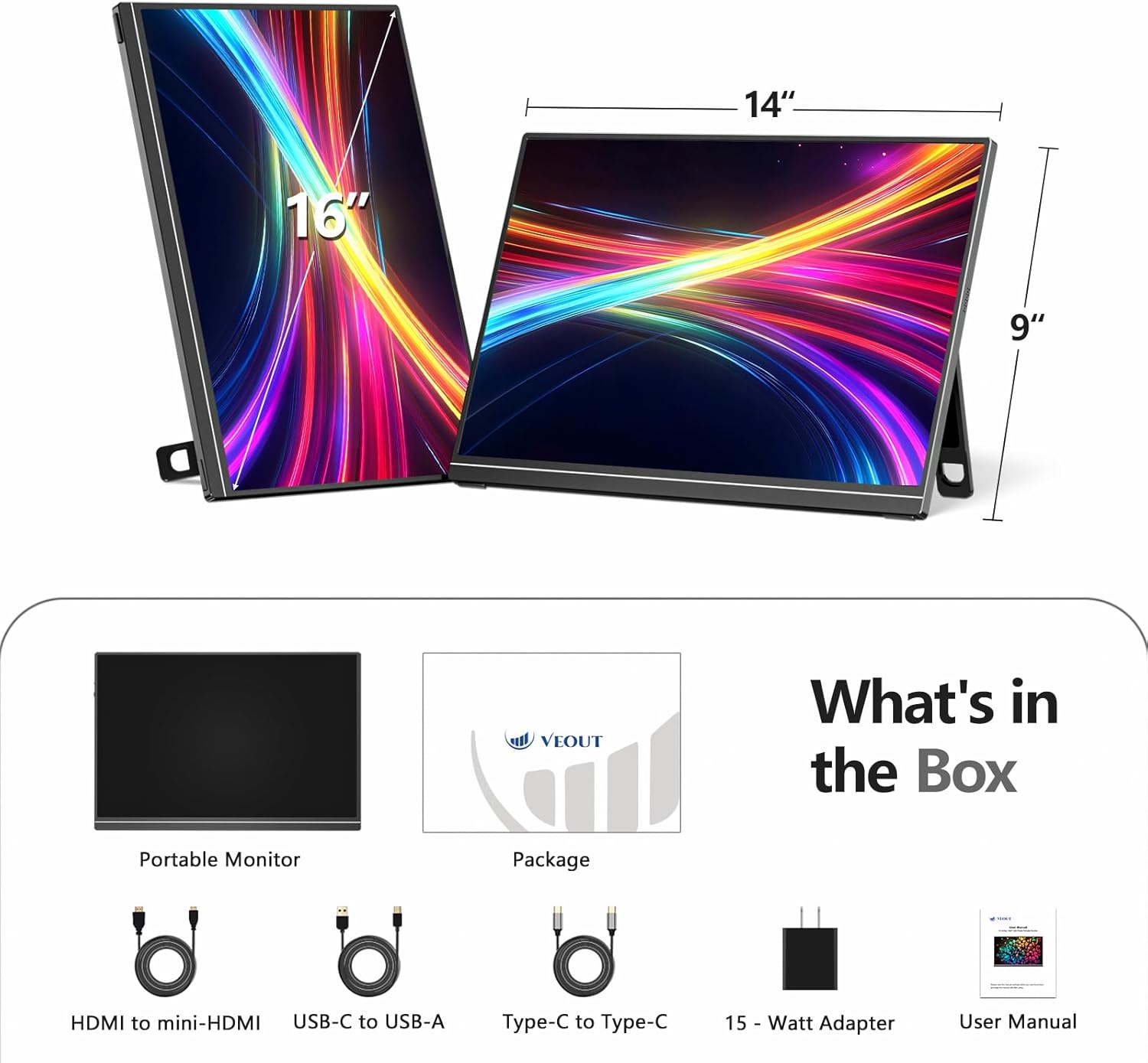
Image: All included accessories and the portable monitor.
4. Product Overview
4.1 Ports and Controls
The Veout V1 Pro monitor features multiple ports for versatile connectivity and intuitive controls for easy adjustment.
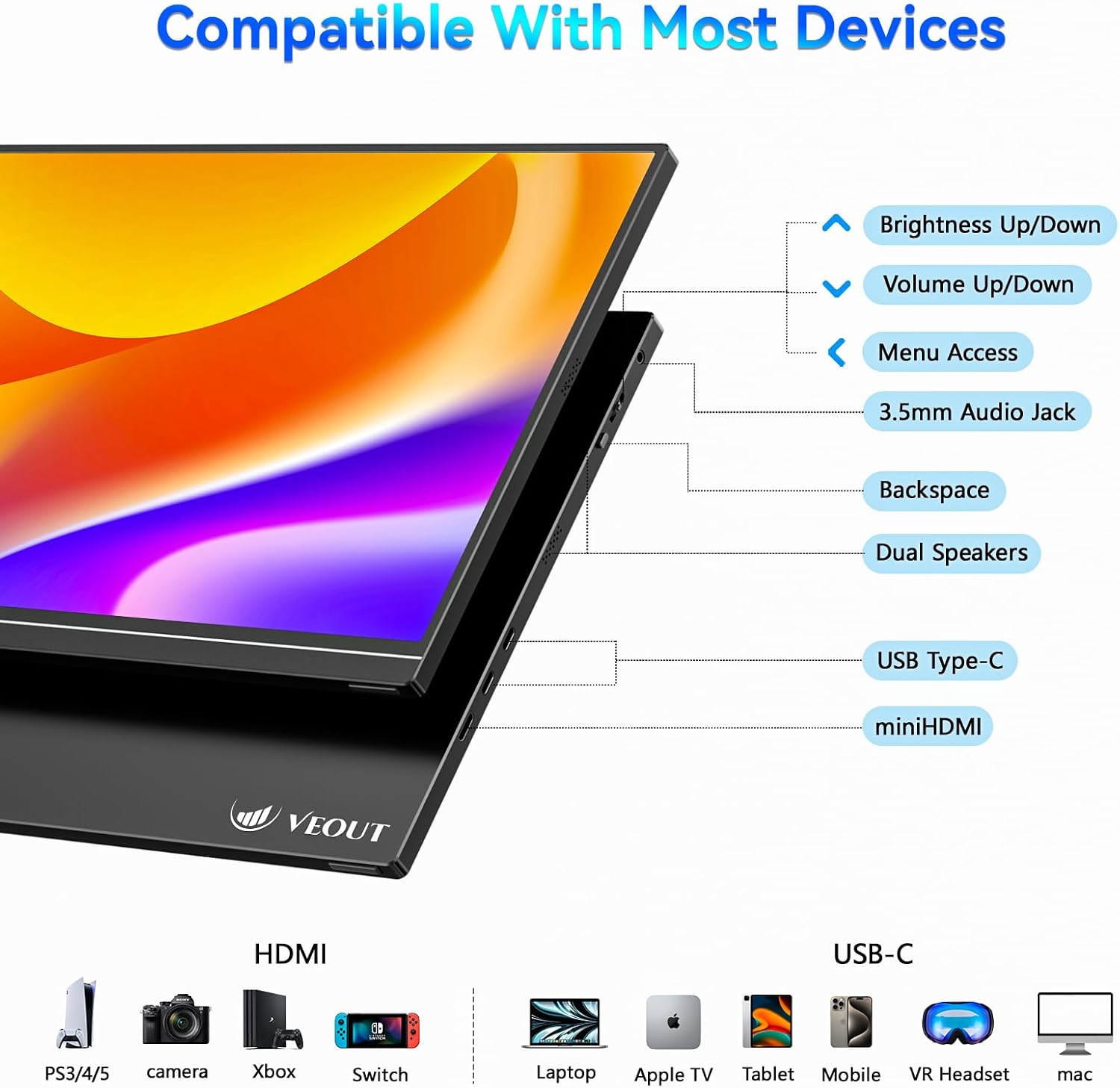
Image: Detailed view of the monitor's ports and control buttons.
- Brightness Up/Down: Adjusts screen brightness.
- Volume Up/Down: Controls the volume of the built-in speakers.
- Menu Access: Navigates the on-screen display (OSD) menu.
- 3.5mm Audio Jack: For connecting external headphones or speakers.
- Backspace: Used for navigation within the OSD menu.
- Dual Speakers: Integrated audio output.
- USB Type-C (x2): Supports video signal, power delivery, and data transfer.
- Mini HDMI: For video input only.
4.2 Physical Features
The monitor is designed for portability and flexibility, featuring a built-in stand and support for multiple orientations.

Image: The monitor's adjustable stand and ability to rotate for landscape or portrait viewing.
- Adjustable Stand: The integrated aluminum stand allows for angle adjustments from 0° to 75°.
- Portrait Mode: The monitor can be rotated 90° to function in portrait orientation, ideal for coding or document viewing.
- Aluminum Body: Durable and lightweight construction.
5. Setup and Connection
The Veout V1 Pro monitor offers flexible connectivity options for various devices. Ensure your device supports the necessary video output standards.
5.1 Connecting to Laptops
For laptops with a full-featured USB-C port (supporting video signal and power delivery), a single USB-C to USB-C cable is sufficient for both power and display. For other laptops, use the Mini HDMI for video and a USB-C to USB-A cable with the power adapter for power.

Image: Connecting the monitor to a laptop using a single USB-C cable.
5.2 Connecting to Smartphones and Tablets
For smartphones and tablets with a full-featured USB-C port (supporting DP Alt Mode via USB-C 3.0+), a single USB-C to USB-C cable can provide display and power. Some phones may require an external power adapter. Avoid phones with USB-C 2.0-only ports.

Image: Phone compatibility and connection requirements for the portable monitor.
5.3 Connecting to Gaming Consoles
Connect gaming consoles like PS4/5, Xbox, and Nintendo Switch (docked mode) using the Mini HDMI to HDMI cable for video. Power may need to be supplied via a USB-C cable and the 15W power adapter.
5.4 Compatibility Check
Before connecting, ensure your device has either a full-featured USB-C port (supporting video signal and power delivery) or a standard HDMI port for video transmission.

Image: Quick compatibility check for USB-C and HDMI ports.
6. Operating Instructions
6.1 Display Settings
Use the control buttons on the monitor to access the On-Screen Display (OSD) menu. Here you can adjust settings such as brightness, contrast, color temperature, and input source. Refer to the 'Product Overview' section for button locations.
6.2 Orientation Modes
The monitor supports both landscape and portrait orientations. To switch modes, physically rotate the monitor and adjust the display settings on your connected device (e.g., laptop or smartphone) accordingly.
6.3 Gaming Features
Experience smooth gaming with the 144Hz refresh rate and AMD FreeSync technology, which helps eliminate screen tearing and stuttering. Ensure your connected device's graphics settings are configured to utilize these features.

Image: Visual comparison of 144Hz FreeSync versus 60Hz display during gaming.
6.4 Display Quality
The 2.5K Ultra HD IPS display offers sharp details, vibrant colors, and wide viewing angles. The matte screen reduces glare, enhancing readability in various lighting conditions.

Image: Comparison of 2.5K vs 1080p resolution, emphasizing pixel density and color accuracy.
Video: Overview of the Veout 2.5K/144Hz portable monitor, demonstrating its features and connectivity.
7. Maintenance
- Cleaning: Use a soft, lint-free cloth to clean the screen. For stubborn marks, lightly dampen the cloth with water or a screen-cleaning solution. Avoid harsh chemicals.
- Storage: When not in use, fold the stand and store the monitor in a protective sleeve or bag to prevent scratches and damage.
- Handling: Handle the monitor with care. Avoid dropping it or applying excessive pressure to the screen.
8. Troubleshooting
- No Signal:
- Ensure cables are securely connected to both the monitor and the source device.
- Verify the source device is powered on and configured to output video.
- Check the monitor's OSD menu to ensure the correct input source is selected (Auto, USB-C1, USB-C2, HDMI).
- Confirm your device's USB-C port supports video output (DP Alt Mode).
- No Power:
- If using a single USB-C cable, ensure the source device can provide sufficient power.
- Connect the monitor to the 15W power adapter using the USB-C to USB-A cable.
- Flickering/Unstable Display:
- Check cable connections.
- Reduce the refresh rate on your source device if experiencing issues, especially with HDMI connections (max 120Hz for HDMI).
- Ensure FreeSync is enabled/disabled as needed in the OSD menu or source device settings.
- No Audio:
- Adjust the monitor's volume via the control buttons.
- Check audio output settings on your source device.
- Ensure external speakers/headphones are properly connected to the 3.5mm audio jack.
9. Specifications
| Feature | Specification |
|---|---|
| Product Dimensions | 9.37 x 0.3 x 13.9 inches |
| Item Weight | 1.58 pounds |
| Item Model Number | V1Pro |
| Standing Screen Display Size | 16 Inches |
| Aspect Ratio | 16:10 |
| Resolution | 2560 x 1600 Pixels (2.5K) |
| Image Brightness | 300 Candela (nits) |
| Total USB Ports | 2 (USB-C) |
| Screen Surface Description | Matte |
10. Warranty and Support
The Veout V1 Pro monitor comes with a lifetime quality warranty. Enjoy 24/7 customer service and a 30-day free return policy. For technical assistance or warranty claims, please contact Veout customer support through the official channels.

Image: Warranty and support information.


