
Introduction
The Lusinx 4K Webcam Camera with Tripod is designed to provide high-quality video and audio for various applications, including video calls, online meetings, live streaming, and content creation. This manual provides detailed instructions for setting up, operating, and maintaining your webcam to ensure optimal performance.
What's in the Box
- 4K Webcam Camera
- Tripod
- USB Cable
- User Manual
- Lens Cap (Privacy Cover)

Figure 1: The package contents, including the 4K webcam, tripod, USB cable, user manual, and lens cap.
Setup Instructions
Connecting the Webcam
- Connect the USB cable from the webcam to an available USB 2.0, USB 3.0, or USB 3.1 port on your computer (desktop PC, laptop, Mac, or tablet).
- The webcam is plug-and-play and does not require additional driver installation. Your operating system should automatically detect and install the necessary drivers.
- Open your preferred video conferencing or streaming application (e.g., Zoom, OBS, Streamlabs) and select the Lusinx 4K Webcam as your video and audio input device.
Video 1: Demonstration of connecting the webcam to a laptop via USB, highlighting its plug-and-play functionality.
Mounting the Webcam
- On a Monitor/Laptop Screen: Use the built-in 180-degree flip-able clip to securely attach the webcam to the top edge of your laptop or PC monitor.
- On a Tripod: For more flexible placement, attach the webcam to the included 360-degree rotatable tripod. Ensure the tripod is placed on a stable, flat surface.

Figure 2: The webcam can be mounted on a monitor using its integrated clip or placed on the included tripod for versatile positioning.
Operating Instructions
Using the Privacy Cover
- The webcam includes a privacy cover that flips closed over the lens.
- To activate privacy, simply flip the cover down to shield the lens. This protects your privacy and also guards the lens from dust and scratches when not in use.
- To use the webcam, flip the cover up to expose the lens.
Video 2: Demonstration of the privacy cover mechanism, showing how it slides to cover and uncover the webcam lens.
Adjusting the Webcam Angle
- The webcam can be rotated 360 degrees horizontally when mounted on its tripod.
- The integrated clip allows for 180-degree vertical adjustment, enabling you to find the perfect viewing angle.
Video 3: Illustrates the webcam's flexibility with 360-degree rotation and vertical tilt for optimal positioning.
Software Compatibility
The Lusinx 4K Webcam is compatible with most popular operating systems and video communication platforms, including:
- Windows
- macOS
- Linux
- Android
- Zoom
- Skype
- Microsoft Teams
- OBS Studio
- Streamlabs OBS
Key Features
4K Ultra High Definition Video
The webcam features a wide-angle lens that delivers crisp, clear images and fluid video at 30 frames per second. This high resolution is ideal for gaming, video calling, online teaching, and live streaming, ensuring superior visual quality.

Figure 3: Visual comparison illustrating the superior clarity of 4K Ultra HD video from the webcam compared to standard 1080P.
Noise-Canceling Microphone
Equipped with a built-in microphone that reduces background noise, this webcam enhances the sound quality of your video. Your voice will be clear and audible even in noisy environments, making it suitable for gaming, video calls, and home/office conferencing.

Figure 4: The webcam features built-in microphones with noise reduction technology for clear audio capture during video calls and meetings.
Automatic Light Correction and Autofocus
The webcam includes automatic light correction and autofocus capabilities. It adjusts image brightness and restores color based on ambient light conditions, ensuring optimal video quality in various lighting scenarios. The autofocus feature maintains sharp focus on subjects, even with movement.
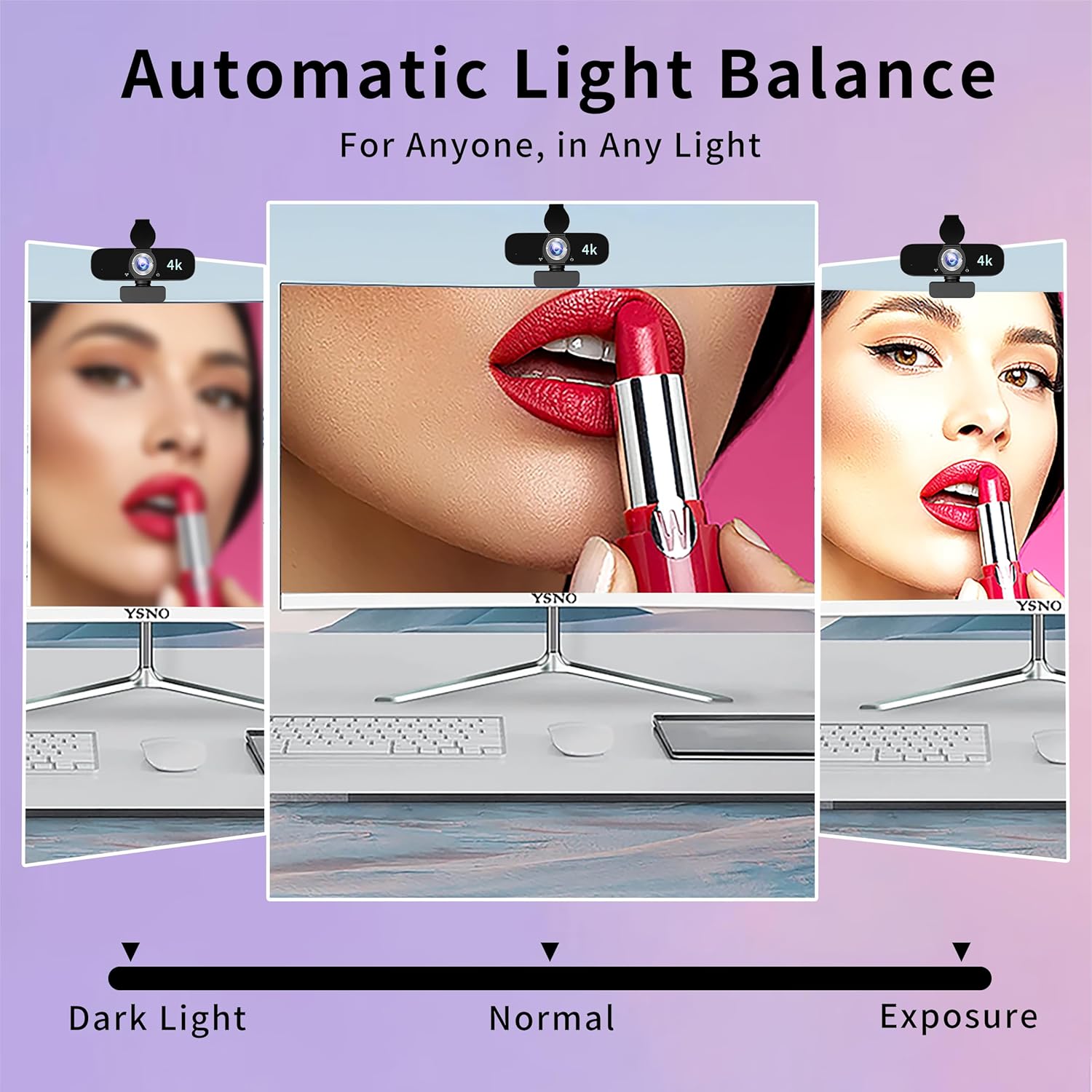
Figure 5: The webcam automatically adjusts light balance for clear images in dark, normal, and bright environments.
Wide Angle Lens
With a wide 120° Field of View (FOV), this webcam can accommodate more participants or capture a broader background, making it suitable for group meetings or presentations.

Figure 6: The wide 120° FOV allows the webcam to capture more participants or a larger area, ideal for group settings.
Specifications
| Feature | Specification |
|---|---|
| Brand | Lusinx |
| Model Number | TW |
| Video Capture Resolution | 4K |
| Connectivity Technology | USB |
| Special Features | 360 Degree Capture, Lightweight, Low Light, Microphone Input, Wind Noise Reduction |
| Item Weight | 7.3 ounces |
| Package Dimensions | 4.37 x 3.58 x 2.64 inches |
| Photo Sensor Technology | No Sensor |
| Maximum Focal Length | 30 Millimeters |
| Maximum Aperture | 1 Millimeters |
| Video Capture Format | MP4 |
| Supported Audio Format | AAC, MP3 |
| Screen Size | 8 Centimeters |
Maintenance
- Cleaning the Lens: Use a soft, dry microfiber cloth to gently wipe the webcam lens. Avoid using harsh chemicals or abrasive materials that could scratch the lens.
- Storage: When not in use, close the privacy cover to protect the lens from dust and potential damage. Store the webcam in a cool, dry place.
- Cable Care: Avoid sharply bending or twisting the USB cable to prevent internal damage.
Troubleshooting
- Webcam Not Detected:
- Ensure the USB cable is securely connected to both the webcam and your computer.
- Try plugging the webcam into a different USB port.
- Restart your computer.
- Check your operating system's device manager or privacy settings to ensure the webcam is enabled and accessible by applications.
- Poor Video Quality:
- Ensure the lens is clean and free of smudges or dust.
- Check your application's video settings to confirm 4K resolution is selected (if supported by the application and your internet bandwidth).
- Ensure adequate lighting in your environment. The webcam has auto low-light correction, but sufficient ambient light improves quality.
- Verify your internet connection speed, especially for streaming or high-resolution video calls.
- No Audio/Poor Audio Quality:
- Ensure the webcam is selected as the audio input device in your application's settings.
- Check your computer's sound settings to ensure the webcam microphone is enabled and not muted.
- Speak clearly and within a reasonable distance from the webcam for optimal sound pickup.
Warranty and Support
For warranty information, technical support, or further assistance, please refer to the contact details provided in the included User Manual or visit the official Lusinx website. Keep your purchase receipt for warranty claims.