
1. Introduction
Thank you for choosing the Bettdow Portable Touchscreen Monitor. This 15.6-inch Full HD (1920x1080) IPS display is designed to enhance your productivity and entertainment experience with its versatile connectivity and responsive touchscreen. It features a 178° wide viewing angle, dual USB-C ports, HDMI input, VESA mount compatibility, and comes with a magnetic smart cover for protection and convenience. The monitor delivers accurate and vibrant colors, making it suitable for various applications from work to gaming.

Image 1.1: The Bettdow Portable Touchscreen Monitor set up with its magnetic stand, showcasing its sleek design and touch functionality.
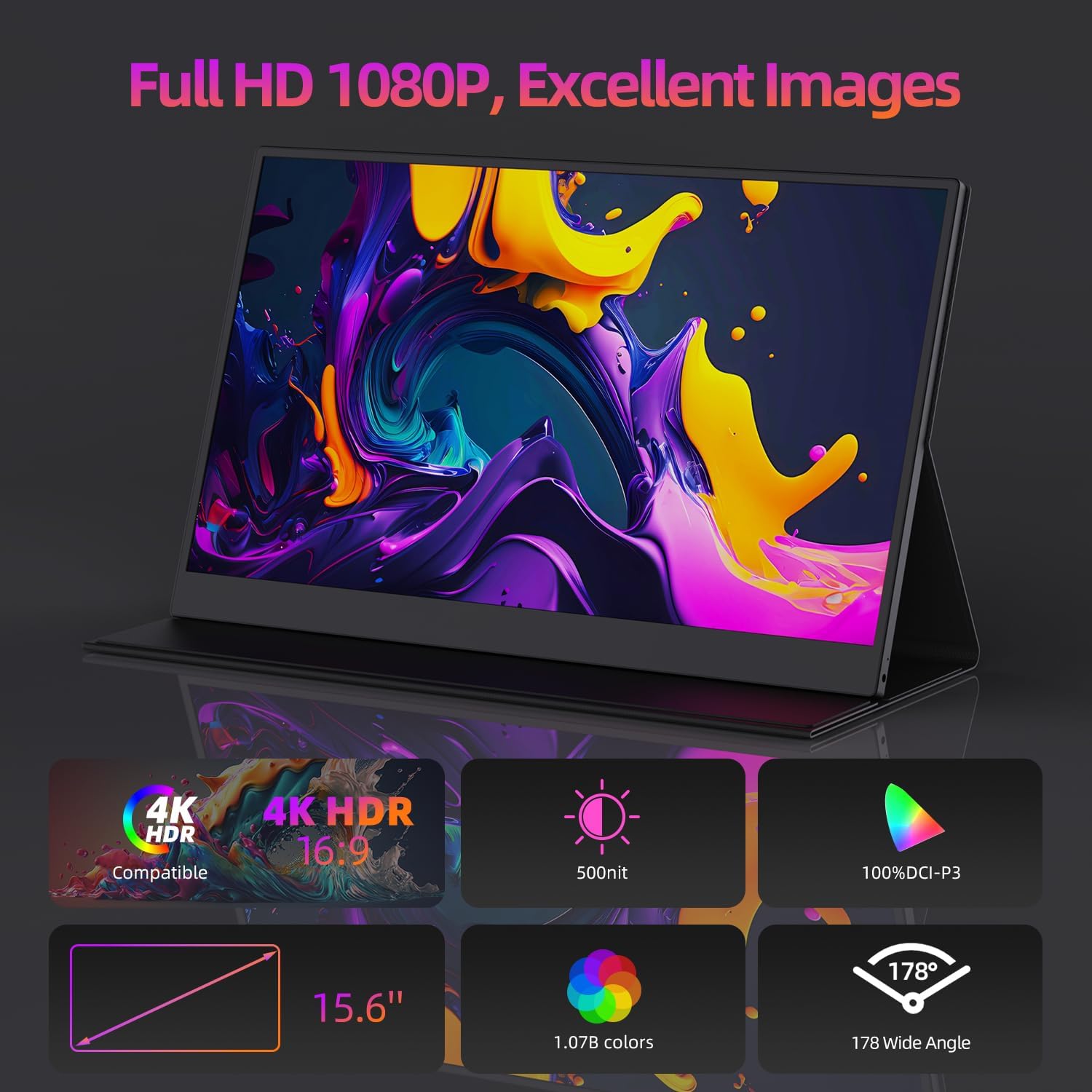
Image 1.2: Key display features of the Bettdow monitor, highlighting its visual performance capabilities.
2. Package Contents
Please verify that all items are present in the package:
- Bettdow 15.6-inch Portable Touchscreen Monitor
- Magnetic Smart Cover
- USB-C to USB-C Cable (for power and signal)
- Mini HDMI to HDMI Cable
- Power Adapter (not explicitly listed but implied by AC/DC power source)
- User Manual (this document)
3. Product Overview
Familiarize yourself with the monitor's ports and features.
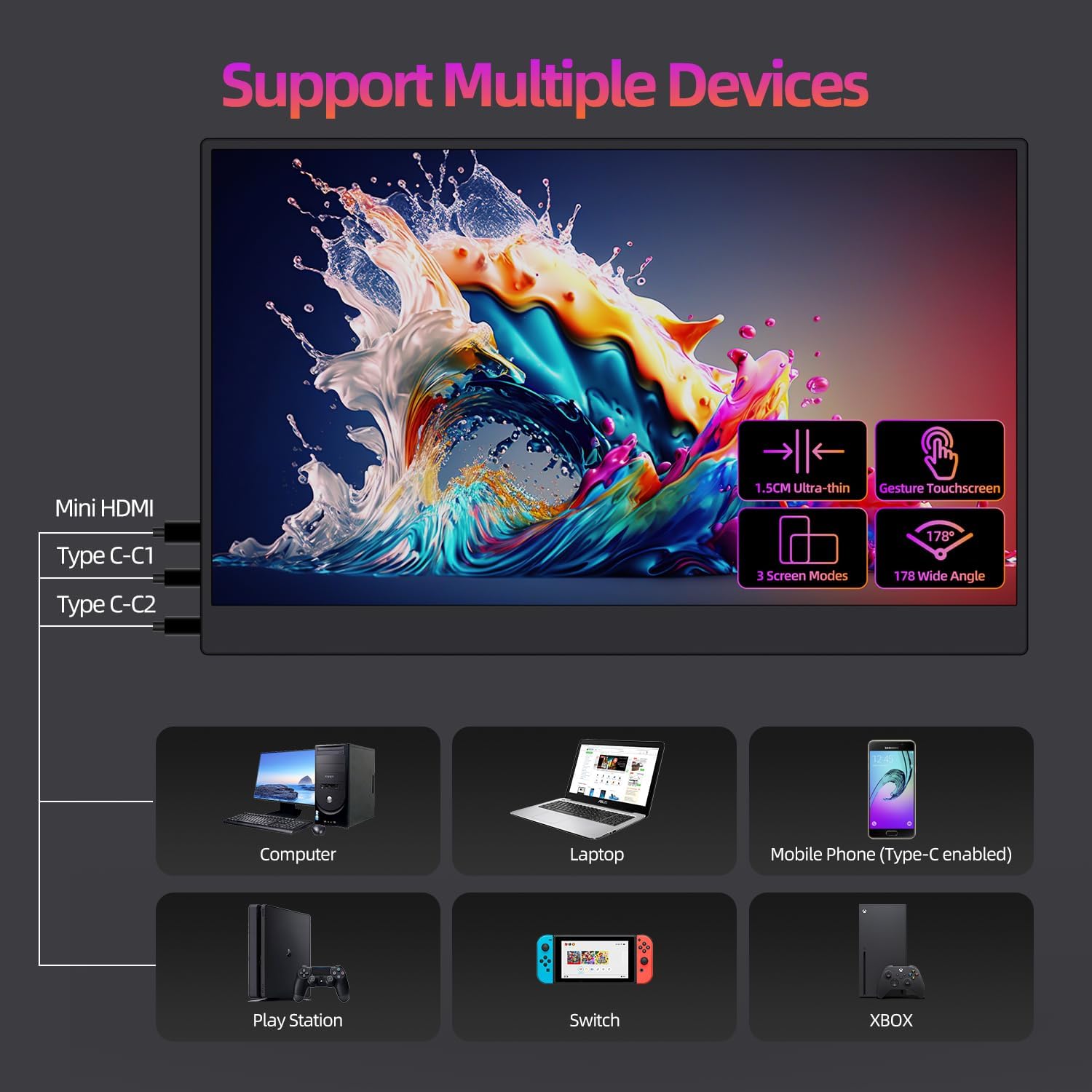
Image 3.1: Overview of monitor ports (Mini HDMI, Type C-C1, Type C-C2) and compatible devices including computers, laptops, mobile phones, PlayStation, Switch, and Xbox.
- Mini HDMI Port: For video input from devices with HDMI output.
- USB Type-C Ports (C1 & C2): Full-featured USB-C ports supporting power delivery, video signal, and touch data transmission. One cable can handle all functions for compatible devices.
- Power Button/OSD Menu: Typically located on the side for power on/off and accessing the On-Screen Display menu.
- Built-in Speakers: For audio output.
4. Setup and Connection
Follow these steps to connect your Bettdow Portable Monitor to your device.
4.1 Using the Magnetic Smart Cover
The included magnetic smart cover serves as both protection and a stand. Fold the cover into a triangular prism shape to prop up the monitor at a comfortable viewing angle.
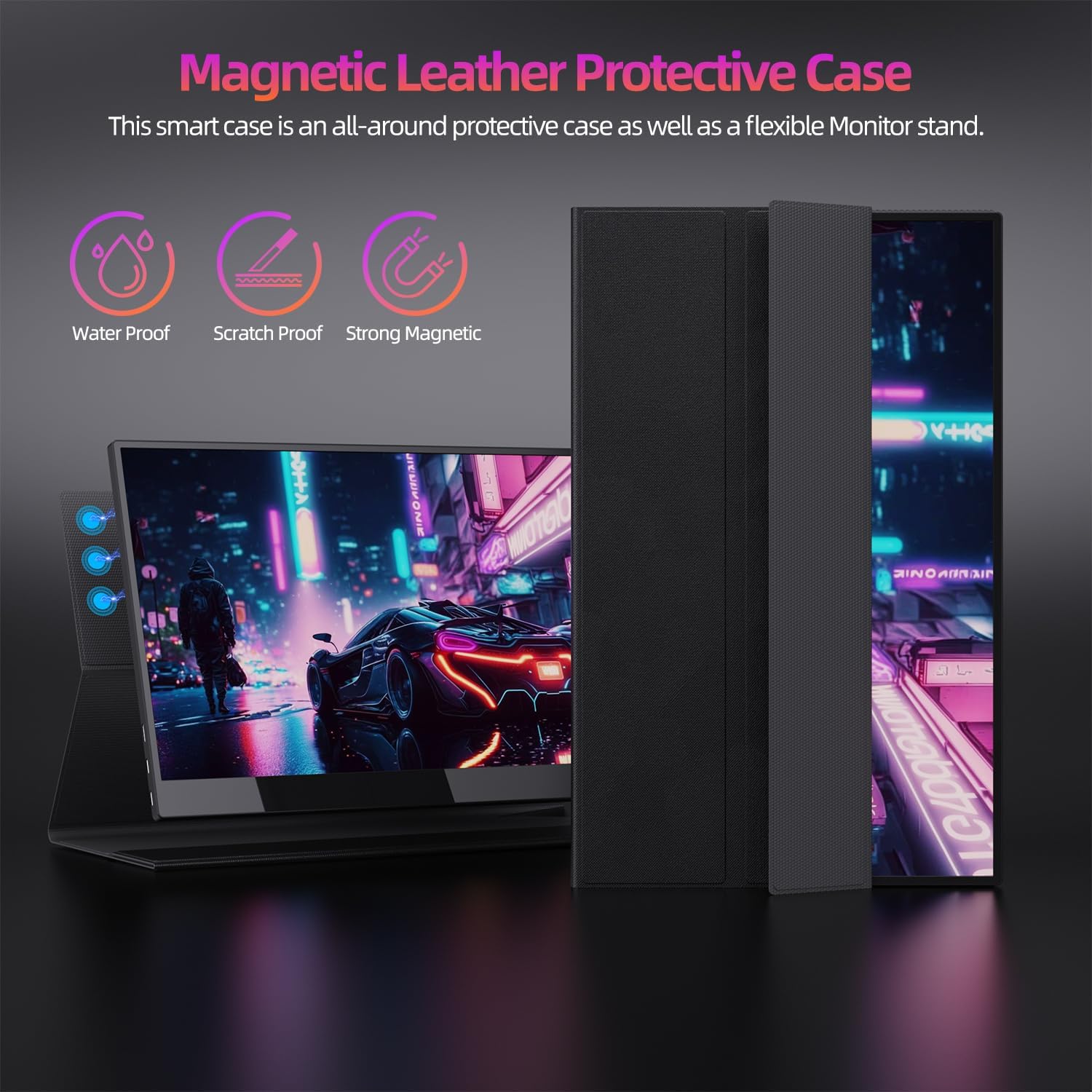
Image 4.1: The magnetic leather protective case functioning as a stand for the monitor.
4.2 Connecting to Devices
The monitor supports various connection methods depending on your source device.
- Single USB-C Cable Connection (Full-featured USB-C):
For laptops, PCs, and smartphones with a full-featured USB-C port (supporting DisplayPort Alternate Mode and Power Delivery), connect one end of the provided USB-C to USB-C cable to your device's USB-C port and the other end to either USB Type-C port (C1 or C2) on the monitor. This single cable will provide power, video signal, and enable touchscreen functionality.
- HDMI and USB-C Power Connection:
For devices with an HDMI output (e.g., gaming consoles, older laptops, PCs), connect the provided Mini HDMI to HDMI cable from the monitor's Mini HDMI port to your device's HDMI port. Additionally, connect the monitor to a power source using the USB-C to USB-C cable and a power adapter (not always included, but recommended for stable operation) via one of the monitor's USB Type-C ports.
- Touchscreen Functionality:
For touchscreen functionality, ensure a USB connection is established. If using HDMI for video, you will need a separate USB-C to USB-A cable (not always included) to connect the monitor's USB-C port to your device's USB-A port for touch data transmission. For full-featured USB-C connections, touch is enabled automatically.
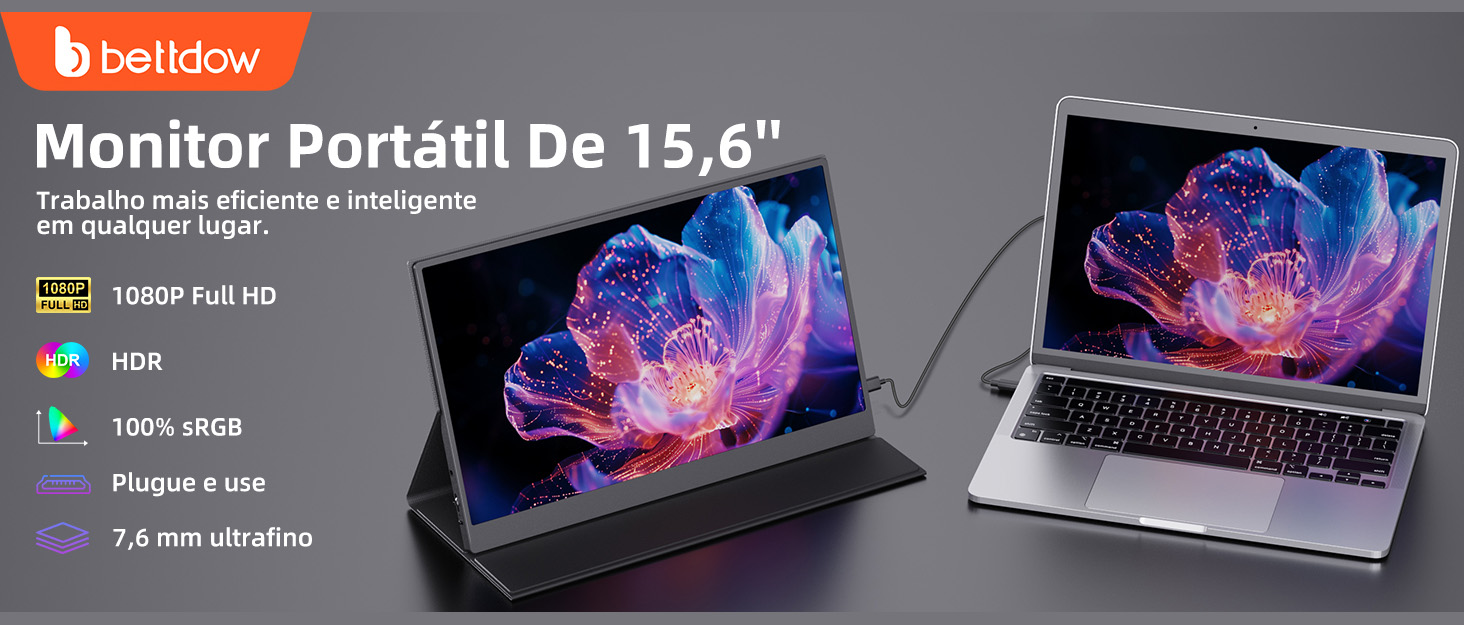
Image 4.2: The Bettdow portable monitor connected to a laptop, demonstrating a typical setup for extended display.

Image 4.3: Examples of wide applications for the portable monitor, including extending a laptop display, sharing content in meetings, gaming with consoles, and family entertainment.
5. Operating Instructions
5.1 Power On/Off
Press and hold the power button (usually located on the side) for a few seconds to turn the monitor on or off. A short press may activate the On-Screen Display (OSD) menu.
5.2 On-Screen Display (OSD) Menu
Use the monitor's physical buttons (often a joystick or multiple buttons) to navigate and adjust settings in the OSD menu. Common settings include brightness, contrast, color temperature, input source selection, and audio volume.
5.3 Touchscreen Usage
The monitor features a 10-point sensitive touchscreen. It is compatible with Windows 7 and above, Android, and Linux operating systems. For iOS/macOS, the touchscreen typically functions as a mouse.
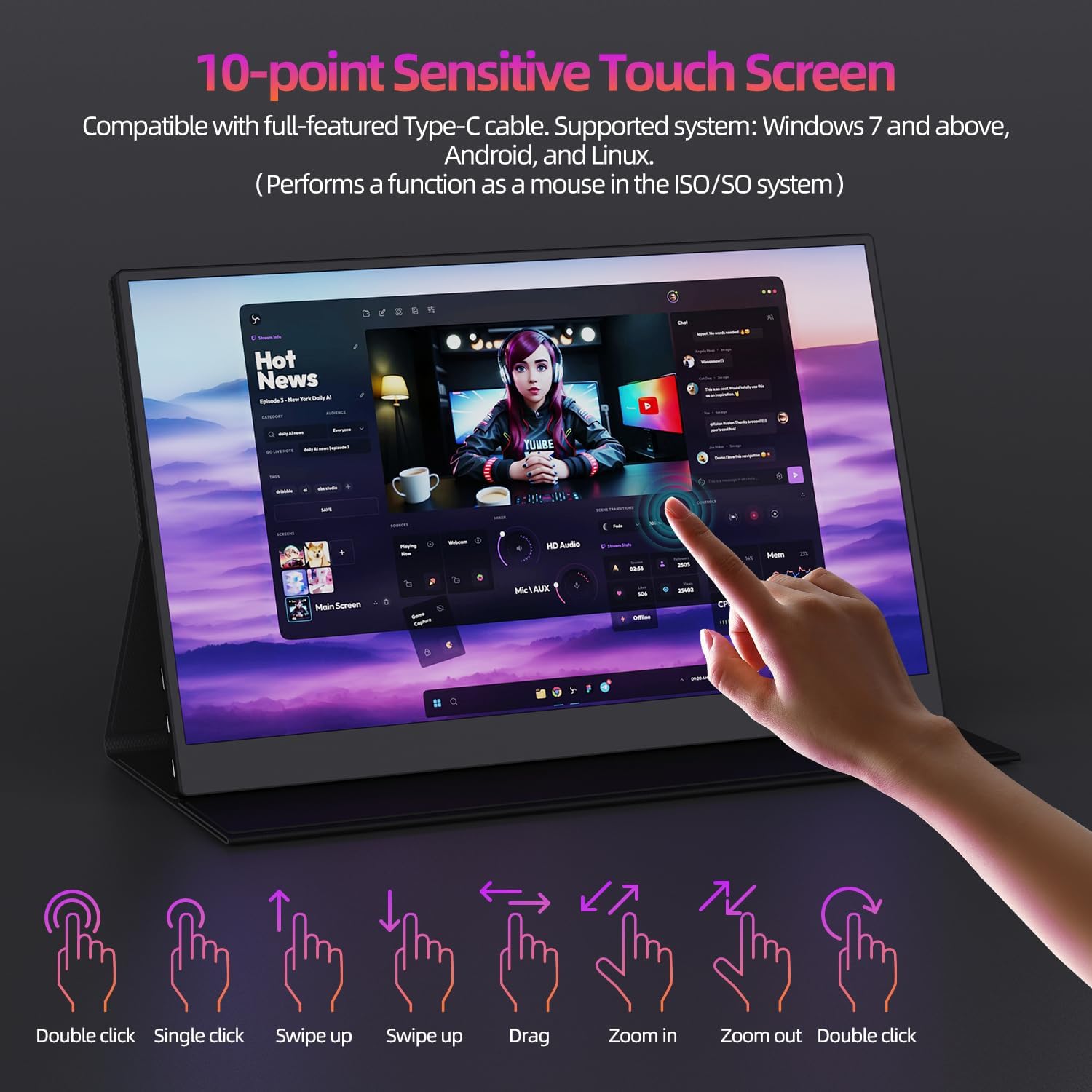
Image 5.1: Visual guide to common touchscreen gestures supported by the monitor.
- Single Tap: Equivalent to a left-click on a mouse.
- Double Tap: Equivalent to a double-click.
- Drag: Press and hold, then move your finger across the screen.
- Pinch-to-Zoom: Use two fingers to zoom in or out.
- Swipe: Move your finger across the screen to scroll or navigate.
6. Maintenance and Care
Proper care will extend the life of your monitor.
- Cleaning the Screen: Use a soft, lint-free cloth slightly dampened with water or a screen-cleaning solution. Avoid harsh chemicals or abrasive materials.
- Cleaning the Body: Wipe the monitor's body with a soft, dry cloth.
- Magnetic Smart Cover: The cover is designed to be water-resistant and scratch-proof. Wipe it clean with a damp cloth if necessary.
- Storage: When not in use, keep the monitor protected by its magnetic smart cover in a cool, dry place away from direct sunlight and extreme temperatures.
- Handling: Avoid dropping the monitor or subjecting it to strong impacts. Do not place heavy objects on it.
7. Troubleshooting
If you encounter issues, refer to the following common problems and solutions.
- No Signal / Black Screen:
- Ensure all cables (USB-C, HDMI) are securely connected to both the monitor and your source device.
- Verify that your source device is powered on and configured to output video to an external display.
- Try a different cable or port if available.
- Check the monitor's OSD menu to ensure the correct input source is selected.
- Screen Flickering / Unstable Display:
- This often indicates insufficient power. Connect the monitor to an external power adapter via one of its USB-C ports, especially when connecting to smartphones or devices that may not provide enough power.
- Ensure the USB-C cable used supports power delivery.
- Touchscreen Not Responding:
- For full-featured USB-C connections, ensure the cable is properly connected and supports touch data.
- For HDMI connections, a separate USB-C to USB-A cable is required to transmit touch data from the monitor to your device's USB port. Ensure this cable is connected.
- Verify that your operating system (Windows, Android, Linux) is compatible and has the necessary drivers installed (usually plug-and-play). iOS/macOS support touch as a mouse, not full multi-touch.
- Restart both the monitor and the connected device.
- No Audio from Monitor Speakers:
- Check the volume settings on both the monitor (via OSD menu) and your source device.
- Ensure the audio output on your source device is directed to the external monitor.
- If using HDMI, ensure the HDMI cable supports audio transmission.
- Monitor Does Not Work with Mobile Phone:
- Not all mobile phones support video output or full-featured USB-C. Verify your phone's specifications for DisplayPort Alternate Mode support.
- Ensure the phone is providing sufficient power to the monitor, or connect an external power source to the monitor.
8. Specifications
| Feature | Specification |
|---|---|
| Brand | Bettdow |
| Model Number | AC1043 |
| Screen Size | 15.6 inches |
| Resolution | 1920 x 1080 (Full HD 1080p) |
| Panel Type | IPS |
| Aspect Ratio | 16:9 |
| Viewing Angle | 178° |
| Touchscreen | 10-point Sensitive Touch |
| Connectivity | 2x USB Type-C (Full-featured), 1x Mini HDMI |
| Audio | Built-in Speakers |
| Power Source | AC/DC |
| Product Dimensions | 44 x 4.5 x 26 cm (approx. 17.3 x 1.8 x 10.2 inches) |
| Product Weight | 1.91 kg (approx. 4.2 lbs) |
| Special Features | VESA Mount Compatible, Magnetic Smart Cover |

Image 8.1: Physical dimensions of the monitor, highlighting its portability and slim profile.
9. Warranty and Support
For warranty information, please refer to the documentation included with your purchase or contact the retailer.
If you require technical assistance or have questions not covered in this manual, please contact Bettdow customer support. You can often find contact details on the official Bettdow website or through your purchase platform.
Visit the official Bettdow store for more information: Bettdow Store