
Inateck KB06103-BK-DE
Inateck Bluetooth Tablet Keyboard User Manual
Model: KB06103-BK-DE
1. Introduction
Thank you for choosing the Inateck Bluetooth Tablet Keyboard. This versatile 2-in-1 device combines a numeric keypad and touchpad, offering a comprehensive input solution for various operating systems including iPadOS, Windows, Android, Chrome OS, and Mac OS. Designed for portability and efficiency, it features a hidden stand, multi-device connectivity, and a long-lasting battery, making it ideal for both professional and personal use.

Image: The Inateck Bluetooth Tablet Keyboard with a tablet positioned in its integrated stand, showcasing its compact design and functionality.
2. Key Features
- 2-in-1 Numeric Keypad & Touchpad: Seamlessly switch between a numeric keypad for data entry and a touchpad for navigation. Double-tap the "NumLOCK" key to toggle modes.
- Built-in 2600mAh Battery: Enjoy extended usage with a high-capacity battery. Up to 6 months without backlight or 2 weeks with backlight on a single charge.
- Hidden Stand: A convenient, space-saving integrated stand provides stable support for your tablet or smartphone.
- Multi-Device Connectivity: Connect and switch between up to three Bluetooth-enabled devices effortlessly.
- Comfortable Typing Experience: Features ultra-thin scissor-switch keys with 1.5mm key travel for a smooth, laptop-like feel. Anti-slip pads ensure stability.
- 7-Color Backlight & 3-Level Brightness: Customize your typing environment with vibrant backlighting and adjustable brightness levels.
- Wide Compatibility: Compatible with iPadOS, Windows, Android, Chrome OS, and Mac OS devices.
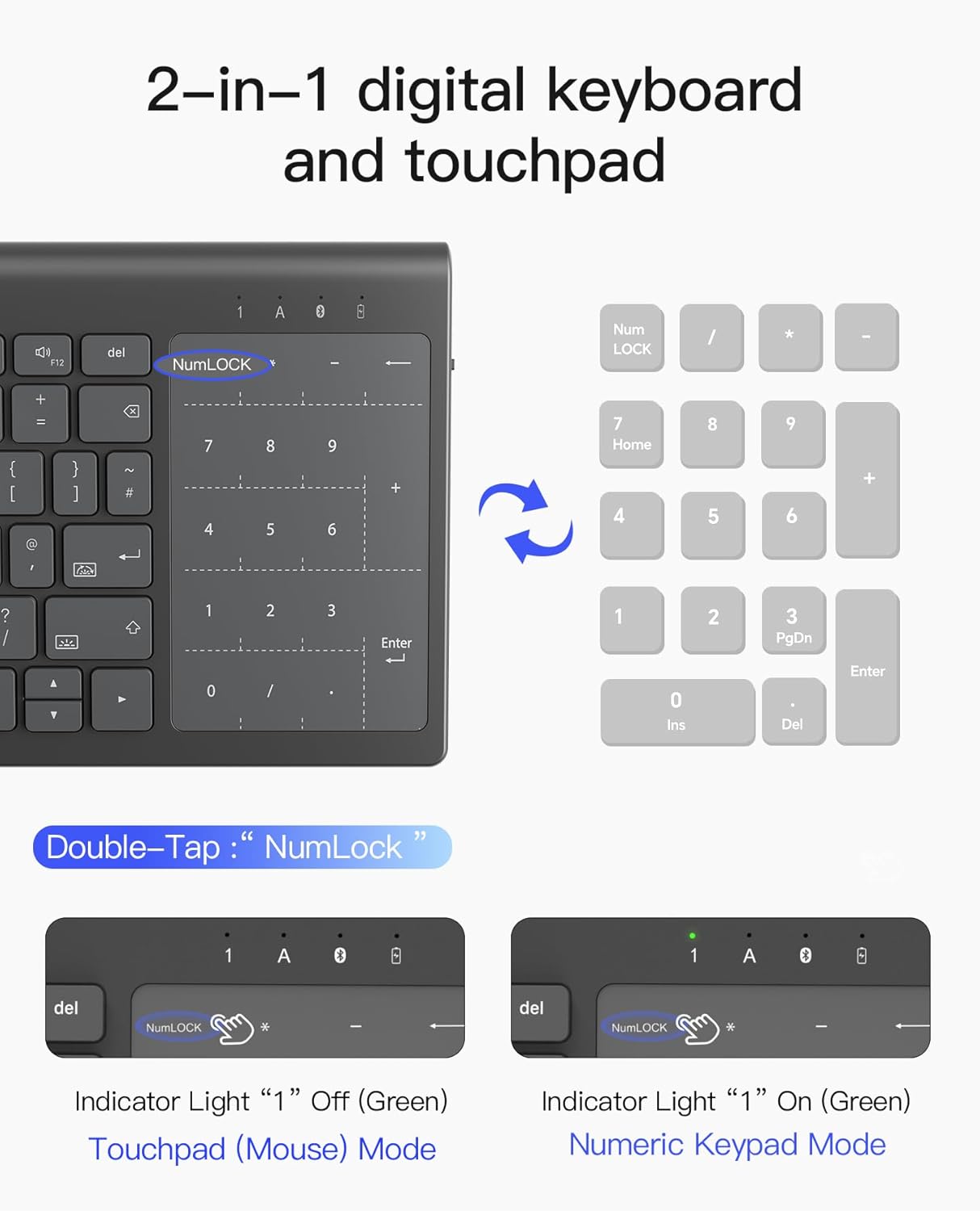
Image: A visual representation of the keyboard's numeric keypad and touchpad area, illustrating the dual functionality and the "NumLOCK" key for switching modes.

Image: Depicts the impressive battery life of the keyboard, highlighting usage duration with and without the backlight activated.

Image: Step-by-step diagram showing how to deploy the hidden stand from the back of the keyboard, demonstrating its space-saving design.
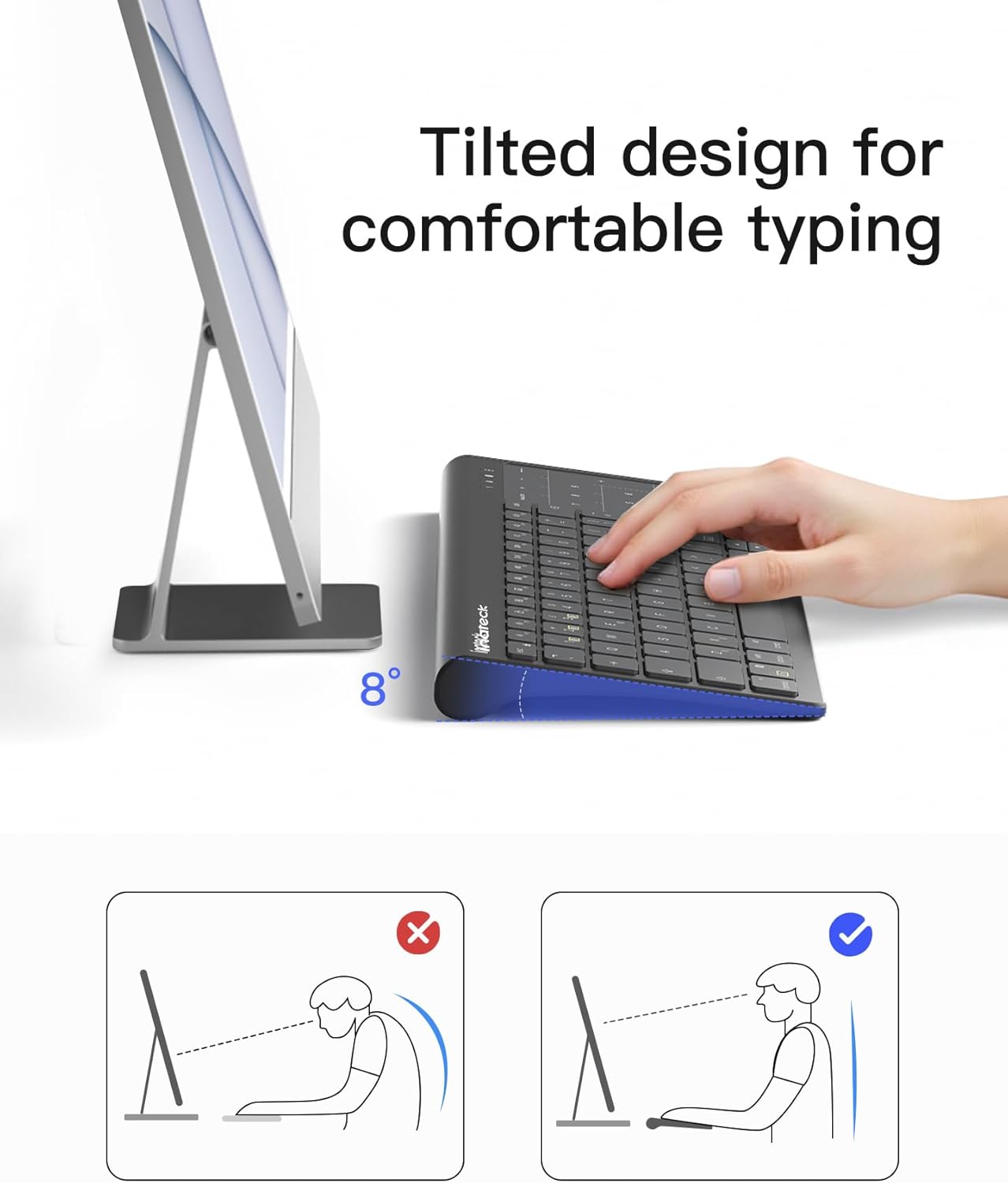
Image: The keyboard wirelessly connected to a laptop, smartphone, and tablet simultaneously, illustrating its multi-device pairing capability.
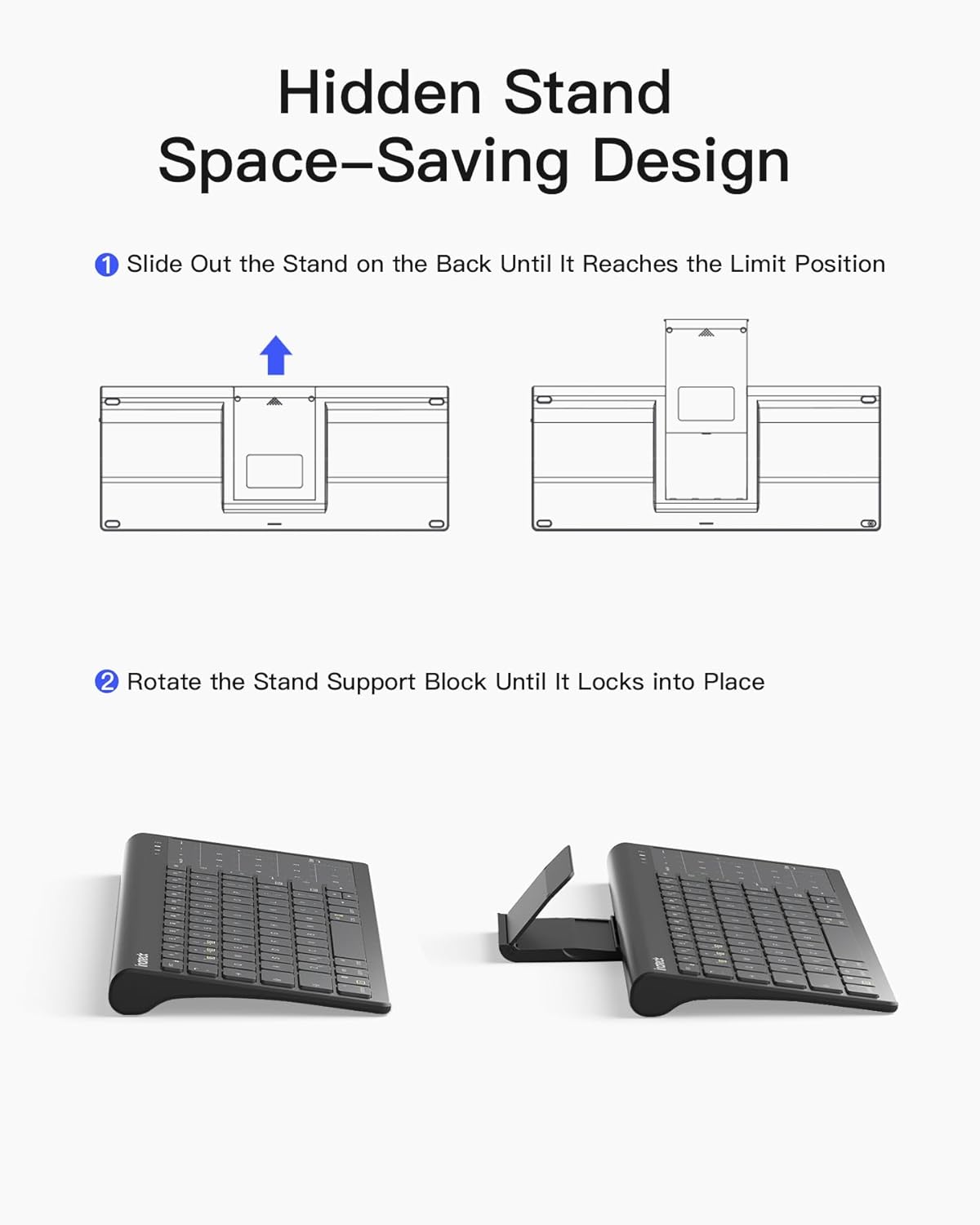
Image: A side view of the keyboard highlighting its ergonomic 8-degree tilted design, promoting comfortable typing posture.

Image: The keyboard's keys are illuminated with a vibrant backlight, demonstrating the 7-color and 3-level brightness features for typing in various lighting conditions.

Image: A collection of different operating system devices, including an iPad, Android tablet, and laptop, indicating the keyboard's broad compatibility.
3. Setup Guide
3.1 Initial Charging
Before first use, fully charge the keyboard using the provided USB-C cable. The charging indicator light will turn off once charging is complete. A full charge typically takes about 3 hours.
3.2 Bluetooth Pairing
- Turn on the keyboard by sliding the power switch to the "ON" position.
- Press and hold the Fn key and one of the Bluetooth channel keys (BT1, BT2, or BT3) for 3-5 seconds until the corresponding indicator light flashes rapidly. This indicates the keyboard is in pairing mode.
- On your device (tablet, smartphone, laptop), go to Bluetooth settings and search for available devices.
- Select "Inateck Keyboard" from the list of found devices.
- If prompted, enter the pairing code displayed on your device using the Inateck keyboard and press Enter.
- Once connected, the indicator light will stop flashing and remain solid for a few seconds before turning off. The keyboard is now paired and ready for use.
To pair additional devices, repeat steps 2-5 using a different Bluetooth channel (BT1, BT2, or BT3).
4. Operating Instructions
4.1 Switching Between Numeric Keypad and Touchpad
The keyboard features a dual-function area that can act as either a numeric keypad or a touchpad. To switch between modes, double-tap the "NumLOCK" key located on the top left of the numeric keypad/touchpad area. The green indicator light "1" will illuminate when the numeric keypad is active.
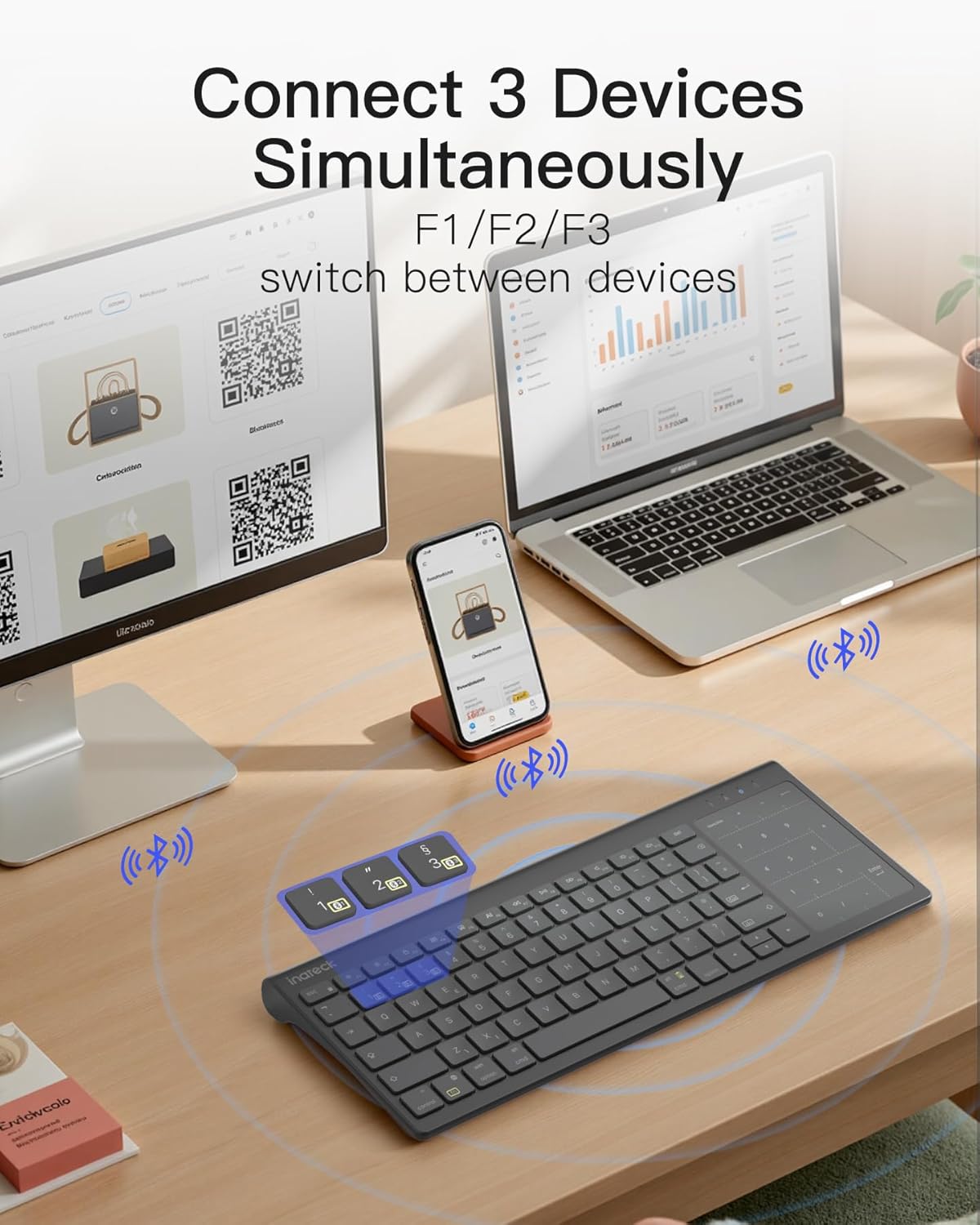
Image: Illustrates the double-tap action on the "NumLOCK" key to switch between touchpad (mouse) mode and numeric keypad mode, indicated by the green light.
4.2 Multi-Device Switching
To switch between paired devices, simply press the Fn key along with the corresponding Bluetooth channel key (BT1, BT2, or BT3) that your desired device is paired to. The keyboard will automatically reconnect to the selected device.
4.3 Backlight Control
The keyboard features a 7-color backlight with 3 adjustable brightness levels.
- Press Fn + Light Bulb icon key to turn the backlight on/off.
- Press Fn + Up Arrow key to increase backlight brightness.
- Press Fn + Down Arrow key to decrease backlight brightness.
- Press Fn + Right Arrow key to cycle through backlight colors.
4.4 Using the Hidden Stand
To deploy the hidden stand:
- Slide out the stand from the back of the keyboard until it reaches its limit position.
- Rotate the stand support block until it locks into place, providing a stable base for your device.
To retract, reverse the steps.
4.5 iPad Gestures Support
The touchpad supports various iPadOS gestures for enhanced navigation and productivity. For optimal performance, ensure your iPad settings are configured as follows:
- Go to Settings > General > Trackpad and drag the slider to the middle of the tracking speed.
- Go to Settings > General > Trackpad and turn on "Tap to Click" and "Two Finger Secondary Click".
- Go to Settings > Accessibility > Touch and turn off "Assistive Touch".
- Go to Settings > Accessibility > Keyboards and turn off "Full Keyboard Access".
- Go to Settings > Multitasking & Gestures and turn on "Four & Five Finger Gestures".

Image: Visual guide demonstrating common iPad gestures such as pull, scroll, wipe, zoom, secondary click, show desktop, App Exposé, and swiping between full-screen apps.

Image: Screenshots detailing the recommended iPad settings adjustments for optimal touchpad functionality, including tracking speed, tap to click, and gesture controls.
4.6 Special Characters
To input special characters, refer to the following instructions based on your operating system:

Image: A visual guide showing how to create special characters by pressing specific key combinations (e.g., Fn + Option/Alt + corresponding key) for MacOS/iPadOS/iOS and Android/Windows.
4.7 Independent AI Key (Windows Only)
The keyboard features an independent AI key for AI Smart Responses and Instant Translation. This function is only available for Windows devices. Please download the "Inateck Origin" application in advance to utilize this feature.
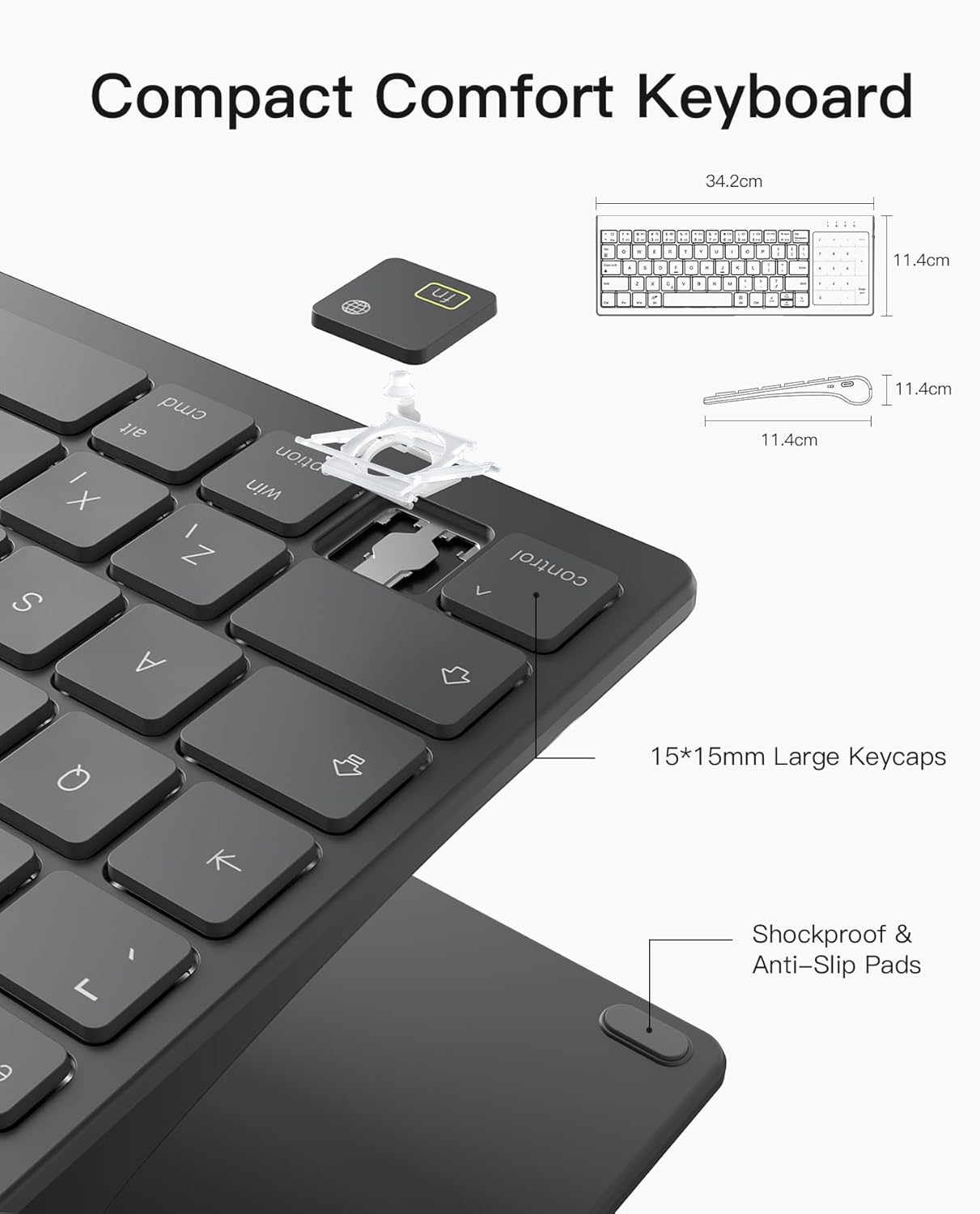
Image: The keyboard with the dedicated AI key highlighted, surrounded by examples of AI chat and translation functionalities.
5. Maintenance
- Cleaning: Use a soft, dry, lint-free cloth to clean the keyboard surface. For stubborn dirt, slightly dampen the cloth with water or a mild cleaning solution. Avoid excessive moisture.
- Storage: Store the keyboard in a cool, dry place away from direct sunlight and extreme temperatures.
- Battery Care: To prolong battery life, avoid fully discharging the battery frequently. If storing for a long period, charge the battery to about 50% every few months.
- Avoid Liquids: Do not expose the keyboard to liquids. In case of accidental spills, immediately power off the keyboard and allow it to dry completely before use.
6. Troubleshooting
| Problem | Possible Cause | Solution |
|---|---|---|
| Keyboard not connecting via Bluetooth. | Keyboard not in pairing mode; device Bluetooth off; out of range; low battery. | Ensure keyboard is in pairing mode (flashing indicator). Turn on device Bluetooth. Move keyboard closer to device (within 10m). Charge the keyboard. |
| Numeric keypad or touchpad not working. | Incorrect mode selected. | Double-tap the "NumLOCK" key to toggle between numeric keypad and touchpad modes. Check the green indicator light "1". |
| Backlight not working or dim. | Backlight off; low battery; brightness set too low. | Press Fn + Light Bulb icon key to turn on. Charge the keyboard. Adjust brightness with Fn + Up/Down Arrow keys. |
| Keys not responding. | Keyboard disconnected; low battery. | Reconnect Bluetooth. Charge the keyboard. |
| Touchpad gestures not working on iPad. | iPad settings not optimized. | Refer to Section 4.5 "iPad Gestures Support" for recommended iPad settings. |
7. Specifications
| Feature | Detail |
|---|---|
| Brand | Inateck |
| Model | KB06103-BK-DE |
| Connectivity Technology | Bluetooth |
| Compatible Devices | Laptop, Smart TV, Smartphone, Tablet (iPadOS, Windows, Android, Chrome OS, Mac OS) |
| Special Features | 2-in-1 Numeric Keypad & Touchpad, 7-Color Backlight, Hidden Stand, Multi-Device Connectivity, AI Key (Windows only) |
| Battery Capacity | 2600mAh (Lithium Ion) |
| Battery Life (Backlight Off) | Up to 6 months |
| Battery Life (Backlight On) | Up to 2 weeks |
| Charging Time | Approx. 3 hours |
| Product Dimensions | 31.37 x 13.13 x 2.31 cm |
| Item Weight | 322 g |
8. Warranty and Support
Inateck products are designed and manufactured to the highest quality standards. For information regarding warranty coverage, please refer to the warranty card included with your product packaging or visit the official Inateck website.
If you encounter any issues or have questions about your Inateck Bluetooth Tablet Keyboard, please contact Inateck customer support. You can typically find support contact information on the Inateck official website or through the seller's page on Amazon:
- Inateck Official Website: www.inateck.com (General placeholder, as specific support link not provided)
- Amazon Seller Page: InateckOnlineAU
- Inateck Brand Store on Amazon: Visit Inateck Store
Please have your model number (KB06103-BK-DE) and purchase details ready when contacting support.
Related documentsKB06103-BK-DE


Ask a question about this manual
Ask about setup, troubleshooting, compatibility, parts, safety, or missing instructions. Manuals+ will review the question and use this page’s manual context to help answer it.