
ArcticPro AD27EF4C
ArcticPro 27-inch 240Hz Curved Gaming Monitor User Manual
Model: AD27EF4C
Introduction
Thank you for choosing the ArcticPro 27-inch 240Hz Curved Gaming Monitor. This manual provides essential information for the safe and efficient use of your monitor. Please read it thoroughly before installation and operation, and retain it for future reference.
Setup Instructions
1. Unpacking and Package Contents
Carefully remove all components from the packaging. Ensure all items listed in the package contents are present and undamaged. If any items are missing or damaged, contact ArcticPro customer support.
2. Attaching the Stand
The monitor stand comes in multiple pieces. Assemble the base to the stand pillar, then attach the assembled stand to the back of the monitor using the provided screws. Ensure all screws are tightened securely for stability.
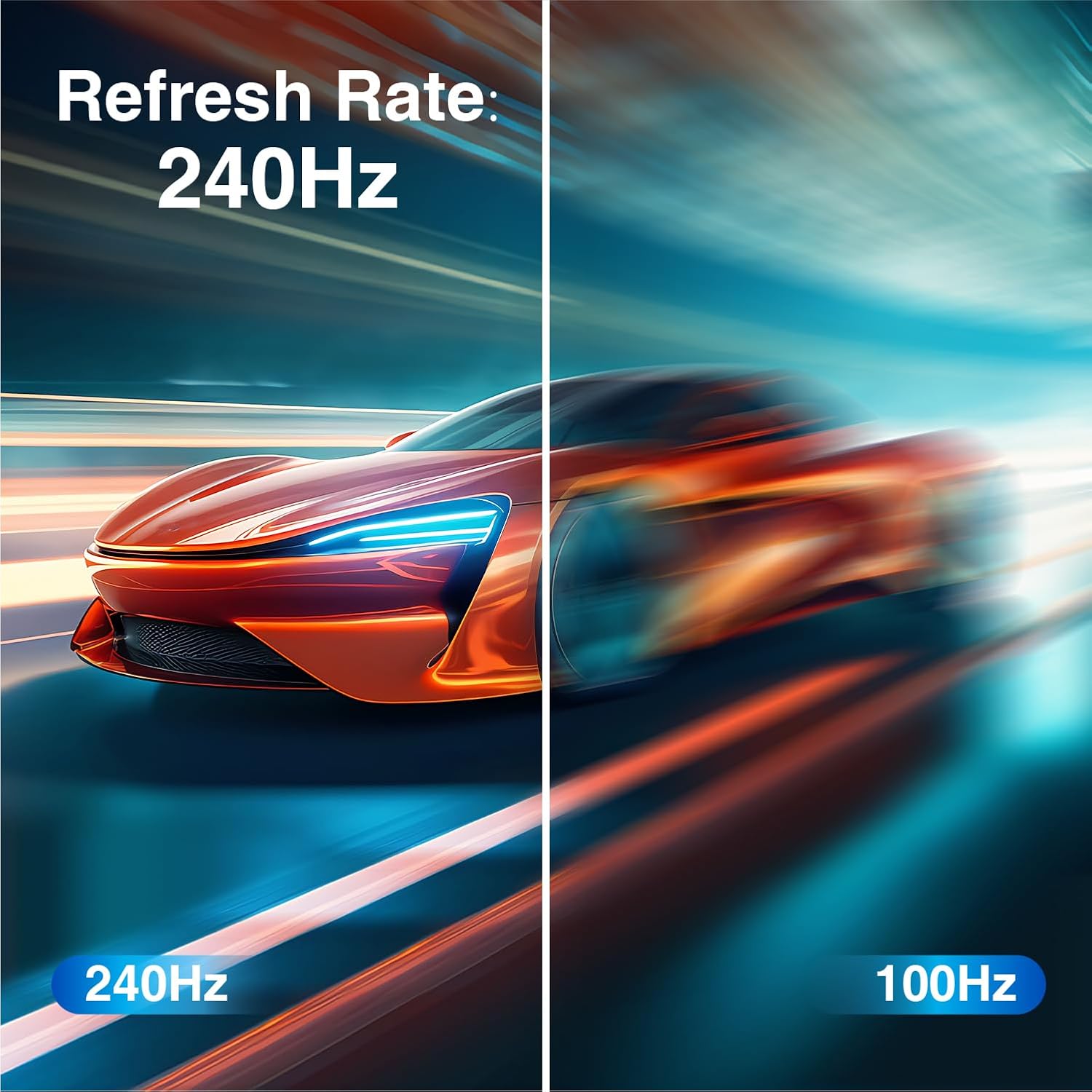
Image: ArcticPro 27-inch Curved Gaming Monitor with its stand attached, viewed from the front.
3. Connecting Cables
Locate the input ports on the back of your monitor. Connect the appropriate cables from your computer or other devices to the monitor.
- Power Cable: Connect the power cable to the monitor's power input and then to a power outlet.
- DisplayPort (DP) Cable: For optimal performance, connect the DisplayPort cable from your graphics card to the monitor's DP port.
- HDMI Cable: Alternatively, connect an HDMI cable from your device to one of the monitor's HDMI ports.
- Audio Cable: If using external speakers or headphones, connect a 3.5mm audio cable from your device's audio output to the monitor's audio input, or directly to your speakers/headphones.

Image: Close-up of the rear of the ArcticPro monitor, highlighting the DisplayPort, HDMI, and audio input ports with cables connected.

Image: Full back view of the ArcticPro monitor, showing the cable management and various ports.
4. Initial Power-On
Press the power button on the monitor. The monitor should power on and display an image from your connected device. If no image appears, ensure all cables are securely connected and the correct input source is selected.
Operating Instructions
1. On-Screen Display (OSD) Menu Navigation
The monitor features an intuitive OSD menu for adjusting various settings. Use the joystick control located on the back of the monitor to navigate the menu. Press the joystick to enter the menu, move it up/down/left/right to select options, and press again to confirm. To exit a sub-menu or the main menu, push the joystick to the right.

Image: The On-Screen Display (OSD) menu of the ArcticPro monitor, showing options for Brightness, Enter Menu, Input Signal, Exit Guide, and Power.
2. Key Features and Adjustments
- Refresh Rate (240Hz): This monitor supports a high refresh rate of 240Hz, providing ultra-smooth visuals, especially beneficial for fast-paced gaming. Ensure your graphics card and connection cable support this refresh rate, and enable it in your operating system's display settings.
- Response Time (1ms MPRT): The 1ms Moving Picture Response Time (MPRT) minimizes motion blur and ghosting, ensuring clear and sharp images during rapid movements.
- Full HD Resolution (1920x1080p): Enjoy crisp and detailed visuals with Full HD resolution.
- Adaptive Sync: This technology synchronizes the monitor's refresh rate with your graphics card's frame rate, eliminating screen tearing and stuttering for a smoother gaming experience. Enable this feature in the OSD menu and your graphics card settings.
- Low Blue Light & Flicker-Free Technology: These features reduce eye strain during prolonged use. Low Blue Light filters harmful blue light emissions, while Flicker-Free technology eliminates screen flickering.
- Brightness and Contrast: Adjust these settings in the OSD menu to suit your viewing environment and preferences.
- Color Settings: Fine-tune color temperature, gamma, and other color parameters for optimal visual fidelity.

Image: A visual comparison demonstrating the smoothness of a 240Hz refresh rate versus a 100Hz refresh rate, showing a car in motion.

Image: A visual comparison illustrating the clarity of a 1ms response time on the ArcticPro monitor compared to a slower response time, showing a racing car.

Image: A visual comparison showing the enhanced detail of 1080p Full HD resolution versus 720p resolution, depicting a robot's face.

Image: A split screen showing the effect of Adaptive Sync being ON (smooth image) versus OFF (image tearing) on the ArcticPro monitor.

Image: A visual representation of Flicker-Free Technology and Low Blue Light, showing a gamer and a comparison of screen output with and without these features.
Maintenance
1. Cleaning the Monitor
To clean the screen, gently wipe it with a soft, lint-free cloth. For stubborn marks, dampen the cloth with a small amount of water or a mild, non-abrasive screen cleaner. Avoid using harsh chemicals, alcohol, or ammonia-based cleaners, as these can damage the screen surface.
To clean the monitor casing, use a soft, dry cloth. Do not spray cleaning solutions directly onto the monitor.
2. General Care
- Avoid placing heavy objects on the monitor or its cables.
- Do not expose the monitor to direct sunlight, excessive heat, or extreme cold.
- Keep the monitor away from liquids and high humidity.
- Ensure proper ventilation around the monitor to prevent overheating.
Troubleshooting
Common Issues and Solutions
- No Power:
Ensure the power cable is securely connected to both the monitor and a working power outlet. Check if the power indicator light on the monitor is on. - No Signal:
Verify that the video cable (DP or HDMI) is firmly connected to both the monitor and your computer's graphics card. Select the correct input source using the OSD menu. Ensure your computer is powered on and not in sleep mode. - Image Flickering or Distortion:
Check the video cable for damage or loose connections. Ensure your graphics card drivers are up to date. Try adjusting the refresh rate in your computer's display settings. If Adaptive Sync is enabled, try disabling it temporarily to see if the issue persists. - Incorrect Resolution or Refresh Rate:
Adjust the display settings in your operating system to the recommended resolution (1920x1080) and desired refresh rate (up to 240Hz). - Colors Appear Washed Out or Incorrect:
Adjust the color settings (brightness, contrast, color temperature) in the OSD menu. Ensure your graphics card color settings are properly configured.
Specifications
| Model Number | AD27EF4C |
| Screen Size | 27 Inches |
| Resolution | 1920 x 1080 Pixels (FHD 1080p) |
| Refresh Rate | 240Hz |
| Response Time | 1ms MPRT |
| Aspect Ratio | 16:9 |
| Contrast Ratio | 4000:1 |
| Panel Type | VA |
| Color Gamut | 120% sRGB, 85% NTSC |
| Viewing Angles | 178° Horizontal & Vertical |
| Connectivity | HDMI & DisplayPort |
| Mounting | 100x100mm VESA Wall Mount Pattern |
| Product Dimensions | 24.17 x 2.68 x 14.27 inches |
| Item Weight | 11.08 pounds |

Image: Diagram illustrating the 178° wide viewing angles and tilt capabilities of the ArcticPro monitor.

Image: The ArcticPro monitor connected to various devices like a PC, Xbox, PS5, Switch, and laptop, demonstrating its versatile connectivity via HDMI and DisplayPort.
Warranty Information
For detailed warranty information regarding your ArcticPro monitor, please refer to the warranty card included in your product packaging or visit the official ArcticPro website. Keep your proof of purchase for warranty claims.
Customer Support
If you encounter any issues or have questions not covered in this manual, please contact ArcticPro customer support. Contact details can typically be found on the ArcticPro website or on your product's packaging.
Ask a question about this manual
Ask about setup, troubleshooting, compatibility, parts, safety, or missing instructions. Manuals+ will review the question and use this page’s manual context to help answer it.