
Wonsidary W97
Wonsidary 10.26" HD IPS Carplay Screen User Manual
Model: W97
1. Introduction
The Wonsidary 10.26" HD IPS Carplay Screen is designed to enhance your driving experience by integrating advanced features such as wireless Apple CarPlay and Android Auto, a high-resolution dash cam, and a backup camera. This device offers seamless connectivity, intuitive controls, and comprehensive safety features, making every journey more convenient and secure.
2. What's in the Box
Please verify that all components listed below are included in your package:
- 10.26-inch in-car screen with 4K front dash cam
- 1080P Rear Camera with 21FT cable length
- 64GB TF card
- Bracket (2 types: Suction Cup and Sticky Dashboard)
- Power cable with USB port (Type-C to Cigarette Lighter)
- AUX Audio Cable
- Rear Camera Adhesives (2)
- Rear Camera Screws (4)
- User Manual

Image: All components included in the Wonsidary Carplay Screen package.
3. Setup
3.1 Mounting the Device
The Wonsidary Carplay Screen offers two primary mounting options: a suction cup mount for windshield placement and a sticky dashboard mount for a more permanent fix.
- Suction Cup Mount: Attach the suction cup to a clean, smooth area on your windshield. Press the middle button on the suction cup to ensure a firm and secure attachment.
- Silicone Base Bracket: For dashboard installation, use the provided sticky dashboard mount. Ensure the dashboard surface is clean and dry before applying for optimal adhesion.

Image: Various mounting options for the Carplay Screen, including suction cup and silicone base brackets.
3.2 Connecting Power
Connect the Type-C end of the power cable to the Carplay Screen and the cigarette lighter adapter end to your vehicle's 12V power outlet. The included car charger also provides a USB port for charging other devices.
3.3 Camera Installation
The system includes a 4K front dash cam integrated into the main unit and a 1080P waterproof rear camera.
- Front Dash Cam: The front camera is built into the main screen unit. Ensure its view is unobstructed after mounting.
- Rear Camera: Mount the 1080P rear camera at the back of your vehicle. The 21-foot cable provides flexibility for installation. Connect the rear camera cable to the designated port on the main unit. Use the provided adhesives and screws for secure installation.

Image: Overview of the dual-channel recording system with 4K front and 1080P rear cameras.

Image: Details on the adjustable viewing angle of the camera and split-screen display options for front and rear views.
4. Operating Instructions
4.1 Power On/Off
The device will automatically power on when connected to your vehicle's power supply. To power off, disconnect the power cable.
4.2 Display Features
- Adaptive Brightness: The 10.26-inch HD IPS touchscreen features a light sensor that automatically adjusts brightness based on ambient light conditions. You can also manually fine-tune the brightness from 0% to 100% via the settings.
- Customizable Boot Logo: Personalize your device by setting a custom boot logo. This allows you to display your car's brand, a family photo, or any preferred image upon startup.
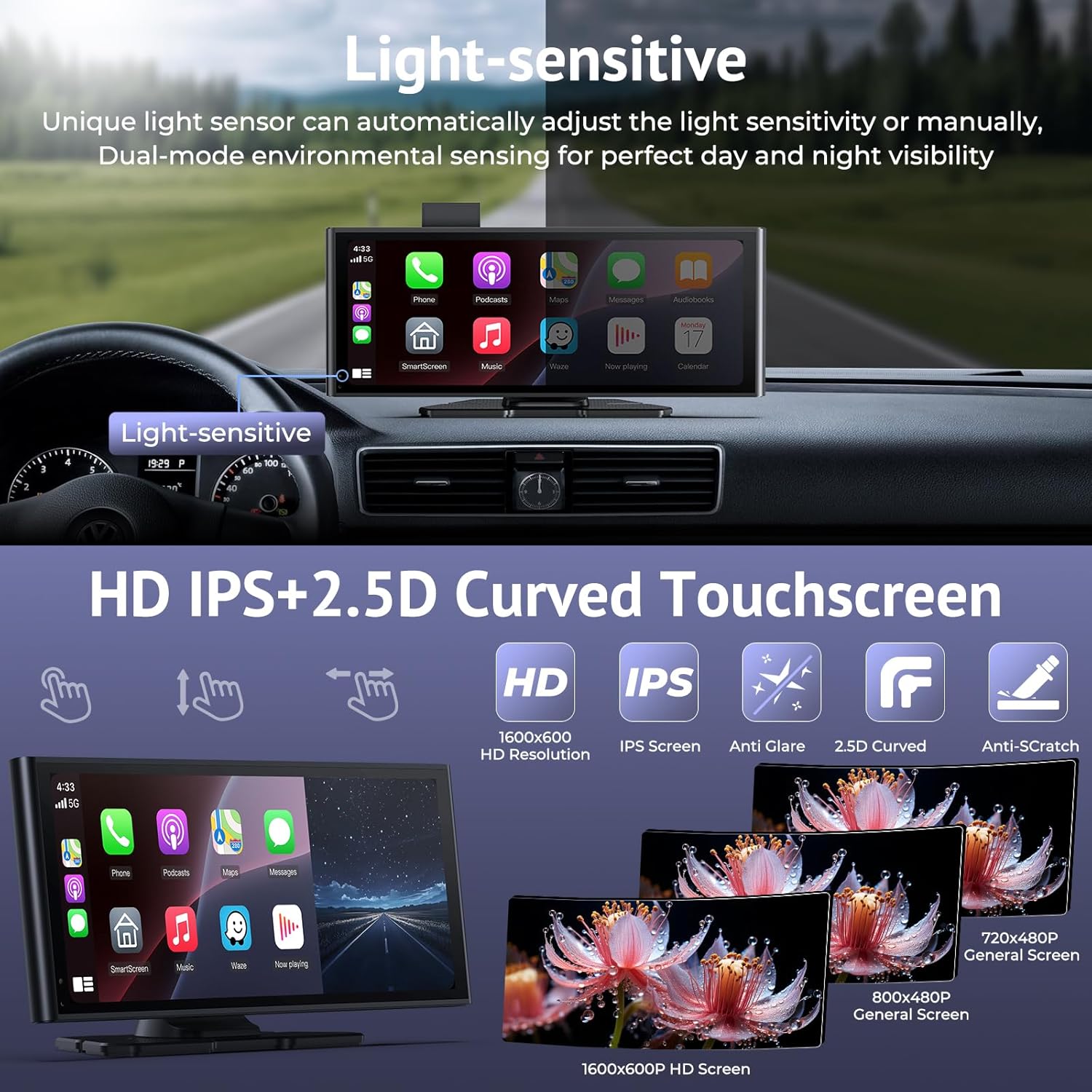
Image: The light-sensitive HD IPS touchscreen with 1600x600 resolution, anti-glare, and 2.5D curved design.

Image: Examples of free customized boot logos that can be set on the device.
4.3 Audio Output Options
The device supports multiple audio output methods to integrate with your car's audio system or use its built-in speaker:
- Bluetooth: Connect wirelessly to your car's Bluetooth system for audio playback.
- FM Transmission: Transmit audio to your car's FM radio by tuning both devices to the same FM frequency.
- AUX: Use the provided AUX cable to connect the device directly to your car's AUX input.
- Built-in Speaker: The device has an integrated speaker for direct audio output.

Image: Various audio output methods supported by the Carplay Screen for flexible sound customization.
4.4 Connectivity
4.4.1 Wireless Apple CarPlay Connection
To connect your iPhone wirelessly to Apple CarPlay:
- On your iPhone, open CarPlay settings and ensure Wi-Fi and Bluetooth are enabled.
- On the Carplay Screen, find and select "Wonsidary-xxxx" in the Bluetooth pairing list.
- Confirm the pairing request on both devices. The connection will be successful.

Image: Visual steps for establishing a wireless Apple CarPlay connection.
4.4.2 Wireless Android Auto Connection
To connect your Android phone wirelessly to Android Auto:
- On your Android phone, open Android Auto settings and ensure Wi-Fi and Bluetooth are enabled.
- On the Carplay Screen, find and select "Wonsidary-xxxx" in the Bluetooth pairing list.
- Confirm the pairing request on both devices. The connection will be successful.

Image: Visual steps for establishing a wireless Android Auto connection.
4.4.3 SuperLink (Screen Mirroring)
SuperLink allows you to mirror your smartphone's screen (both iOS and Android) onto the Carplay Screen, enabling streaming of online videos, viewing downloaded media, and using mirror casting features.

Image: Overview of SuperLink functionality, including mirroring, online video playback, and local file access.
To use SuperLink:
- Download the corresponding EveLink App based on your phone model. You can find the app at: https://www.6zhentan.com/app/d0001/index.html
- Follow the in-app instructions to connect via Wi-Fi Direct.
- For iOS devices, you may need to select "Screen Mirroring" in your control center and choose "SmartScreen".

Image: Detailed steps for connecting SuperLink with Android devices.
Image: Detailed steps for connecting SuperLink with iOS devices.
4.4.4 Wireless AirPlay Connection (for iOS)
For direct AirPlay mirroring from your iPhone:
- Connect your iPhone to the Carplay Screen's Wi-Fi network (Wonsidary-xxxx, password: 12345678).
- Open your iPhone's Control Center, tap "Screen Mirroring", and select "SmartScreen".
- The connection will be successfully established.

Image: Instructions for setting up a wireless AirPlay connection from an iPhone to the Carplay Screen.
4.5 Camera Functions
The device features a 4K front dash cam and a 1080P rear camera for comprehensive recording and safety.
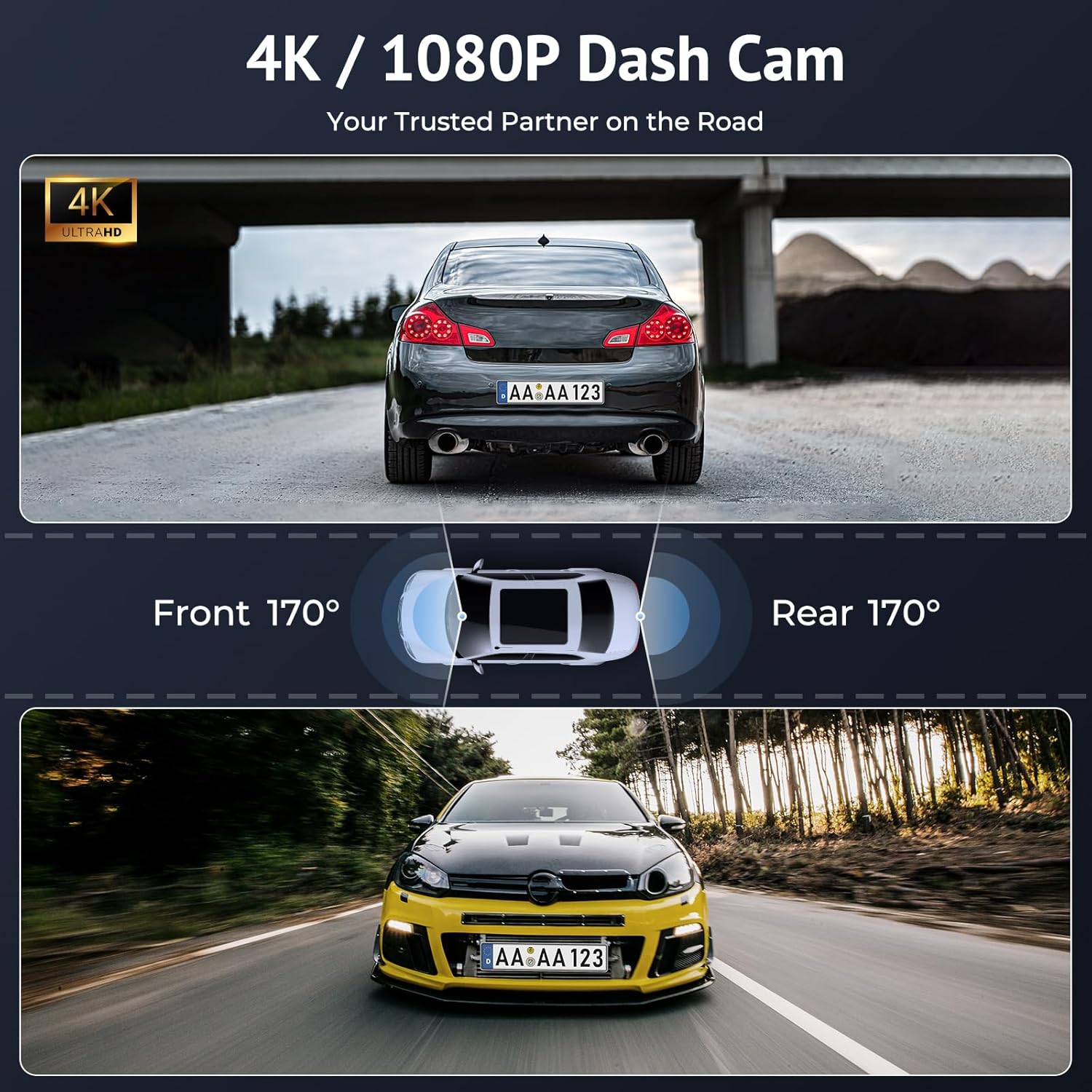
Image: Visual representation of the 4K front and 1080P rear dash cam's wide viewing angles.
- Loop Recording: The system automatically overwrites the oldest video files when the memory card is full, ensuring continuous recording. You can select loop recording lengths (e.g., 1-min, 3-min, 5-min) in the settings.
- G-Sensor Automatic Record Emergency: In the event of a collision, the built-in G-sensor automatically detects the impact and locks the current video footage, preventing it from being overwritten. This provides critical evidence.
- Night Vision: The cameras are designed to capture clear footage even in low-light environments.
- Backup Camera Functionality: The 1080P rear camera activates instantly when you shift into reverse gear, displaying a split-screen view on the Carplay Screen for safer parking. It features adjustable reversing lines.

Image: Explanation of loop recording, night vision capabilities, and G-sensor emergency recording.

Image: Features of the crystal clear 1080P backup camera, including wide viewing angle and IP67 waterproof rating.
4.5.1 Viewing Videos via Mobile App
You can preview, download, and share footage from the dash cam without removing the TF card by using the dedicated mobile app (EveLink App). Scan the QR code provided in the app for easy access.

Image: Instructions for accessing and managing recorded videos through the mobile application.
4.6 Voice Control
Utilize voice assistants like Siri (for Apple CarPlay) or Google Assistant (for Android Auto) to control navigation, make phone calls, play music, and execute other commands hands-free. This feature enhances safety by minimizing distractions while driving.
Image: Examples of voice commands for GPS navigation and other functions using Siri and Google Assistant.

Image: How Siri and Google Voice Control can be used for hands-free communication while driving.
4.7 Real-Time GPS Navigation
Navigate confidently using real-time GPS on the HD screen. Run popular navigation apps like Google Maps, Waze, or Apple Maps directly through CarPlay or Android Auto. The screen provides instant routing updates and clear on-screen prompts.

Image: The Carplay Screen displaying real-time online map navigation with various map application icons.
5. Maintenance
To ensure the longevity and optimal performance of your Wonsidary Carplay Screen, follow these maintenance guidelines:
- Cleaning the Screen: Use a soft, lint-free cloth to gently wipe the screen. For stubborn smudges, slightly dampen the cloth with water or a screen-safe cleaner. Avoid abrasive materials or harsh chemicals.
- Cleaning Cameras: Periodically clean the lenses of the front and rear cameras with a soft cloth to ensure clear recording quality.
- Cable Management: Ensure all cables are neatly routed and secured to prevent damage or interference with driving.
- Temperature Exposure: Avoid exposing the device to extreme temperatures for prolonged periods, as this can affect its performance and lifespan.
6. Troubleshooting
This section addresses common issues you might encounter with your Wonsidary Carplay Screen.
| Problem | Possible Cause | Solution |
|---|---|---|
| Device does not power on. | No power supply; loose connection. | Check if the power cable is securely connected to both the device and the car's cigarette lighter. Ensure the car's 12V outlet is functioning. |
| Cannot connect to CarPlay/Android Auto wirelessly. | Bluetooth/Wi-Fi off; incorrect pairing; phone OS not compatible. | Ensure Bluetooth and Wi-Fi are enabled on your phone. Forget previous pairings and try reconnecting. Verify your phone's OS (iOS 6+ or Android 11+) is compatible. |
| Rear camera not displaying. | Loose cable connection; camera malfunction. | Check the rear camera cable connection to the main unit. Ensure the car is in reverse gear for the backup view to activate. |
| Loop recording not working or footage missing. | TF card full or corrupted; incorrect settings. | Ensure the 64GB TF card is inserted correctly. Format the TF card periodically (back up important footage first). Check loop recording settings. |
| Poor audio quality. | Incorrect audio output setting; FM interference. | Try different audio output options (Bluetooth, AUX, FM). If using FM, try a different frequency to avoid interference. Adjust volume on both the device and car stereo. |
7. Specifications
| Feature | Detail |
|---|---|
| Product Dimensions | 0.48 x 9.72 x 3.81 inches |
| Item Weight | 2.33 pounds |
| Model Number | W97 |
| Screen Size | 10.26 Inches |
| Display Resolution | 1600 x 600 Pixels |
| Aspect Ratio | 2.55:1 |
| Screen Surface Description | Matte |
| Front Camera Resolution | 4K |
| Rear Camera Resolution | 1080p |
| Total USB Ports | 1 (on power cable) |
| Power Supply | Type-C 5V 2A |
| Compatible OS | iOS 6 and above, Android 11 and above |
8. Warranty and Support
Wonsidary is committed to providing excellent customer service and product support.
- Warranty: The product comes with a 1-year quality assurance warranty.
- Returns/Exchanges: Enjoy a 90-day no-reason return or exchange policy.
- Technical Support: If you encounter any problems or have questions, please contact our after-sales technical team for immediate assistance. Wonsidary provides firmware updates and customized startup logos to ensure your device remains up-to-date.
- Online Reply: Expect an online reply within 24 hours for your inquiries.

Image: Summary of Wonsidary's warranty and support commitments.
Ask a question about this manual
Ask about setup, troubleshooting, compatibility, parts, safety, or missing instructions. Manuals+ will review the question and use this page’s manual context to help answer it.