
POCO X7 Pro 5G
POCO X7 Pro 5G Smartphone User Manual
Model: X7 Pro 5G
Brand: POCO
1. Introduction
Welcome to the user manual for your new POCO X7 Pro 5G smartphone. This guide provides essential information on setting up, operating, maintaining, and troubleshooting your device. Please read this manual carefully to ensure optimal performance and longevity of your smartphone.
2. Package Contents
Verify that all items are present in your product packaging:
- POCO X7 Pro 5G Handset
- 90W Charger
- USB Type-C Cable
- SIM Eject Tool
- Protective Case
- Quick Start Guide
- Warranty Card
3. Device Layout
Familiarize yourself with the physical components of your POCO X7 Pro 5G.
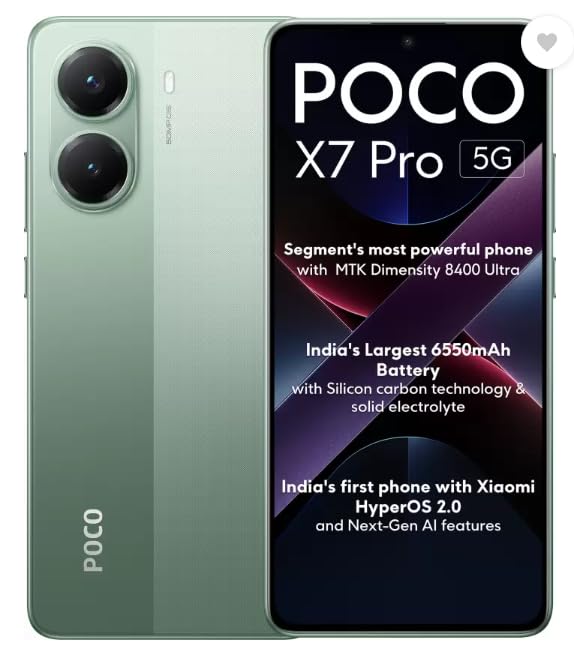
Figure 3.1: Front and Rear View. This image displays the POCO X7 Pro 5G in Nebula Green, showcasing its front display with the HyperOS 2.0 interface and the rear panel featuring a dual camera module and POCO branding.
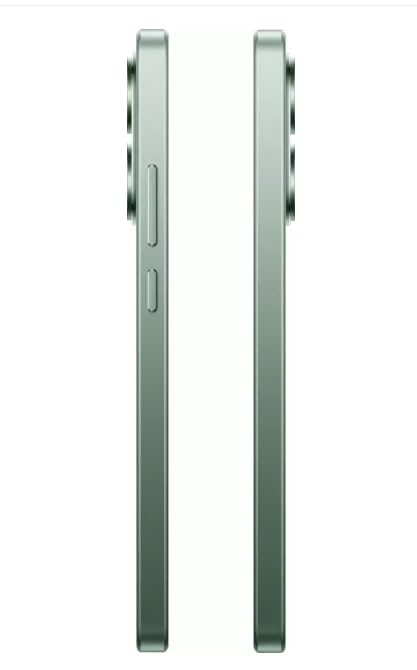
Figure 3.2: Side View. This image shows the right side of the POCO X7 Pro 5G, highlighting the power button and the volume rocker for easy access and control.
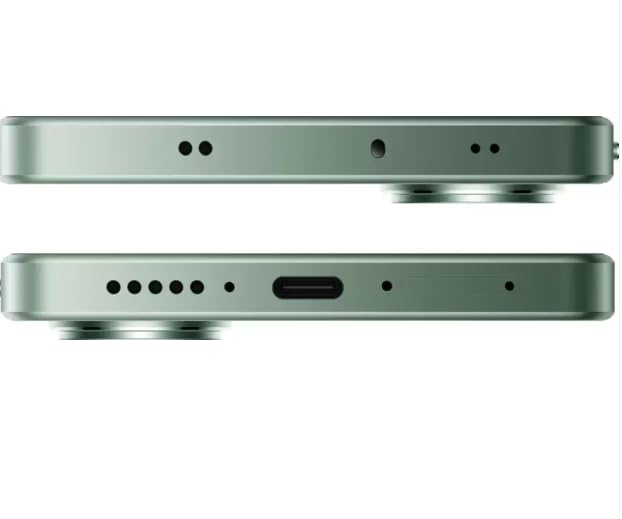
Figure 3.3: Top and Bottom View. This image illustrates the top and bottom edges of the POCO X7 Pro 5G, detailing the USB Type-C charging port, speaker grille, and microphone openings.
4. Setup
4.1. SIM Card Installation
- Locate the SIM card tray on the side of your device.
- Insert the provided SIM eject tool into the small hole on the SIM tray. Press gently until the tray pops out.
- Place your Nano-SIM card(s) into the tray with the gold contacts facing down. Ensure proper orientation.
- Carefully push the SIM tray back into the slot until it clicks into place.
4.2. Initial Charging
Before first use, it is recommended to fully charge your POCO X7 Pro 5G. Connect the USB Type-C cable to the phone's charging port and the 90W charger to a power outlet. The device supports fast charging.
4.3. Powering On/Off
- To Power On: Press and hold the Power button (located on the right side) until the POCO logo appears.
- To Power Off: Press and hold the Power button, then select 'Power off' from the options on the screen.
- To Restart: Press and hold the Power button, then select 'Restart' from the options.
4.4. Initial Configuration
Upon first power-on, follow the on-screen prompts to set up your device. This includes selecting your language, connecting to Wi-Fi, setting up your Google account, and configuring security features. Your device runs on Android 15 with Xiaomi HyperOS 2.0.
5. Operating Your Device
5.1. Display and Navigation
The POCO X7 Pro 5G features a 16.94 cm (6.67 inch) display with a resolution of 2340 x 1080 pixels. Navigate the interface using touch gestures: tap, swipe, pinch-to-zoom. The device's operating system, HyperOS 2.0, provides an intuitive user experience.
5.2. Camera Functions
Your smartphone is equipped with a versatile camera system:
- Rear Camera: 50MP primary sensor + 8MP secondary sensor for high-quality photos and videos.
- Front Camera: 20MP sensor for clear selfies and video calls.
Open the Camera app from the home screen or app drawer. Select different modes (Photo, Video, Portrait, Night, etc.) by swiping across the screen. Tap the shutter button to capture images or start/stop video recording.
5.3. Connectivity
The POCO X7 Pro 5G offers various connectivity options:
- Wi-Fi: Connect to wireless networks for internet access.
- Bluetooth: Pair with wireless headphones, speakers, and other Bluetooth-enabled devices.
- NFC: Use for contactless payments and quick pairing with compatible devices.
- USB Type-C: For charging, data transfer, and connecting to other accessories.
- GPS: For location services and navigation.
5.4. Audio
Please note that the POCO X7 Pro 5G does not include a traditional 3.5mm audio jack. Audio output is managed via the USB Type-C port or Bluetooth wireless connections.
6. Maintenance
6.1. Cleaning Your Device
To clean your smartphone, power it off and gently wipe the screen and body with a soft, lint-free cloth. Avoid using harsh chemicals, abrasive materials, or excessive moisture, as these can damage the device.
6.2. Battery Care
The POCO X7 Pro 5G is equipped with a 6550 mAh battery. To prolong battery life:
- Avoid exposing the device to extreme temperatures.
- Use the original 90W charger and USB Type-C cable.
- Optimize settings such as screen brightness and background app usage.
6.3. Software Updates
Regularly check for and install software updates to ensure your device has the latest features, security patches, and performance improvements. You can usually find update options in the 'Settings' menu under 'About phone' or 'System update'.
7. Troubleshooting
If you encounter issues with your POCO X7 Pro 5G, try the following common troubleshooting steps:
- Device Unresponsive: Press and hold the Power button for about 10-15 seconds to force a restart.
- Battery Draining Quickly: Check background app usage, reduce screen brightness, and ensure software is up to date.
- Network Issues: Toggle Airplane Mode on and off, restart the device, or check SIM card insertion.
- App Malfunction: Clear the app's cache and data in 'Settings' > 'Apps', or uninstall and reinstall the app.
- Factory Reset: As a last resort, if issues persist, you may perform a factory reset. Warning: This will erase all data on your device. Back up important data before proceeding. Go to 'Settings' > 'System' > 'Reset options' > 'Erase all data (factory reset)'.
8. Specifications
Detailed technical specifications for the POCO X7 Pro 5G:
| Feature | Specification |
|---|---|
| Operating System | Android 15 |
| RAM | 12 GB |
| Internal Storage | 256 GB |
| Display Size | 16.94 cm (6.67 inch) |
| Display Resolution | 2340 x 1080 |
| Rear Camera | 50MP + 8MP |
| Front Camera | 20MP |
| Battery Capacity | 6550 mAh |
| Processor | Dimensity D8400 Ultra |
| Connectivity | Bluetooth, NFC, USB, Wi-Fi, GPS |
| Audio Jack | No headphone jack |
| Dimensions | 12 x 10 x 8 cm |
| Weight | 230 g |
| Color | Nebula Green |
| Manufacturer | Xiaomi Technology India Pvt. Ltd. |
9. Warranty and Support
Your POCO X7 Pro 5G comes with a manufacturer's warranty. Please refer to the included Warranty Card for detailed terms and conditions, including warranty period and coverage. For technical support, service, or further inquiries, please contact Xiaomi Technology India Pvt. Ltd. customer service or visit their official support website. Keep your purchase receipt and warranty card for future reference.
Related documentsX7 Pro 5G


Ask a question about this manual
Ask about setup, troubleshooting, compatibility, parts, safety, or missing instructions. Manuals+ will review the question and use this page’s manual context to help answer it.