Introduction
Thank you for choosing the Earbay Wireless Headset. This manual provides detailed instructions on how to set up, operate, and maintain your headset to ensure optimal performance and longevity. The Earbay Wireless Headset (Model: BT882CD-G) is designed for professional use, offering superior audio quality, AI noise-cancelling microphone, and versatile connectivity options via Bluetooth V5.3 and a 2.4G USB dongle. It is ideal for work-from-home setups, call centers, and online meetings.
What's in the Box
Please check the package contents to ensure all items are present:
- Wireless Headset with Microphone
- USB Charging Cable
- Charging Station (Dock)
- 2.4G USB Dongle
- Protective Case
- User Manual (this document)

Image: The Earbay Wireless Headset, its charging dock, and the 2.4G USB dongle, illustrating the main components included in the package.
Product Overview
Familiarize yourself with the various parts and controls of your Earbay Wireless Headset.

Image: A diagram highlighting key adjustable features of the headset: 90° rotatable soft memory foam earmuffs, an adjustable metal headband, and a 270° flexible microphone arm for optimal positioning.
- Adjustable Headband: Allows for a comfortable fit for various head sizes.
- Soft Memory Foam Earmuffs: Designed for extended comfort and can rotate 90 degrees.
- Flexible Microphone Arm: Rotates 270 degrees for precise positioning and can be moved out of the way when not in use.
- Multi-function Button: Typically located on the earcup, used for power, pairing, and call management.
- Volume Controls: Buttons for adjusting audio output.
- Mute Button: Dedicated button for muting the microphone.
- Charging Port: USB-C port for direct charging.
- Charging Contacts: For use with the charging station.
Setup
1. Charging the Headset
Before first use, fully charge your headset. There are two methods for charging:
- Using the Charging Station: Place the headset onto the charging station. Ensure the charging contacts align. The indicator light on the charging station will show charging status.
- Using the USB-C Cable: Connect the provided USB-C cable directly to the headset's charging port and to a USB power source (e.g., computer USB port, wall adapter).
A full charge takes approximately 2-3 hours and provides up to 50 hours of talk time or over 300 hours of standby time. A 15-minute fast charge can provide up to 5 hours of use.
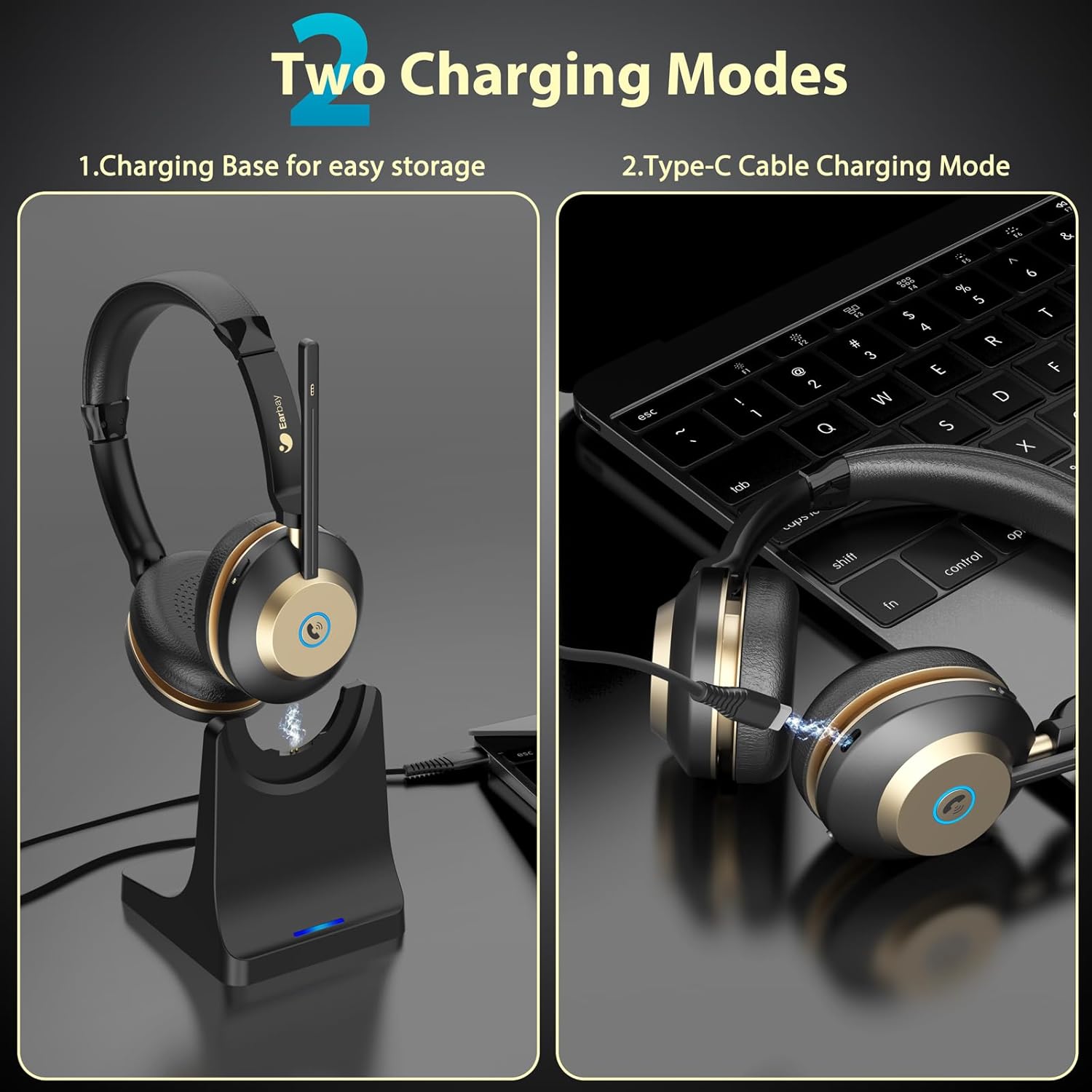
Image: Illustration of the two charging modes: placing the headset on the magnetic charging base for easy storage and charging, or connecting a Type-C cable directly to the headset for charging.

Image: A visual comparison showing the benefit of the charging dock for a tidy workspace, contrasting it with a cluttered desk of cables.
2. Connecting to Devices
The Earbay Wireless Headset supports dual connection, allowing seamless switching between a 2.4G USB dongle and Bluetooth.
2.1. 2.4G USB Dongle Connection (for PC/Laptop)
- Insert the 2.4G USB dongle into an available USB-A port on your computer.
- Power on your headset. It will automatically attempt to connect to the dongle.
- Once connected, the LED light on the dongle will turn solid blue.
- On your computer, navigate to Sound Settings and ensure "BT88-DONGLE" is selected as both the input (microphone) and output (speaker) device.

Image: A flowchart illustrating the steps for PC connection settings, showing both Bluetooth and 2.4G USB Dongle connection processes, including selecting the correct audio devices in system settings.
2.2. Bluetooth Connection (for Smartphone/Tablet/PC)
- Ensure the headset is powered off. Press and hold the Multi-function Button until the LED indicator flashes red and blue alternately, indicating pairing mode.
- On your device (smartphone, tablet, or PC), enable Bluetooth and search for new devices.
- Select "BT88" from the list of available devices.
- Once connected, the LED indicator on the headset will turn solid blue.
- On your device, ensure "BT88" is selected as the audio output and input device.

Image: A hand holding the Earbay headset while a smartphone screen displays "Connected" under Bluetooth settings, demonstrating successful Bluetooth pairing.
Note: The headset can maintain a stable Bluetooth connection within a 15m/50ft range. For PC connection, if the headset fails to connect, please update your Bluetooth driver or use a Bluetooth adapter on your computer.
Operating Instructions
Power On/Off
- Power On: Press and hold the Multi-function Button for 3 seconds.
- Power Off: Press and hold the Multi-function Button for 5 seconds.
Call Management
- Answer/End Call: Short press the Multi-function Button.
- Reject Call: Press and hold the Multi-function Button for 2 seconds.
Volume Control
- Volume Up: Short press the Volume Up button.
- Volume Down: Short press the Volume Down button.
Microphone Mute Function
The headset features a dedicated mute button for privacy during calls or meetings.
- Mute/Unmute: Short press the Mute button on the microphone arm or earcup.

Image: A close-up view of the dedicated one-click mute button located on the headset, designed for quick and easy microphone muting to protect privacy.
Dual Connection Usage
The headset can be connected to two devices simultaneously (e.g., a laptop via dongle and a smartphone via Bluetooth). It will intelligently switch audio sources based on active communication.

Image: The Earbay headset demonstrating its dual connection capability, simultaneously linked to a desktop computer via its 2.4G USB dongle and to a smartphone via Bluetooth 5.3, enabling seamless switching between devices.
Compatibility with Meeting Applications
The Earbay Wireless Headset is compatible with popular communication platforms, including Zoom, Microsoft Teams, Cisco Webex, Skype, WhatsApp, and VoIP services. Ensure the headset is selected as the audio input and output device within the application's settings.

Image: The Earbay headset positioned alongside various communication application interfaces, including Skype, WebEx, Zoom, FaceTime, and Microsoft Teams, illustrating its broad compatibility for online meetings and calls.
Maintenance
- Cleaning: Use a soft, dry cloth to clean the headset and charging station. Do not use abrasive cleaners or solvents.
- Storage: When not in use, store the headset in its protective case or on the charging station to prevent damage and keep it dust-free. Avoid extreme temperatures and humidity.
- Battery Care: To prolong battery life, avoid fully discharging the headset frequently. Charge it regularly, even if not in constant use.
Troubleshooting
| Problem | Possible Cause | Solution |
|---|---|---|
| Headset does not power on. | Low battery. | Charge the headset fully using the charging station or USB-C cable. |
| Cannot connect via Bluetooth. | Headset not in pairing mode; device Bluetooth off; too far from device. | Ensure headset is in pairing mode (flashing red/blue). Turn on device Bluetooth. Move headset closer to device (within 15m/50ft). |
| No audio or microphone not working on PC. | Incorrect audio device selected; outdated Bluetooth driver. | Check PC sound settings and select "BT88" or "BT88-DONGLE" as default input/output. Update Bluetooth drivers or use a Bluetooth adapter. |
| Microphone mute not working. | Mute button not pressed correctly; application mute active. | Ensure the headset's mute button is pressed. Check if the meeting application (Zoom, Teams, etc.) also has a mute function active. |
| Poor audio quality. | Out of range; interference; low battery. | Move closer to the connected device. Avoid strong electromagnetic interference. Charge the headset. |

Image: A visual representation of the AI noise-cancelling feature, showing a "Before" and "After" graph of sound waves, indicating significant reduction in background noise for clearer communication.
Specifications
| Model Name | KSG-BT882CD-G (BT882CD-G) |
| Connectivity Technology | Wireless (Bluetooth V5.3, 2.4G USB Dongle) |
| Bluetooth Range | Up to 30 meters (50 feet) |
| Battery Life (Talk Time) | Up to 50 hours |
| Standby Time | Over 300 hours |
| Charging Time | Approx. 2-3 hours |
| Audio Driver Size | 40 mm Dynamic Driver |
| Frequency Response | 20 Hz - 20,000 Hz |
| Sensitivity | 115 dB |
| Impedance | 32 Ohm |
| Noise Control | Environmental Noise Cancellation (AI Mic) |
| Item Weight | 6.4 ounces |
| Material | ABS, Aluminum, Faux Leather, Metal, Stainless Steel, TPE |
| UPC | 712636393141 |

Image: A detailed view of the 40mm audio driver within the headset's earcup, illustrating the component responsible for superior stereo sound reproduction.
Warranty and Support
Earbay headsets come with a 12-MONTH Warranty from the date of purchase, ensuring peace of mind and product reliability. This warranty covers manufacturing defects and issues arising from normal use.
For technical support, warranty claims, or any inquiries, please contact Earbay customer service. Refer to the contact information provided on the product packaging or the official Earbay website for 24/7 online service.
Please retain your proof of purchase for warranty validation.


